


Excel NPER Function Explained with Examples
Microsoft Excel includes a wide range of financial functions that simplify complex calculations for loans, investments, mortgages, and retirement planning. Among these functions, the NPER function is especially useful for determining how many payment periods are required to pay off a loan or achieve an investment goal.
Whether you’re calculating the duration of a mortgage, estimating how long it will take to reach a savings target, or comparing financing options, the NPER function can save time and improve accuracy. Instead of manually performing iterative calculations, Excel computes the number of payment periods instantly.
In this guide, you’ll learn what the NPER function is, its syntax, how it works, practical examples, common errors, and best practices for using it effectively.
What Is the NPER Function?
The NPER function returns the number of payment periods for a loan or investment based on:
- A constant interest rate
- Regular payments
- A present value
- An optional future value
- An optional payment timing
It is commonly used in financial analysis to estimate how long it will take to repay debt or reach a financial objective.
Why Use the NPER Function?
The NPER function offers several advantages:
- Calculates loan repayment duration
- Estimates investment timeframes
- Supports financial planning
- Simplifies mortgage calculations
- Compares financing options
- Reduces manual calculations
It is widely used by accountants, financial analysts, students, and business professionals.
NPER Function Syntax
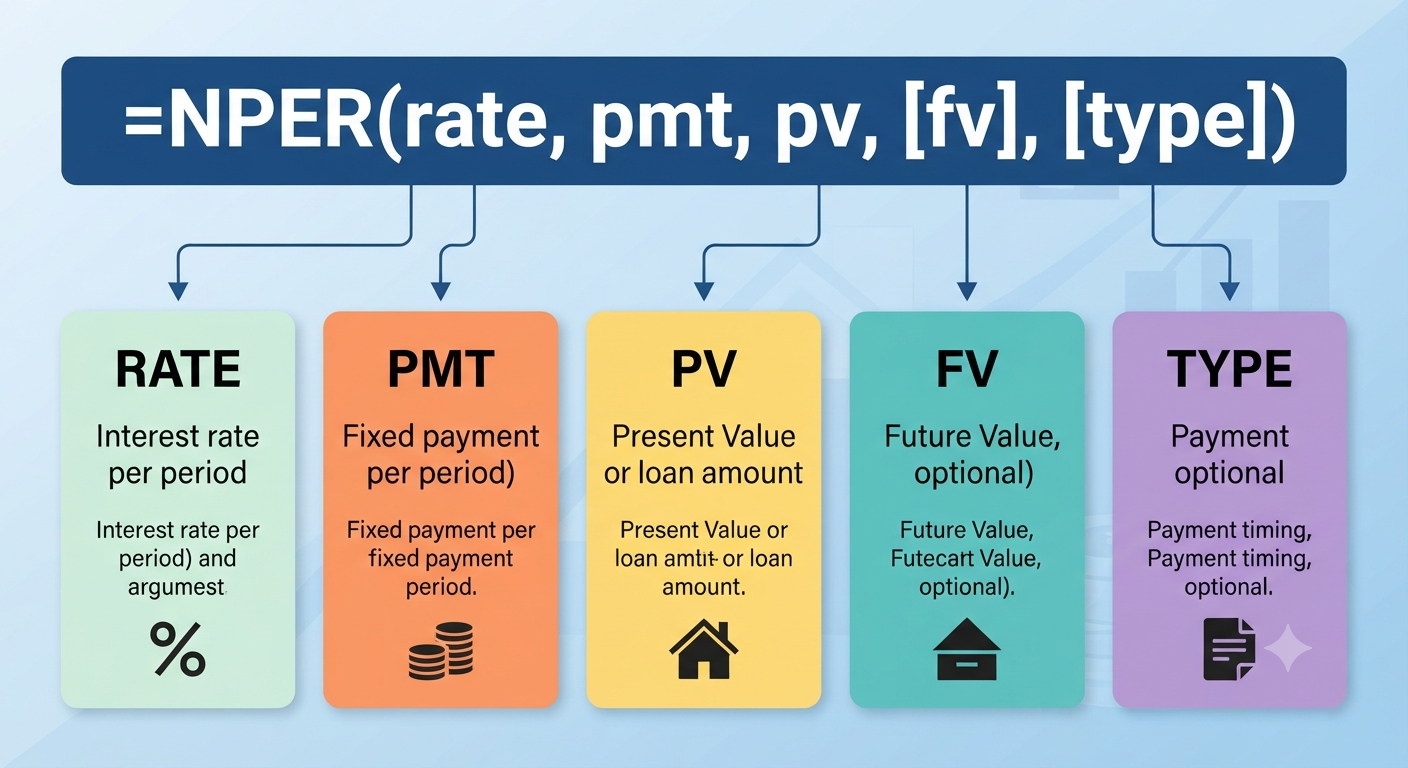
The syntax of the NPER function is:
=NPER(rate, pmt, pv, [fv], [type])Arguments
| Argument | Description |
|---|---|
| rate | Interest rate per payment period |
| pmt | Fixed payment made each period |
| pv | Present value (loan amount or initial investment) |
| fv | Optional future value (default is 0) |
| type | Optional payment timing (0 = end of period, 1 = beginning of period) |
The first three arguments are required, while fv and type are optional.
Understanding Each Argument
Rate
The rate should match the payment frequency.
For example:
- Annual interest rate: 6%
- Monthly payments
Monthly rate:
=6%/12Always convert annual rates to match the payment schedule.
PMT (Payment)
PMT represents the fixed payment made every period.
For loans, payments are usually entered as negative numbers because they represent cash leaving your account.
Example:
=-500Present Value (PV)
PV is the current value of the loan or investment.
Examples include:
- Mortgage amount
- Car loan balance
- Initial investment
For example:
25000represents a $25,000 loan.
Future Value (FV)
Future Value specifies the desired balance after the final payment.
Examples:
- Loan completely paid off
0- Investment goal
100000If omitted, Excel assumes zero.
Type
Payment timing:
| Value | Meaning |
|---|---|
| 0 | Payments occur at the end of each period |
| 1 | Payments occur at the beginning of each period |
Most loans use 0.
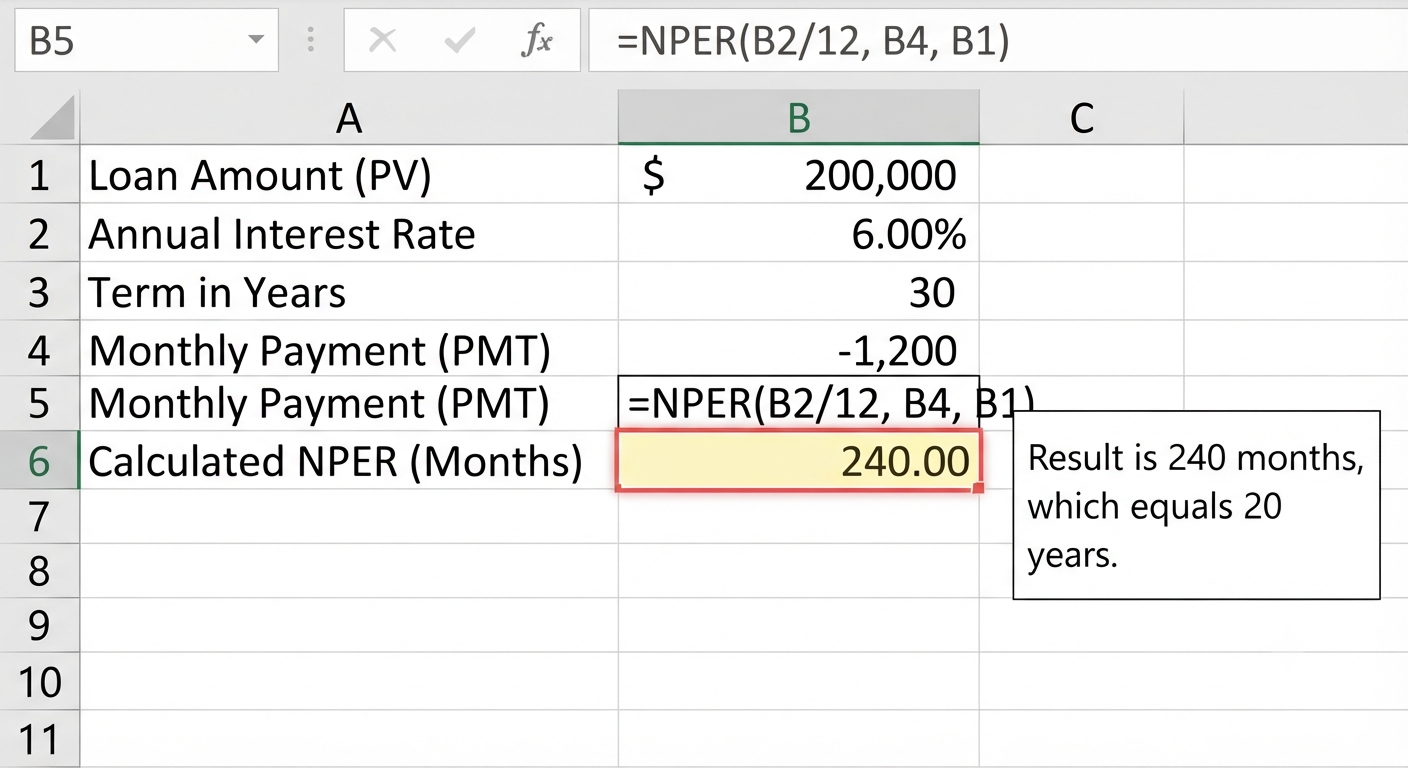
Example 1: Calculate Mortgage Length
Suppose:
- Loan amount: $200,000
- Annual interest rate: 6%
- Monthly payment: $1,500
Formula:
=NPER(6%/12,-1500,200000)Excel returns the number of monthly payments required to repay the loan.
To convert months into years:
=NPER(6%/12,-1500,200000)/12This provides a more intuitive repayment period.
Image: Excel worksheet showing an NPER calculation for a mortgage.
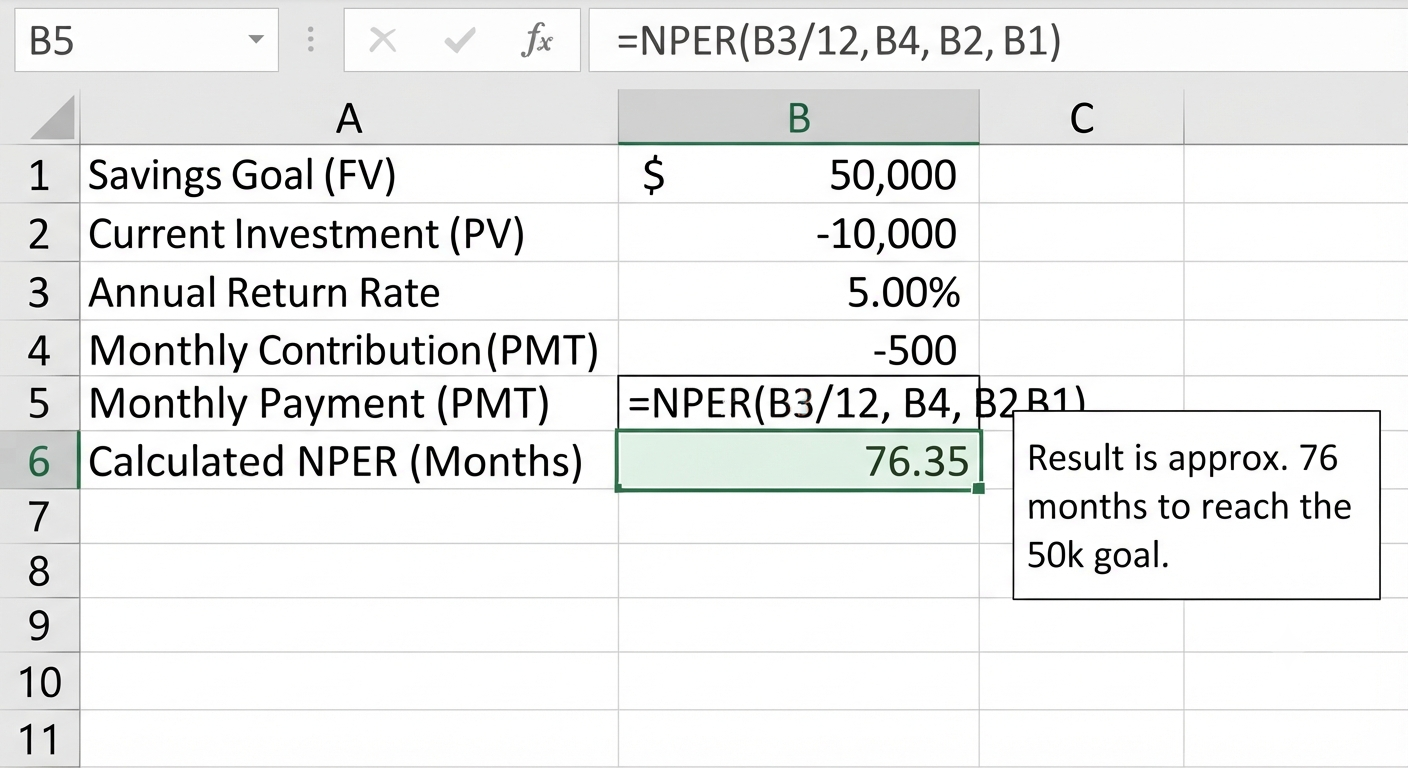
Example 2: Savings Goal
Suppose you want to accumulate $50,000.
You currently have:
- $10,000 invested
- Monthly contribution: $500
- Annual return: 5%
Formula:
=NPER(5%/12,-500,-10000,50000)Excel calculates how many monthly deposits are needed to reach the goal.
Example 3: Car Loan
Loan details:
- Loan amount: $30,000
- Interest rate: 4%
- Monthly payment: $600
Formula:
=NPER(4%/12,-600,30000)The result indicates the number of months needed to pay off the loan.
Understanding Positive and Negative Numbers
Excel financial functions follow cash flow conventions.
Generally:
Money received:
- Positive
Money paid:
- Negative
Example:
=NPER(5%/12,-400,15000)If payment signs are incorrect, Excel may return unexpected or invalid results.
Using Cell References
Rather than entering values directly, use worksheet cells.
Example:
| Cell | Value |
|---|---|
| B1 | Interest Rate |
| B2 | Monthly Payment |
| B3 | Loan Amount |
Formula:
=NPER(B1/12,-B2,B3)This makes formulas easier to update and maintain.
Combining NPER with Other Financial Functions
NPER works well with several Excel financial functions.
PMT
Calculates payment amount.
=PMT(rate,nper,pv)PV
Calculates present value.
=PV(rate,nper,pmt)FV
Calculates future value.
=FV(rate,nper,pmt,pv)RATE
Calculates the interest rate.
=RATE(nper,pmt,pv)Together, these functions support comprehensive financial modeling.
Common Errors
#NUM! Error
Possible causes:
- Unrealistic payment amount
- Impossible repayment scenario
- Incorrect interest rate
Verify all inputs carefully.
#VALUE! Error
Occurs when:
- Text replaces numbers
- Invalid cell references
- Incorrect formula syntax
Ensure all required arguments contain valid numeric values.
Best Practices
When using NPER:
- Match the interest rate to the payment period.
- Keep payment intervals consistent.
- Use negative values for outgoing payments.
- Store inputs in separate cells.
- Label financial assumptions clearly.
- Double-check your units (months vs. years).
These habits help produce accurate and easy-to-maintain worksheets.
Practical Applications
The NPER function is useful in many situations.
Mortgage Planning
Estimate how long it will take to repay a home loan.
Personal Finance
Calculate debt repayment schedules.
Investment Analysis
Estimate the time required to reach savings goals.
Business Finance
Project loan repayment periods.
Retirement Planning
Determine how long regular contributions will take to reach a target retirement fund.
Advantages of the NPER Function
Using NPER provides several benefits.
These include:
- Fast calculations
- High accuracy
- Built-in Excel support
- Easy integration with other formulas
- Flexible financial planning
- Reduced manual computation
It is suitable for both simple budgets and complex financial models.
Limitations of the NPER Function
Although useful, NPER has some limitations.
It assumes:
- Fixed interest rates
- Constant payment amounts
- Regular payment intervals
It does not account for:
- Variable interest rates
- Extra principal payments
- Irregular payment schedules
- Loan refinancing
For these scenarios, a detailed amortization schedule may provide more accurate results.
Frequently Asked Questions
What does the NPER function do in Excel?
The NPER function calculates the number of payment periods required to repay a loan or achieve an investment goal based on a fixed interest rate, regular payments, and a present value.
Why is my NPER result negative?
A negative result often indicates inconsistent cash flow signs. In Excel’s financial functions, payments are typically entered as negative values, while loan amounts or money received are entered as positive values.
Can NPER calculate investment periods?
Yes. By providing the current investment value, periodic contributions, expected rate of return, and target future value, the NPER function can estimate how many periods are needed to reach an investment goal.
Should I use monthly or annual interest rates?
The interest rate must match the payment period. For monthly payments, divide the annual interest rate by 12. For quarterly payments, divide it by 4, and so on.
Can the NPER function handle changing interest rates?
No. The NPER function assumes a constant interest rate throughout the calculation. If the rate changes over time, you’ll need a more advanced financial model or an amortization schedule that accounts for variable rates.
Conclusion
The Excel NPER function is a powerful financial tool that simplifies calculations involving loans, mortgages, savings plans, and investments. By determining the number of payment periods required to meet a financial objective, it helps individuals and businesses make more informed decisions about borrowing, saving, and long-term financial planning.