


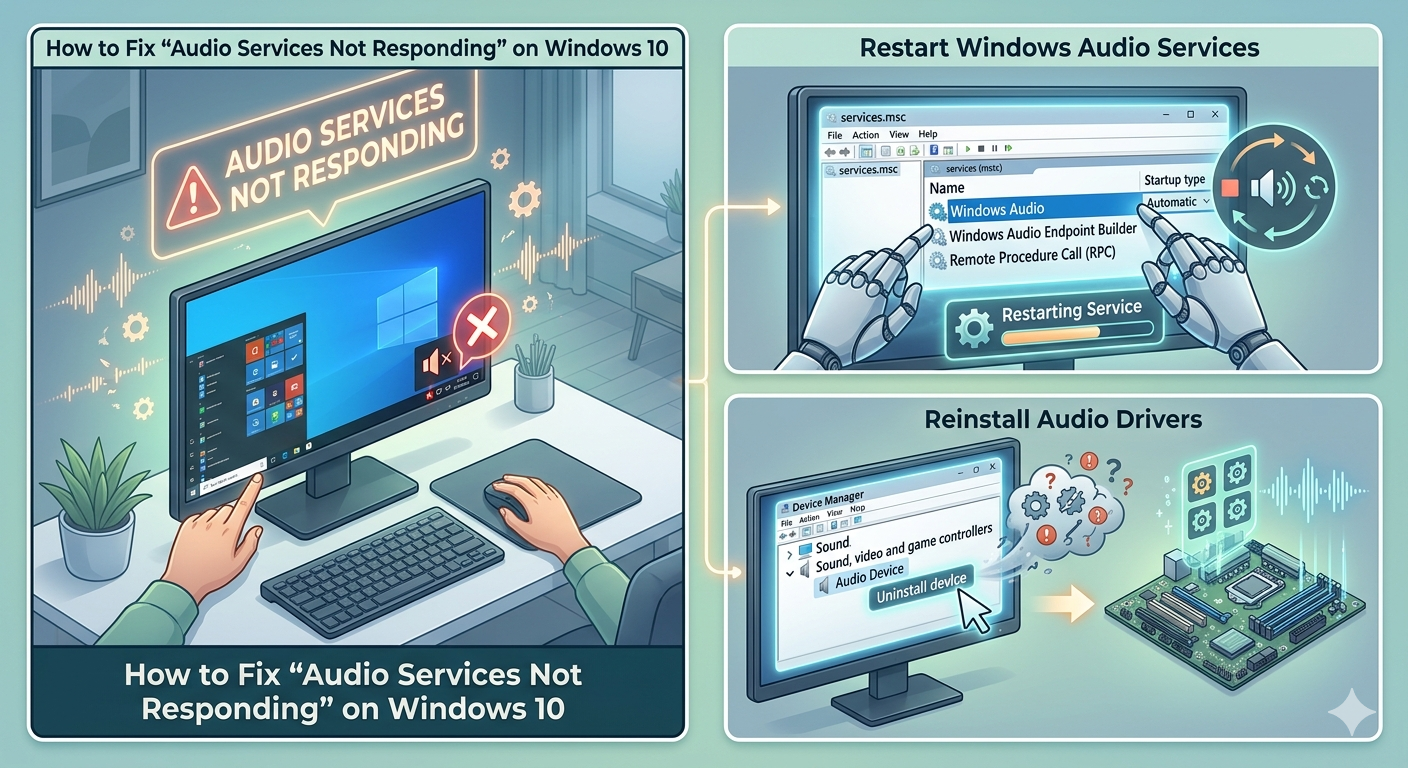
How to Fix “Audio Services Not Responding” on Windows 10
Audio problems can be incredibly frustrating, especially when Windows suddenly displays the message “Audio Services Not Responding.” When this error appears, your computer may lose all sound functionality, preventing speakers, headphones, or microphones from working properly.
This issue commonly affects Windows 10 users, but similar problems may also occur on Windows 11. The error is usually related to disabled audio services, corrupted drivers, Windows updates, system file corruption, or hardware configuration problems.
Fortunately, in most cases, the issue can be fixed without reinstalling Windows or replacing hardware.
In this guide, you’ll learn what causes the “Audio Services Not Responding” error and how to restore sound functionality step by step.
What Does “Audio Services Not Responding” Mean?
Windows relies on several background services to process and manage sound. If one or more of these services stop working correctly, Windows cannot play or record audio.
The error often appears after:
- Windows updates
- Driver changes
- System crashes
- Audio device modifications
- Incorrect service settings
Common Symptoms
You may notice:
- No sound from speakers or headphones
- Red X icon on the volume symbol
- Audio troubleshooter detecting service issues
- Microphone not working
- Audio devices disappearing
- Crackling or distorted sound before audio stops completely
Common Causes of the Error
Disabled Audio Services
Essential Windows audio services may have stopped running.
Corrupted Audio Drivers
Damaged or outdated sound drivers can break audio functionality.
Windows Update Problems
Certain updates may interfere with audio settings.
Incorrect Playback Device Configuration
Windows may select the wrong audio output device.
Corrupted System Files
Damaged system components can affect sound services.
Third-Party Software Conflicts
Audio enhancement tools or antivirus software may interfere with Windows audio.
How To Fix Audio Services Not Responding
Try the following solutions one by one.
Restart Your Computer
Temporary audio glitches may disappear after rebooting.
Why It Helps
Audio services and drivers reload during startup.
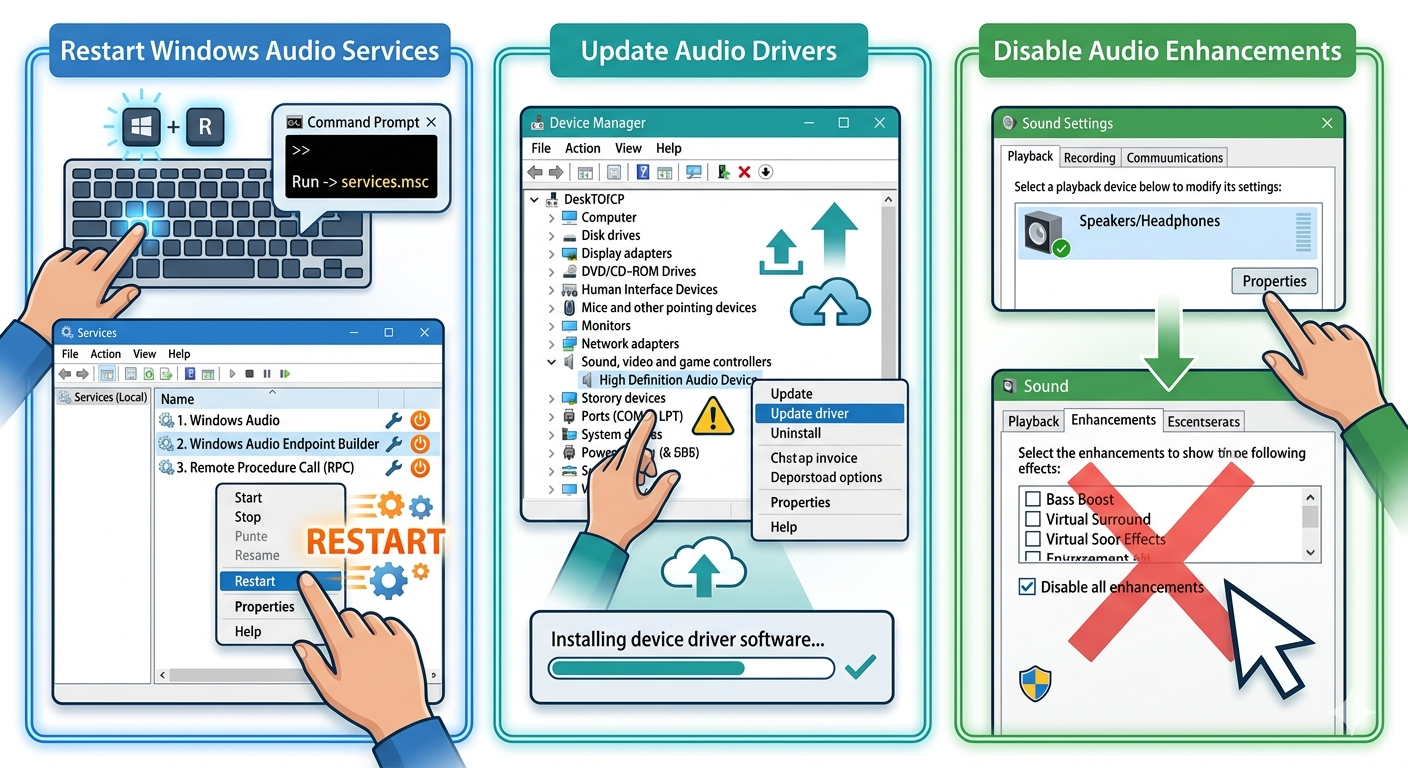
Restart Windows Audio Services
This is one of the most effective fixes.
Steps
- Press
Windows + R - Type:
services.msc- Press Enter
Find These Services
- Windows Audio
- Windows Audio Endpoint Builder
- Remote Procedure Call (RPC)
Restart Them
- Right-click each service
- Select Restart
Also ensure Startup Type is set to:
- Automatic
Run the Audio Troubleshooter
Windows includes a built-in audio repair tool.
Steps
- Open Settings
- Go to Update & Security → Troubleshoot
- Select Additional troubleshooters
- Run:
- Playing Audio troubleshooter
Follow the instructions provided.
Check Audio Output Device
Windows may be using the wrong playback device.
Steps
- Right-click the speaker icon
- Select Open Sound settings
- Under Output, choose the correct device
Update Audio Drivers
Outdated drivers commonly cause sound problems.
Steps
- Right-click Start
- Open Device Manager
- Expand:
- Sound, video and game controllers
- Right-click your audio device
- Select Update driver
Restart afterward.
Reinstall Audio Drivers
If updating does not help:
Steps
- Open Device Manager
- Right-click the audio device
- Select Uninstall device
- Restart the PC
Windows will reinstall the driver automatically.
Roll Back Audio Drivers
Sometimes newer drivers cause compatibility problems.
Steps
- Open Device Manager
- Open audio device properties
- Go to the Driver tab
- Select Roll Back Driver if available
Run System File Checker (SFC)
Corrupted Windows files may affect audio services.
Steps
Open Command Prompt as administrator and run:
sfc /scannowRestart after completion.
Use DISM Tool
Repair deeper Windows corruption.
Steps
Run:
DISM /Online /Cleanup-Image /RestoreHealthCheck Audio Service Permissions
Improper permissions may stop audio services.
Steps
- Open services.msc
- Open properties for:
- Windows Audio
- Go to the Log On tab
- Ensure:
- Local System account is selected
Disable Audio Enhancements
Sound enhancements sometimes cause conflicts.
Steps
- Open Sound Settings
- Select your playback device
- Open Properties
- Disable audio enhancements
Check HDMI Audio Settings
If using HDMI monitors or TVs, Windows may route sound incorrectly.
Try
- Switching output devices
- Disconnecting unused HDMI devices
Set Default Playback Device
Incorrect default devices can prevent audio playback.
Steps
- Open Control Panel → Sound
- Select your preferred device
- Click:
- Set Default
Check for Windows Updates
Microsoft often releases audio fixes.
Steps
- Open Settings → Windows Update
- Install updates
- Restart your PC
Disable Fast Startup
Fast Startup occasionally causes driver loading issues.
Steps
- Open Control Panel → Power Options
- Select:
- Choose what the power buttons do
- Disable:
- Turn on fast startup
Restart afterward.
Perform a Clean Boot
Background software may interfere with audio services.
Steps
- Press
Windows + R - Type:
msconfig- Hide Microsoft services
- Disable unnecessary services
- Disable startup applications
- Restart the PC
Check Hardware Connections
Loose or faulty hardware may also cause audio issues.
Inspect
- Speakers
- Headphones
- Audio jacks
- USB audio devices
Use System Restore
If the issue started recently:
Steps
- Search for:
- Create a restore point
- Open System Restore
- Select a restore point before the issue started
When Audio Services Keep Stopping
If services repeatedly fail:
Possible Causes
- Malware infection
- Driver corruption
- Damaged Windows installation
- Hardware failure
Further troubleshooting may be required.
Tips to Prevent Future Audio Problems
To maintain stable audio performance:
- Keep drivers updated
- Avoid installing suspicious audio software
- Maintain Windows updates
- Use reliable antivirus protection
- Restart your PC occasionally
When to Seek Professional Help
Consider professional assistance if:
- Audio hardware is physically damaged
- No devices appear in Device Manager
- Sound fails after motherboard changes
- System corruption continues after repairs
Final Thoughts
The “Audio Services Not Responding” error in Windows 10 is usually caused by disabled services, corrupted drivers, incorrect playback settings, or damaged system files. Although the problem can completely disable sound functionality, it is often fixable using built-in Windows troubleshooting tools and service repairs.
By restarting audio services, updating drivers, checking playback devices, repairing system files, and disabling problematic enhancements, most users can restore audio functionality successfully.
Related articles
Fix Outlook Password Prompt Issue in Office 365