


Resolve Duplicate Account Names at Login in Windows 10
Are you seeing your username listed twice on the Windows 10 login screen? This can be both confusing and annoying, especially if you’re the only user on the system. While it may seem like a minor glitch, having duplicate usernames at the sign-in screen can point to underlying issues with user profiles, system settings, or domain configurations.
In this guide, we’ll walk you through the most effective methods to fix the duplicate username issue on the Windows 10 sign-in screen. Whether it’s caused by a corrupted user profile, misconfigured group policy, or automatic login settings, the steps below will help you resolve the problem.
Why Does Windows 10 Show Duplicate Usernames?
There are several potential reasons for this issue:
-
Automatic logon is enabled, and the system displays both the real and cached account
-
A local and Microsoft account share the same username
-
User profile corruption
-
Domain-related duplication if the PC is joined to a corporate network
-
Windows updates or misconfigurations after restoring backups or creating new accounts
No matter the cause, here are several methods to fix it.
Method 1: Disable Automatic Login
If Windows is set to automatically log in using stored credentials, it may cause the username to appear twice — once for automatic login, and once on the login screen itself.
How to Disable Automatic Logon:
-
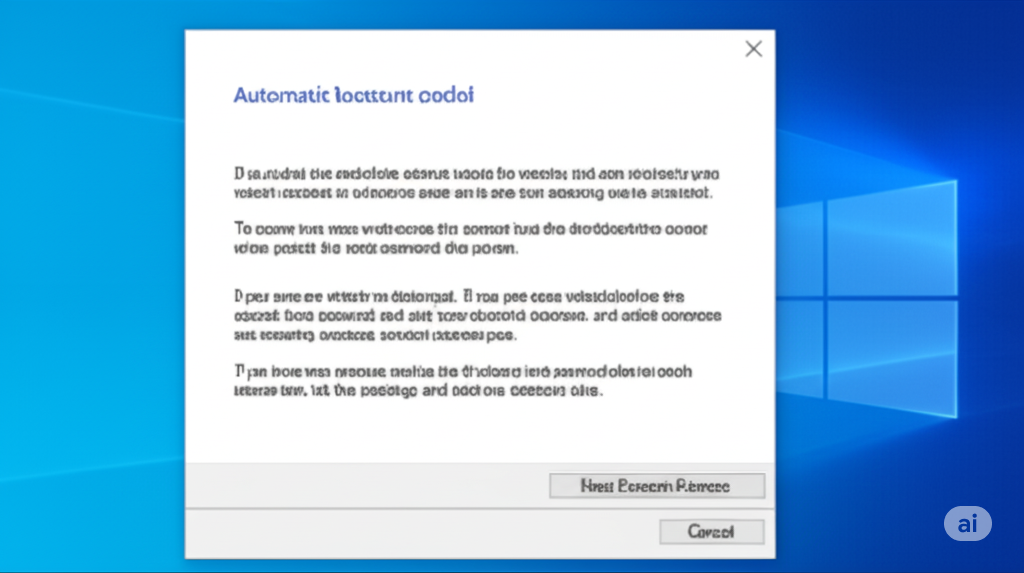
Press Windows + R, type
netplwiz, and press Enter. -
In the User Accounts window, check the box that says Users must enter a username and password to use this computer.
-
Click Apply, then OK.
-
Restart your computer and check the login screen again.
If automatic login was causing the issue, you should now see only one username.
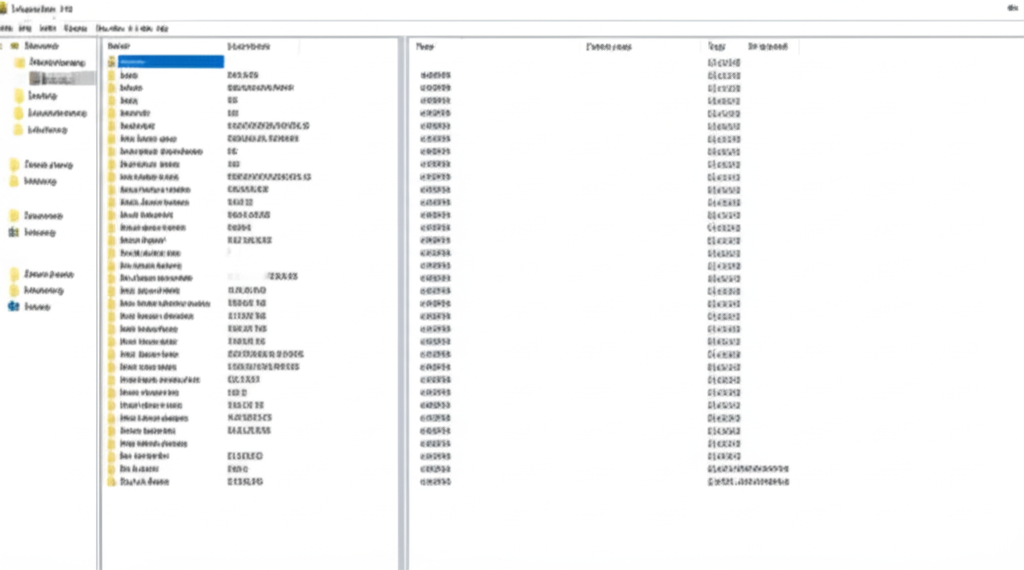
Method 2: Remove Duplicate User Entries via Registry
You can also manually clean up duplicate user entries using the Windows Registry.
Warning:
Editing the registry can be risky if done incorrectly. Be sure to back up your registry or create a system restore point before proceeding.
Steps:
-
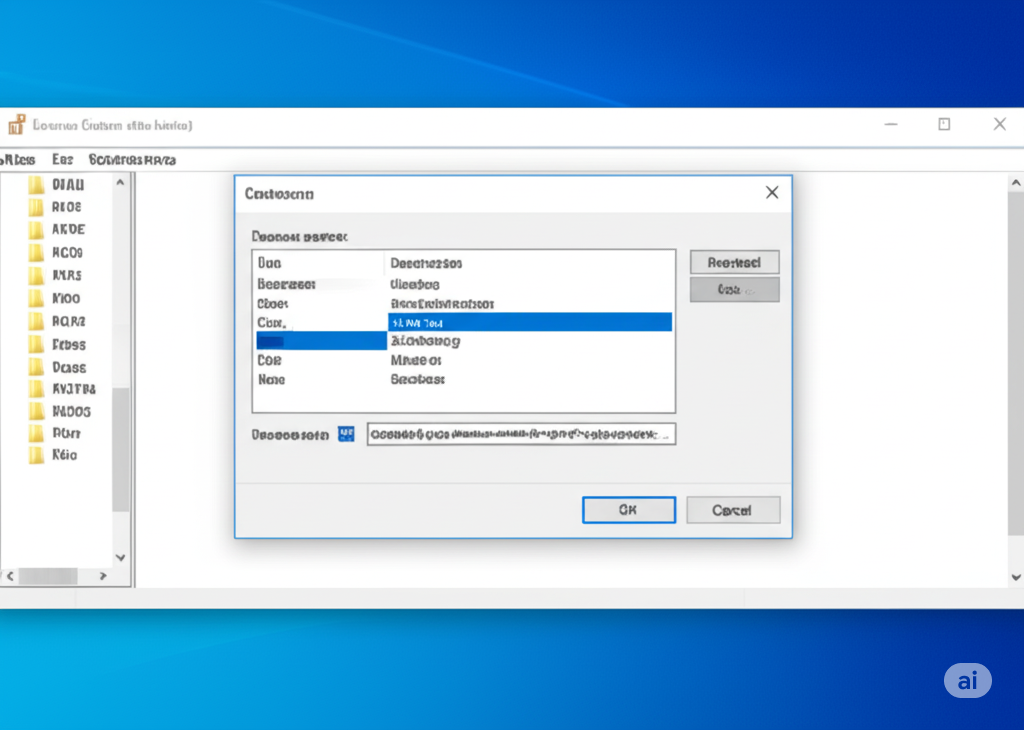
Press Windows + R, type
regedit, and hit Enter. -
Navigate to the following path:
-
Look for a key named UserSwitch or LastLoggedOnUser and delete or reset it.
-
Then go to:
-
Delete any values inside this key that reference user accounts.
Close the registry editor, reboot your system, and check if the duplicate usernames are gone.
Method 3: Use Group Policy Editor (Windows Pro and Enterprise)
For users running Windows 10 Pro, Enterprise, or Education, the Group Policy Editor offers another way to address duplicate usernames.
Steps:
-
Press Windows + R, type
gpedit.msc, and press Enter. -
Navigate to:
-
Find the setting named Enumerate local users on domain-joined computers and do not display last signed-in.
-
Double-click each setting, set it to Disabled, then click Apply and OK.
Restart your PC to see if the duplicates are removed.
Method 4: Check for Duplicate User Accounts in User Profiles
In some cases, there may actually be two similar user accounts with the same name but different types (e.g., one local and one Microsoft account).
To check:
-
Open Settings > Accounts > Family & other users.
-
Under Other users, see if there are any users with similar or identical names.
-
If one is not needed, select it and click Remove.
Alternatively, open Command Prompt as Administrator and type:
This command will list all user accounts. Look for duplicates. If you find any, you can remove unnecessary ones with:
Be very careful not to delete your primary account.
Method 5: Disable Duplicate Display via Local Security Policy
Another advanced method is adjusting the local security policy.
-
Press Windows + R, type
secpol.msc, and press Enter. -
Go to:
-
Find the setting Interactive logon: Do not display last user name.
-
Enable this policy.
-
Restart your computer.
This forces Windows not to display the last signed-in user, which can remove duplicates caused by cached logins.
Method 6: Create a New User Account (If Corruption is Suspected)
If your user profile is damaged or misconfigured, it may result in display issues at the login screen.
Steps:
-
Open Settings > Accounts > Family & other users.
-
Click Add someone else to this PC.
-
Choose I don’t have this person’s sign-in information, then Add a user without a Microsoft account.
-
Enter a username and password for the new account.
-
Restart and log in with the new account.
If the duplicate username problem doesn’t occur on the new account, it means your old profile is corrupted.
You can transfer your files to the new account and delete the old one once everything is moved.
Conclusion
The duplicate username on the Windows 10 login screen can be caused by various system settings, user account types, or corrupted profiles. While it may not always interfere with functionality, it can be confusing and may indicate deeper configuration problems.
Start with simple solutions like disabling automatic login, and progress to more advanced fixes such as registry edits or group policy changes if necessary. Always back up your data and settings before making major system modifications.
With the steps above, you should be able to identify and fix the issue so that only the correct username appears at login.