


Resolve the “Entry Point Not Found” System Error
If you’re trying to launch a program or install software and encounter the message “The procedure entry point could not be located in the dynamic link library,” you’re not alone. This error is common in Windows 10 and Windows 11, especially when running older software, games, or corrupted applications.
This guide explains what causes the error, how to identify the root issue, and how to repair it step by step using tested and reliable methods.

What Does This Error Mean?
When you see this error, it typically means that a program is trying to access a function in a DLL (Dynamic Link Library) file that either:
-
Does not exist,
-
Is outdated, or
-
Has been overwritten by another version.
In simpler terms, the software needs a specific feature from a library file (like msvcrt.dll, kernel32.dll, ucrtbase.dll, etc.), but that feature isn’t available or correctly wp-signup.phped.
Common variations of the message include:
-
“The procedure entry point could not be located in the dynamic link library…”
-
“Entry Point Not Found”
-
“The procedure entry point XXXX could not be located in DLL YYYY.dll”
Common Causes of the Error
-
Incompatible software version
-
Corrupted or missing DLL files
-
Faulty or incomplete installation
-
Outdated Windows system files
-
Conflicting versions of the same DLL file in multiple locations

How to Repair “The Procedure Entry Point Could Not Be Located” Error
Let’s walk through the solutions, from basic to advanced.
Restart Your Computer
Start with a simple restart. This clears temporary memory, reloads the system environment, and sometimes fixes miswp-signup.phped files or temporary glitches.
If the error persists after restarting, move on to the next methods.

Identify the Problematic DLL and Application
Take note of the exact error message. It usually mentions the DLL file and the function that cannot be found. Example:
“The procedure entry point
ucrtbase._o__stdio_common_vfprintfcould not be located in the dynamic link libraryapi-ms-win-crt-runtime-l1-1-0.dll.”
Knowing the DLL file helps you decide whether it’s part of:
-
A Microsoft Redistributable Package
-
A third-party application
-
System components like DirectX or Windows Runtime
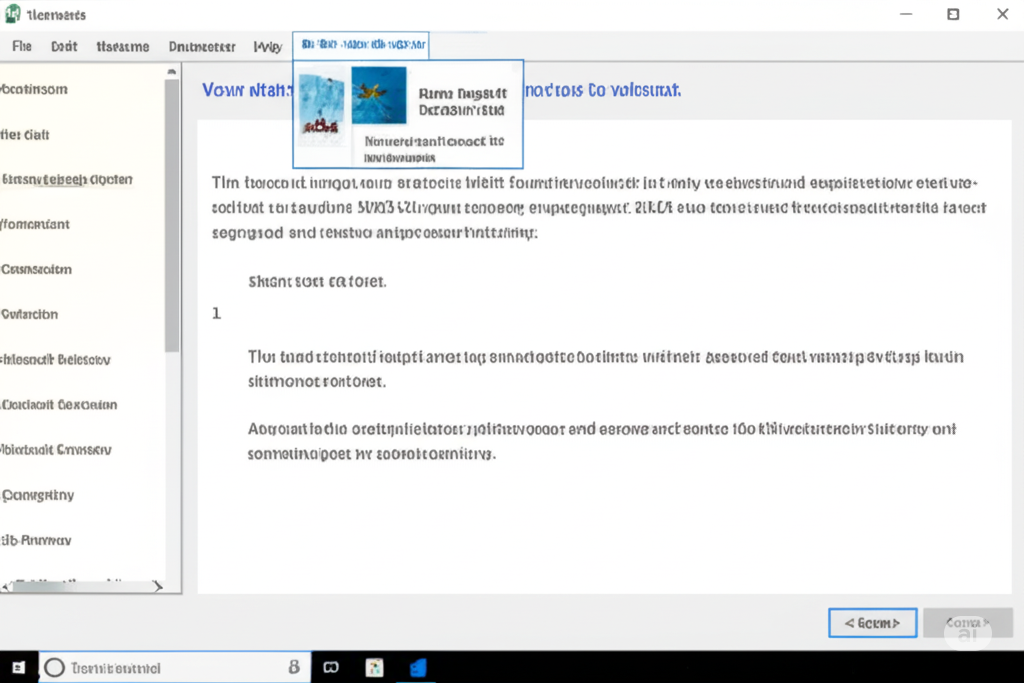
Reinstall the Affected Application
If the error happens while launching a specific program, try reinstalling it:
-
Press Windows + I to open Settings.
-
Go to Apps > Installed Apps (or Apps & Features).
-
Find the affected program, click it, and choose Uninstall.
-
After uninstallation, restart your PC.
-
Reinstall the latest version from the official website.
Sometimes an outdated version includes incorrect DLL references that are fixed in newer versions.
Install or Repair Microsoft Visual C++ Redistributables
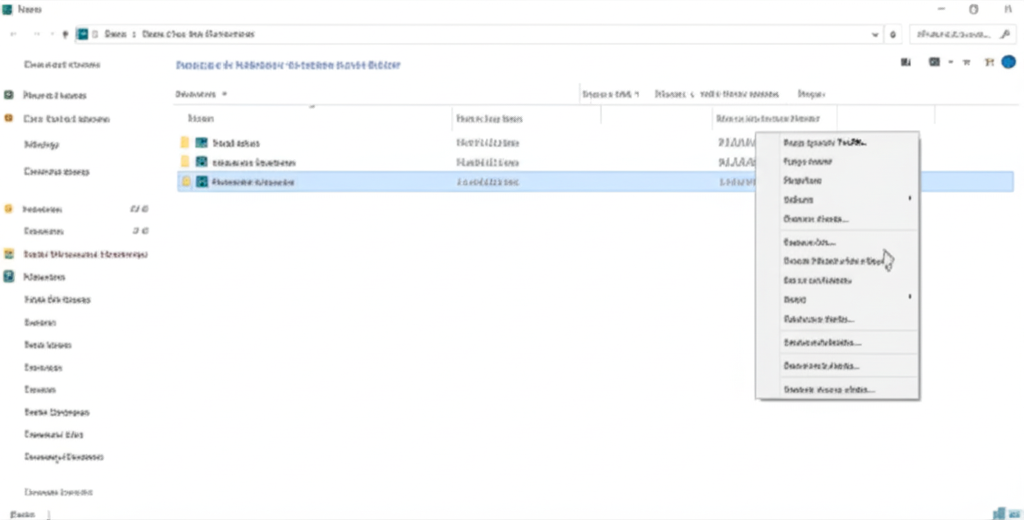
Many DLL errors are related to missing or mismatched runtime components from the Microsoft Visual C++ Redistributable Packages.
Steps:
-
Visit the official Microsoft Visual C++ Redistributable download page.
-
Download and install both x86 and x64 versions for the years 2010 to 2022.
-
If already installed, click on the installed version and choose Repair.
-
Restart your PC.
This replaces missing or corrupted runtime files like MSVCP140.dll, VCRUNTIME140.dll, and others.
Perform System File Checker (SFC) and DISM Scan
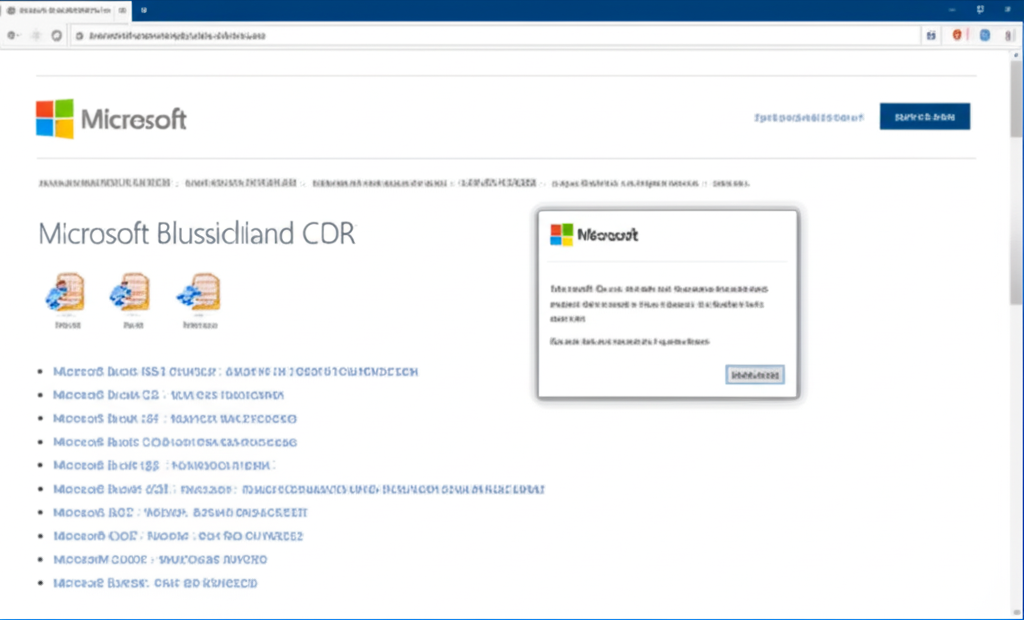
Corrupt system files could be behind the missing or invalid DLL reference.
Run SFC and DISM:
-
Open Command Prompt as Administrator.
-
Type the following and press Enter:
Wait until the scan is complete. If issues are found and fixed, restart your PC.
-
Then run:
This command fetches and repairs system images from Microsoft’s servers.
Replace the DLL Manually (Advanced)
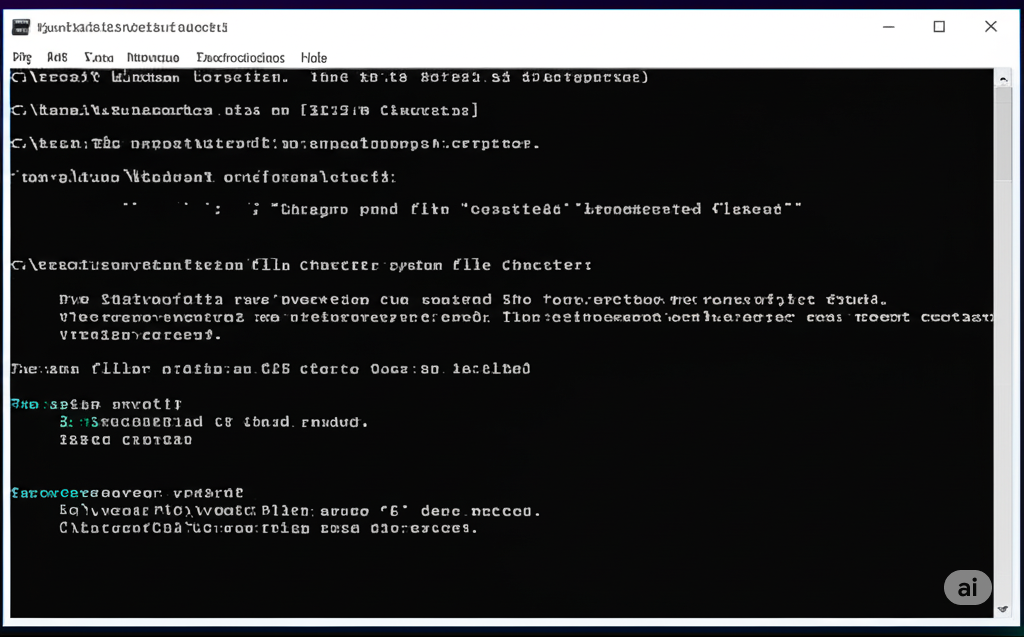
If the error references a specific missing DLL, you can download a clean version from a trusted source (like DLL-files.com), or extract it from another PC.
Warning:
Be very careful when manually replacing system files. Only do this if you understand the risks.
-
Locate the faulty DLL mentioned in the error (e.g.,
ucrtbase.dll). -
Rename the old one (for backup).
-
Copy the new file to:
-
C:\Windows\System32for 64-bit systems -
C:\Windows\SysWOW64for 32-bit programs on 64-bit systems
-
Reboot the computer.
Alternatively, you can use the System File Checker again after replacing a DLL to verify it’s not corrupted.
Check for Windows Updates
Microsoft regularly releases patches that fix DLL-related bugs or runtime errors.
To update Windows:
-
Press Windows + I to open Settings.
-
Go to Update & Security.
-
Click Check for updates.
-
Install all pending updates and restart.
Updating can also fix incompatibility issues caused by an outdated Windows version.

Uninstall Conflicting Programs
Sometimes two programs install conflicting versions of the same DLL. For example, an older video editor may install a deprecated version of avcodec.dll that interferes with modern applications.
Try uninstalling any recently installed applications that may have altered shared components.
Perform a Clean Boot
Booting into a clean environment helps determine if a background program is causing the issue.
Steps:
-
Press Windows + R, type
msconfig, and hit Enter. -
Under the Services tab, check Hide all Microsoft services and then click Disable all.
-
Go to the Startup tab and click Open Task Manager.
-
Disable all startup items.
-
Restart your PC.
If the issue disappears, a third-party service is likely interfering. Enable services one at a time to find the culprit.

When All Else Fails: System Restore or In-Place Repair
If none of the above steps work and the error persists system-wide, consider:
-
System Restore: Roll back to a point before the error began.
-
In-place Windows repair: Use the Media Creation Tool to perform a repair install that keeps your files but replaces all system files.
Conclusion
The “Procedure Entry Point Could Not Be Located” error is frustrating but fixable. Whether it’s a corrupted DLL, outdated runtime, or conflicting application, the steps above will help you identify and repair the root cause.
Start with the easiest solutions—like reinstalling the app or updating system components—and work toward more advanced fixes only if necessary. If you follow the steps carefully, you’ll likely restore normal operation without needing to reinstall Windows entirely.