


Fixing Error Code 43: Windows Has Disabled This Device
When you plug in a USB device, graphics card, or another hardware component and Windows displays the error “Windows has stopped this device because it has reported problems. (Code 43),” it can be confusing and frustrating. This message usually appears in Device Manager, indicating that something is wrong with the hardware or its driver.
Code 43 is a generic device driver error that can be triggered by a wide variety of issues, ranging from faulty drivers to physical hardware failure. In most cases, it can be resolved without replacing the hardware.
This article will walk you through all possible causes and provide step-by-step solutions to fix the Code 43 error in Windows 10 and Windows 11.
What Does Code 43 Mean?
Code 43 is a message from the Device Manager stating that one of the drivers controlling the hardware has informed Windows that the device has failed. It is typically associated with:
-
USB devices (flash drives, external HDDs, Bluetooth dongles)
-
Graphics cards (especially NVIDIA or AMD GPUs)
-
External monitors
-
Network adapters
It doesn’t always mean the device is broken—sometimes it’s just a temporary glitch or driver issue.
Common Causes of Code 43
Understanding what can trigger this error helps in troubleshooting:
-
Corrupt or outdated device drivers
-
Windows update conflicts
-
USB port or hub malfunction
-
Power management settings disabling the device
-
Hardware issues or firmware problems
-
Incorrect device initialization
Now, let’s move on to proven methods to fix this issue.
Fix 1: Restart Your Computer
Before trying complex solutions, simply reboot your PC. Sometimes Code 43 is a temporary issue caused by a driver initialization problem, and a restart can fix it.
If the error persists after rebooting, move on to the next steps.
Fix 2: Unplug and Replug the Device
If you’re dealing with an external USB device or accessory:
-
Unplug the device
-
Wait a few seconds
-
Plug it into a different USB port
-
Avoid using USB hubs—connect directly to the PC
If it starts working, the issue may have been with the port or a loose connection.
Fix 3: Reinstall or Update the Device Driver
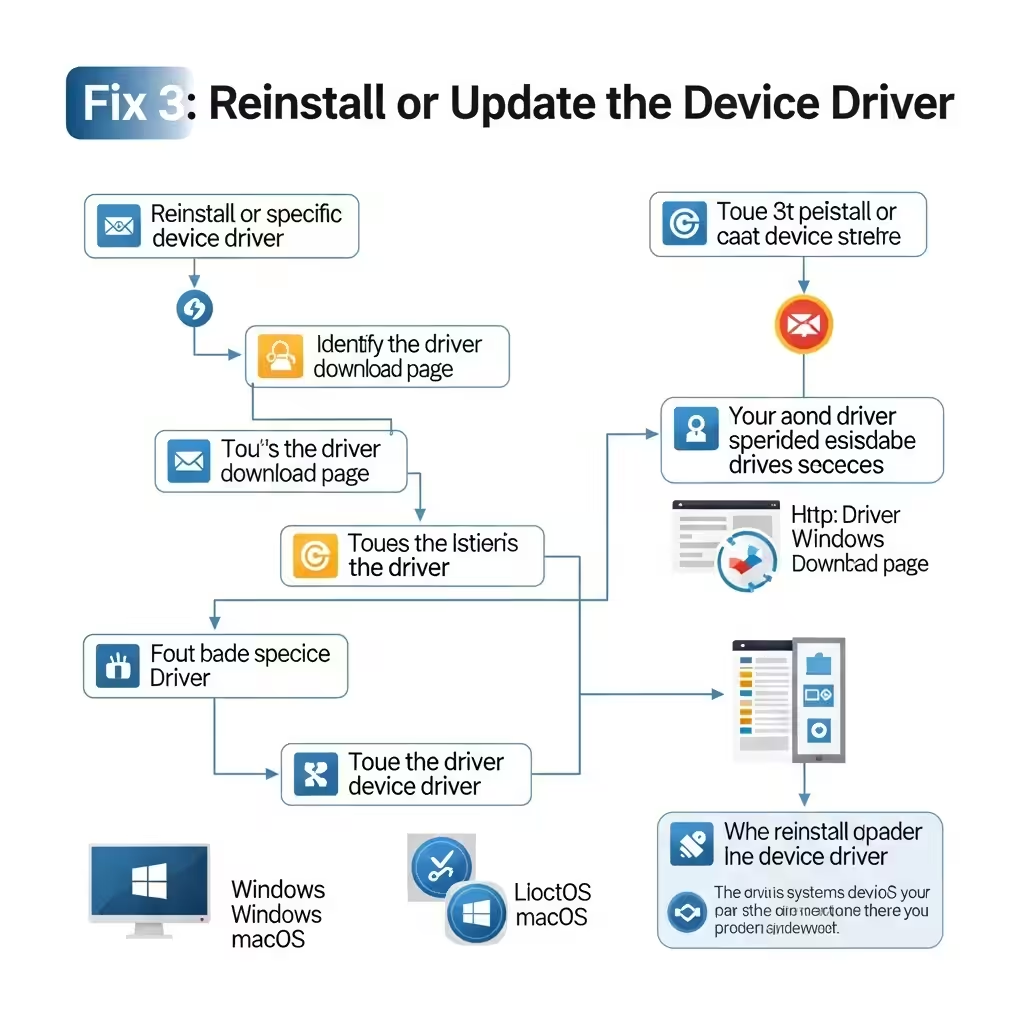
Most Code 43 issues are driver-related. Reinstalling or updating the driver often resolves the problem.
Steps:
-
Press Windows + X and choose Device Manager
-
Find the device with the yellow triangle icon
-
Right-click it and choose Uninstall device
-
Check Delete the driver software for this device if prompted
-
Restart your PC
-
Windows will automatically try to reinstall the driver
Alternatively, you can download the latest drivers from the manufacturer’s website and install them manually.
Fix 4: Use Windows Update
Sometimes updating Windows itself can bring in driver patches and system improvements that resolve Code 43 errors.
How to update:
-
Go to Settings > Update & Security > Windows Update
-
Click Check for updates
-
Install any available updates
-
Restart your system after updates finish
New updates often include bug fixes for device compatibility issues.
Fix 5: Disable and Re-enable the Device
If a driver reset is needed, disabling and re-enabling the device in Device Manager might help.
Steps:
-
Open Device Manager
-
Right-click the device with the Code 43 error
-
Select Disable device
-
Wait a few seconds, then Enable device
This refreshes the driver without uninstalling it.
Fix 6: Run the Hardware and Devices Troubleshooter
Although hidden in recent Windows builds, this troubleshooter can still be accessed via Command Prompt.
How to run it:
-
Press Windows + R, type
cmd, and press Enter -
In Command Prompt, type:
-
Press Enter
-
The Hardware and Devices Troubleshooter will launch
-
Follow the on-screen instructions
Let the tool detect and fix any hardware-related issues.
Fix 7: Check Power Management Settings
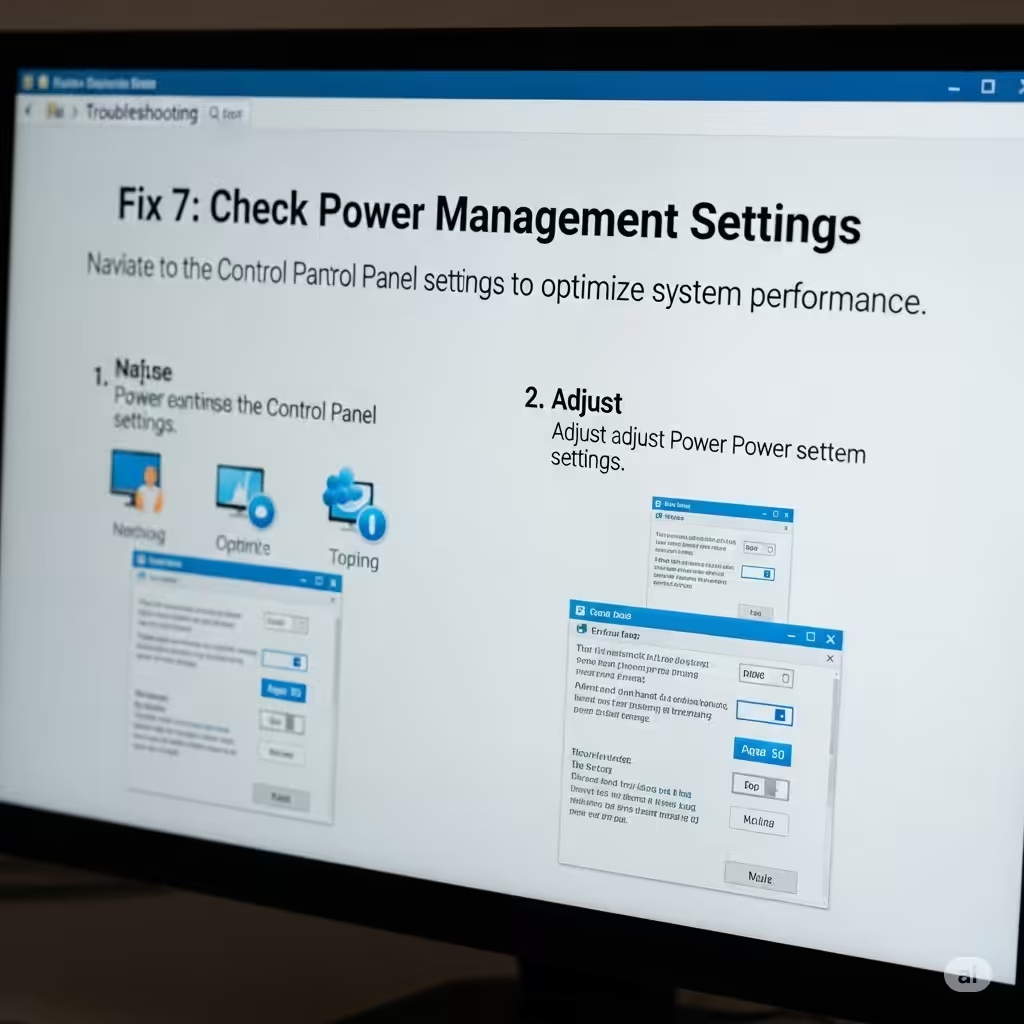
Windows may be turning off your device to save power, which can result in Code 43.
Steps:
-
Open Device Manager
-
Right-click the affected device and choose Properties
-
Go to the Power Management tab
-
Uncheck Allow the computer to turn off this device to save power
-
Click OK and reboot your PC
This is especially helpful for USB devices and network adapters.
Fix 8: Update BIOS or UEFI Firmware
For internal hardware like GPUs or network cards, outdated firmware can cause compatibility issues.
Steps:
-
Identify your motherboard or laptop model
-
Visit the manufacturer’s support page
-
Download the latest BIOS/UEFI version
-
Follow the manufacturer’s instructions carefully to update
Warning: Incorrectly flashing the BIOS can damage your system. Only do this if you’re confident or guided by official documentation.
Fix 9: Try the Device on Another Computer
To determine whether the issue is with your PC or the hardware itself:
-
Disconnect the device and connect it to another computer
-
If it works, the problem is with your original system
-
If it also fails on another PC, the device may be faulty
This test helps you decide whether to replace the device.
Fix 10: Replace the Device (if Hardware Is Faulty)
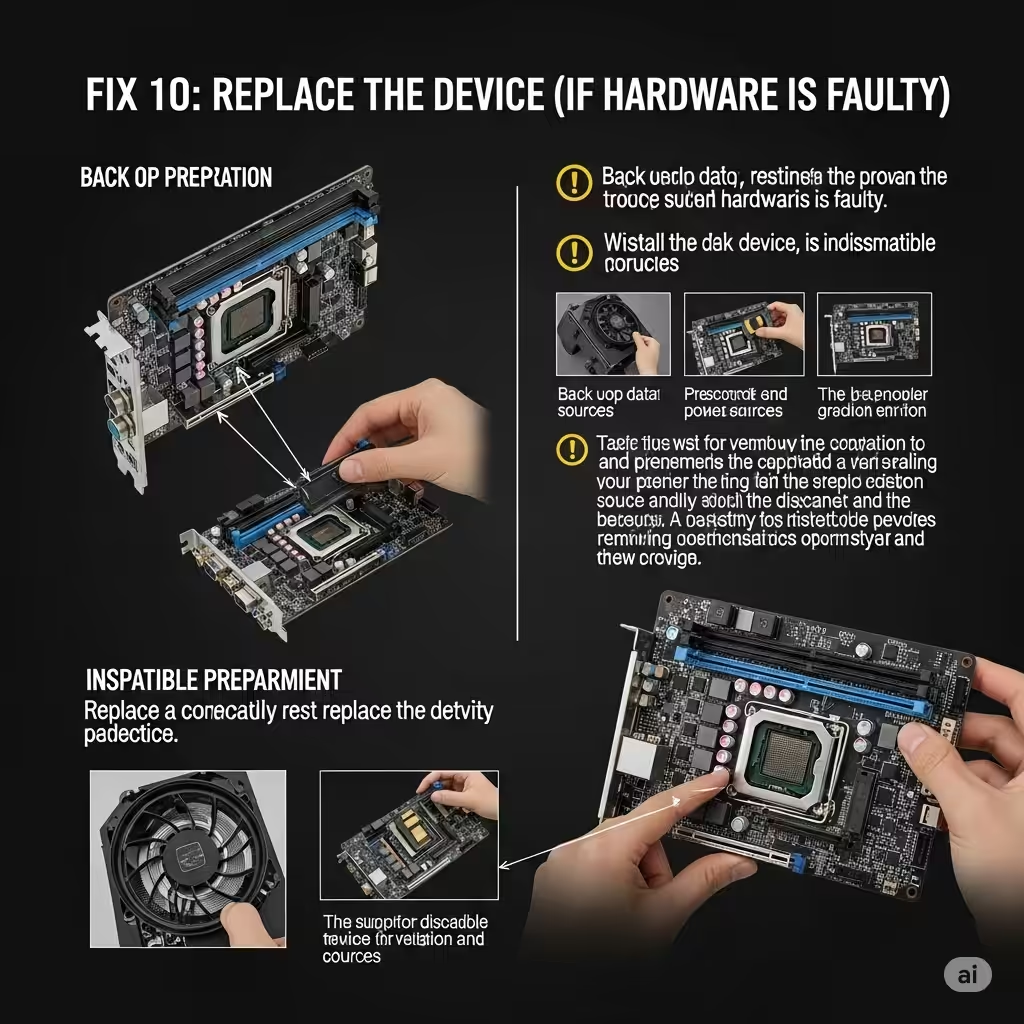
If you’ve tried everything and the error persists, the device may be physically damaged beyond repair.
-
For USB devices: Try different cables or connectors
-
For GPUs: Ensure it’s properly seated in the PCIe slot
-
If under warranty, contact the manufacturer for a replacement
Conclusion
The Code 43 error can be unsettling, but it’s usually a software or connection problem rather than a sign of complete hardware failure. Following the methods outlined in this guide can help you restore functionality and prevent the issue from recurring.
Summary of Solutions:
-
Reboot your computer
-
Unplug and replug the device
-
Reinstall or update device drivers
-
Use Windows Update and troubleshooters
-
Modify power settings or BIOS if needed
-
Test the device on another system
With patience and systematic troubleshooting, you can fix “Windows has stopped this device (Code 43)” and get your device running again without needing to replace anything.