


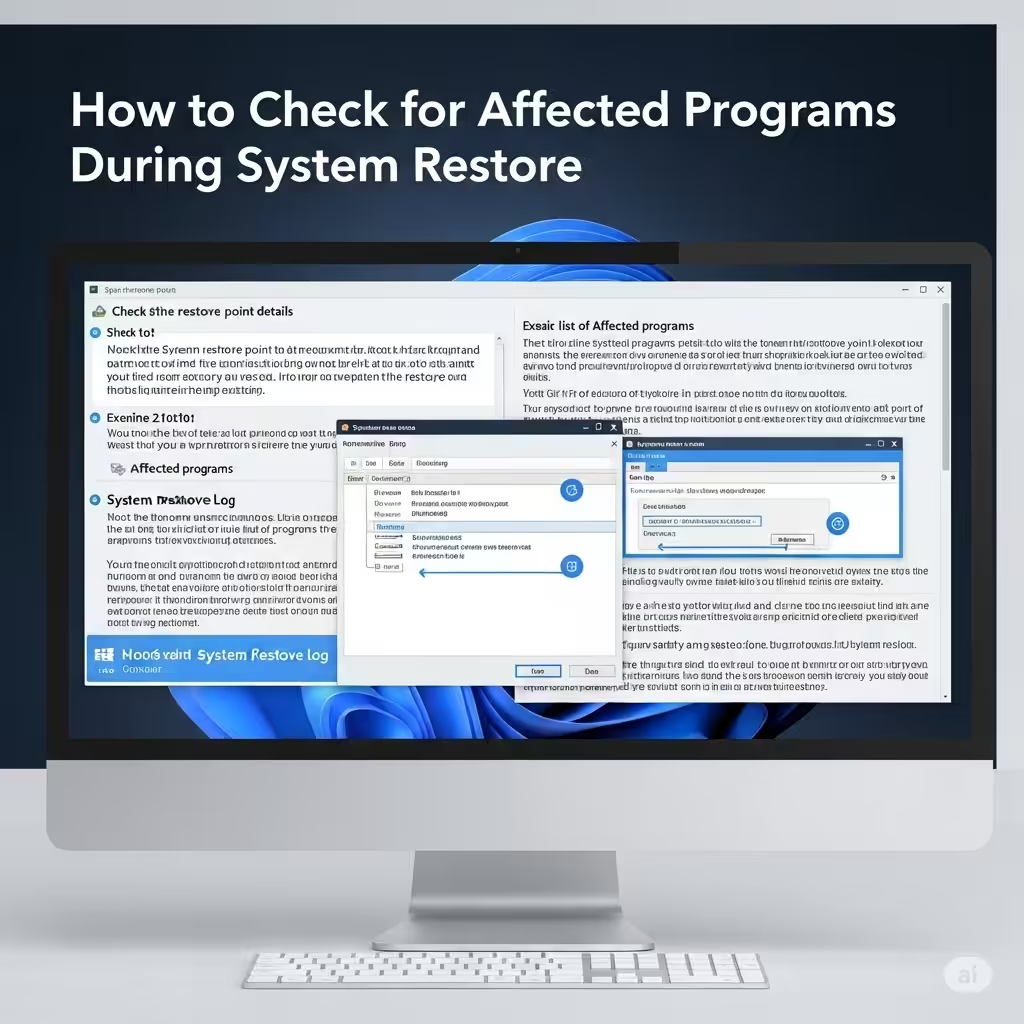
Check Which Programs and Drivers Will Be Affected by a System Restore
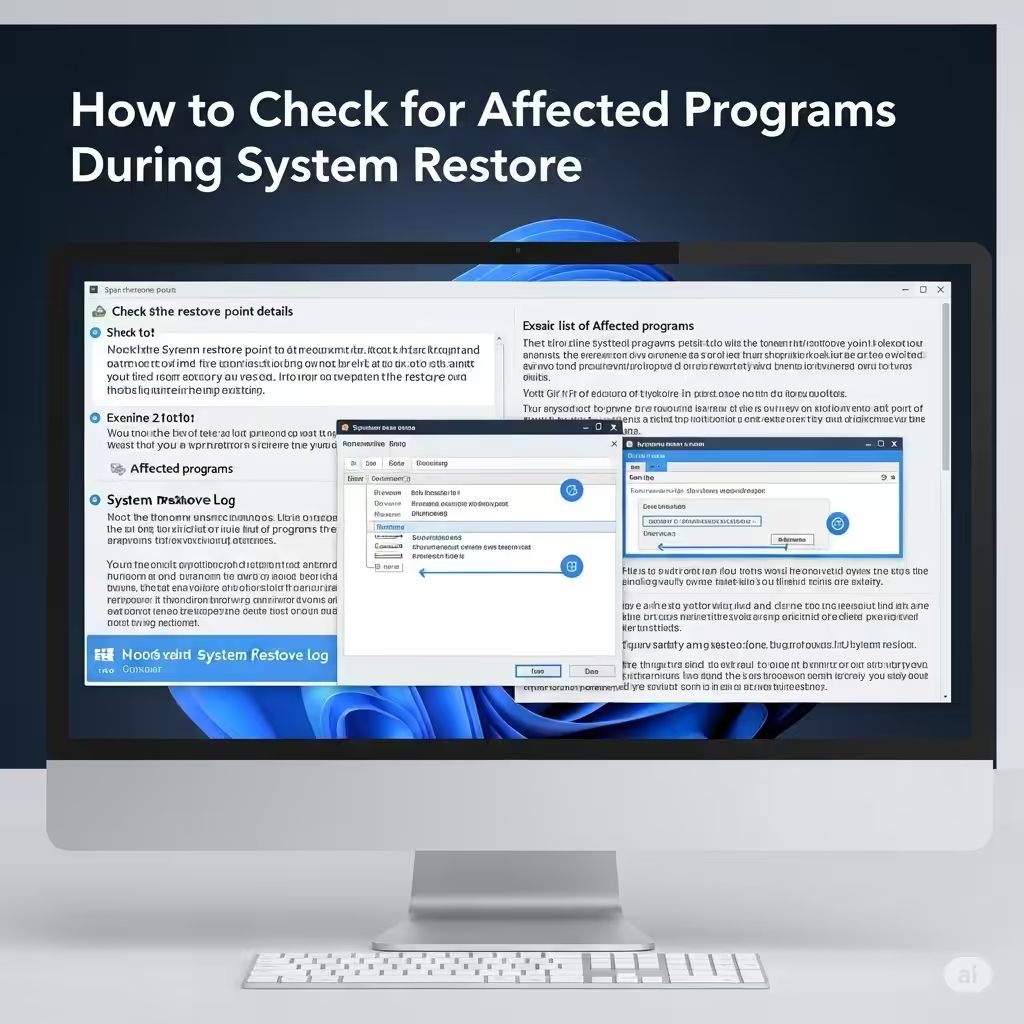
System Restore is a powerful feature in Windows that allows you to roll back your system to a previous state without affecting your personal files. It’s commonly used to fix problems caused by faulty software installations, system updates, or driver changes that have led to system instability.
While System Restore is generally safe, many users overlook one important step: reviewing the affected programs and drivers. Before you complete the restore process, Windows gives you an option to scan for affected programs—a critical preview that shows what software or drivers might be removed or restored.
In this guide, you’ll learn how to use this feature effectively and understand what it really means for your system.
What Does “Scan for Affected Programs” Mean?
When you use System Restore, your computer will revert to a saved restore point. This point captures the state of your system at a specific time, including installed programs, drivers, and registry settings.
The “Scan for affected programs” button shows two things:
-
Programs and drivers that will be deleted if they were installed after the restore point.
-
Programs and drivers that will be restored to their earlier versions if they were updated or changed after the restore point.
This information helps you decide whether restoring to that point is safe or if you need to take extra precautions (like reinstalling certain programs or updating drivers again afterward).
Why Is It Important to Check Affected Items?
Many people assume that System Restore won’t impact their apps—but that’s not entirely true. Here’s why you should always check:
-
You may lose access to recently installed software
-
Critical driver changes may be reversed
-
Uninstallations that fixed problems might be undone
-
Knowing what will change helps you plan better
By checking the list, you reduce the chance of being caught off guard after your system reboots.
How to Check for Affected Programs During System Restore
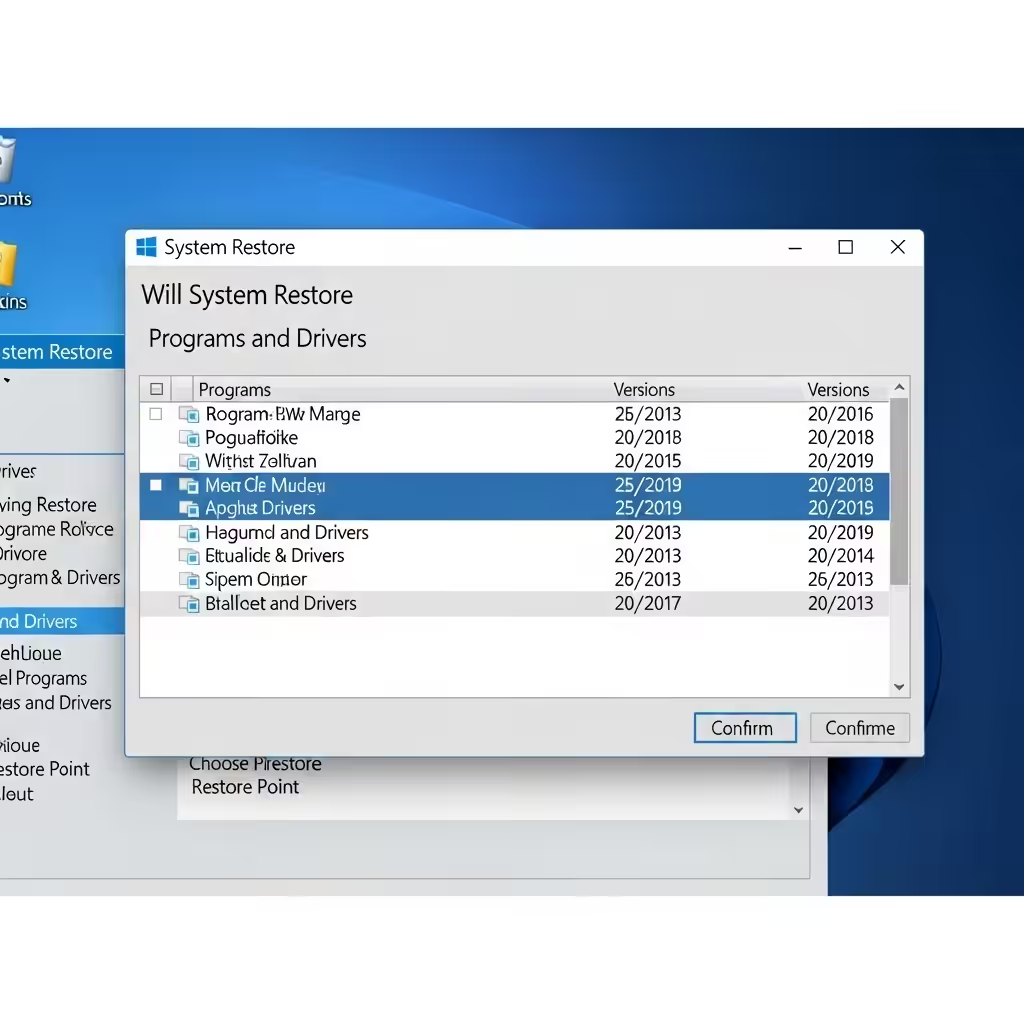
Here’s how you can check affected programs and drivers when performing a system restore on Windows 10 or Windows 11.
Step 1: Open System Restore
-
Press Windows + R, type
rstrui, and press Enter -
The System Restore wizard will open
Step 2: Choose a Restore Point
-
Click Next
-
Select one of the available restore points
-
Click Scan for affected programs
Step 3: Review the List
Windows will analyze the restore point and present two categories:
-
Programs and drivers that will be deleted
-
Programs and drivers that might be restored
If the list contains any important software or drivers, make a note of them so you can reinstall or update them later if needed.
Step 4: Decide Whether to Proceed
After reviewing the list:
-
Click Next to proceed with the restore
-
Or choose another restore point if the current one will remove something critical
What Happens to Files, Documents, and Media?
One of the benefits of System Restore is that your personal files remain untouched. This includes:
-
Documents
-
Photos
-
Videos
-
Music
-
Desktop files
System Restore doesn’t delete or recover these types of files. It focuses solely on system settings, drivers, installed programs, and registry entries.
However, it’s always a good idea to back up important files before making any major system change.
What If the Scan Button Is Grayed Out?
Sometimes, the Scan for affected programs button may be unavailable. This usually happens when:
-
The restore point was created manually without enough metadata
-
System protection settings are not configured correctly
-
System files related to System Restore are corrupted
In such cases, you can either try another restore point or troubleshoot System Restore by:
-
Running the System File Checker (
sfc /scannow) -
Checking if System Protection is turned on via System Properties
-
Creating a new restore point and testing the feature again
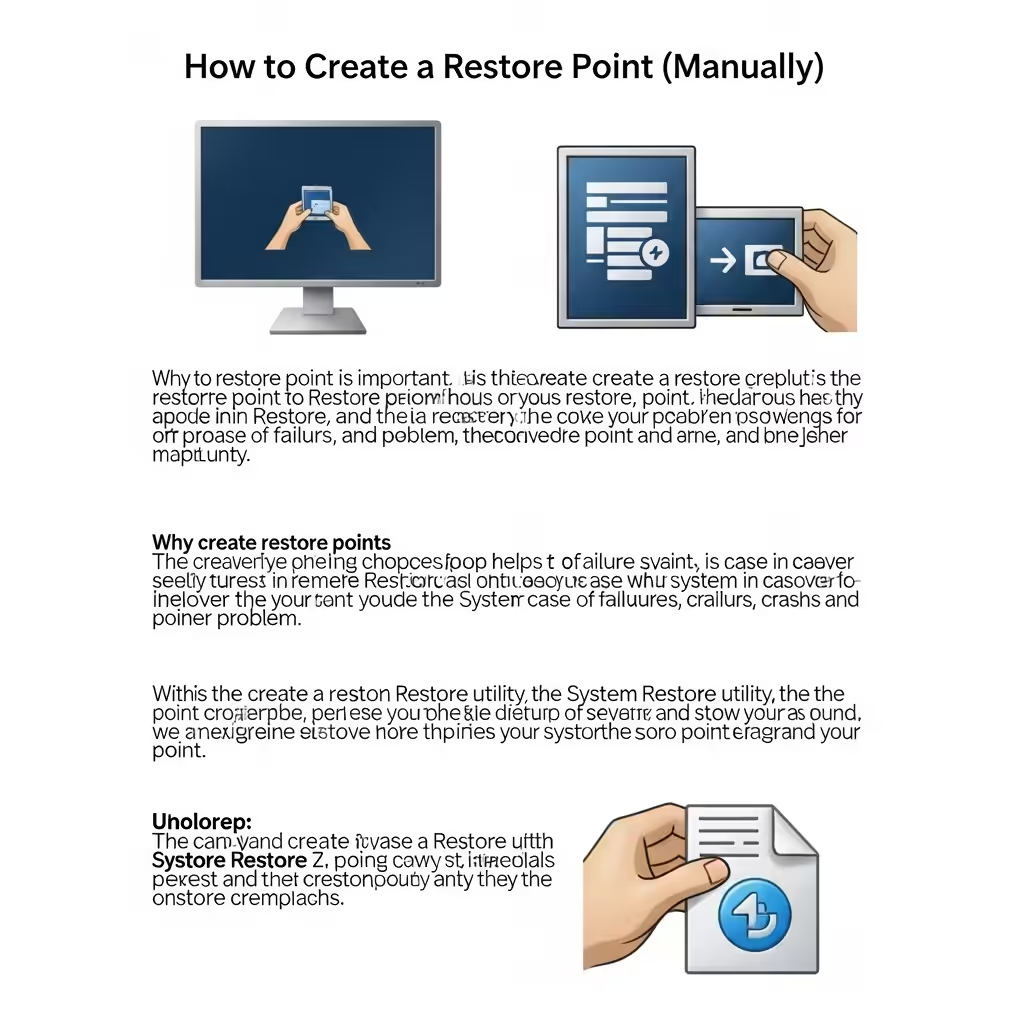
How to Create a Restore Point (Manually)
To have better control over what gets rolled back in the future, it’s helpful to create your own restore points before making changes to your system.
Steps:
-
Type Create a restore point in the Start menu
-
Select your system drive (usually C:) and click Create
-
Enter a name (e.g., “Before GPU driver update”)
-
Click Create, and wait for confirmation
Now, if something goes wrong, you can revert using a known good restore point.
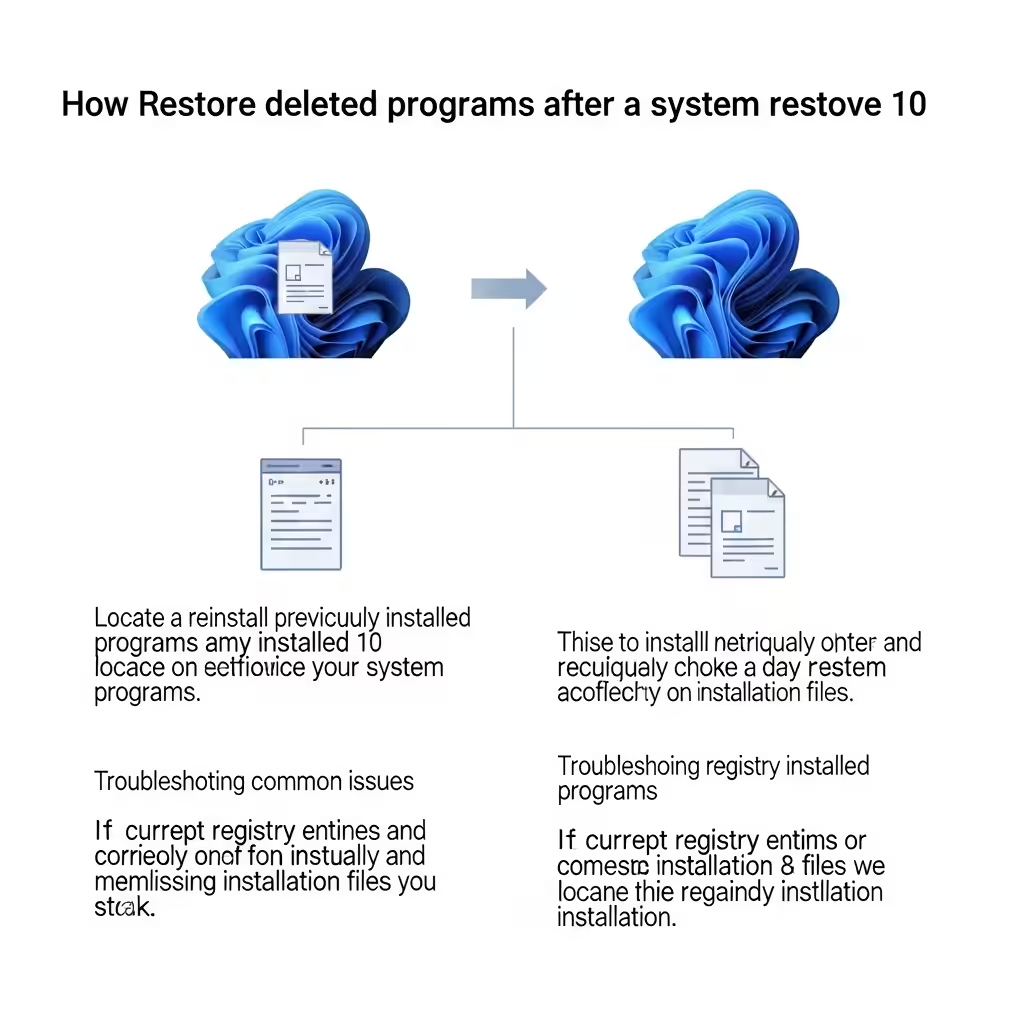
Restoring Deleted Programs After System Restore
If a program is removed during the restore process, you’ll need to reinstall it manually.
-
Use installation files you downloaded earlier
-
Visit the software’s official website
-
For Microsoft Store apps, re-download them from the Store
For drivers:
-
Use Device Manager to identify missing drivers
-
Download drivers from your PC or hardware manufacturer’s website
In some cases, Windows Update may also reinstall missing drivers automatically.
Limitations of System Restore
While System Restore is useful, it’s not a full backup solution. It doesn’t:
-
Restore deleted personal files
-
Fix malware infections (if malware existed before the restore point)
-
Guarantee resolution for hardware-related issues
If you need comprehensive protection, consider creating a system image backup or using third-party backup software.
Conclusion
System Restore is a handy tool for resolving software and driver issues without affecting your personal files. However, many users overlook the Scan for affected programs feature, which is crucial for understanding what changes will occur during the restore.
By using this tool wisely and checking affected programs and drivers in advance, you’ll be better prepared, avoid unpleasant surprises, and maintain control over your system’s configuration.
Key Takeaways:
-
Always check what programs and drivers will be affected before restoring
-
Reinstall any removed apps manually after the restore
-
Create manual restore points before making system changes
-
Don’t rely on System Restore as a full backup solution
Understanding and utilizing these features will make your Windows troubleshooting experience more informed and less risky.