


How to Reduce Excessive RAM Usage in Windows 10 and 11
High RAM usage is a common issue on Windows 10 and Windows 11 computers. Many users open Task Manager and notice that memory usage is unusually high even when only a few applications are running. This can lead to slow performance, freezing, lagging, stuttering, and delayed response times.
RAM, or Random Access Memory, is one of the most important hardware components in a computer. It temporarily stores data that the operating system and applications need for quick access. When RAM usage becomes too high, the system struggles to manage tasks efficiently.
Fortunately, high memory usage is often caused by software problems, background applications, memory leaks, or system settings — and many of these issues can be fixed without replacing hardware.
In this guide, you’ll learn why RAM usage becomes high and the best methods to reduce it on Windows 10 and Windows 11.
What Causes High RAM Usage?
High RAM usage occurs when too much memory is consumed by applications, services, or background processes. Sometimes this is normal, especially when running demanding software, but constant high memory usage may indicate a problem.
Windows itself also uses RAM for caching and performance optimization, so some usage is expected even when the system is idle.
Common Symptoms of High RAM Usage
You may notice:
- Slow computer performance
- Programs freezing or crashing
- Browser tabs becoming unresponsive
- Lag during gaming
- High memory percentage in Task Manager
- Delayed startup times
- Frequent system stuttering

Common Causes of High RAM Usage
Too Many Background Applications
Startup apps and background services may consume large amounts of memory.
Browser Memory Consumption
Modern browsers with many tabs or extensions can use several gigabytes of RAM.
Memory Leaks
Some programs fail to release memory properly after use.
Malware or Viruses
Malicious software often consumes system resources.
Insufficient Physical RAM
Older systems with limited memory may struggle with modern applications.
Windows Services and Features
Certain Windows features may use excessive memory under specific conditions.
How To Fix High RAM Usage on Windows
Try the following methods to reduce memory consumption.
Restart Your Computer
A simple reboot clears temporary memory usage and resets processes.
Why It Helps
Applications and services release RAM during restart.
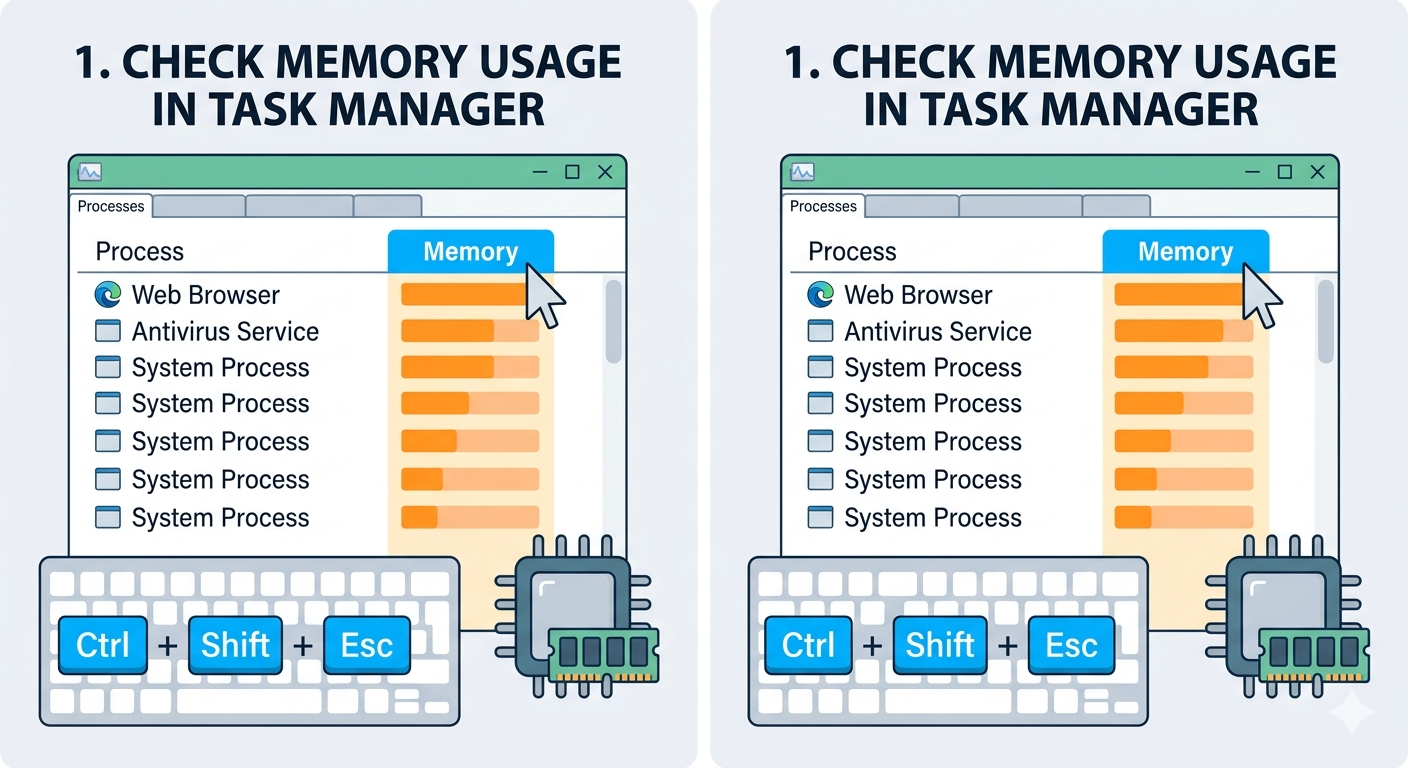
Check Memory Usage in Task Manager
Identify which applications are consuming the most memory.
Steps
- Press
Ctrl + Shift + Esc - Open Task Manager
- Click the Memory column
- Check the highest memory-consuming applications
Close unnecessary programs if possible.
Disable Startup Programs
Too many startup applications can overload RAM.
Steps
- Open Task Manager
- Go to the Startup tab
- Disable unnecessary startup apps
Restart the computer afterward.
Close Unused Browser Tabs and Extensions
Web browsers are often the largest source of memory usage.
Try
- Closing unused tabs
- Removing unnecessary extensions
- Using fewer browser windows
Chrome, Edge, and Firefox can all consume large amounts of RAM.
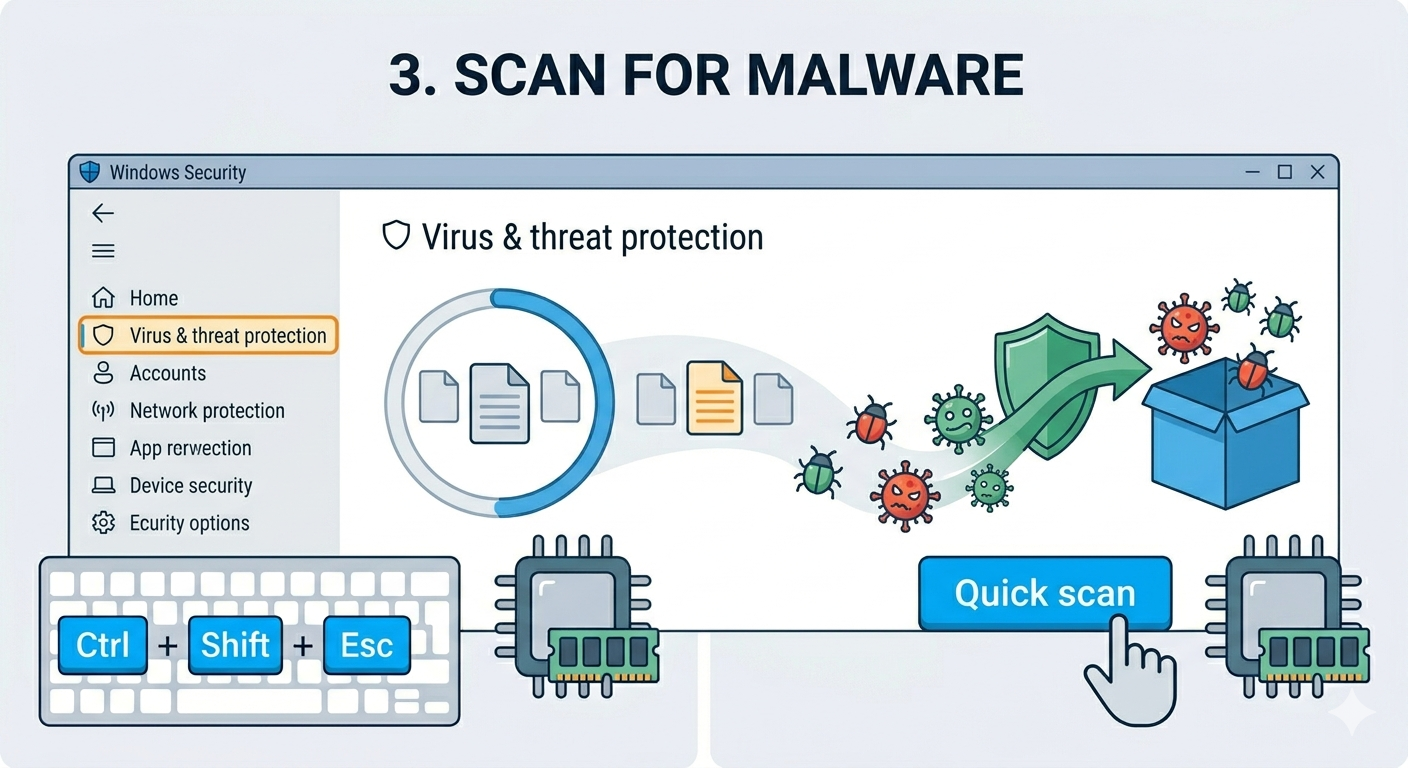
Scan for Malware
Malware may secretly consume memory resources.
Steps
- Open Windows Security
- Go to Virus & threat protection
- Run a Full Scan
Remove detected threats immediately.
Update Windows
Windows updates often include performance and memory fixes.
Steps
- Open Settings → Windows Update
- Click Check for updates
- Install updates
- Restart your PC
Update Drivers
Outdated drivers may cause memory leaks or instability.
Important Drivers
- Graphics drivers
- Chipset drivers
- Network drivers
Use Device Manager or manufacturer websites for updates.
Run Windows Memory Diagnostic
Check whether your RAM hardware is functioning correctly.
Steps
- Press
Windows + R - Type:
mdsched.exe- Restart and scan for memory problems
Disable Background Apps
Background applications may constantly consume RAM.
Steps
- Open Settings → Apps
- Disable unnecessary background permissions
Run System File Checker (SFC)
Corrupted Windows files may affect memory management.
Steps
Open Command Prompt as administrator and run:
sfc /scannowRestart after completion.
Use DISM Tool
Repair deeper Windows system corruption.
Steps
Run:
DISM /Online /Cleanup-Image /RestoreHealthAdjust Virtual Memory Settings
Windows uses virtual memory when RAM becomes full.
Steps
- Search for:
Advanced system settings- Open Performance Settings
- Go to Advanced → Virtual Memory
- Enable:
- Automatically manage paging file size
Disable Visual Effects
Animations and effects may consume extra memory.
Steps
- Open Advanced system settings
- Under Performance, click Settings
- Choose:
- Adjust for best performance
Perform a Clean Boot
Background services may be causing excessive RAM usage.
Steps
- Press
Windows + R - Type:
msconfig- Hide Microsoft services
- Disable non-essential services
- Disable startup apps
- Restart the PC
Check for Memory Leaks
Some applications continuously consume more memory over time.
Common Examples
- Browsers
- Game launchers
- Editing software
- Poorly optimized apps
If RAM usage keeps rising, restart the problematic application.
Upgrade Your RAM
If your system frequently runs out of memory, a hardware upgrade may help.
Recommended RAM Amounts
- 8 GB for basic use
- 16 GB for gaming and multitasking
- 32 GB or more for professional workloads
Reduce Browser Resource Usage
Modern browsers can use enormous amounts of RAM.
Tips
- Enable sleeping tabs
- Remove unnecessary extensions
- Use lightweight browser alternatives if needed
Check for Faulty RAM Hardware
Defective memory modules can cause unusual system behavior.
Warning Signs
- Random crashes
- Blue screens
- Failed memory diagnostics
- System instability
When High RAM Usage Is Normal
High memory usage is not always bad.
Windows often uses free RAM for:
- Caching frequently used files
- Improving responsiveness
- Faster application loading
Unused RAM is often utilized intentionally by the system.
Tips to Prevent High RAM Usage
To keep memory usage under control:
- Restart your PC regularly
- Limit startup applications
- Keep Windows updated
- Use trusted software only
- Avoid excessive browser tabs
- Scan for malware routinely
When to Seek Professional Help
Consider advanced troubleshooting if:
- RAM usage stays near 100% constantly
- The system crashes frequently
- Memory diagnostics detect errors
- Applications continue leaking memory
Final Thoughts
High RAM usage on Windows 10 and Windows 11 is commonly caused by background applications, browser activity, malware, memory leaks, or insufficient physical memory. While the issue can make your computer feel slow and unresponsive, it is often fixable with simple troubleshooting steps.
By checking Task Manager, disabling startup programs, scanning for malware, repairing system files, and optimizing memory settings, most users can significantly improve system performance.
Related articles
Fixing the “Kernel Security Check Failure” Error on Windows 10