


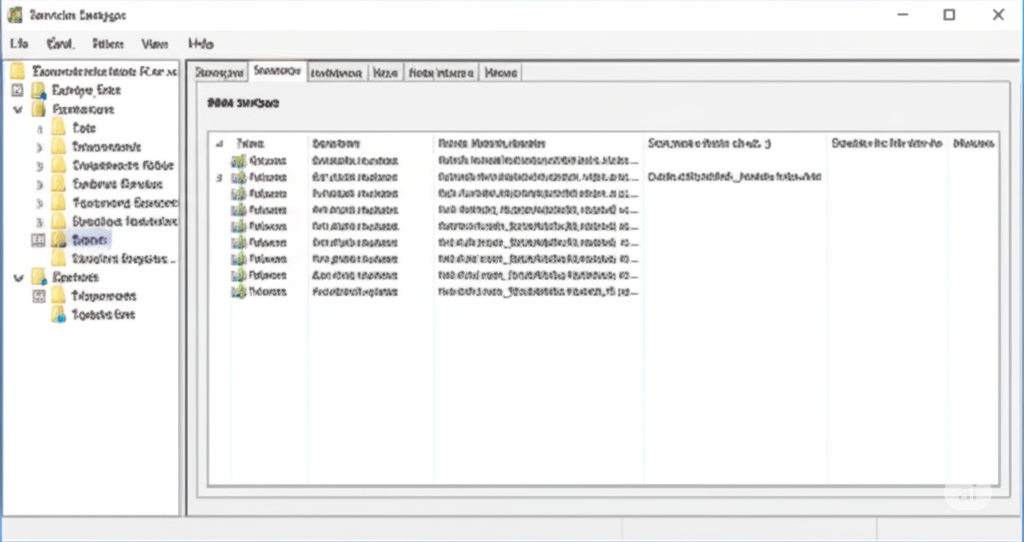
Fixing Corrupt Windows Update Components on Windows 10
Windows 10 relies heavily on the Windows Update service to keep your system running smoothly and securely. However, users may occasionally encounter the error message “Windows Update components must be repaired”, especially when using the built-in Windows Update Troubleshooter.
This error can prevent you from installing updates, leaving your system vulnerable or out of sync with new features and fixes. Fortunately, there are several proven solutions to resolve this issue and restore proper update functionality.
This article will guide you step-by-step through fixing Windows Update components on Windows 10.
What Does “Windows Update Components Must Be Repaired” Mean?
When Windows detects a problem with its update system, it may run a diagnostic and display this message. It indicates that critical services or files required by Windows Update are either missing, corrupted, or misconfigured.
This can be caused by:
-
Damaged or missing update-related system files
-
Incorrect permissions or registry settings
-
Stopped or misbehaving Windows services
-
Antivirus software interfering with updates
-
Network-related errors or DNS issues
Now let’s move on to how you can fix it.
Solution 1: Run the Windows Update Troubleshooter
Before trying anything complex, start with the built-in troubleshooter.
-
Open Settings by pressing Windows + I.
-
Navigate to Update & Security > Troubleshoot.
-
Click Additional troubleshooters.
-
Select Windows Update and click Run the troubleshooter.
-
Let the process finish and follow any suggested fixes.
After completing the troubleshooter, restart your PC and check if Windows Update is functioning.
Solution 2: Reset Windows Update Components Manually
If the troubleshooter fails to repair the components, you can reset them manually using Command Prompt.
-
Press Start, type cmd, right-click on Command Prompt, and choose Run as administrator.
-
Enter the following commands one by one, pressing Enter after each:
-
Rename the SoftwareDistribution and Catroot2 folders:
-
Restart the stopped services:
-
Close Command Prompt and restart your computer.
These steps refresh the update-related directories and services, which often fixes the underlying issue.
Solution 3: Run System File Checker and DISM
Corrupted system files may be interfering with the update components. You can fix them using built-in tools.
-
Open Command Prompt as Administrator.
-
Run the System File Checker:
Wait for the scan to complete. If it finds and fixes errors, restart your PC.
-
If the problem persists, use the DISM tool:
This process may take several minutes. Once done, restart your system again and check Windows Update.
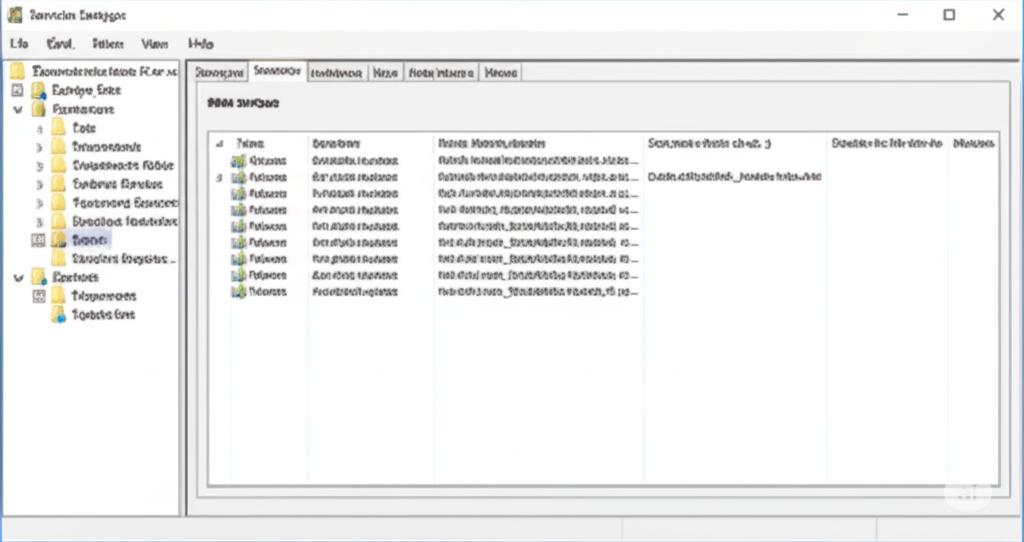
Solution 4: Check Windows Update Services
Make sure all the essential services for Windows Update are running.
-
Press Windows + R, type
services.msc, and press Enter. -
Locate these services:
-
Windows Update
-
Background Intelligent Transfer Service (BITS)
-
Cryptographic Services
-
Windows Installer
-
-
For each service:
-
Right-click and select Properties.
-
Set Startup type to Automatic.
-
If the service is not running, click Start.
-
Click Apply and OK after adjusting each service.
Solution 5: Disable Antivirus Temporarily
Third-party antivirus software may interfere with Windows Update components. Try disabling it temporarily.
-
Locate your antivirus icon in the system tray.
-
Right-click and choose Pause protection or a similar option.
-
Retry Windows Update.
Remember to re-enable antivirus protection once the updates are complete.
If you’re using Windows Defender, it’s generally safe and shouldn’t interfere with updates.
Solution 6: Perform a Clean Boot
Conflicting software running in the background can disrupt the update process. Performing a clean boot minimizes these conflicts.
-
Press Windows + R, type
msconfig, and hit Enter. -
Under the Services tab, check Hide all Microsoft services, then click Disable all.
-
Go to the Startup tab and click Open Task Manager.
-
Disable all startup items.
-
Close Task Manager and click OK in the System Configuration window.
-
Restart your computer.
Now check for updates again. If it works, one of the disabled programs was likely causing the problem. You can re-enable them one at a time to identify the culprit.
Solution 7: Use Windows Update Assistant
If you’re still experiencing issues, bypass the Windows Update utility entirely by using the Windows Update Assistant.
-
Visit Microsoft’s official Windows 10 download page.
-
Click Update now to download the Update Assistant.
-
Run the tool and follow the prompts.
This method often works when the built-in update tool fails.
Solution 8: Reset Network Settings
Faulty network configurations can prevent the update service from connecting properly.
-
Open Settings > Network & Internet > Status.
-
Click Network reset at the bottom.
-
Confirm by clicking Reset now.
Your PC will restart, and all network settings will be reset. You may need to reconnect to Wi-Fi afterward.
Solution 9: Restore Windows from a System Restore Point
If the issue started recently, a system restore might resolve the error without affecting personal files.
-
Press Windows + S, type System Restore, and select Create a restore point.
-
Click System Restore in the System Properties window.
-
Choose a restore point from before the issue began.
-
Follow the on-screen instructions.
After restoration, attempt to run Windows Update again.
Conclusion
The “Windows Update components must be repaired” error can be frustrating, but it’s usually solvable with the right steps. Whether it’s a service that needs restarting, a corrupted cache folder, or a conflicting third-party app, the solutions above address the most common causes of this error in Windows 10.
Start with simple methods like using the Windows Troubleshooter and proceed to more advanced fixes like resetting components or performing a clean boot. With a little patience and step-by-step troubleshooting, you can restore your system’s ability to download and install updates normally.