


How to Hide the Taskbar When in Fullscreen
Watching videos, playing games, or running presentations in fullscreen mode should be an immersive experience. However, if the taskbar refuses to hide while you’re in fullscreen mode—whether in browsers like Chrome or apps like PowerPoint—it can be frustrating and distracting.
This common issue affects many Windows users, especially on Windows 10 and Windows 11, and while it can stem from several causes, it’s typically fixable with a few simple troubleshooting steps.
In this article, you’ll learn why the taskbar sometimes shows up in fullscreen mode and how to fix it using various reliable methods.
Why Is the Taskbar Visible in Fullscreen?
Normally, the Windows taskbar hides automatically when you enter fullscreen. But in some cases, it might remain visible due to:
- A glitch in the Windows Explorer process
- Notification prompts from apps like Microsoft Teams or Outlook
- Incorrect system settings
- Misconfigured taskbar behavior or auto-hide failure
- Bugs in browser or application rendering
Now let’s go through several solutions to hide the taskbar properly when using fullscreen mode.
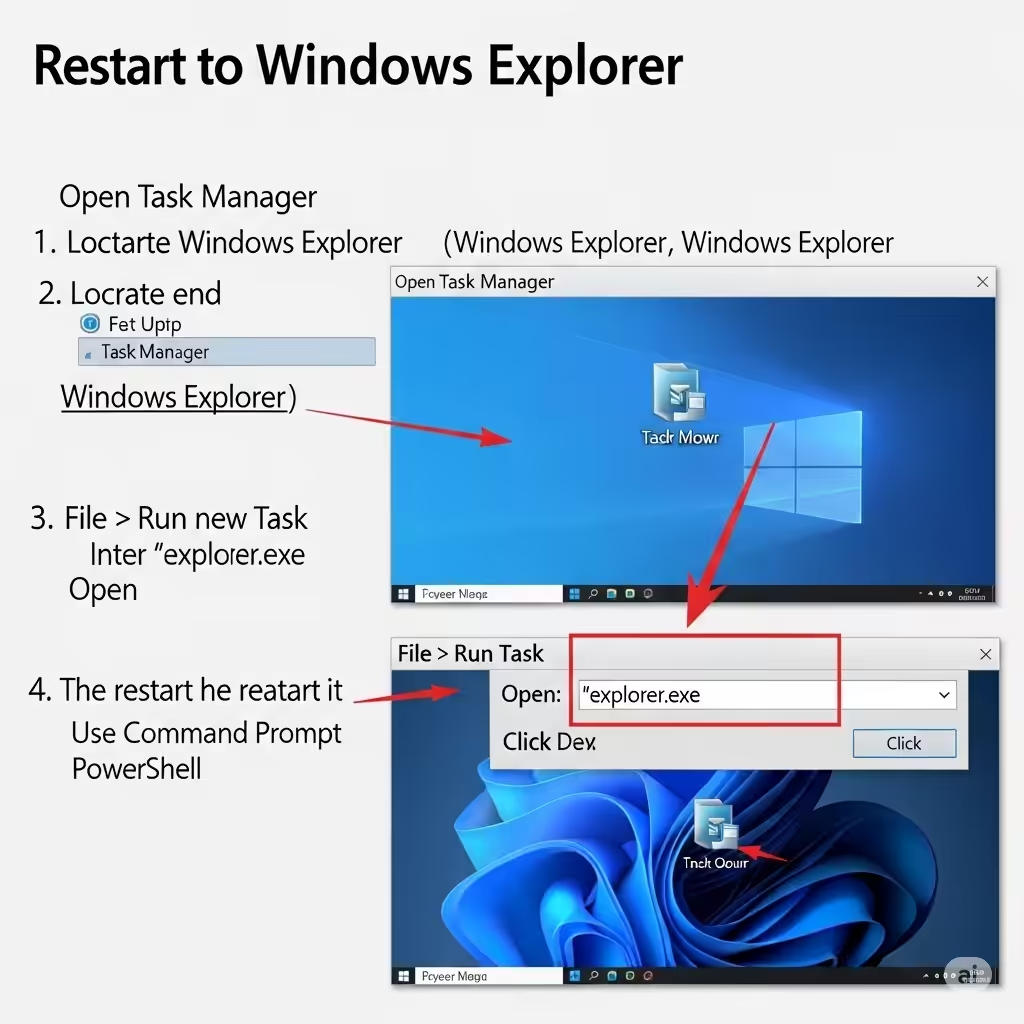
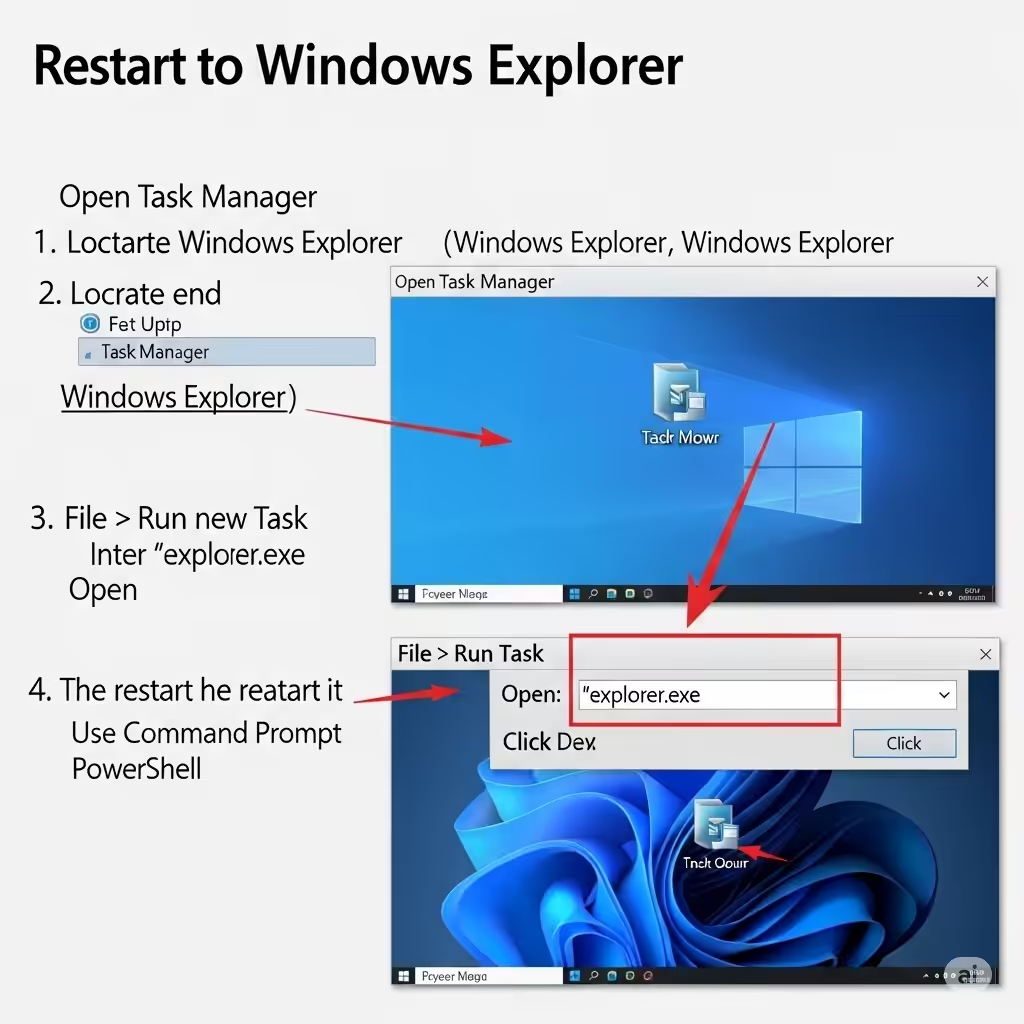
Fix 1: Restart Windows Explorer
The most effective quick fix is to restart the Windows Explorer process, which controls the taskbar and Start menu.
Steps:
- Press Ctrl + Shift + Esc to open Task Manager
- Scroll down to find Windows Explorer
- Right-click it and choose Restart
This will refresh your desktop and taskbar. Check if the fullscreen mode now hides the taskbar as expected.
Fix 2: Enable and Re-enable Auto-Hide Taskbar
Sometimes, toggling the auto-hide feature can reset taskbar behavior.
How to do it:
- Right-click on an empty space on the taskbar
- Select Taskbar settings
- Scroll down to Taskbar behaviors
- Check the box for Automatically hide the taskbar
- Wait a few seconds, then uncheck and recheck the box
Toggle this setting on and off to reset how Windows handles the fullscreen state.
Fix 3: Check for App Notifications
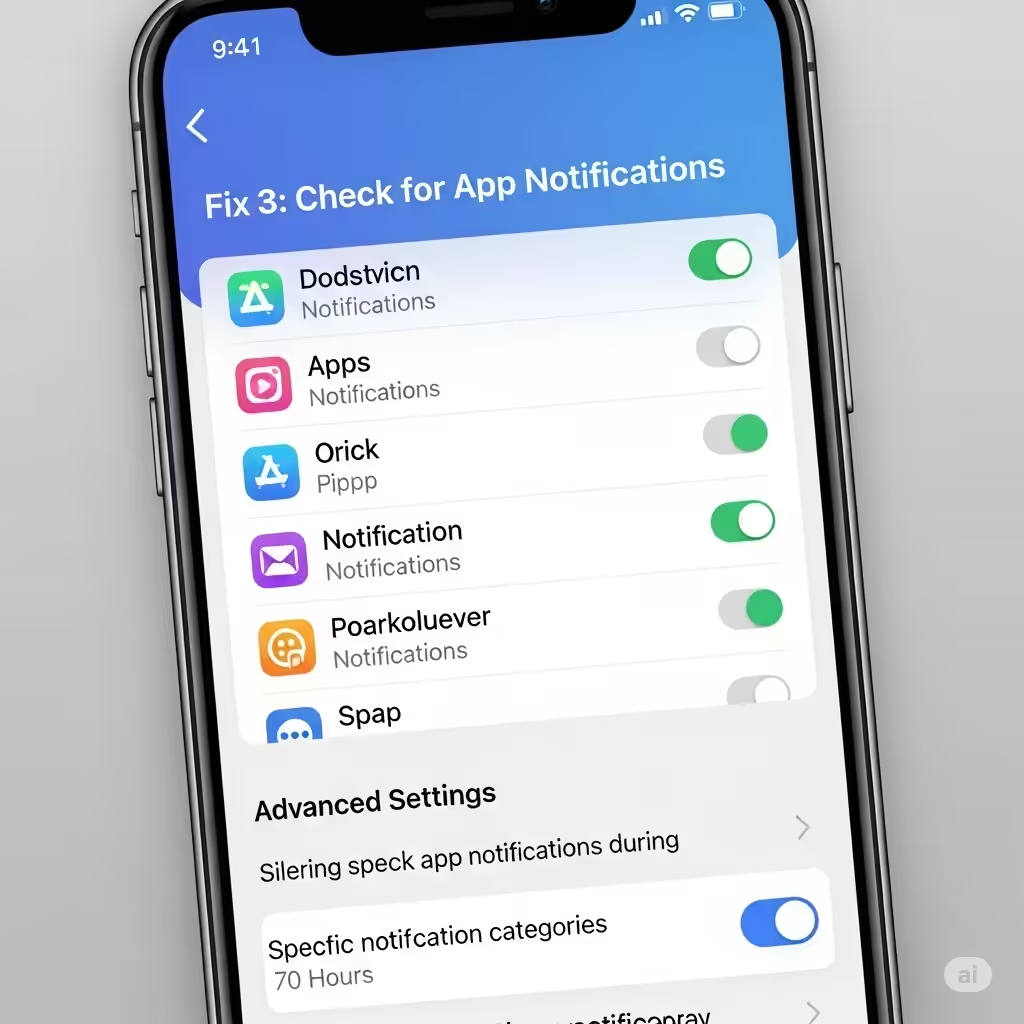
One of the lesser-known reasons your taskbar stays visible is when apps are generating notifications. These notifications can prevent the taskbar from hiding—even if they’re not visibly noticeable.
What you can do:
- Click on any app icon in the taskbar that has a badge or alert
- Dismiss all open notifications from apps like Microsoft Teams, Outlook, or Slack
- You can also disable notifications temporarily:
- Go to Settings > System > Notifications
- Toggle off notifications or switch to Focus Assist mode
Clearing the alert state may help the taskbar return to its intended hidden state during fullscreen.
Fix 4: Use F11 Mode in Browsers
If you’re experiencing this issue in web browsers like Chrome or Firefox, try pressing F11. This shortcut activates a true fullscreen mode and often hides the taskbar completely.
To exit fullscreen, press F11 again.
Also, make sure that extensions or themes aren’t interfering with fullscreen rendering in your browser.
Fix 5: Update or Reinstall Display Drivers
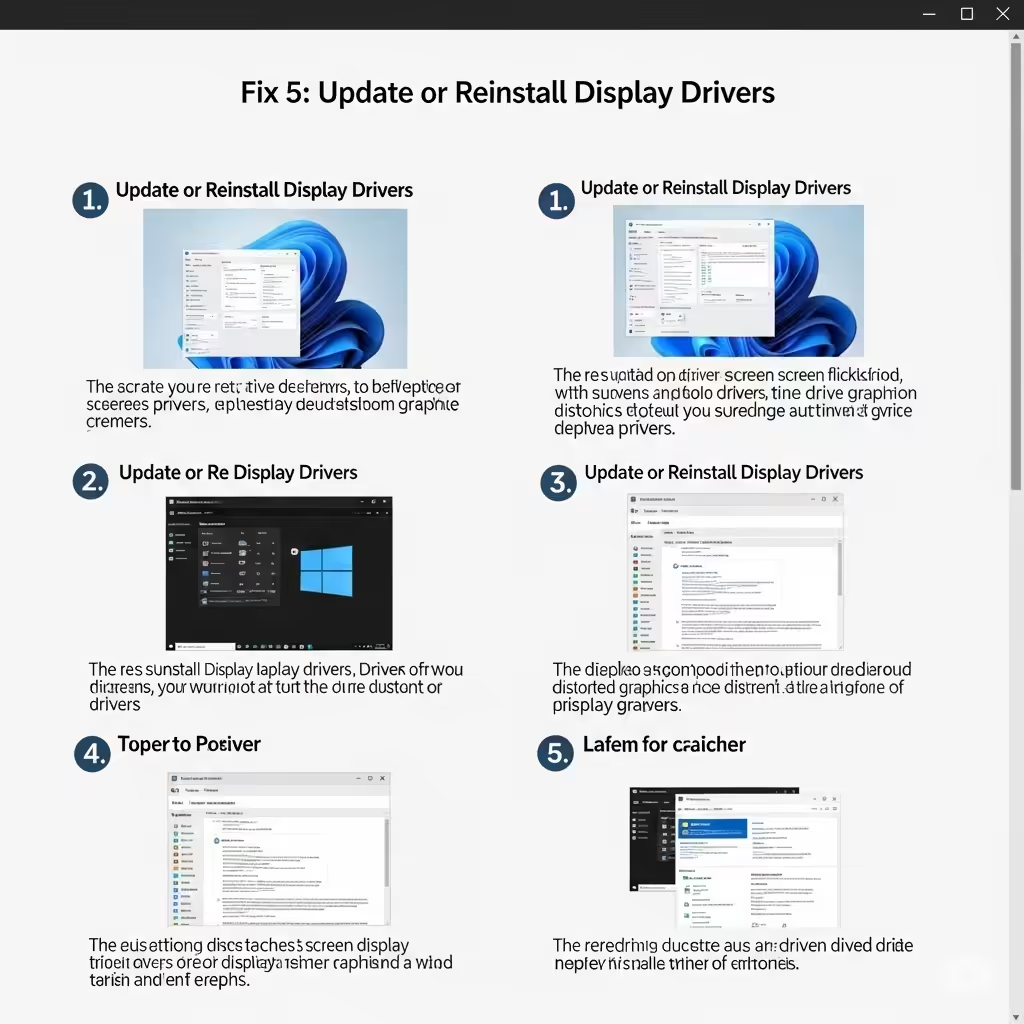
Outdated or buggy display drivers can cause UI elements like the taskbar to render incorrectly.
How to update your graphics driver:
- Press Windows + X and choose Device Manager
- Expand the Display adapters section
- Right-click your graphics card and select Update driver
- Choose Search automatically for drivers
If that doesn’t help, visit the manufacturer’s website (Intel, AMD, NVIDIA) to download and install the latest version.
After updating, restart your PC and test fullscreen mode again.
Fix 6: Modify Taskbar Lock and Position Settings
Sometimes locking the taskbar or changing its position temporarily helps reset any UI glitches.
Try this:
- Right-click the taskbar
- Select Taskbar settings
- Toggle Lock the taskbar off and on again
- Change the position from Bottom to Left, apply it, then switch it back
This simple change can reset rendering issues that cause the taskbar to linger onscreen.
Fix 7: Use the Windows Troubleshooter
If the problem persists, you can run the Windows Troubleshooter to scan for underlying UI or display issues.
Steps:
- Open Settings > System > Troubleshoot
- Click on Other troubleshooters
- Run Program Compatibility Troubleshooter or Display Troubleshooter (if available)
Windows will attempt to detect and fix any configuration problems.
Fix 8: Disable Visual Effects Temporarily
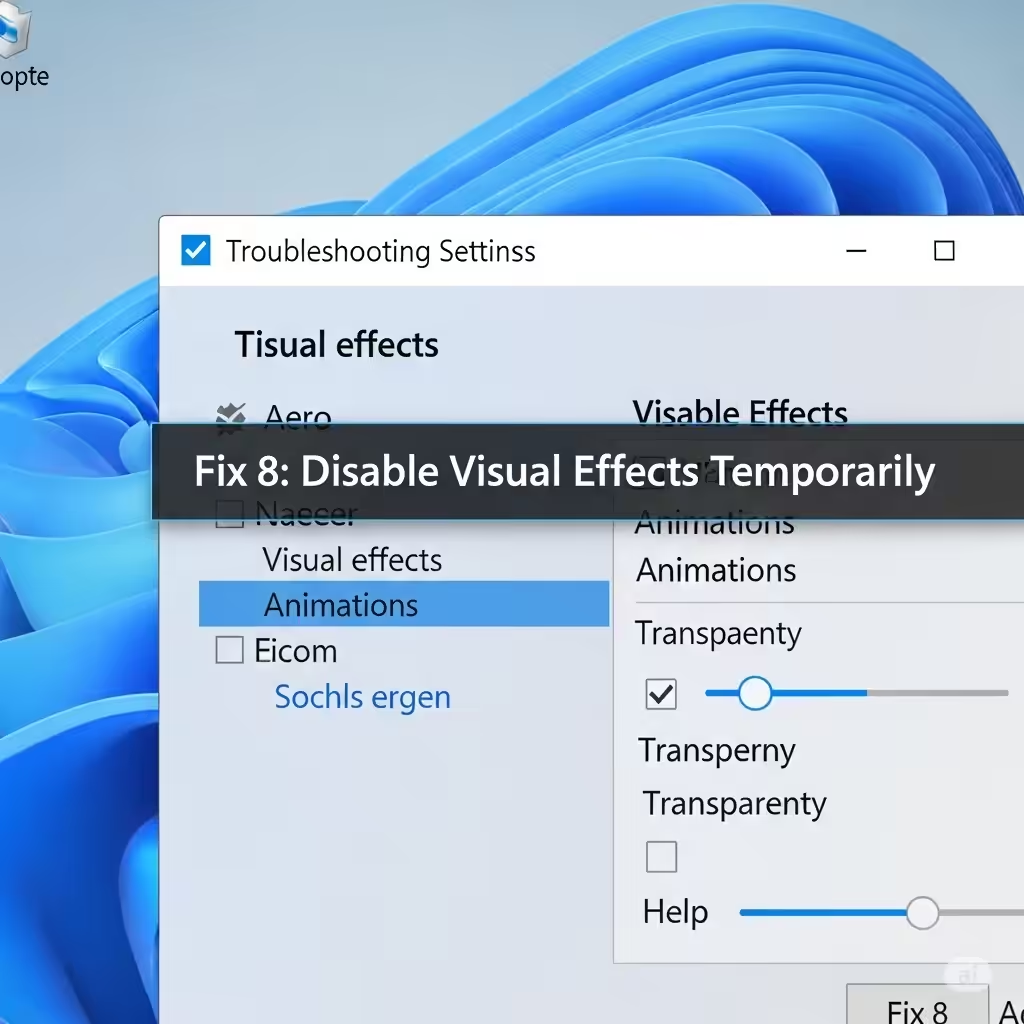
Sometimes, Windows animations and transparency effects cause the taskbar to render improperly.
To turn them off:
- Open Control Panel
- Navigate to System > Advanced system settings
- Under Performance, click Settings
- Choose Adjust for best performance
- Click Apply, then OK
This will disable all visual effects. Check if fullscreen behavior improves. You can later re-enable effects selectively.
Fix 9: Perform a Clean Boot
Third-party programs that run in the background may interfere with taskbar behavior. A clean boot allows you to start Windows with minimal drivers and background services.
To do this:
- Press Windows + R, type
msconfig, and press Enter - Under the Services tab, check Hide all Microsoft services
- Click Disable all
- Go to the Startup tab and click Open Task Manager
- Disable all startup items
- Restart your PC
After rebooting, test fullscreen mode again. If the problem is resolved, re-enable services one by one to identify the culprit.
Fix 10: Install Pending Windows Updates
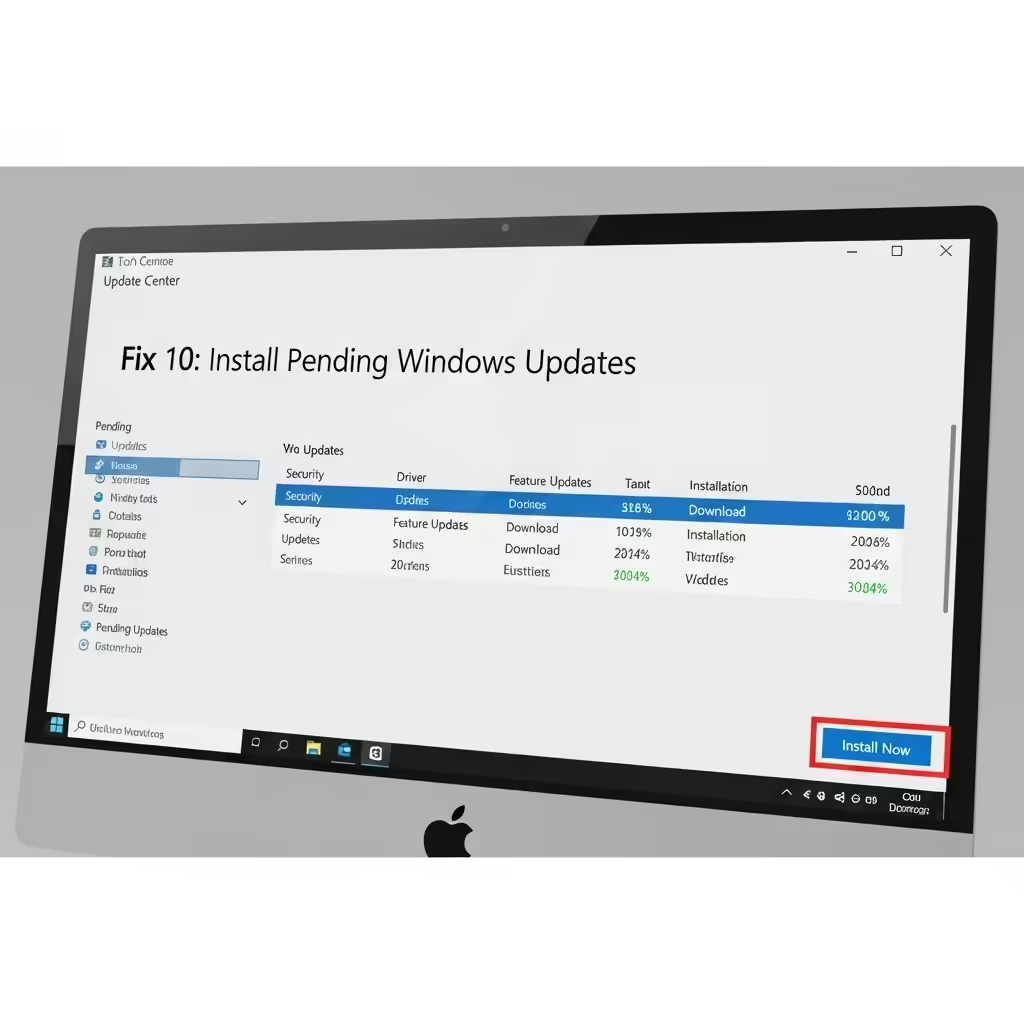
Occasionally, taskbar glitches are fixed in newer Windows patches.
How to check:
- Go to Settings > Windows Update
- Click Check for updates
- Install any available updates
- Restart your system
Keeping your system updated is important to avoid UI bugs and ensure fullscreen features work smoothly.
Conclusion
The taskbar showing in fullscreen mode can be annoying, but it’s rarely a permanent problem. In most cases, it’s the result of a minor glitch, notification interference, or a display-related issue.
By following the steps in this guide—starting with restarting Windows Explorer, updating drivers, or toggling auto-hide—you can usually fix the problem in just a few minutes.
Quick Summary of Fixes:
- Restart Windows Explorer
- Toggle Auto-hide taskbar
- Clear app notifications
- Use F11 fullscreen in browsers
- Update graphics drivers
- Lock/unlock or move the taskbar
- Disable visual effects or perform a clean boot
- Install latest Windows updates
With these techniques, you’ll be able to fully enjoy fullscreen video playback, presentations, and gaming—without the distraction of a persistent taskbar.