


Fixing High Disk Usage Problem in Windows 10/11 Task Manager
When your computer becomes sluggish or unresponsive, one of the first things users do is open Task Manager. If you find that your disk usage is stuck at 100%, even though you’re not doing much, you’re not alone. This is a common issue in Windows 10 and Windows 11, and it can severely impact performance.
High disk usage can make your PC feel slower than it should be. Luckily, there are many practical solutions to fix this issue and restore your system’s speed.
What Causes 100% Disk Usage?
Here are some of the most common causes behind 100% disk usage in Task Manager:
-
Windows Search indexing running aggressively
-
Superfetch (SysMain) service overloading the disk
-
Malware or background processes
-
Outdated or buggy drivers
-
Faulty hard disk or SSD
-
Browser-related issues (especially with Google Chrome)
-
Background apps or startup programs consuming disk resources
Let’s go through the most effective ways to troubleshoot and solve this problem.
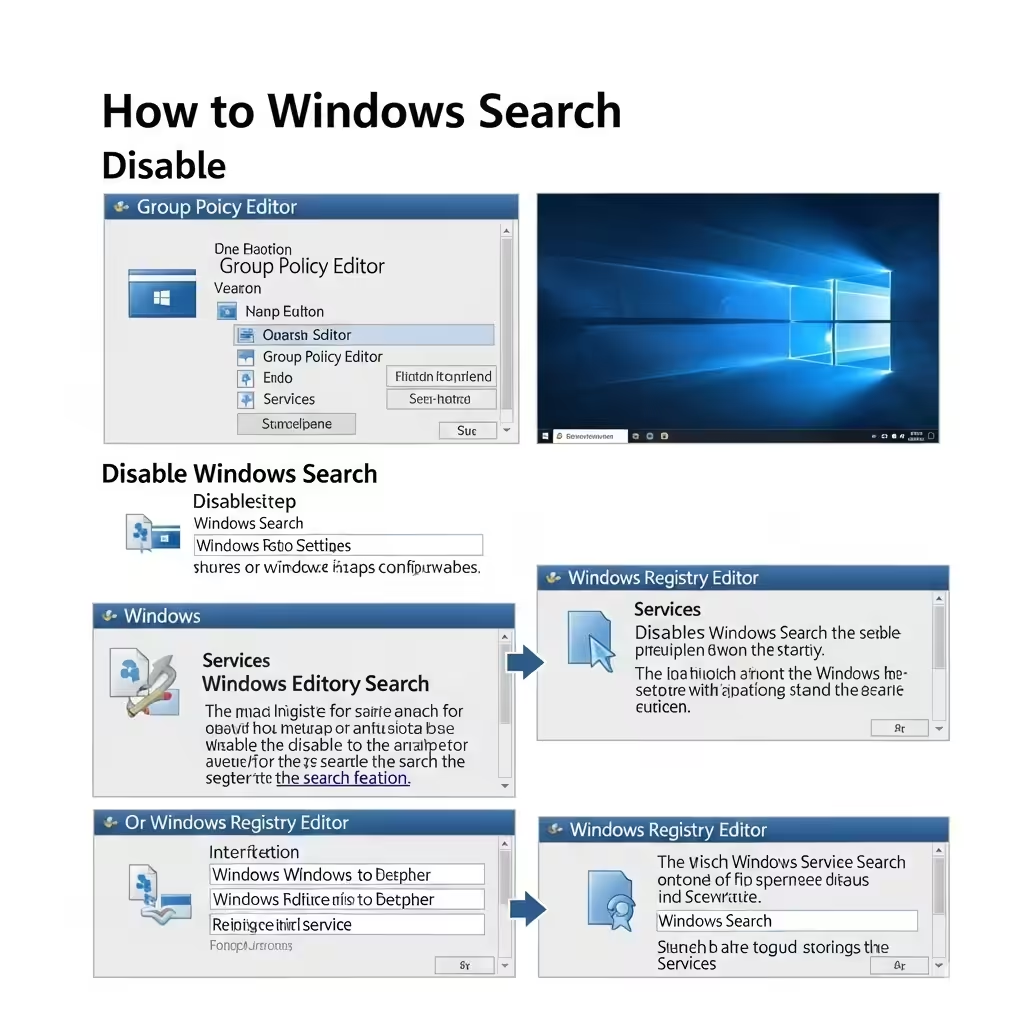
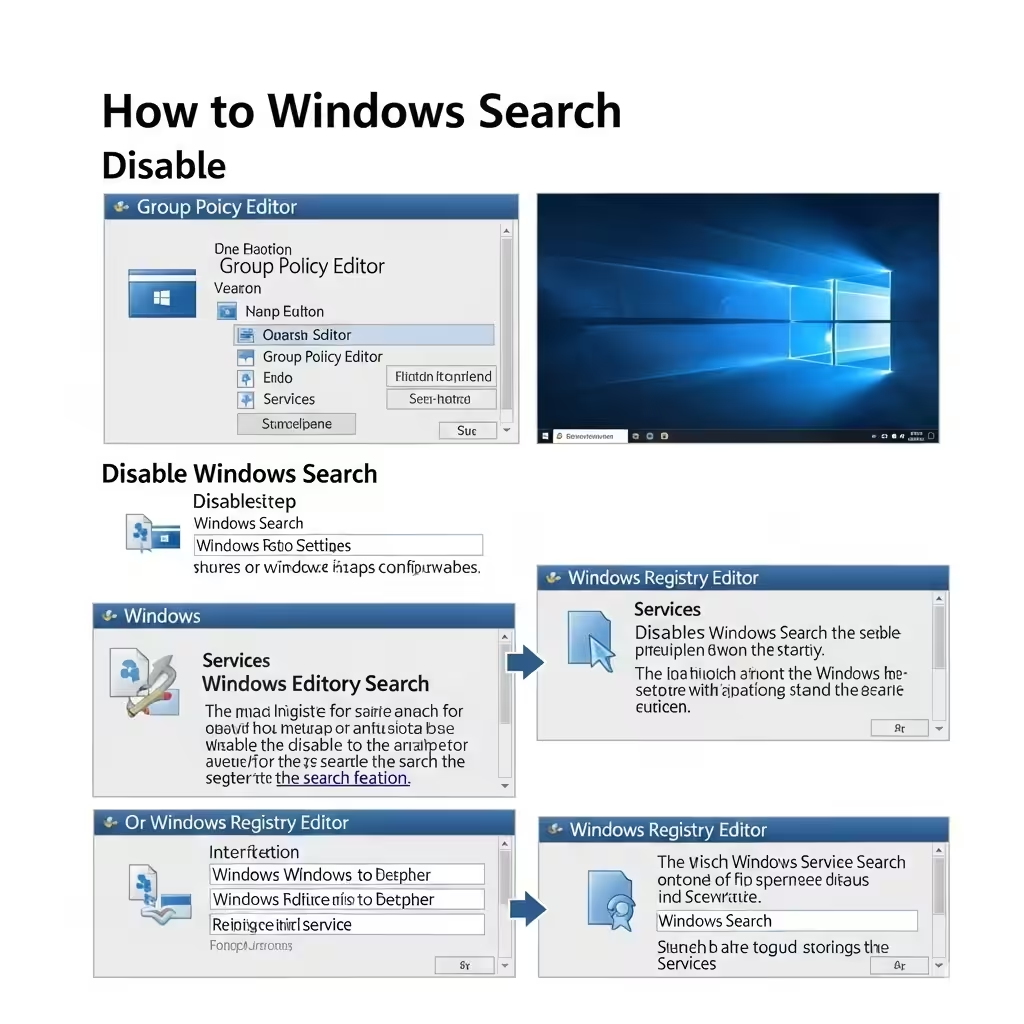
Fix 1: Disable Windows Search
The Windows Search feature can sometimes go into a loop and cause high disk usage.
To disable it temporarily:
-
Press Windows + X and select Windows Terminal (Admin) or Command Prompt (Admin)
-
Type the following command and press Enter:
If this reduces disk usage, you can disable it permanently.
To disable it permanently:
-
Press Windows + R, type
services.msc, and hit Enter -
Scroll down to Windows Search
-
Double-click it and set Startup type to Disabled
-
Click Stop, then Apply and OK
Fix 2: Disable Superfetch (SysMain)
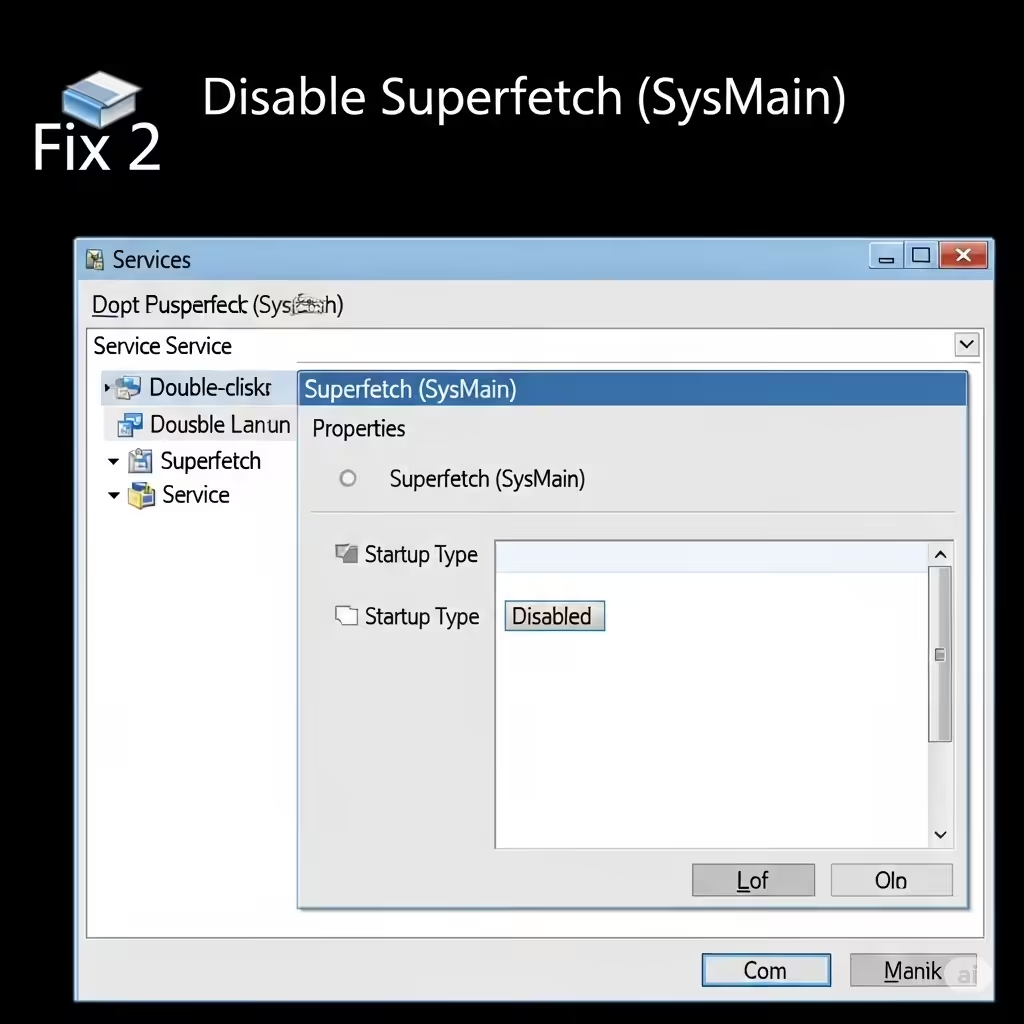
Superfetch, now called SysMain in newer versions, helps pre-load frequently used apps into memory, but sometimes it leads to high disk usage.
Steps:
-
Press Windows + R, type
services.msc, and press Enter -
Find SysMain
-
Double-click it, set Startup type to Disabled
-
Click Stop, then Apply and OK
Restart your PC and check if the disk usage drops.
Fix 3: Check for Malware or Virus Activity
A hidden malware or virus might be running background processes that spike disk usage.
What to do:
-
Run a full scan using Windows Defender or a trusted antivirus tool like Malwarebytes
-
Make sure your antivirus definitions are up to date
-
Remove any threats found and restart your computer
Fix 4: Update Storage Drivers
Outdated or corrupted disk drivers can lead to poor performance and high disk usage.
How to update them:
-
Press Windows + X and select Device Manager
-
Expand Disk drives
-
Right-click your storage device and select Update driver
-
Choose Search automatically for drivers
Also, ensure IDE ATA/ATAPI controllers are using the correct controller (AHCI, for SSDs).
Fix 5: Turn Off Scheduled Defragmentation (For SSD Users)
Defragmentation is helpful for traditional hard drives but unnecessary (and potentially harmful) for SSDs.
To turn it off:
-
Search for Defragment and Optimize Drives
-
Select your C: drive (or system drive)
-
Click Change settings
-
Uncheck Run on a schedule
-
Click OK
This will prevent Windows from defragging SSDs unnecessarily.
Fix 6: Disable Background Apps
Too many apps running in the background can contribute to 100% disk usage.
How to disable them:
-
Go to Settings > Apps > Installed Apps
-
Click on Startup (in Windows 11) or Startup Apps (in Windows 10)
-
Disable any unnecessary apps from launching at startup
Also, navigate to Settings > Privacy > Background apps and disable apps you don’t use.
Fix 7: Check Virtual Memory Settings
Improper virtual memory settings may cause Windows to overuse the disk.
Adjust manually:
-
Press Windows + R, type
sysdm.cpl, and hit Enter -
Go to the Advanced tab and click Settings under Performance
-
In the new window, go to Advanced > Virtual memory > Change
-
Uncheck Automatically manage paging file size
-
Select your system drive and choose Custom size
-
Set Initial size and Maximum size based on your RAM (usually 1.5x and 3x your RAM)
-
-
Click Set, then OK, and restart your PC
Fix 8: Clear Temporary Files
A buildup of temporary files can also affect performance and cause disk usage issues.
Use Disk Cleanup:
-
Press Windows + S, type Disk Cleanup, and open it
-
Select your system drive (usually C:)
-
Check the boxes for Temporary files, Recycle Bin, and System-created Windows Error Reporting
-
Click OK to clean up the files
Fix 9: Use a Different Browser
Some users report that browsers like Google Chrome or Microsoft Edge can cause disk spikes.
Try the following:
-
Update your browser to the latest version
-
Disable unnecessary extensions
-
Try using another browser like Firefox or Brave to see if the issue persists
If Chrome is causing the spike, try clearing its cache or reinstalling it.
Fix 10: Perform a Clean Boot
A clean boot starts Windows with only essential services and drivers, helping to identify third-party software causing the issue.
Steps:
-
Press Windows + R, type
msconfig, and press Enter -
Go to the Services tab
-
Check Hide all Microsoft services, then click Disable all
-
Go to the Startup tab and click Open Task Manager
-
Disable all startup items
-
Restart your PC
This will start your system in a clean state. If disk usage is back to normal, you can gradually re-enable services to find the culprit.
Fix 11: Check Disk Health
If none of the above solutions work, your hard drive or SSD may be failing.
To check disk health:
-
Press Windows + X and select Windows Terminal (Admin)
-
Type:
-
Press Enter and follow prompts
Windows will schedule a disk check at the next reboot. Allow it to complete.
Alternatively, use tools like CrystalDiskInfo to check drive health and temperature.
Conclusion
Seeing 100% disk usage in Task Manager can be alarming, but it doesn’t always mean your drive is damaged. In most cases, it’s caused by services like Windows Search or SysMain, software conflicts, or poor memory management.
Summary of Solutions:
-
Disable Windows Search and SysMain
-
Scan for malware
-
Update drivers
-
Turn off background apps
-
Adjust virtual memory
-
Perform disk cleanup
-
Use a clean boot
-
Check your disk health
By methodically working through these steps, you should be able to resolve the issue and enjoy smoother performance on your Windows 10 or 11 device.