



Resolved: Missing Sound Icon in Windows 10
The volume icon is a small but essential feature on the Windows 10 taskbar, giving users quick access to sound settings, output devices, and mute controls. When it goes missing, adjusting volume or switching audio devices becomes frustrating and time-consuming. If you’ve recently noticed that the volume icon has disappeared from the taskbar in Windows 10, don’t worry—this is a common issue and can usually be resolved with a few quick steps.
In this comprehensive guide, we’ll explore all the possible causes of the missing volume icon and walk you through step-by-step solutions to restore it.
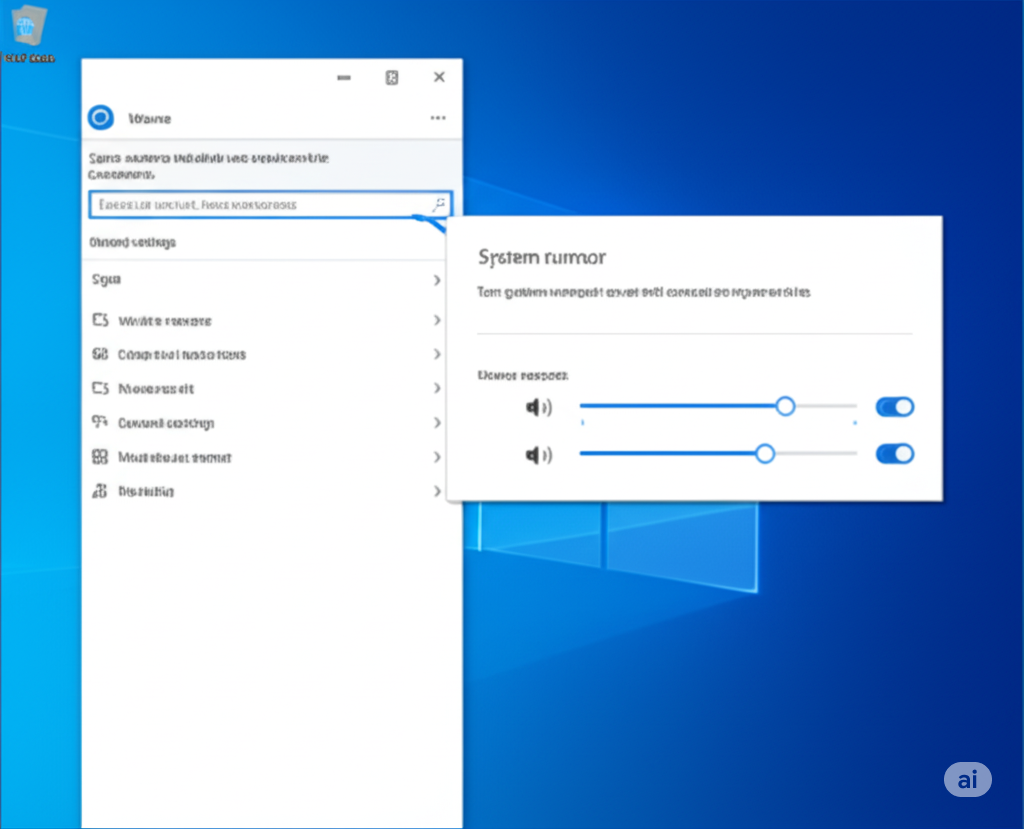
Why Is the Volume Icon Missing?
Before diving into the fixes, it helps to understand why the volume icon might disappear in the first place. Some common causes include:
-
Taskbar settings being altered by system updates or user changes
-
Windows Explorer glitches
-
System tray behavior set to hide certain icons
-
Disabled system icons via Group Policy or registry settings
-
Audio service issues or driver errors
Let’s go through the most effective solutions, starting from the simplest.
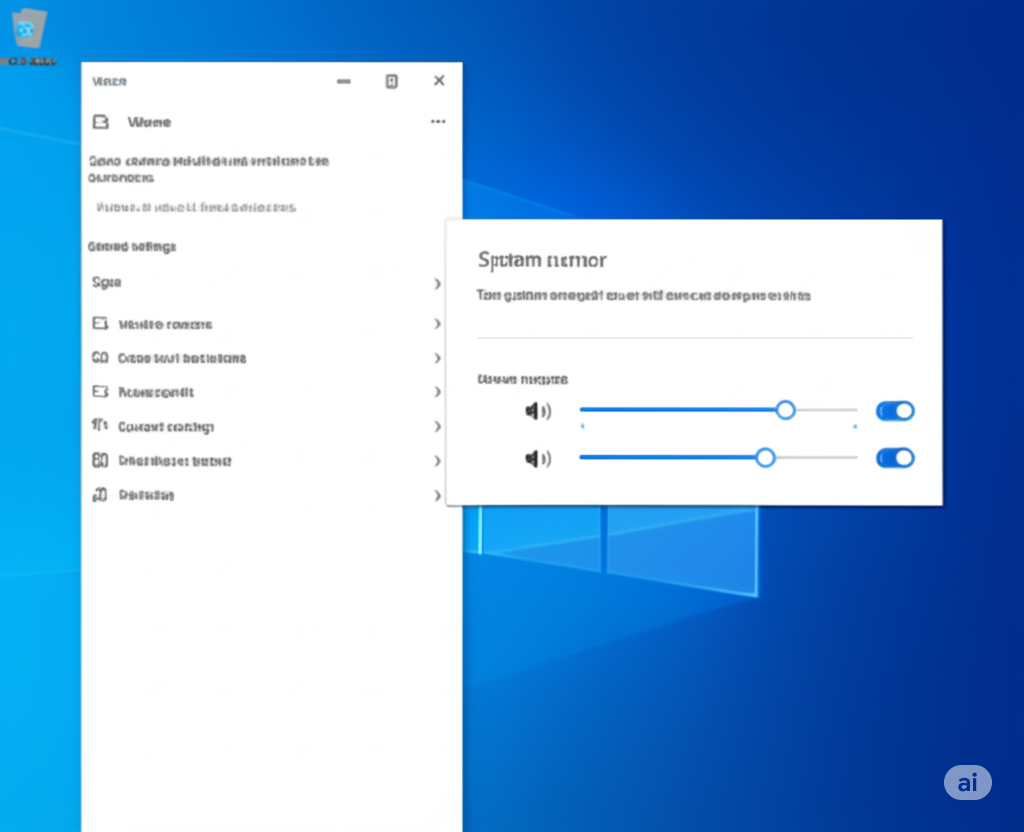
Check If the Volume Icon Is Just Hidden
Windows 10 sometimes automatically hides icons that aren’t frequently used.
-
Click the upward-facing arrow on the far right of your taskbar (system tray).
-
Look for the speaker icon in the hidden icons.
-
If it’s there, you can drag it back down to the main taskbar area for quick access.
If it’s not visible even among the hidden icons, move to the next step.
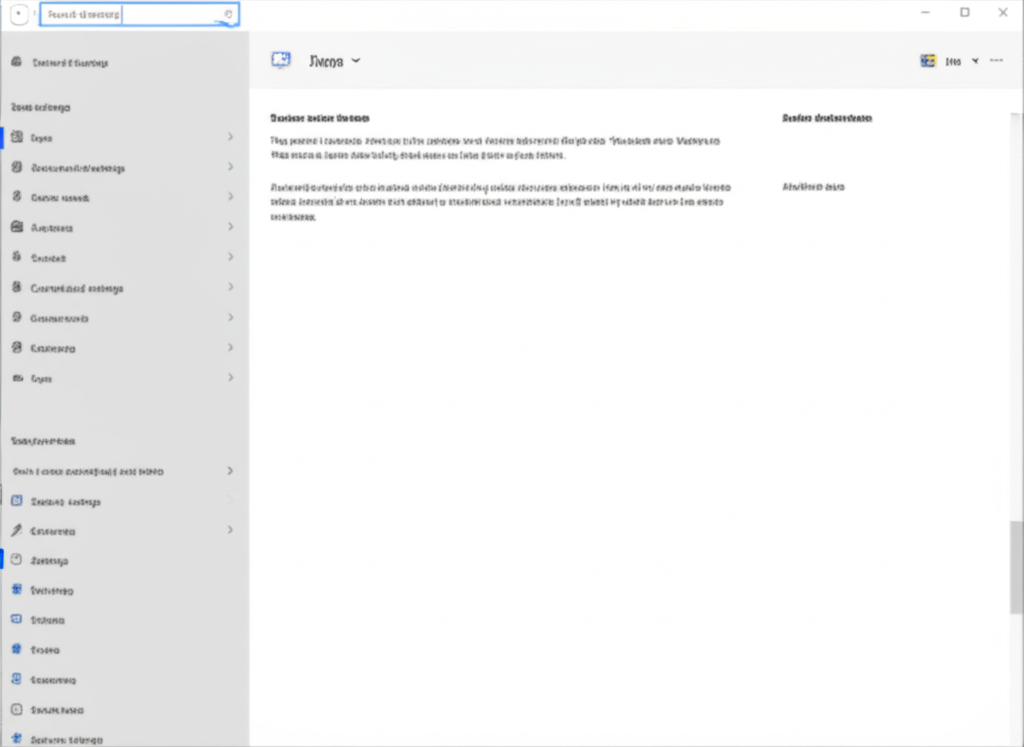
Enable the Volume Icon from Taskbar Settings
Windows allows you to choose which system icons appear on the taskbar.
-
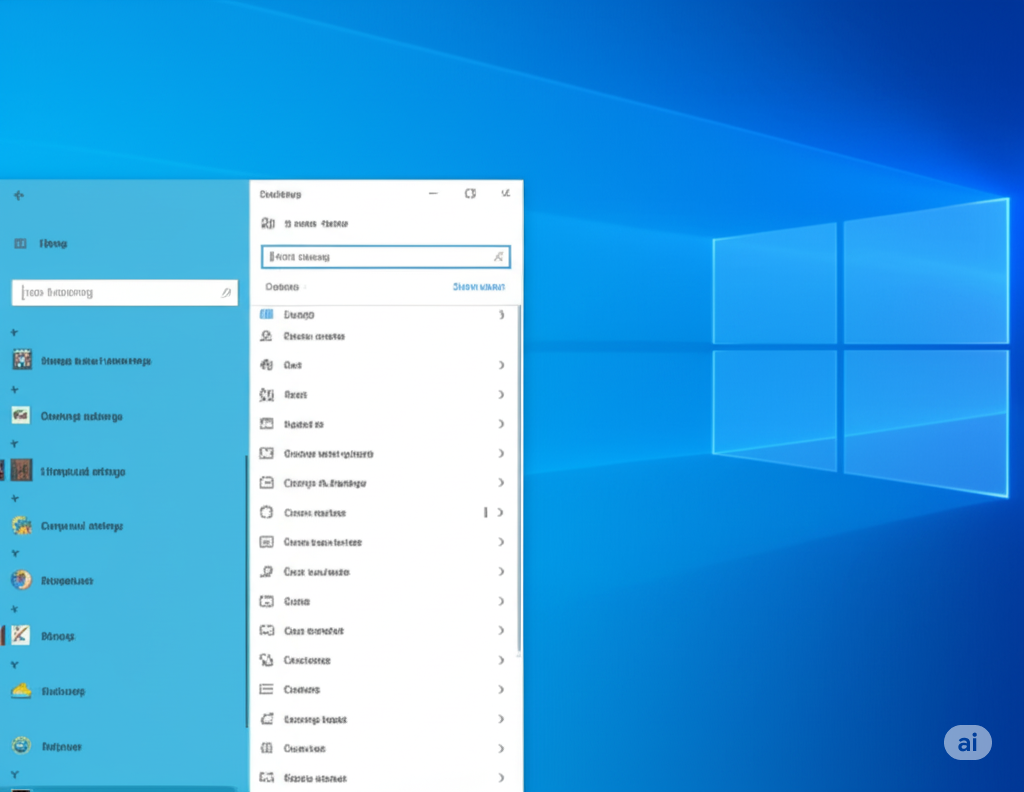
Right-click an empty area of the taskbar and select Taskbar settings.
-
Scroll down and click on Turn system icons on or off.
-
Locate Volume in the list and ensure the toggle is switched On.
-
If it’s already on, try toggling it Off, wait a few seconds, and then switch it On again.
Return to the desktop to check whether the volume icon has reappeared.
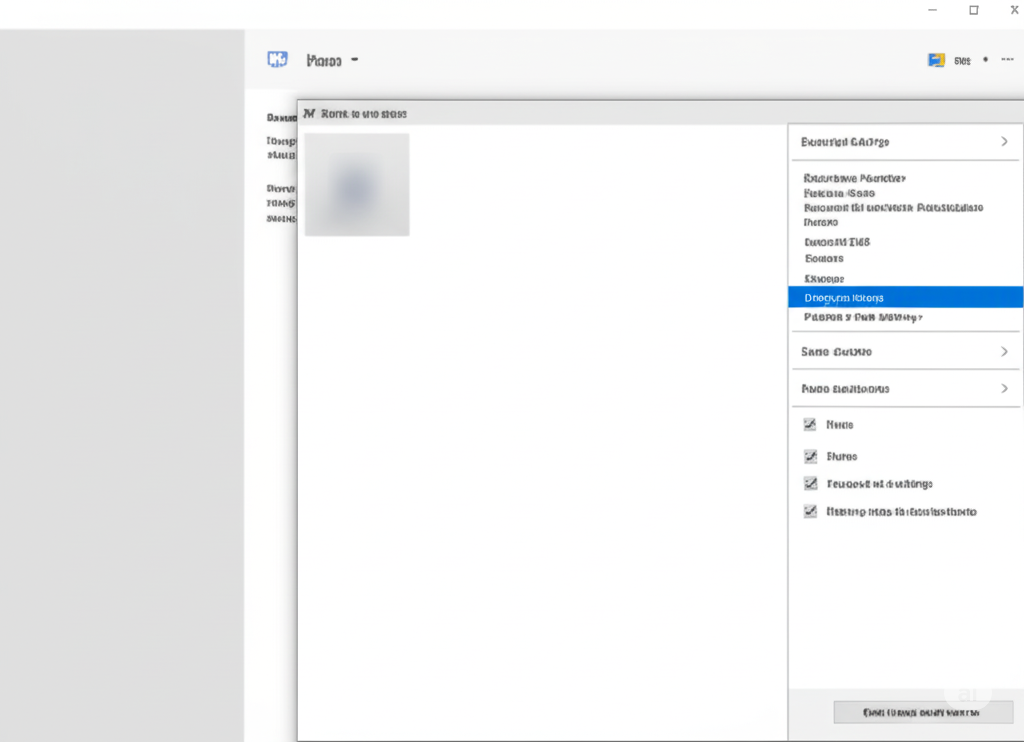
Use the “Select Which Icons Appear on the Taskbar” Option
Sometimes, the icon is enabled but hidden under this menu.
-
In the same Taskbar settings window, click Select which icons appear on the taskbar.
-
Find Volume in the list.
-
Make sure it is toggled On.
This action ensures that the volume icon stays pinned on the taskbar at all times.
Restart Windows Explorer
Glitches with the Windows Explorer process can cause taskbar icons to disappear.
-
Press Ctrl + Shift + Esc to open Task Manager.
-
Scroll down to Windows Explorer under the Processes tab.
-
Right-click it and choose Restart.
Your taskbar will briefly disappear and reload. Check to see if the volume icon has returned.
Restart Windows Audio Services
If the system audio services are not running properly, the volume icon might disappear.
-
Press Windows + R, type
services.msc, and hit Enter. -
In the Services window, locate the following:
-
Windows Audio
-
Windows Audio Endpoint Builder
-
-
Right-click on each and choose Restart.
-
If they are not running, right-click and choose Start.
Once both services are running, check the taskbar for the volume icon.
Update or Reinstall Audio Drivers
Corrupt or outdated audio drivers can affect both sound functionality and related icons.
-
Right-click the Start Menu and choose Device Manager.
-
Expand the Sound, video and game controllers section.
-
Right-click your audio device (e.g., Realtek Audio) and select Update driver.
-
Choose Search automatically for updated driver software.
-
If no update is available, try uninstalling the driver:
-
Right-click and select Uninstall device.
-
Restart your PC. Windows will automatically reinstall the driver.
-
This may restore both audio functionality and the missing volume icon.
Modify the Registry (Advanced Users)
If your system settings were altered by a third-party app or Windows glitch, a registry tweak might help.
⚠️ Warning: Editing the registry can cause system instability if done incorrectly. Always back up your registry before making changes.
-
Press Windows + R, type
regedit, and hit Enter. -
Navigate to the following path:
-
Find the value named DisableTaskMgr.
-
If it exists and is set to 1, double-click it and change the value to 0.
-
-
Also, navigate to:
-
Look for a value named HideSCAVolume.
-
If it exists and is set to 1, change it to 0.
-
Close the Registry Editor and restart your computer.
Run the Windows Troubleshooter
Windows includes built-in troubleshooters for diagnosing audio issues.
-
Go to Settings > Update & Security > Troubleshoot.
-
Click Additional troubleshooters.
-
Select Playing Audio and click Run the troubleshooter.
-
Follow the on-screen instructions.
Although designed for audio problems, this tool may detect and fix underlying issues that caused the icon to disappear.
Perform a System File Check
Corrupted system files can result in missing system icons.
-
Press Windows + X and choose Windows Terminal (Admin) or Command Prompt (Admin).
-
In the command window, type:
-
Press Enter and wait for the scan to complete.
This scan may take several minutes. Once complete, restart your PC and check the taskbar.
Create a New User Account
If all else fails, the issue might be profile-specific.
-
Go to Settings > Accounts > Family & other users.
-
Click Add someone else to this PC.
-
Follow the prompts to create a new local user.
-
Log in with the new account and check if the volume icon is visible.
If it works in the new account, consider migrating your data or resetting the old user profile.
Conclusion
The missing volume icon in Windows 10 can be frustrating, especially when you need quick access to audio settings. Fortunately, it’s often caused by simple settings or temporary glitches and is rarely a permanent problem. Whether the issue is due to system updates, registry values, or hidden taskbar preferences, the solutions provided above should help you restore the icon and regain control of your system’s sound.
By following these methods—starting with the simplest and progressing to more advanced steps—you can fix the missing volume icon and enjoy a seamless Windows 10 experience once again.