


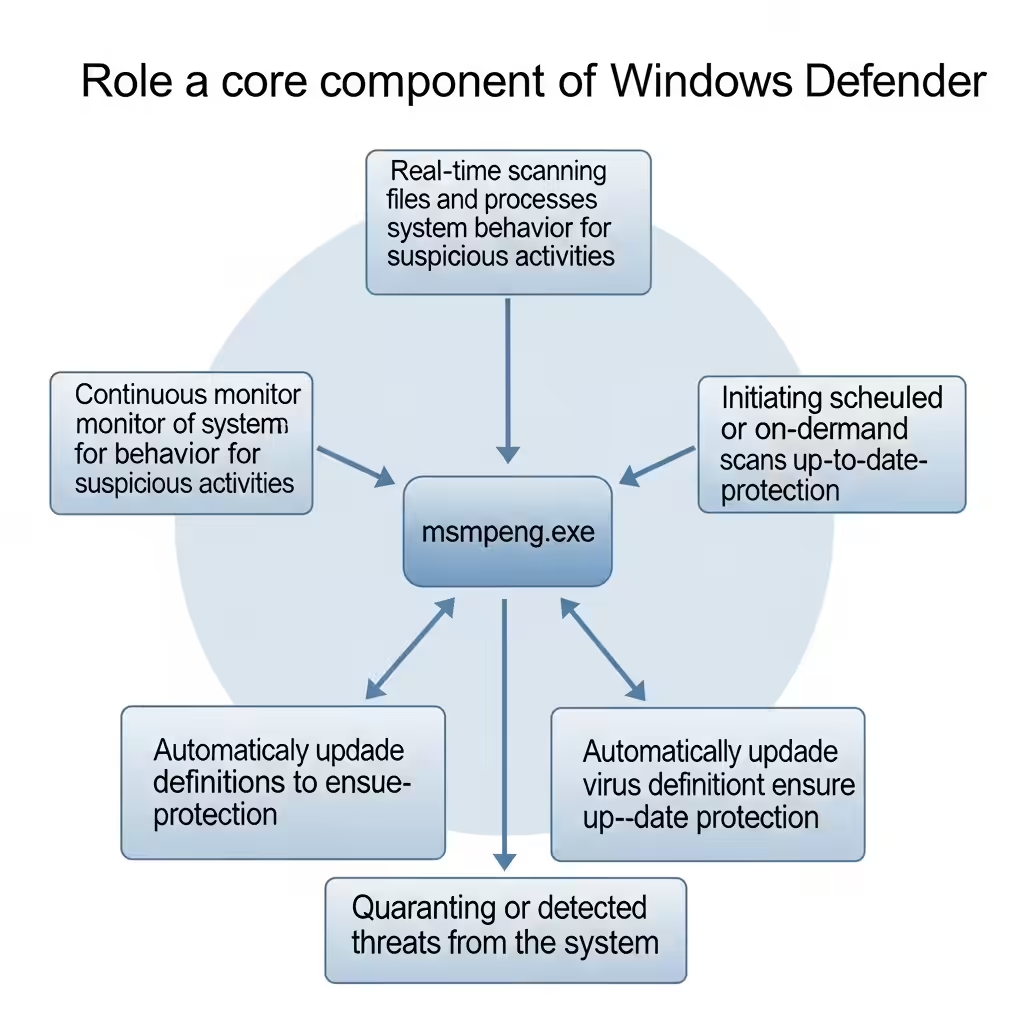
A Guide to msmpeng.exe – The Antimalware Service Executable in Windows
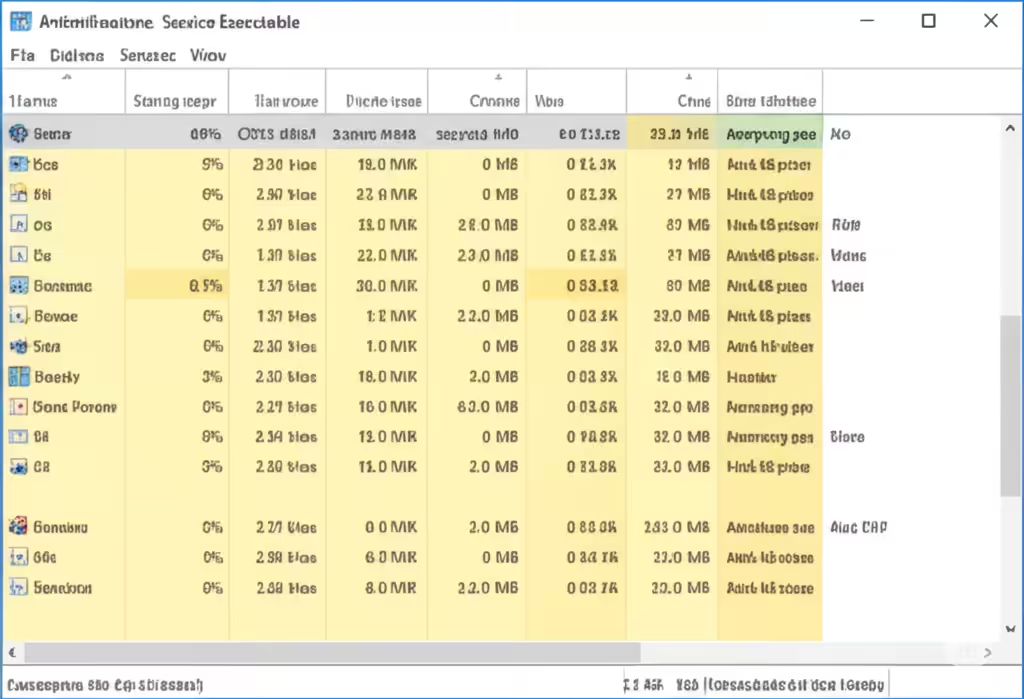
If you’ve been checking Task Manager on your Windows PC and noticed msmpeng.exe consuming a significant amount of CPU or memory, you’re not alone. This process, also known as the Antimalware Service Executable, often confuses users who aren’t sure whether it’s safe, necessary, or a sign of malware.
This guide will explain what msmpeng.exe does, whether it’s harmful, and how to troubleshoot common performance issues associated with it.
Understanding msmpeng.exe
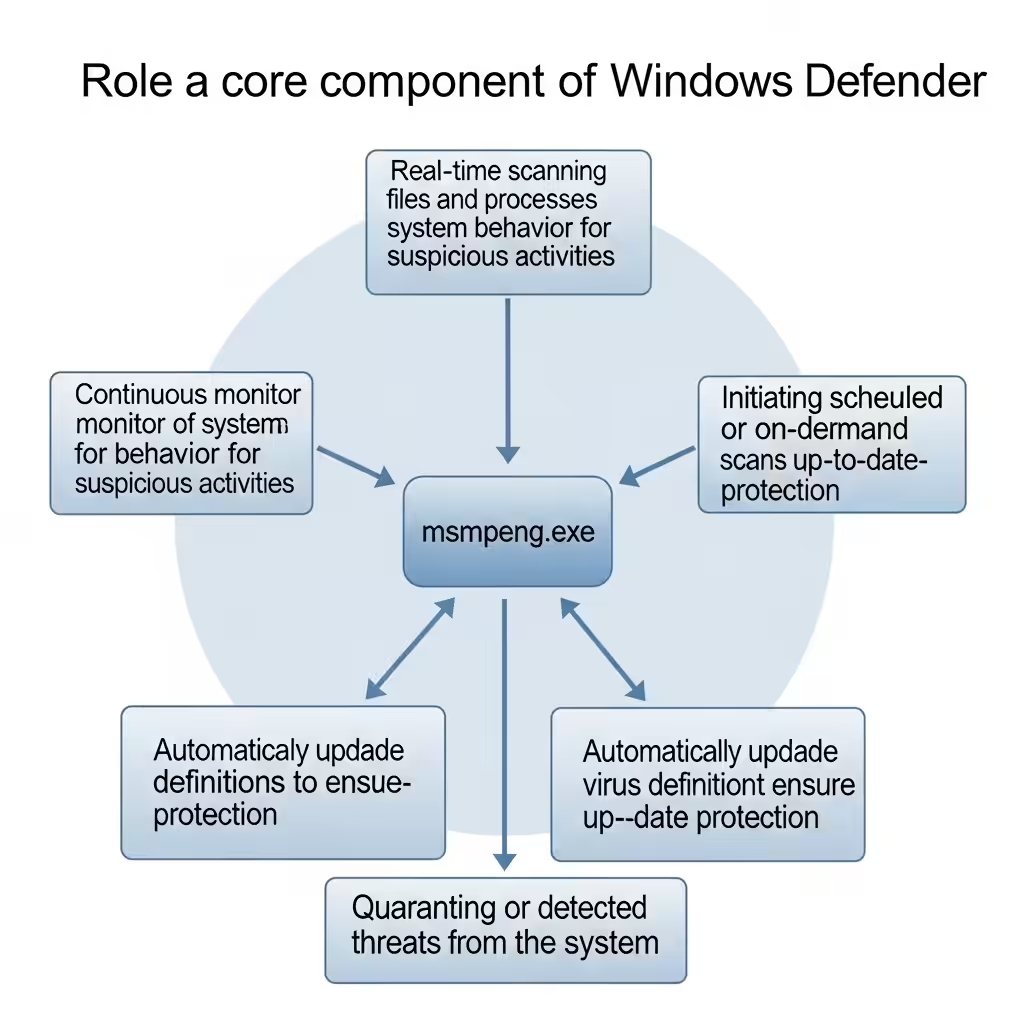
msmpeng.exe is a core component of Windows Defender, the built-in antivirus software in Windows 10 and Windows 11. Specifically, it is part of the Microsoft Defender Antivirus Service.
Its responsibilities include:
-
Scanning files and programs for malware in real-time
-
Monitoring system behavior for suspicious activity
-
Running background and full system scans
-
Updating virus definitions from Microsoft
-
Removing or quarantining detected threats
In short, msmpeng.exe helps protect your computer from viruses, spyware, and other malicious software. It’s an essential process for system security—particularly if you’re relying solely on Windows Defender and not using any third-party antivirus.
Is msmpeng.exe Safe?
Yes. If the process is located in the correct system directory, it is completely safe and not a virus.
You can verify the legitimacy of the file like this:
-
Open Task Manager (Ctrl + Shift + Esc).
-
Right-click Antimalware Service Executable > Open file location.
-
The correct location should be:
C:\ProgramData\Microsoft\Windows Defender\Platform\
If it is located anywhere else (especially in temp folders or unknown directories), it could be a malware impersonator, and you should perform a full antivirus scan immediately.
Why Is msmpeng.exe Using So Much CPU or Memory?
It’s normal for msmpeng.exe to consume system resources occasionally. However, if you notice frequent spikes or constant high usage, here are a few reasons why:
-
Real-time scanning of files or large downloads
-
Running a scheduled or full system scan
-
Conflict with another antivirus or security software
-
Scanning of large files or archives (e.g., ISO, ZIP)
-
Outdated system or corrupted Defender components
-
Defender is scanning its own directory (recursive scanning issue)
Let’s explore how to fix these issues and reduce its resource usage.
Fix 1: Schedule Scans for Off-Peak Hours
If full scans are running during active usage, performance will drop.
How to reschedule Defender scans:
-
Open Task Scheduler from the Start menu.
-
Navigate to:
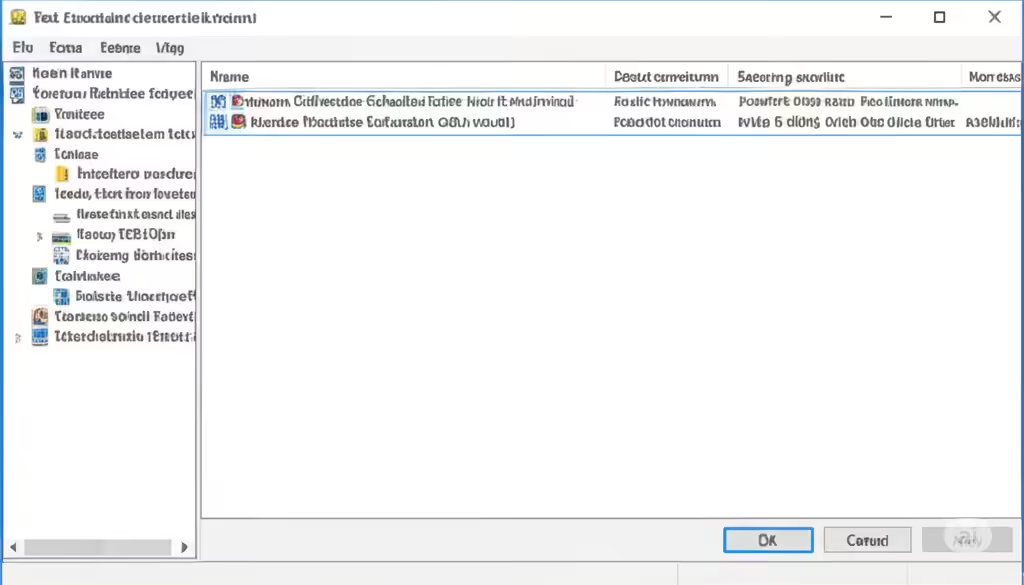
Task Scheduler Library > Microsoft > Windows > Windows Defender -
Double-click Windows Defender Scheduled Scan.
-
Under the Triggers tab, choose a time when your PC is idle (like 3 AM).
-
Click OK to save changes.
This ensures Defender won’t interfere with your productivity.
Fix 2: Prevent Defender from Scanning Its Own Directory
Sometimes Defender may scan its own files, causing unnecessary resource usage.
To fix this:
-
Open Windows Security > Virus & threat protection.
-
Click Manage settings under Virus & threat protection settings.
-
Scroll down and click Add or remove exclusions.
-
Click Add an exclusion > Folder, and select:
C:\Program Files\Windows Defender
andC:\ProgramData\Microsoft\Windows Defender
This prevents recursive scanning and improves performance.
Fix 3: Limit CPU Usage for Defender
Using the Group Policy Editor or Command Prompt, you can throttle CPU usage during scans.
Using Command Prompt:
-
Open Command Prompt as Administrator.
-
Run the following command:
This limits Defender to 30% CPU usage during active scans.
Note:
This option is not available on Windows Home editions by default. For those, use Task Scheduler or other methods listed here.
Fix 4: Disable Real-Time Protection Temporarily
If you’re running another antivirus and don’t need Defender running in real time, you can temporarily disable it.
Steps:
-
Go to Windows Security > Virus & threat protection.
-
Click Manage settings.
-
Toggle off Real-time protection.
Important: Defender will automatically re-enable this after a restart or some time, for security purposes. This should only be used as a temporary solution.
Fix 5: Update Windows and Defender Definitions
Sometimes high usage is due to outdated or corrupted virus definitions.
How to update:
-
Go to Settings > Windows Update.
-
Click Check for updates.
-
Also, open Windows Security > Virus & threat protection > Check for updates under the Virus & threat protection updates section.
Updating can solve performance issues caused by buggy updates or outdated databases.
Fix 6: Use a Lightweight Third-Party Antivirus (Optional)
If you find Defender is consistently heavy on your system and these fixes don’t help, you can opt for a lightweight antivirus alternative, such as:
-
Bitdefender Free
-
Kaspersky Security Cloud
-
Avast or AVG (watch for bloatware)
-
Malwarebytes (for malware-focused protection)
Once installed, Windows Defender will automatically disable its real-time features to avoid conflicts.
Fix 7: Perform a Clean Boot
In some rare cases, third-party software or services can cause Defender to act up.
To perform a clean boot:
-
Press Windows + R, type
msconfig, and hit Enter. -
Under the Services tab, check Hide all Microsoft services, then click Disable all.
-
Go to the Startup tab, open Task Manager, and disable startup apps.
-
Restart your PC.
This helps isolate the issue if Defender is clashing with another background process.
Conclusion
msmpeng.exe, also known as Antimalware Service Executable, is a critical part of Windows Defender and is responsible for keeping your PC safe from malicious threats. While it usually works quietly in the background, it can sometimes consume high system resources due to scans or conflicts.
To summarize, you can:
-
Schedule scans for off-hours
-
Add Defender to its own exclusion list
-
Limit its CPU usage
-
Update Defender and Windows regularly
-
Consider lightweight antivirus alternatives
-
Perform a clean boot if necessary
By applying these steps, you can reduce resource usage without compromising your computer’s protection.