


Fixing the Windows 10 Audio Services Not Responding Problem
The “Audio Services Not Responding” error in Windows 10 is a common issue that typically appears after running the built-in troubleshooter when sound problems are detected. This message indicates that the audio service on your system has stopped or is not responding properly, which means no sound output will be available until the issue is resolved.
Fortunately, there are several methods to fix this problem, and most of them don’t require advanced technical knowledge. This guide walks you through each method step-by-step.
What Causes the Audio Services Not Responding Error?
Several factors may lead to this error message:
-
Windows Audio service has stopped unexpectedly
-
Corrupted or outdated audio drivers
-
Recent Windows updates or system changes
-
Conflicts with third-party software
-
Audio-related services disabled
-
Malware or system corruption
Let’s go through the most reliable ways to troubleshoot and fix the issue.
Restart the Windows Audio Services
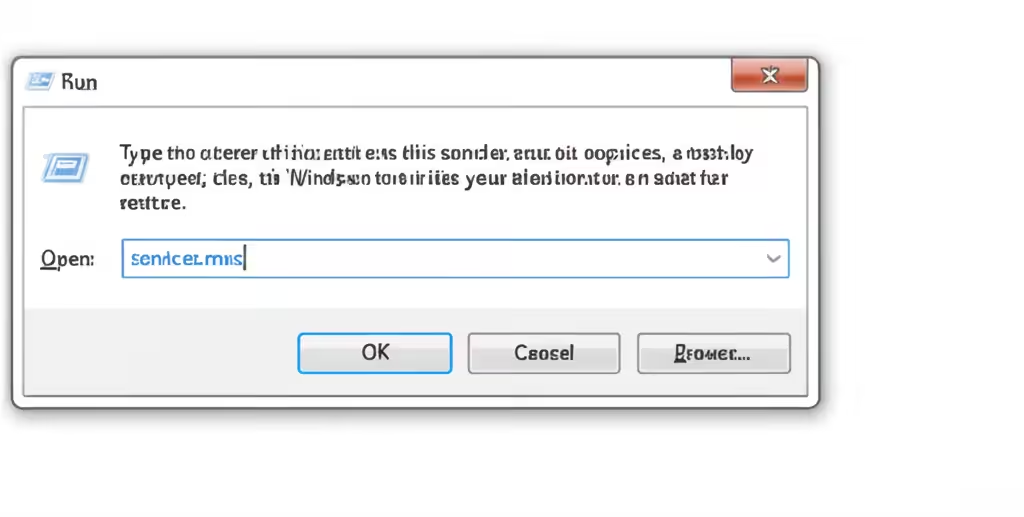
The simplest solution is to restart the audio-related services manually.
Steps:
-
Press Windows + R, type
services.msc, and hit Enter. -
Locate and right-click the following services:
-
Windows Audio
-
Windows Audio Endpoint Builder
-
Remote Procedure Call (RPC)
-
-
Choose Restart for each of them.
-
After restarting, check if sound is restored.
If the “Restart” option is grayed out, you can try stopping and then starting the service manually.
Change Audio Services Startup Type to Automatic
If the service isn’t starting automatically when Windows boots, you’ll need to adjust the startup setting.
Steps:
-
Open services.msc as before.
-
Double-click Windows Audio.
-
In the Startup type dropdown, select Automatic.
-
Click Apply and then Start if the service isn’t running.
-
Repeat this process for Windows Audio Endpoint Builder.
This ensures that audio services will start automatically every time you boot your PC.
Run the Audio Troubleshooter Again
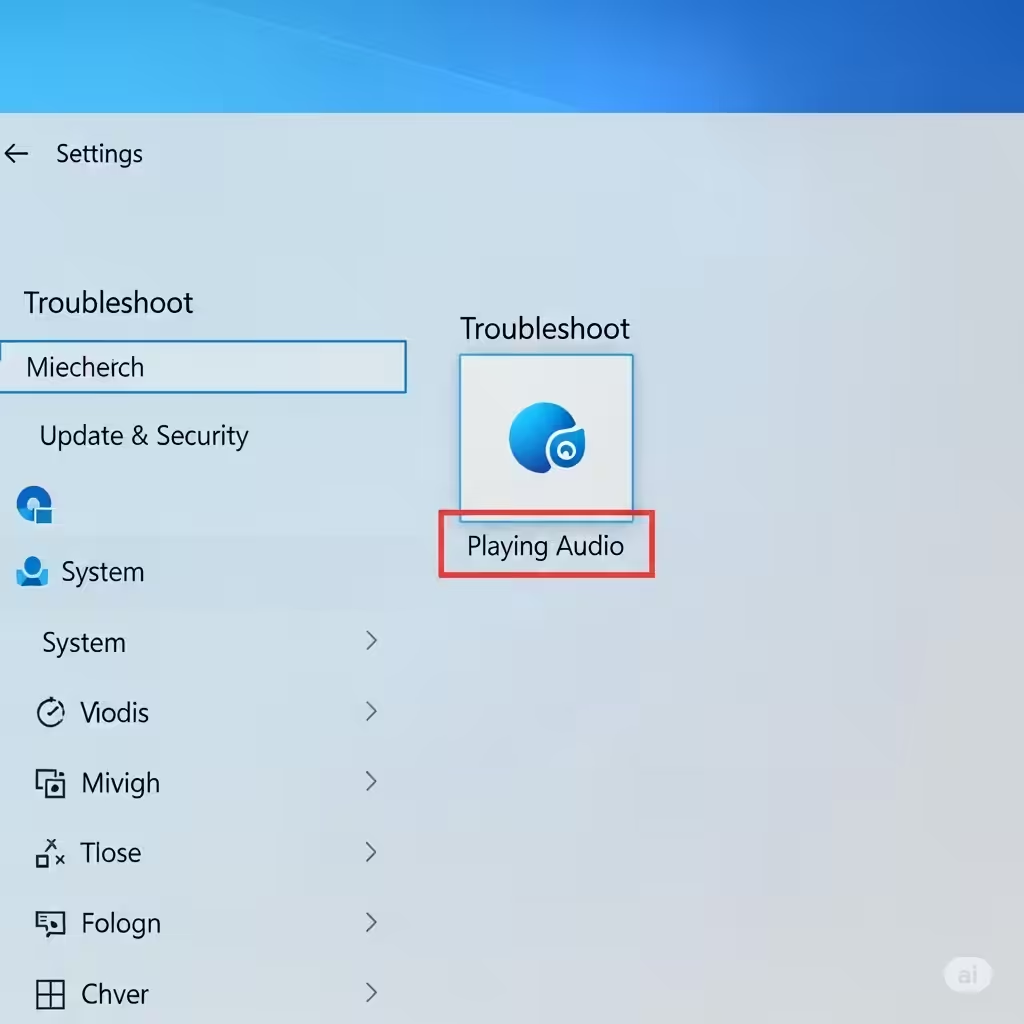
Sometimes the built-in troubleshooter is effective, especially after you’ve adjusted settings.
Steps:
-
Go to Settings > Update & Security > Troubleshoot.
-
Click Additional troubleshooters.
-
Select Playing Audio and click Run the troubleshooter.
-
Follow the instructions and apply the recommended fixes.
If issues still persist, move on to more advanced methods.
Update or Reinstall Your Audio Drivers
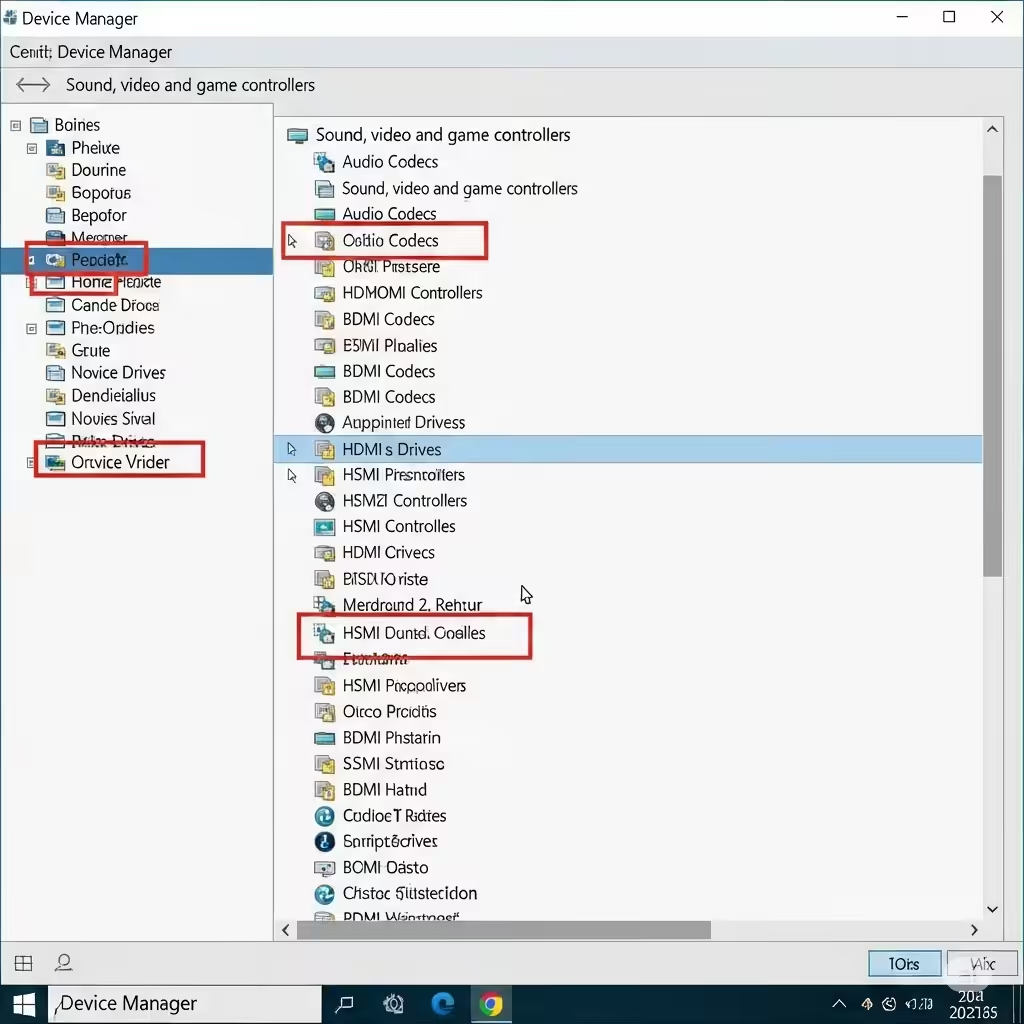
Outdated or corrupted drivers are one of the leading causes of audio service errors.
How to update your drivers:
-
Right-click the Start button and choose Device Manager.
-
Expand the Sound, video and game controllers category.
-
Right-click your audio device (e.g., Realtek High Definition Audio) and select Update driver.
-
Choose Search automatically for drivers.
If updating doesn’t help:
-
Right-click the audio device again and choose Uninstall device.
-
Restart your computer.
-
Windows will reinstall the default driver automatically.
Alternatively, visit your device manufacturer’s website for the latest drivers.
Use Command Prompt to Restore Audio Services
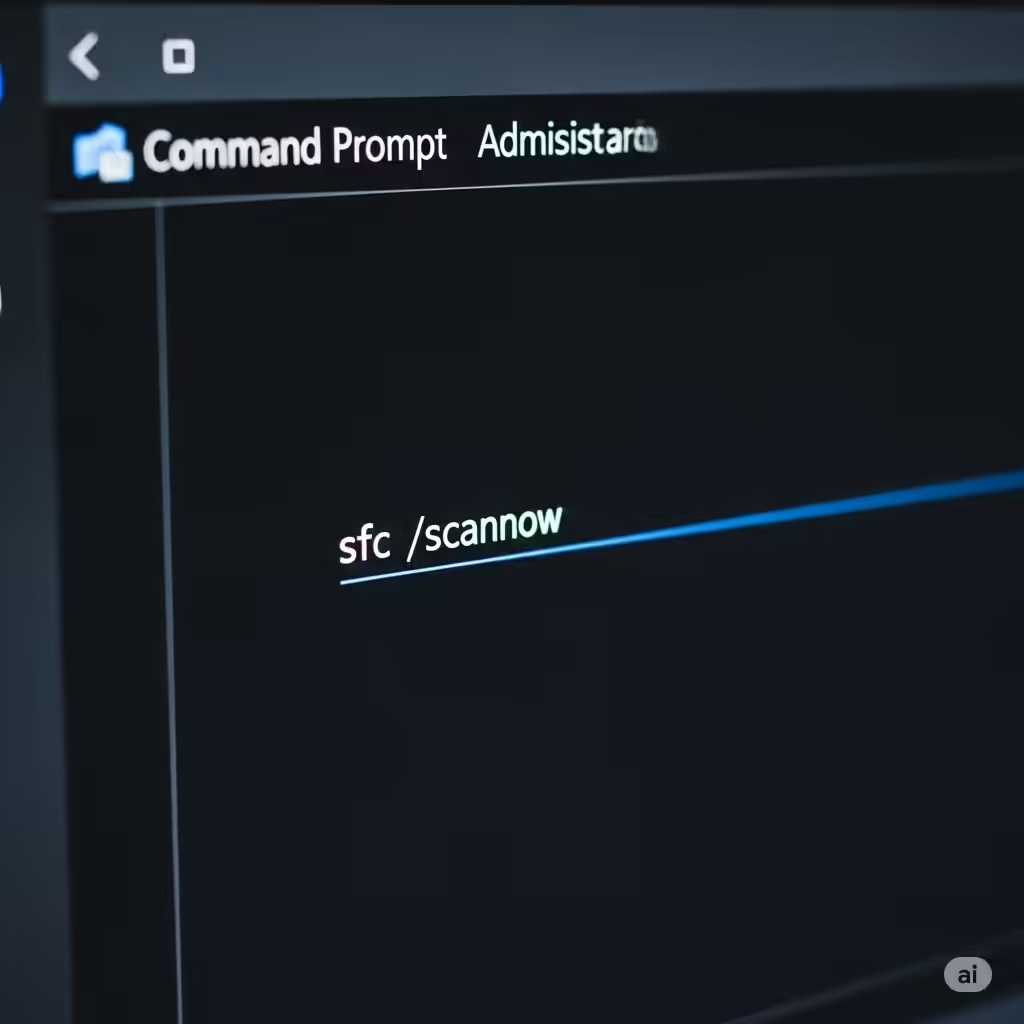
You can reset key services using command-line tools.
Steps:
-
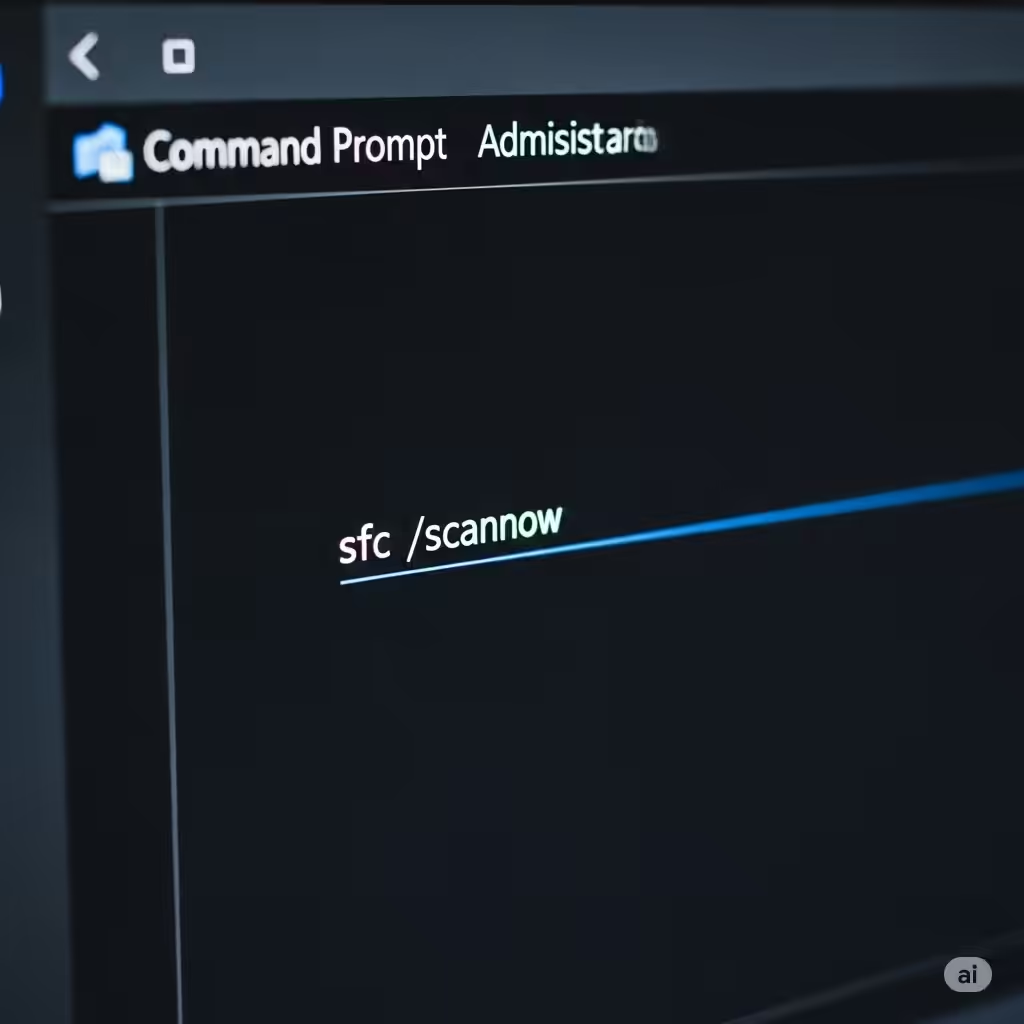
Open Command Prompt as Administrator.
-
Enter the following commands one by one:
-
After the scan completes, restart your computer.
These commands help restore system permissions and repair corrupted files that might interfere with audio services.
Check for Windows Updates
Windows updates often contain fixes for known bugs, including audio problems.
Steps:
-
Open Settings > Update & Security > Windows Update.
-
Click Check for updates.
-
Install any pending updates and restart your computer.
After updating, check if the audio issue persists.
Use System Restore
If the issue started after a recent change or update, using System Restore can revert your system back to a working state.
Steps:
-
Press Windows + R, type
rstrui, and press Enter. -
Choose a restore point from a date before the issue began.
-
Follow the on-screen instructions to complete the restore.
Your files won’t be affected, but installed programs or drivers after that restore point may be removed.
Disable Audio Enhancements
Audio enhancements can sometimes cause compatibility problems with audio drivers.
Steps:
-
Right-click the sound icon in the system tray and select Sounds.
-
Go to the Playback tab.
-
Right-click your default device and select Properties.
-
Under the Enhancements tab, check Disable all enhancements.
-
Click OK and test your audio again.
Check Default Playback Device
If you’ve connected multiple audio devices, the wrong one might be set as default.
To verify:
-
Right-click the sound icon > Open Sound settings.
-
Under Output, make sure the correct device is selected (e.g., speakers or headphones).
-
You can also go to Sound Control Panel > Playback tab, right-click your desired device, and select Set as Default Device.
Scan for Malware
Viruses or malware may disrupt essential Windows services.
To perform a scan:
-
Open Windows Security > Virus & threat protection.
-
Click Quick Scan or Full Scan.
-
If threats are detected, follow the recommended action.
You can also use third-party tools like Malwarebytes for a second opinion.
Conclusion
The “Audio Services Not Responding” error can be frustrating, but it’s usually fixable with the right steps. Whether the issue lies with services, drivers, updates, or settings, the solutions above offer a solid path toward restoring sound on your Windows 10 PC.
In summary:
-
Restart audio-related services
-
Set services to start automatically
-
Update or reinstall audio drivers
-
Run System File Checker and Windows Update
-
Try system restore or audio settings tweaks
-
Scan for malware if necessary
Following these solutions should help you restore your audio and prevent the issue from coming back. If all else fails, consider contacting Microsoft support or your hardware manufacturer for further assistance.