


How to Fix “No Boot Device Found” Error in Windows 10

Encountering the “No Boot Device Found” error in Windows 10 can be alarming, especially if your system was working fine previously. This error means your computer can’t find a drive with a proper operating system to boot into. It can occur due to hardware issues, BIOS misconfigurations, a corrupted boot sector, or loose connections.
This guide provides a comprehensive step-by-step walkthrough to help you fix the issue and recover access to your Windows 10 system.
What Does “No Boot Device Found” Mean?
When you turn on your PC, the BIOS (Basic Input/Output System) checks for a bootable operating system on your hard drive or SSD. If the BIOS cannot find a bootable partition or disk, you’ll see messages like:
-
No Boot Device Found
-
Insert Boot Disk and Press Any Key
-
Boot Device Not Found
-
Operating System Not Found
This indicates that Windows can’t be loaded because the drive where it’s installed is not accessible or doesn’t appear bootable.
Common Causes of the Error
Before applying the fixes, it helps to understand the possible reasons:
-
Incorrect boot order in BIOS
-
Loose or disconnected hard drive cable
-
Failed or corrupted hard disk
-
Corrupt bootloader or boot configuration
-
Damaged system files
-
Drive not set as active
-
File system errors
Let’s explore practical solutions for each potential cause.
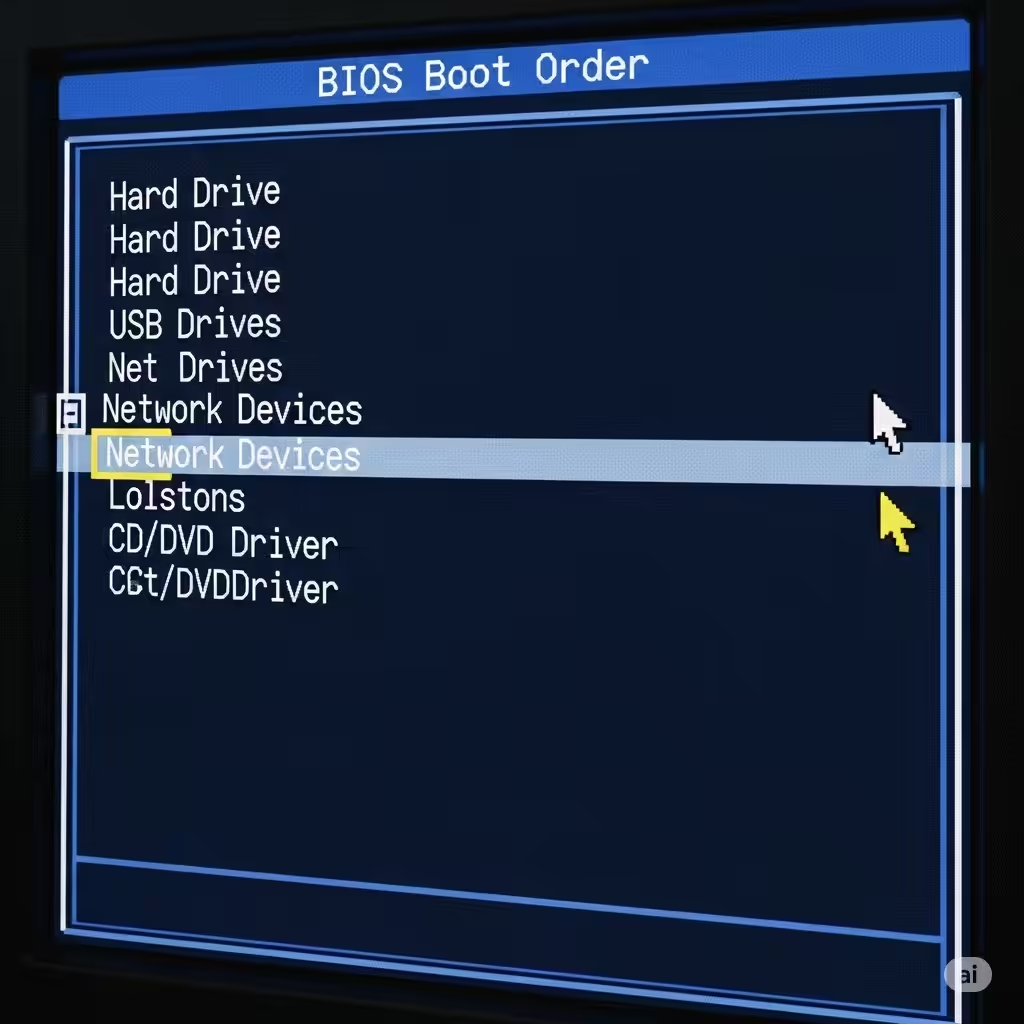
Fix 1: Check BIOS Boot Order

An incorrect boot sequence can lead to this error if the BIOS is looking at the wrong device first.
Steps:
-
Turn off your computer completely.
-
Power it on and immediately press the BIOS key (usually F2, F10, Del, or Esc).
-
Navigate to the Boot tab.
-
Make sure the hard drive or SSD with Windows 10 is listed first in the boot order.
-
Save changes and exit BIOS.
Restart your computer and see if Windows boots properly.
Fix 2: Check Physical Drive Connections

Sometimes the boot drive isn’t detected simply because it’s loose or disconnected.
What to do:
-
Shut down the computer and unplug the power cord.
-
If you’re using a desktop, open the case and check the SATA or NVMe connection of your drive.
-
For laptops, this may require unscrewing the back panel (check your device’s service manual).
-
Reseat the cable securely or try another SATA port.
-
Power the device back on.
This is particularly useful if you’ve moved or bumped your device recently.
Fix 3: Enable UEFI or Legacy Mode in BIOS
Some systems need UEFI, while others use Legacy BIOS. If the wrong one is selected, the system might fail to detect a bootable OS.
Steps:
-
Enter the BIOS setup.
-
Locate the Boot Mode or UEFI/Legacy Boot option.
-
Try switching from UEFI to Legacy, or vice versa.
-
Save and exit.
After rebooting, check if the system loads Windows.
Fix 4: Use Windows Automatic Repair.
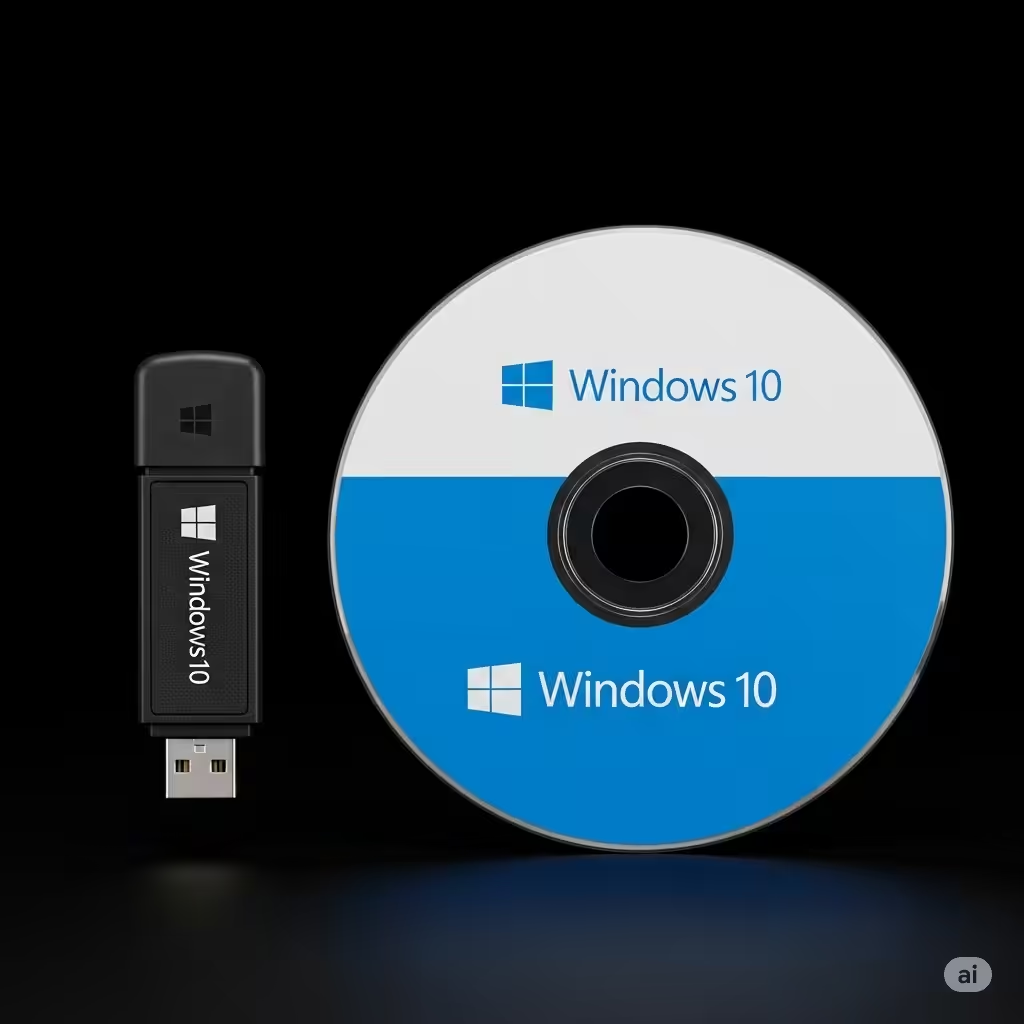
If the bootloader or system files are corrupted, you can use Windows repair tools.
What you’ll need:
-
A Windows 10 bootable USB/DVD. You can create one using the Media Creation Tool from Microsoft’s website.
Steps:
-
Insert the bootable USB and restart the PC.
-
Press the key to boot from the USB (often F12, Esc, or F9).
-
On the Windows Setup screen, click Next > Repair your computer.
-
Select Troubleshoot > Advanced options > Startup Repair.
-
Let Windows scan and attempt to fix the issue.
Fix 5: Rebuild the Boot Configuration Data (BCD)
If Startup Repair fails, you can rebuild the BCD manually.
Steps:
-
Boot from the Windows installation USB.
-
Select Repair your computer > Troubleshoot > Command Prompt.
-
In the Command Prompt window, type the following commands one at a time:
-
Restart your computer after all commands complete.
This command sequence rebuilds the Master Boot Record and Boot Configuration Data.
Fix 6: Set the Boot Partition as Active
If the correct partition isn’t marked as active, the system won’t boot.
Steps:
-
Open Command Prompt from the repair options menu.
-
Type
diskpartand press Enter. -
Enter the following commands:
-
Restart your PC.
Be very careful when selecting partitions, as setting the wrong one active can cause other problems.
Fix 7: Check for Hard Drive Failure
If the drive is physically damaged or failing, no fix will work until the hardware is replaced.
To check for issues:
-
From the repair menu, open Command Prompt.
-
Type
chkdsk C: /f /rand press Enter. -
Let it complete—this might take some time.
If chkdsk returns many unreadable sectors or fails completely, it might be time to replace the drive.
Fix 8: Reinstall Windows 10 (as a last resort)
If none of the above solutions work, you may have no choice but to reinstall Windows.
Important:
-
Back up your data first using a Linux live USB or another computer, if possible.
-
Create a Windows 10 bootable USB.
-
Boot into the installer and select Install Now > Custom: Install Windows only.
-
Choose your drive and perform a fresh installation.
This should resolve all software-level issues but should only be used if no recovery is possible.
Conclusion
The “No Boot Device Found” error in Windows 10 is serious but not always fatal. In many cases, it’s caused by minor configuration problems that can be resolved through BIOS settings, connection checks, or command-line repair tools.
To summarize, try these steps:
-
Ensure the boot order is correct
-
Reconnect your hard drive
-
Switch between UEFI and Legacy BIOS
-
Use Startup Repair or rebuild the bootloader
-
Mark the correct partition as active
-
Scan the drive for corruption
-
Reinstall Windows as a last resort
With patience and the right tools, you can fix the problem and get your system running again without losing your data.