


Windows 10 Ethernet IP Configuration Error – Here’s How to Fix It

Seeing the error message “Ethernet doesn’t have a valid IP configuration” on your Windows 10 PC can be frustrating, especially when you’re trying to connect to the internet via a wired connection. This error means that your system is unable to obtain a valid IP address from your router, preventing internet access.
This problem is commonly caused by network driver issues, incorrect IP settings, or a malfunctioning router. Fortunately, there are several proven solutions that can help restore your connection.
What Does the Error Mean?
When your computer connects to a network, it must have a valid IP address to communicate with the router and access the internet. Normally, your router automatically assigns an IP address using DHCP (Dynamic Host Configuration Protocol). However, if the system fails to get this address, Windows will display this error.
This can happen due to:
-
Faulty network drivers
-
Disabled DHCP or incorrect IP configuration
-
Corrupt or outdated firmware
-
Third-party software interference
-
Faulty Ethernet cable or port
Let’s go through the most effective solutions.
Restart Your Computer and Router
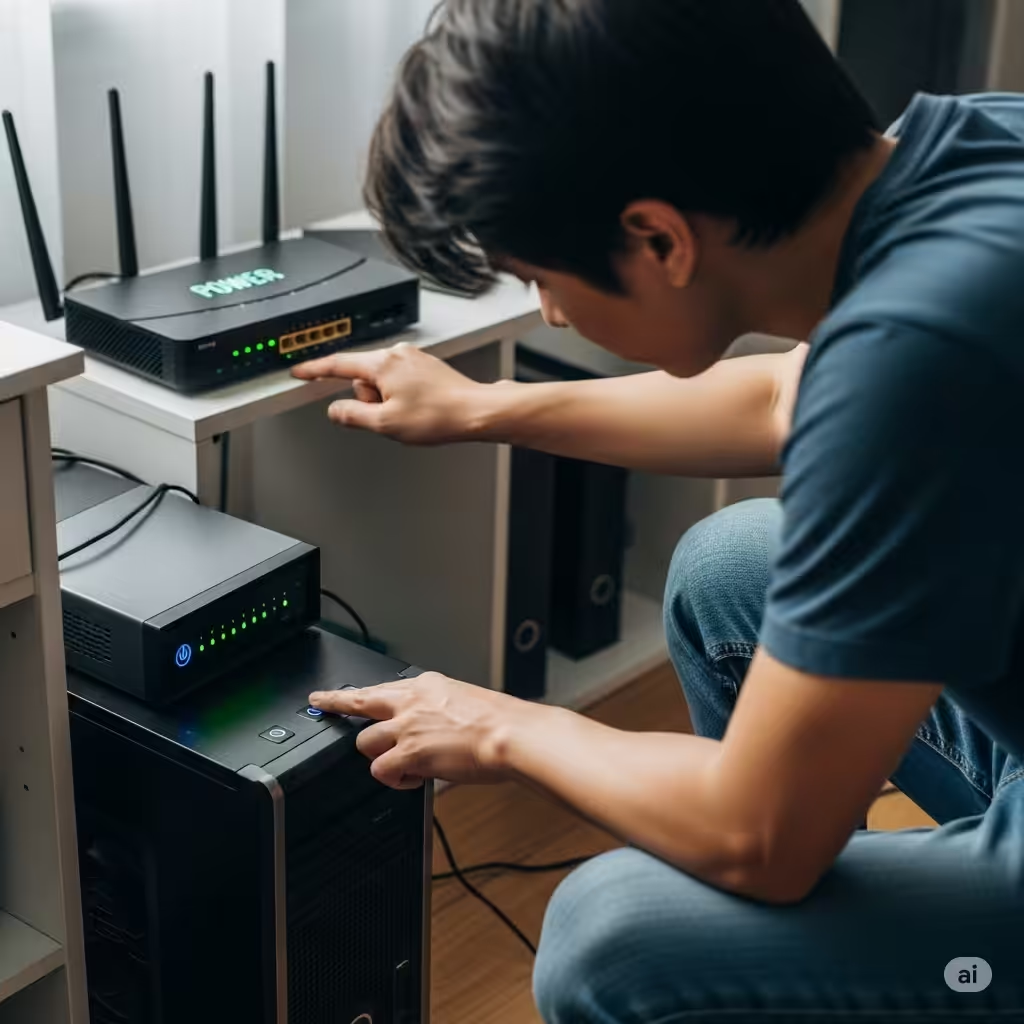
The first step in resolving any network-related issue is a simple restart.
Restart your computer:
-
Close all applications and restart your PC.
Restart your router:
-
Turn off your router/modem.
-
Wait for about 60 seconds.
-
Turn it back on and wait until the lights stabilize.
After restarting both devices, reconnect the Ethernet cable and check if the problem persists.
Run the Windows Network Troubleshooter
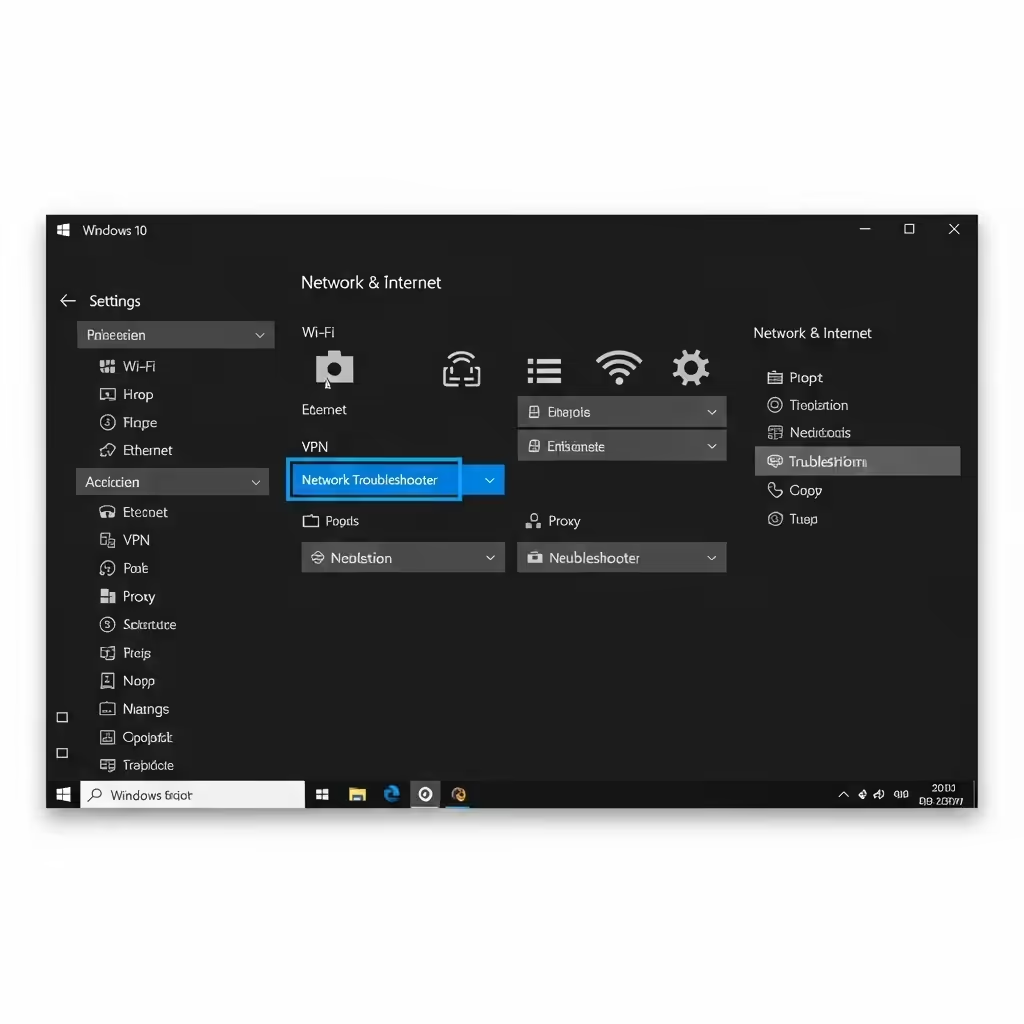
Windows has a built-in tool that can detect and fix many network-related problems.
Steps:
-
Press Windows + I to open Settings.
-
Go to Network & Internet.
-
Click Status on the left sidebar.
-
Scroll down and select Network Troubleshooter.
-
Follow the on-screen instructions.
If the troubleshooter detects and resolves the problem, your internet connection should be restored.
Release and Renew IP Address Using Command Prompt
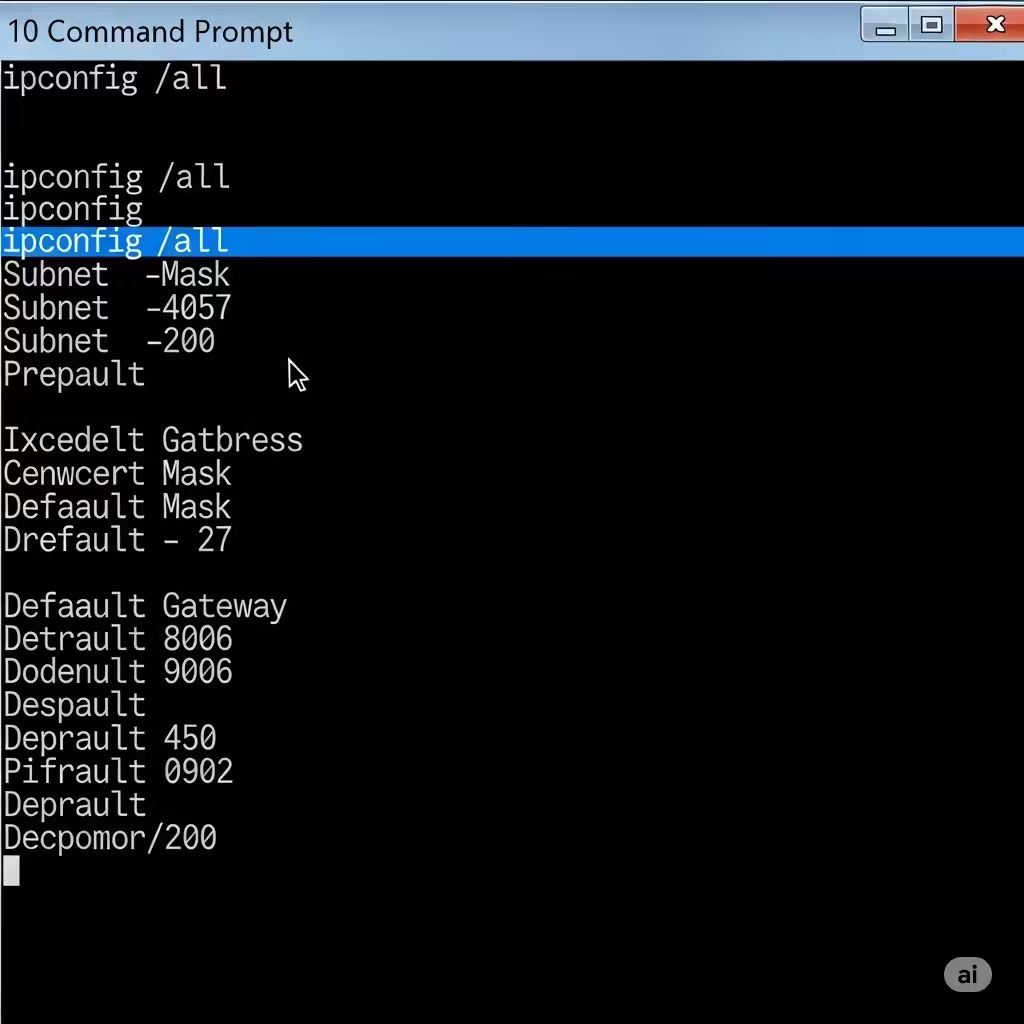
If the IP lease is corrupted or misconfigured, renewing it may help.
Steps:
-
Type cmd in the Start Menu, right-click Command Prompt, and select Run as Administrator.
-
Enter the following commands one at a time:
-
After executing the commands, restart your computer and check your connection.
These commands reset your current IP configuration and request a new one from the router.
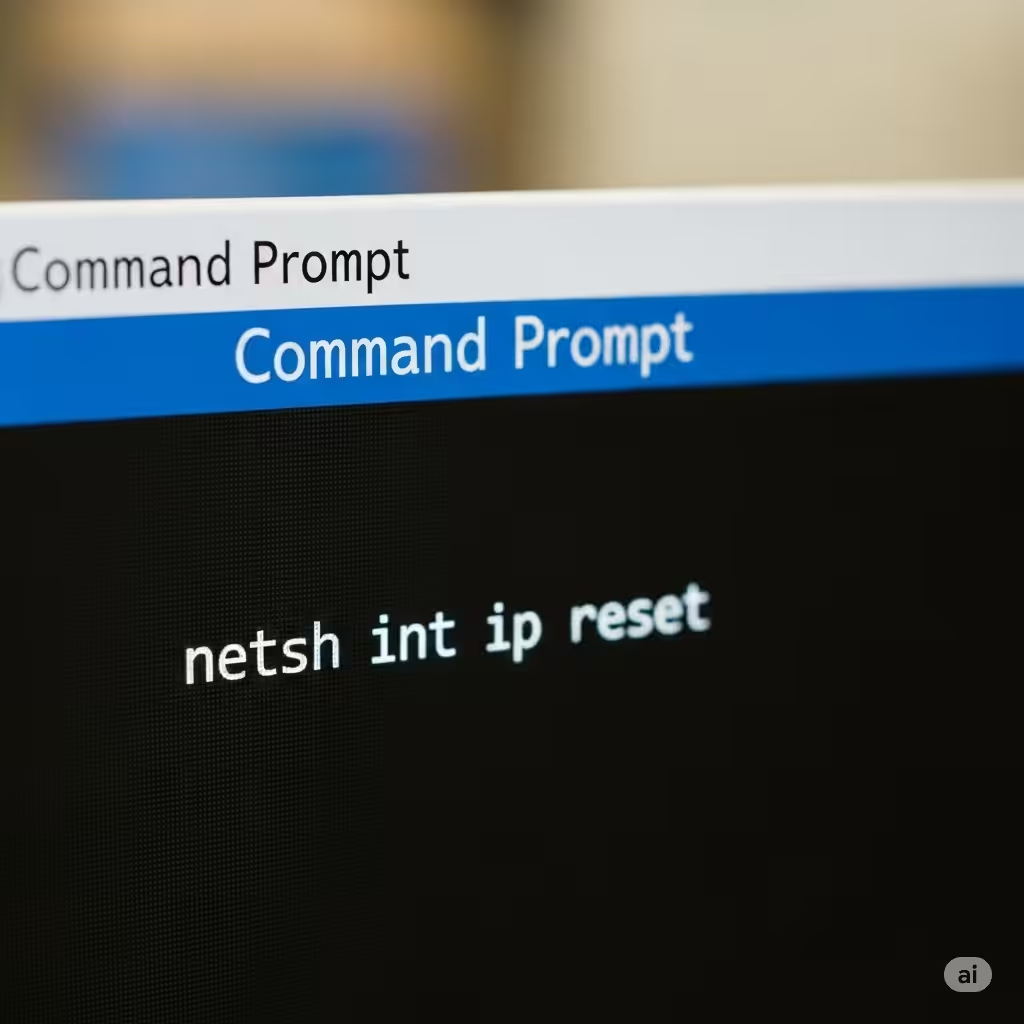
Reset TCP/IP Stack
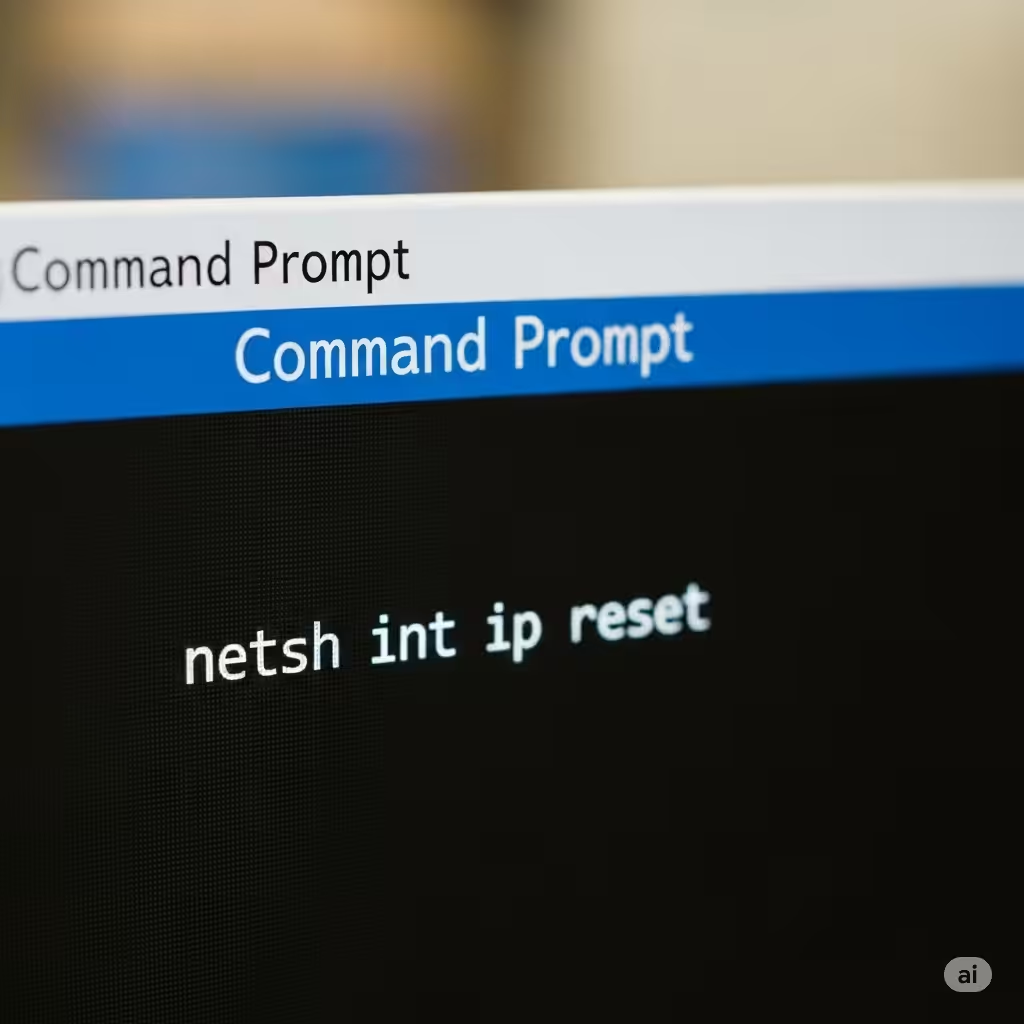
Corrupted TCP/IP stack settings can lead to network issues.
Steps:
-
Open Command Prompt as Administrator.
-
Type the following command and press Enter:
-
Once done, restart your computer.
This will reset all your TCP/IP-related configurations to default.
Set a Static IP Address
If DHCP fails to assign an IP, you can manually configure a static IP address.
Steps:
-
Press Windows + R, type
ncpa.cpl, and press Enter. -
Right-click on your Ethernet connection and choose Properties.
-
Select Internet Protocol Version 4 (TCP/IPv4) and click Properties.
-
Choose Use the following IP address and enter the following:
-
IP address: 192.168.1.100
-
Subnet mask: 255.255.255.0
-
Default gateway: 192.168.1.1
-
Preferred DNS server: 8.8.8.8
-
Alternate DNS server: 8.8.4.4
-
Click OK to apply the changes and close all windows.
Now try browsing the internet and see if the issue is resolved.
Update or Reinstall Ethernet Driver
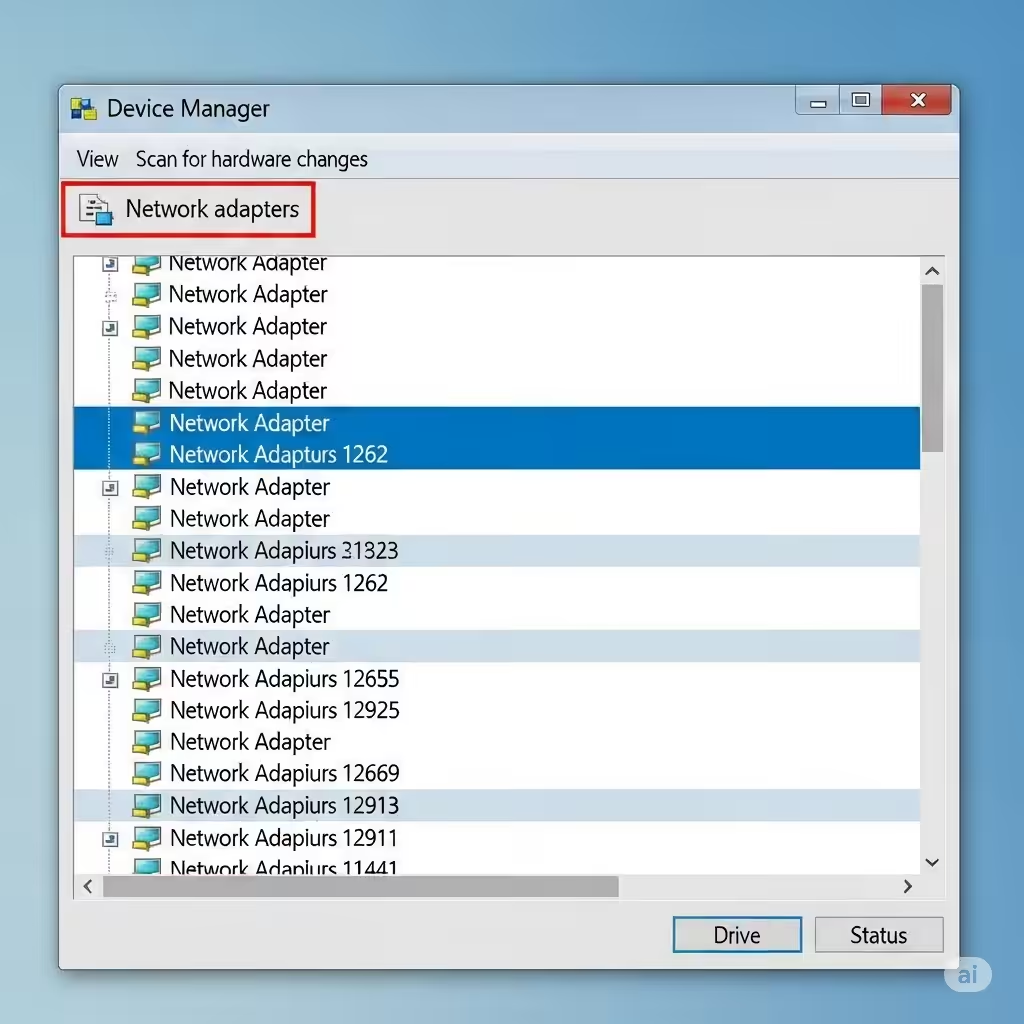
An outdated or corrupt network driver can prevent IP configuration.
Steps to update the driver:
-
Press Windows + X and select Device Manager.
-
Expand the Network adapters section.
-
Right-click your Ethernet adapter and choose Update driver.
-
Select Search automatically for drivers.
If updating doesn’t help:
-
In Device Manager, right-click the adapter and choose Uninstall device.
-
Confirm the uninstall.
-
Restart your computer and Windows will reinstall the driver automatically.
Alternatively, download the latest driver from your motherboard or network adapter manufacturer’s website.
Disable Fast Startup
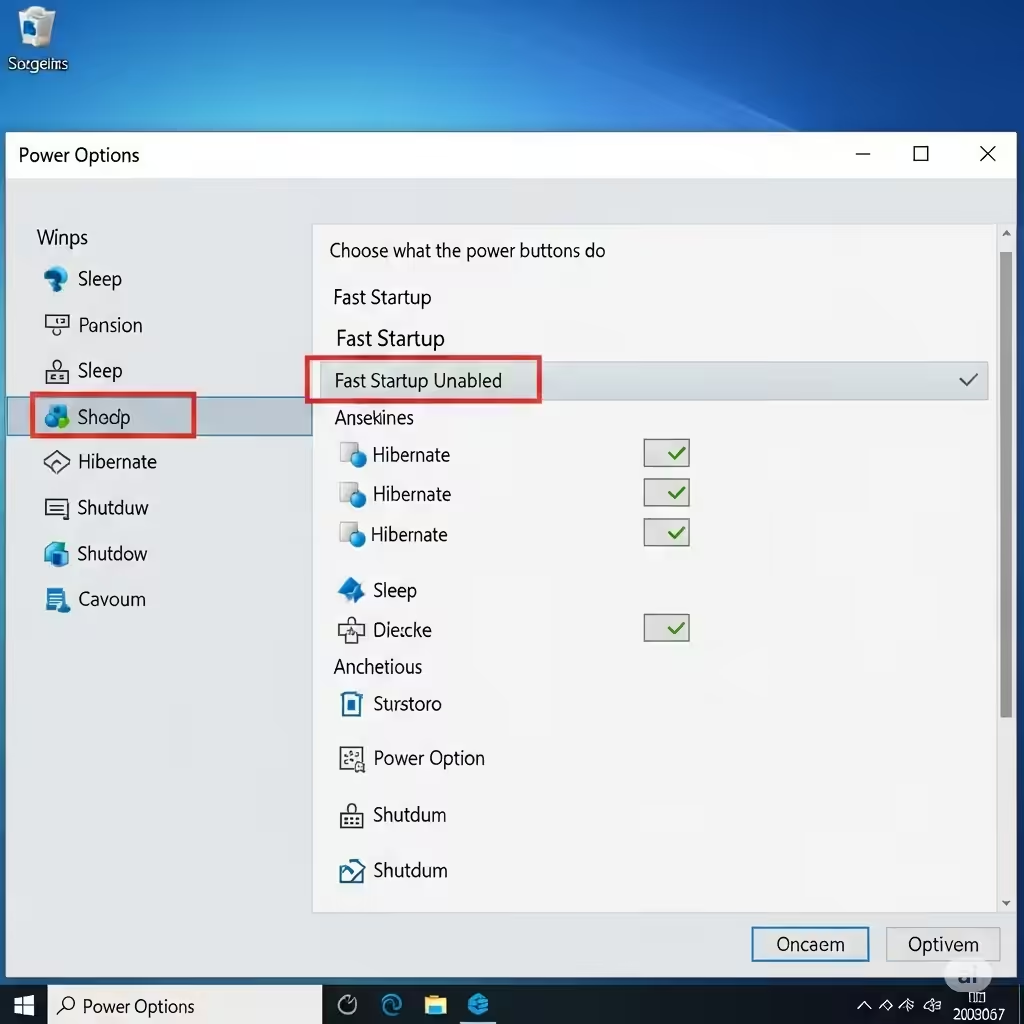
Fast Startup can sometimes interfere with network settings.
Steps:
-
Go to Control Panel > Power Options.
-
Click Choose what the power buttons do.
-
Click Change settings that are currently unavailable.
-
Uncheck Turn on fast startup (recommended).
-
Click Save changes.
Restart your computer and check if the issue has been resolved.
Disable Antivirus and VPN Temporarily
Third-party antivirus software or VPNs may interfere with the network adapter.
Steps:
-
Temporarily disable your antivirus software and VPN, if you are using any.
-
Check your internet connection.
-
If it works, consider changing your antivirus or VPN software or adjusting their settings.
Make sure to re-enable your antivirus after testing.
Check Ethernet Cable and Port
Sometimes, a faulty cable or port can cause connectivity issues.
What to check:
-
Try using a different Ethernet cable.
-
Plug the cable into another LAN port on your router.
-
Test the cable and port with another computer if possible.
If the problem lies with the hardware, replacing the cable or using another port should solve it.
Perform a Network Reset
If none of the above methods work, resetting all network settings may help.
Steps:
-
Open Settings > Network & Internet > Status.
-
Scroll down and click Network reset.
-
Click Reset now.
-
Your PC will restart and all network settings will be restored to default.
After the restart, reconnect to your Ethernet connection and check for internet access.
Conclusion
The “Ethernet doesn’t have a valid IP configuration” error in Windows 10 is frustrating but usually fixable with a few adjustments to your system’s network settings. From restarting devices and renewing IPs to resetting the network stack or updating drivers, there are many effective methods.
To summarize, you should:
-
Restart your router and PC
-
Use the network troubleshooter
-
Release and renew your IP address
-
Reset the TCP/IP stack
-
Assign a static IP
-
Update or reinstall your Ethernet driver
-
Check cables and ports
-
Perform a full network reset
By following the steps in this guide, you should be able to resolve the issue and restore your wired internet connection without needing professional assistance.