


How to Troubleshoot and Resolve USB Ports Not Functioning on Windows 10/11
1. Reboot Your Computer
Sometimes a simple restart can reset internal services and bring USB ports back to life.
Steps:
-
Disconnect all USB devices.
-
Restart your computer.
-
After booting up, reconnect the USB device and check if it works.
2. Try a Different USB Port or Device
Check if the problem lies with the port or the device itself.
What to Do:
-
Try plugging the device into another USB port.
-
Use a different USB cable if your device uses one.
-
Test the USB device on another computer.
If it works elsewhere, your USB port may be the issue. If none of your devices are detected by any port, continue with the fixes below.
3. Check for Physical Damage
Inspect your USB ports carefully.
Signs to Look For:
-
Bent or broken pins inside the port.
-
Dirt, dust, or debris clogging the port.
-
Loose connectors or unstable connection.
Use a flashlight to examine the ports. If necessary, gently clean them using a dry toothbrush or compressed air.
4. Update or Reinstall USB Drivers
Corrupted or outdated drivers can cause USB ports to stop functioning.
Steps to Update USB Drivers:
-
Press Win + X and select Device Manager.
-
Expand Universal Serial Bus controllers.
-
Right-click on each USB Root Hub or Host Controller and select Update driver.
-
Choose Search automatically for drivers.
If updating doesn’t work, try uninstalling the drivers:
-
Right-click on the USB controller > Uninstall device.
-
Restart your computer. Windows will automatically reinstall the drivers.
5. Disable USB Selective Suspend
Windows can disable USB ports to save power, which sometimes causes them to become unresponsive.
Steps to Disable This Feature:
-
Go to Control Panel > Hardware and Sound > Power Options.
-
Click Change plan settings next to your active power plan.
-
Click Change advanced power settings.
-
Expand USB settings > USB selective suspend setting.
-
Set it to Disabled for both battery and plugged-in modes.
-
Click Apply and OK.
Restart your PC and test the USB ports again.
6. Use the Windows Troubleshooter
The built-in hardware troubleshooter may detect and fix issues with USB ports.
Steps:
-
Open Settings > System > Troubleshoot > Other troubleshooters.
-
Scroll to Hardware and Devices and click Run.
-
Follow the on-screen instructions.
This tool will check for hardware misconfigurations and attempt to resolve them automatically.
7. Disable Fast Startup
Fast Startup can interfere with hardware initialization, including USB ports.
To Turn Off Fast Startup:
-
Open Control Panel > Power Options.
-
Click Choose what the power buttons do.
-
Select Change settings that are currently unavailable.
-
Uncheck Turn on fast startup (recommended).
-
Click Save changes and reboot your PC.
8. Check BIOS/UEFI Settings
USB ports can be disabled at the BIOS/UEFI level.
To Check BIOS Settings:
-
Restart your computer and enter the BIOS/UEFI by pressing a key like F2, Del, or Esc during startup (varies by manufacturer).
-
Navigate to Advanced, Integrated Peripherals, or a similar section.
-
Look for USB Configuration.
-
Ensure all USB ports are Enabled.
-
Save changes and exit.
Be careful when modifying BIOS settings. If unsure, consult your motherboard manual.
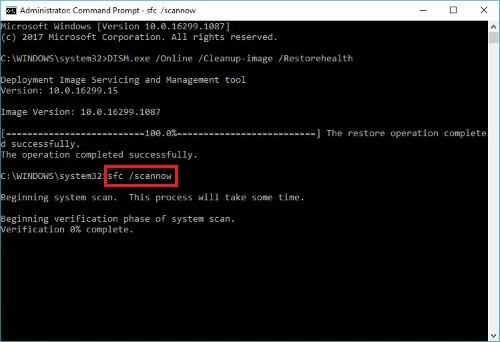
9. Run a System File Check
Corrupt system files may cause USB controller failures.
Steps to Run System File Checker:
-
Open Command Prompt as Administrator.
-
Type:
-
Press Enter and wait for the scan to complete.
This will fix any damaged Windows system files that could be affecting USB functionality.
10. Perform a System Restore
If the USB ports stopped working recently, a system restore can roll back the system to a point when everything worked.
Steps:
-
Go to Control Panel > Recovery > Open System Restore.
-
Choose a restore point before the issue occurred.
-
Follow the on-screen instructions.
System Restore won’t affect your personal files, but it will revert system settings and drivers.
Conclusion
Having your USB ports suddenly stop working in Windows 10 or 11 can be inconvenient, but it’s often fixable without needing hardware replacement. By checking hardware connections, updating drivers, modifying power settings, and using built-in diagnostic tools, you can usually get your ports functioning again.
If none of these solutions work, it’s possible that your motherboard or USB controller has suffered physical damage. In such cases, professional repair or using a powered USB hub or PCI USB expansion card may be the best route.
Always try basic fixes first and work your way up to more advanced troubleshooting. With a bit of patience, you’ll have your USB ports working properly again.