


Microsoft Office Home: How to Fix Common Installation Issues
1. Restart Your PC and Try Again
Before diving into complex fixes, start with the simplest one.
Steps:
-
Close all Office installation windows.
-
Restart your computer.
-
Run the installation again using the official Office installer or Microsoft 365 setup file.
A reboot can resolve temporary glitches or locked system files.
2. Use the Office Removal Tool Before Reinstalling
If you’ve tried installing Office before and it failed, remnants of that attempt might interfere with new installations.
Steps to Completely Remove Office:
-
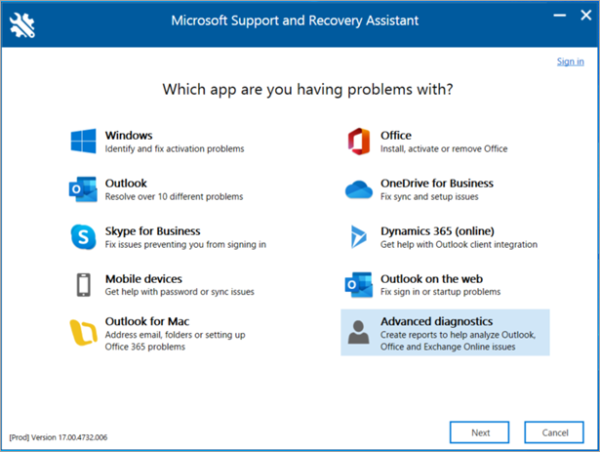
Download the Microsoft Support and Recovery Assistant (SaRA) tool from the official Microsoft website.
-
Launch the tool and choose Office > I have a problem installing Office.
-
Follow the prompts to remove all existing Office components.
-
Restart your computer and attempt the installation again.
3. Check Your Internet Connection
A stable internet connection is essential for downloading and activating Office.
What to Do:
-
Avoid installing Office over a public or unstable Wi-Fi network.
-
Try using a wired Ethernet connection if available.
-
Disable any VPN or proxy temporarily.
If you’re using Microsoft 365, the installer downloads additional files in real-time, so connection drops can interrupt the process.
4. Disable Firewall and Antivirus Temporarily
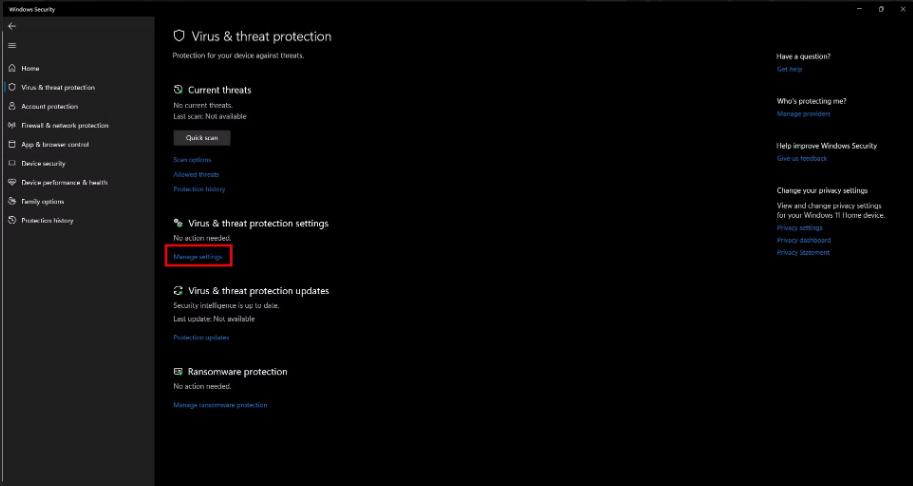
Some third-party antivirus software or Windows Defender Firewall settings may block Office installation processes.
Steps:
-
Temporarily disable real-time protection in your antivirus software.
-
Go to Control Panel > System and Security > Windows Defender Firewall, and select Turn Windows Defender Firewall off (for both private and public networks).
-
Try installing Office again.
-
Re-enable protection after installation completes.
Note: Only disable antivirus temporarily if you’re using trusted Microsoft installation files.
5. Ensure Windows Is Fully Updated
Office installations sometimes fail due to outdated Windows components or missing updates.
Steps to Check for Updates:
-
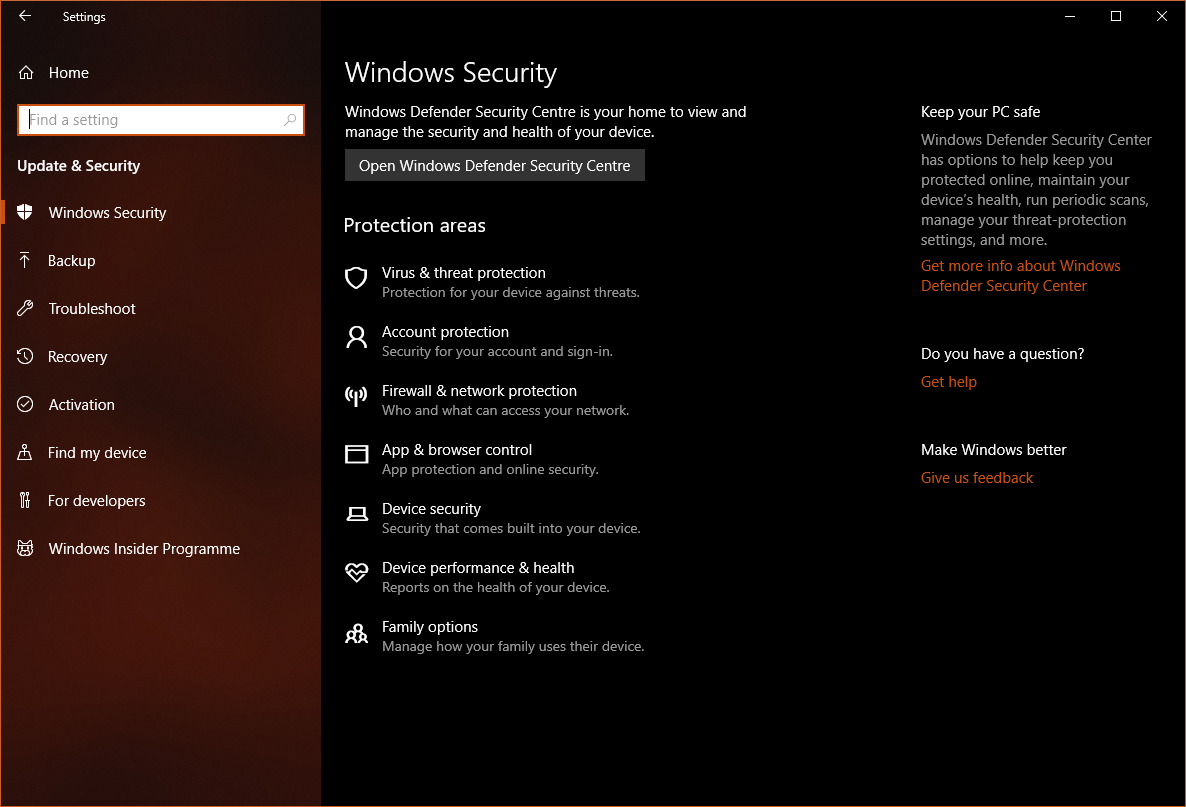
Go to Settings > Update & Security > Windows Update.
-
Click Check for updates.
-
Install any available updates and restart your PC.
-
Try installing Office again.
This ensures that your PC has the necessary compatibility components for Office.
6. Run Office Installer as Administrator
Running the Office installer without elevated privileges might prevent it from making necessary system changes.
How to Do It:
-
Right-click the Office setup file (usually
Setup.exeorOfficeSetup.exe). -
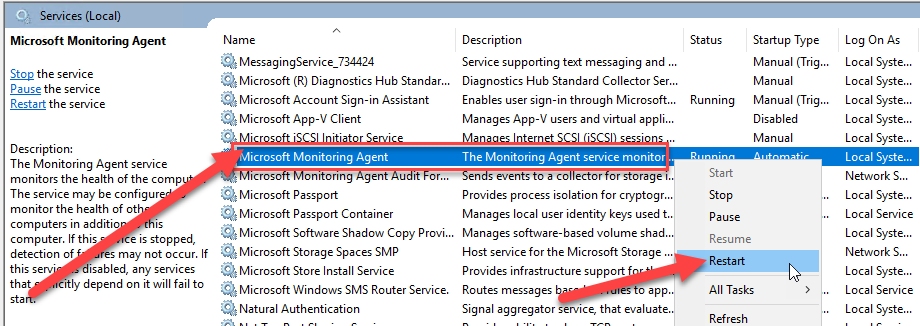
Select Run as administrator.
-
Follow the prompts to install.
This bypasses certain permission issues that may cause installation failures.
7. Free Up Disk Space
Office requires a minimum amount of free disk space to install successfully.
Steps to Free Up Space:
-
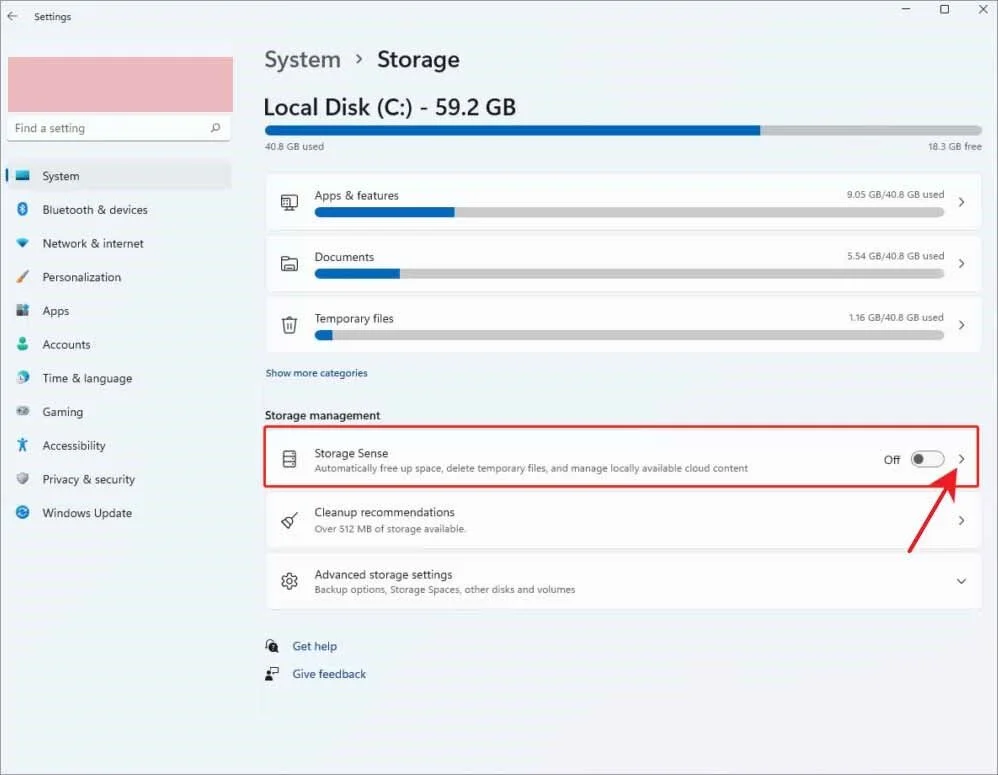
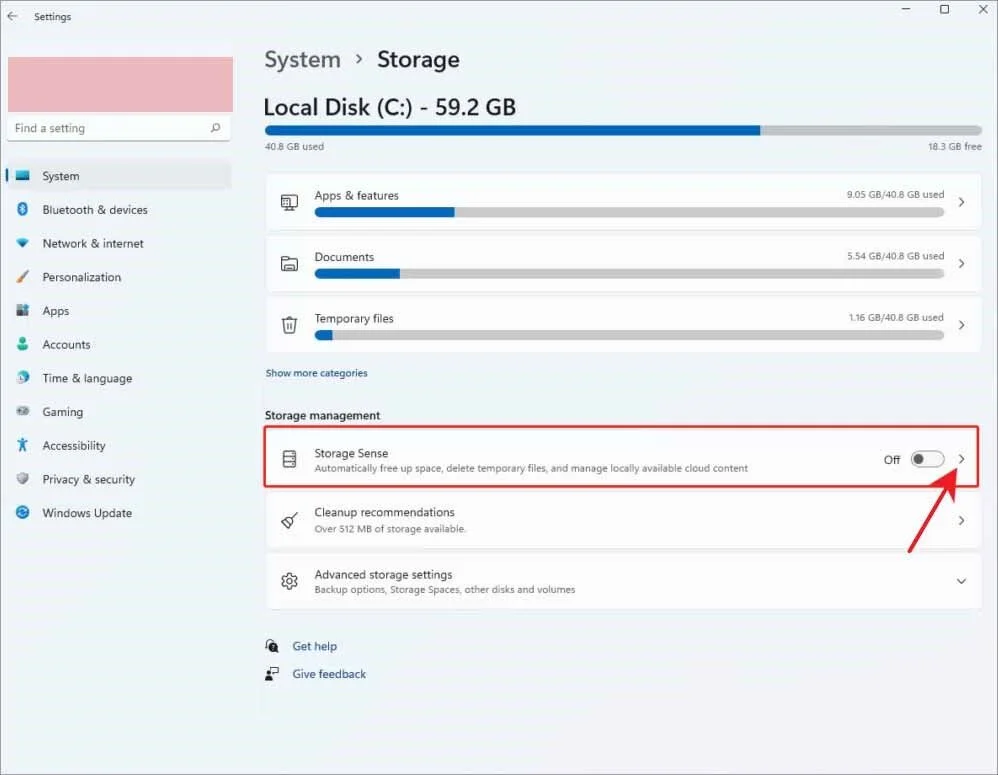
Open Settings > System > Storage.
-
Use Storage Sense to automatically delete temporary files.
-
Uninstall unused programs.
-
Ensure at least 4GB of free space before starting installation.
8. Use the Offline Installer
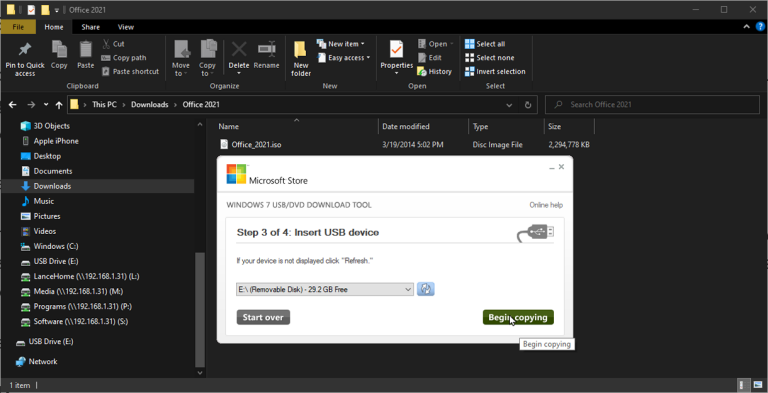
If the standard web installer fails, use Microsoft’s offline installer, which doesn’t rely on continuous internet access.
How to Use It:
-
Log in to your Microsoft account linked to your Office license.
-
Go to Services & subscriptions and download the offline installer (usually a
.imgfile). -
Mount the file by double-clicking it.
-
Run the
Setup.exefrom the virtual drive.
This method avoids interruptions caused by network dropouts or firewall blocks.
9. Check for Conflicting Programs
Older versions of Office, incompatible software, or tools like LibreOffice can interfere with installation.
Steps to Identify and Remove Conflicts:
-
Go to Control Panel > Programs and Features.
-
Uninstall previous Office versions or any third-party productivity suites.
-
Restart your PC.
-
Try installing Office again.
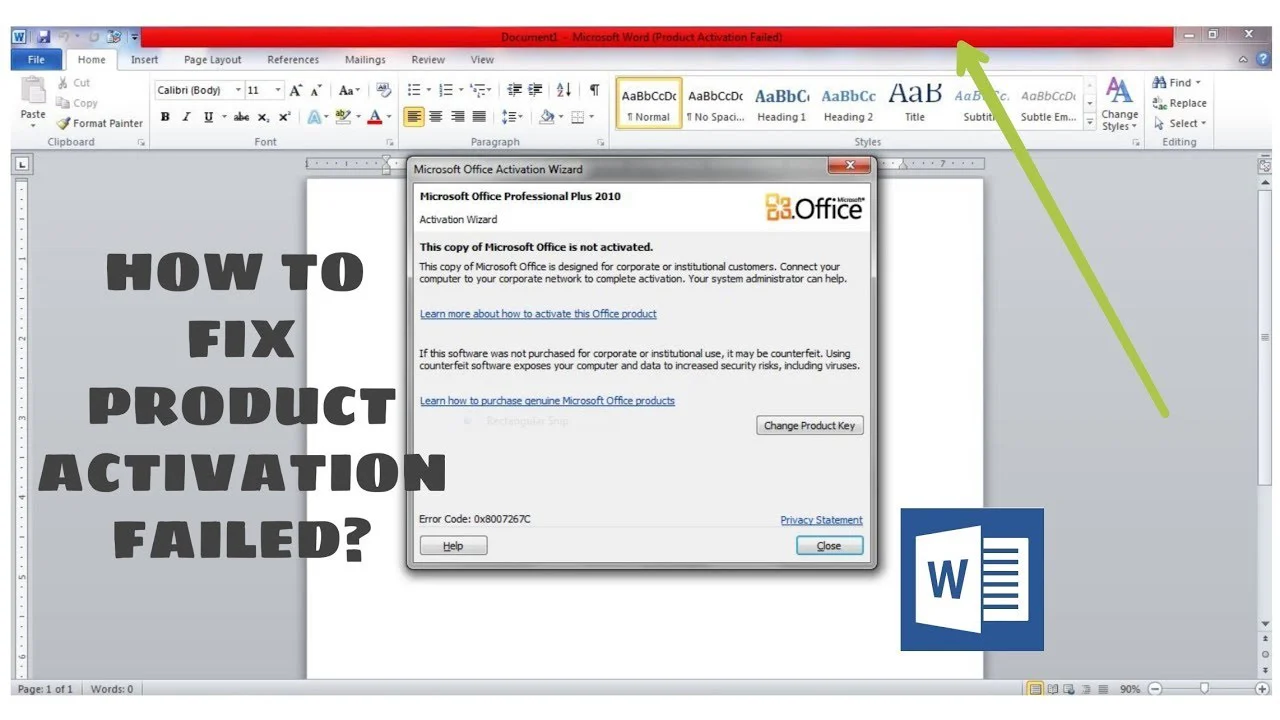
10. Verify License Activation After Installation
Sometimes Office installs correctly, but won’t activate, giving the illusion that installation failed.
How to Activate:
-
Open any Office app (Word, Excel, etc.).
-
Go to File > Account.
-
Click Activate Product.
-
Enter your Microsoft account credentials linked to the license.
-
Ensure the license is valid for Home use and not expired or used on too many devices.
Final Thoughts
Microsoft Office is a powerful suite of tools for home users, but installation problems can occasionally arise. Thankfully, most of these issues can be resolved with the right steps—from checking your internet connection and running the installer as administrator, to using Microsoft’s official troubleshooting tools.
If you continue to experience problems after trying these fixes, consider contacting Microsoft Support directly or using the Microsoft Support and Recovery Assistant (SaRA) for guided help.
Taking a systematic approach will help you get Office installed and running smoothly on your system without further frustration.