


Resolve “Server Execution Failed” Error in Windows Media Player
Windows Media Player has long been a built-in solution for playing audio and video files on Windows systems. While it’s generally reliable, users sometimes encounter the frustrating “Server execution failed” error when trying to play a media file. This error typically prevents Windows Media Player from launching or functioning properly.
Fortunately, there are multiple ways to resolve this problem. In this guide, we’ll walk through the most effective solutions to fix the Server Execution Failed error in Windows Media Player on Windows 10 and Windows 11.
What Causes the “Server Execution Failed” Error?
The error often appears when:
-
Trying to open a media file with Windows Media Player
-
Closing a media file and opening another quickly
-
Launching the player after a long idle period
Common causes include:
-
Windows Media Player process is stuck or frozen
-
System file corruption
-
Conflicts with third-party software or codecs
-
User profile issues
-
Windows Update glitches
-
Media Player service not working properly
Let’s go step by step through the different methods you can use to solve this issue.
Step 1: End the Windows Media Player Process
Sometimes the program gets stuck in the background and won’t respond to new commands.
-
Press Ctrl + Shift + Esc to open Task Manager.
-
Find Windows Media Player or
wmplayer.exein the list of processes. -
Right-click on it and select End task.
-
Close Task Manager and try opening your media file again.
If this doesn’t fix the issue, continue to the next step.
Step 2: Restart Windows Media Player Network Sharing Service
The network sharing service sometimes causes this error when it fails to initialize or crashes.
-
Press Windows + R, type
services.msc, and hit Enter. -
In the Services window, scroll down to find Windows Media Player Network Sharing Service.
-
Right-click on it and select Restart.
-
If it’s not running, select Start instead.
Once restarted, try launching your media file again.
Step 3: wp-signup.php DLL Files Again
Re-wp-signup.phping important system DLL files can help resolve the execution error.
-
Open Command Prompt as Administrator (search cmd, right-click, and choose Run as administrator).
-
Type the following commands one by one, pressing Enter after each:
After executing both commands, restart your PC and test Windows Media Player.
Step 4: Use the Windows Troubleshooter
Windows has built-in troubleshooters for apps, including Windows Media Player.
-
Open Settings > System > Troubleshoot > Other troubleshooters.
-
Scroll to find Windows Media Player or Video Playback.
-
Click Run next to it.
-
Follow the on-screen instructions to detect and fix issues.
The troubleshooter will automatically apply repairs where needed.
Step 5: Re-wp-signup.php Windows Media Player
If some parts of Windows Media Player are corrupted, re-wp-signup.phping it can help.
-
Press Windows + R, type the following, and press Enter:
-
In the Windows Features dialog, expand Media Features.
-
Uncheck Windows Media Player, then click OK.
-
Restart your PC.
-
Repeat the process and re-check Windows Media Player to re-enable it.
After the reboot, the player will be reinstalled. Try running it again.
Step 6: Scan and Repair System Files
System file corruption is another common cause of unexpected application errors.
-
Open Command Prompt as Administrator.
-
Type the following command and hit Enter:
-
Wait for the scan to complete. It may take 10–15 minutes.
If any corrupt system files are found, the system will attempt to repair them automatically.
Step 7: Create a New User Account
Sometimes, user profile corruption causes persistent issues that don’t affect other accounts.
-
Go to Settings > Accounts > Family & other users.
-
Click Add someone else to this PC.
-
Create a new local user account.
-
Log out of your current account and log into the new one.
-
Open Windows Media Player and see if it works correctly.
If it works on the new account, your old user profile may be corrupted.
Step 8: Check for Conflicting Applications or Codecs
Some third-party applications, such as codec packs or media tools, may conflict with Windows Media Player.
-
Uninstall any third-party codec packs (e.g., K-Lite Codec Pack) temporarily.
-
Disable background apps that relate to media playback or streaming.
-
Try a clean boot to isolate software conflicts:
How to Perform a Clean Boot:
-
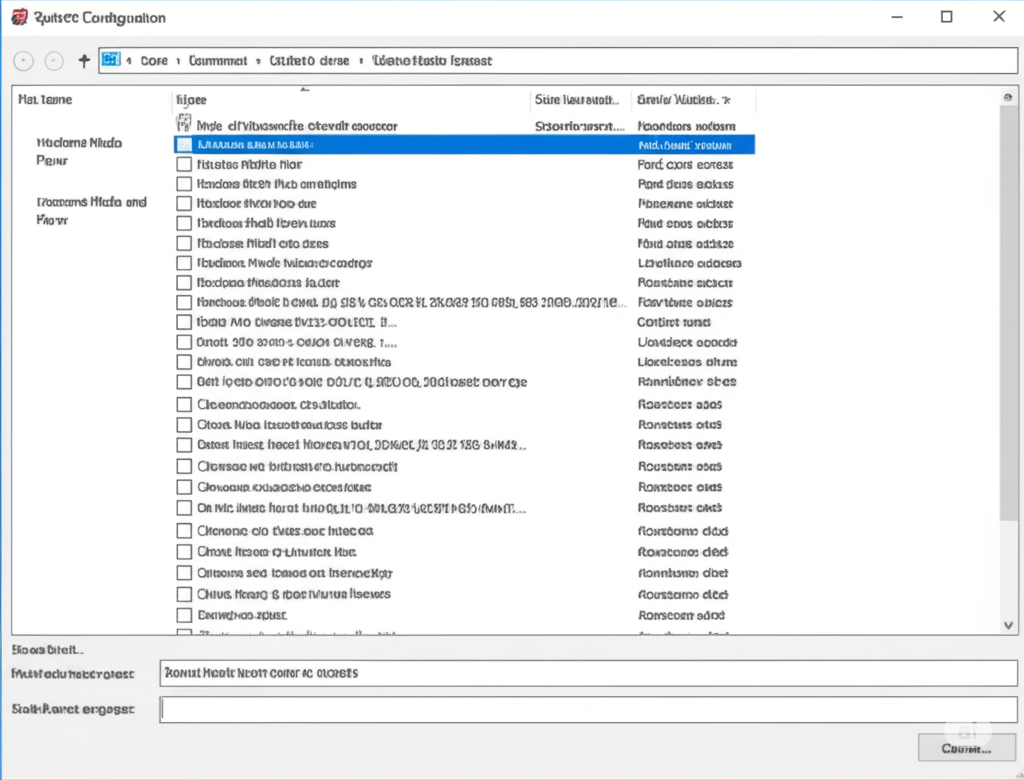
Press Windows + R, type
msconfig, and press Enter. -
In the System Configuration window, go to the Services tab.
-
Check Hide all Microsoft services, then click Disable all.
-
Go to the Startup tab and click Open Task Manager.
-
Disable all startup items.
-
Restart your PC.
Test Windows Media Player again. If it works, re-enable services one at a time to find the culprit.
Step 9: Use an Alternative Media Player
If you’re in a hurry and need to play a file, using a third-party media player like VLC Media Player or Media Player Classic can be a temporary workaround.
-
Install and open your file with the new player
This doesn’t fix the issue but can keep you productive while troubleshooting.
Conclusion
The “Server Execution Failed” error in Windows Media Player can be triggered by many issues — from stuck processes and system file corruption to software conflicts or profile damage. Fortunately, the solutions listed above are often effective in resolving the problem.
Start with basic steps like ending background processes and restarting services. If those don’t work, try re-wp-signup.phping system files, using the built-in troubleshooter, or repairing Windows Media Player itself. For more stubborn cases, user profile creation and clean boots help isolate deeper issues.
By following this guide, you should be able to get your media files playing smoothly again in Windows Media Player.