


Troubleshooting: Shutdown Blocked by DDE Server Window (explorer.exe)
Have you tried to shut down your Windows 10 or Windows 11 PC only to get stuck on a message that says “DDE Server Window: explorer.exe – Application Error”? If yes, you’re not alone. Many users report this issue, especially after Windows updates or prolonged uptime. It causes a delay or complete halt during shutdown or restart, often requiring a forced power-off.
In this guide, we’ll explain what this error means, why it happens, and how you can permanently fix it.
What Is the DDE Server Window?
DDE (Dynamic Data Exchange) is an older Windows protocol that allows applications to share data with one another. For example, it helps programs like Microsoft Word and Excel communicate. The DDE Server Window message during shutdown typically relates to processes that are still trying to communicate or haven’t closed properly—especially explorer.exe, which is your Windows graphical shell (desktop, taskbar, etc.).
When the system tries to shut down, but a DDE communication is still active or stuck, Windows prevents shutdown to avoid data loss or corruption.
Common Causes
Before applying the fixes, it’s helpful to understand why the issue may occur:
-
Background programs not closing properly
-
A glitch in explorer.exe process
-
Faulty or outdated third-party software
-
Issues caused by recent Windows updates
-
System file corruption
-
Fast Startup feature conflicts
Method 1: Disable Fast Startup
Fast Startup is designed to speed up boot times, but it often interferes with normal shutdown procedures.
Steps:
-
Press Windows + R, type
control, and press Enter. -
Go to Hardware and Sound > Power Options > Choose what the power buttons do.
-
Click Change settings that are currently unavailable.
-
Uncheck Turn on fast startup (recommended).
-
Click Save changes.
Restart your computer and check if the issue is resolved.
Method 2: Use the Group Policy Editor to Disable Shutdown Blocking
You can prevent apps like DDE from blocking shutdown using Group Policy.
Steps:
-
Press Windows + R, type
gpedit.msc, and press Enter. -
Navigate to:
Computer Configuration > Administrative Templates > System > Shutdown Options -
Double-click Turn off automatic termination of applications that block or cancel shutdown.
-
Set it to Enabled and click OK.
Now try shutting down your system again.
Note: Group Policy Editor is only available in Windows Pro and Enterprise editions. If you’re on Home edition, you can achieve similar effects via Registry Editor (see below).
Method 3: Modify Registry to Force App Termination
If you don’t have access to the Group Policy Editor, modify the registry to force-terminate any apps blocking shutdown.
Warning: Be careful when editing the registry. Back it up before making changes.
Steps:
-
Press Windows + R, type
regedit, and press Enter. -
Navigate to:
HKEY_CURRENT_USER\Control Panel\Desktop -
On the right pane, look for or create the following values:
-
AutoEndTasks – set its value to
1 -
WaitToKillAppTimeout – set value to
2000(2 seconds) -
HungAppTimeout – set value to
2000
-
-
Close the Registry Editor and restart your computer.
These changes instruct Windows to automatically end non-responsive applications during shutdown.
Method 4: End explorer.exe Manually Before Shutdown
As a temporary workaround, ending explorer.exe manually can help avoid the DDE error.
Steps:
-
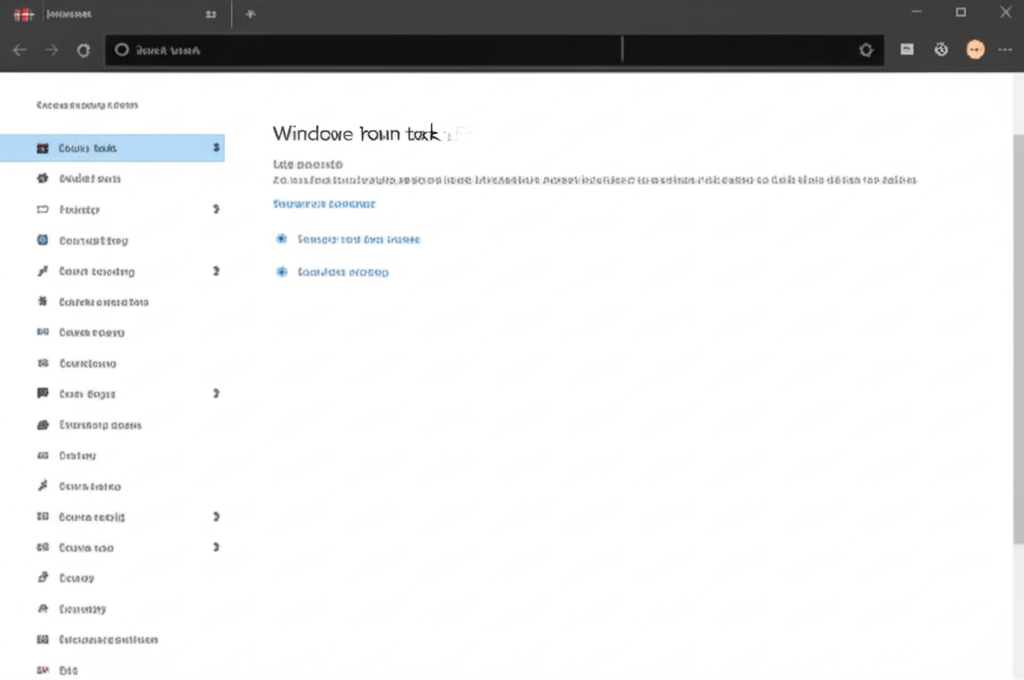
Press Ctrl + Shift + Esc to open Task Manager.
-
Locate Windows Explorer under the Processes tab.
-
Right-click it and select End task.
-
Now try to shut down your PC.
You can also relaunch explorer.exe by clicking File > Run new task, typing explorer, and pressing Enter—useful if you want to avoid restarting immediately.
Method 5: Clean Boot Your System
A clean boot helps you identify whether third-party apps or services are causing the problem.
How to perform a clean boot:
-
Press Windows + R, type
msconfig, and press Enter. -
Go to the Services tab.
-
Check Hide all Microsoft services, then click Disable all.
-
Go to the Startup tab and click Open Task Manager.
-
Disable all startup items listed.
-
Restart your computer.
Now attempt a shutdown. If the DDE error disappears, it means a third-party program was the cause. Re-enable services and startups one by one to find the culprit.
Method 6: Scan for System File Corruption
Corrupted system files can interfere with the shutdown process.
Steps:
-
Open Command Prompt as Administrator.
-
Type the following command:
-
Press Enter and wait for the scan to complete.
-
If issues are found, SFC will attempt to fix them.
You can also run:
To repair deeper Windows image issues.
Method 7: Check for Windows Updates
If the error started recently, a new update may be available to fix it.
-
Go to Settings > Update & Security > Windows Update.
-
Click Check for updates.
-
Install any pending updates and restart your PC.
In some cases, rolling back a problematic update can also help.
Conclusion
The DDE Server Window (explorer.exe) shutdown error is an annoying bug, but it usually doesn’t signal anything catastrophic. By disabling Fast Startup, adjusting Group Policy or Registry settings, updating Windows, or performing a clean boot, you can resolve the issue permanently.
If the problem persists despite all the fixes, consider creating a new Windows user profile to see if the issue is user-specific. For advanced users, doing a system reset or clean reinstall of Windows may be the last resort.