


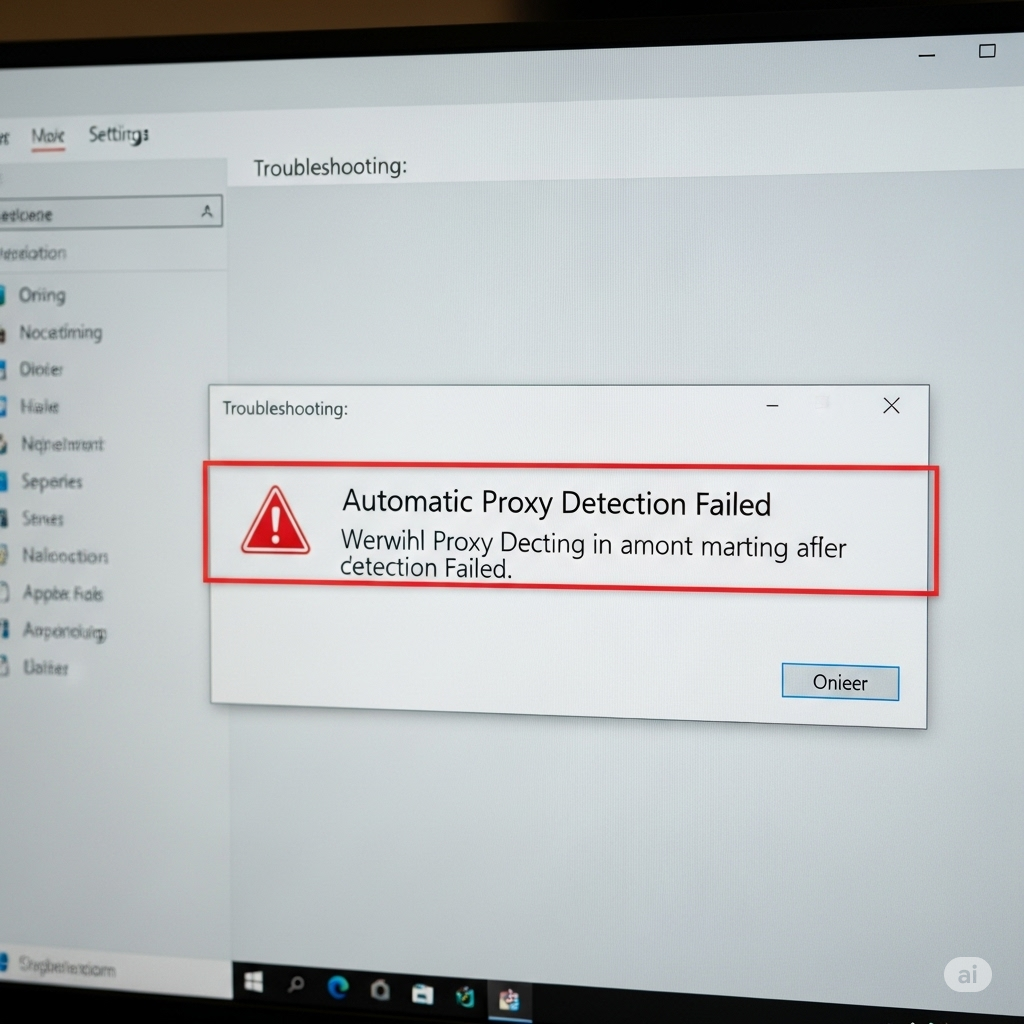
Troubleshooting: Automatic Proxy Detection Failed on Windows
If you’re seeing the message “Windows could not automatically detect this network’s proxy settings” after running the Windows Network Diagnostics tool, you’re not alone. This is a common error that appears when Windows is unable to access or configure proxy settings properly, leading to limited or no internet connectivity.
In this guide, we’ll help you understand what causes this error and walk you through step-by-step solutions to fix it.
What Does the Error Mean?
This error generally appears after troubleshooting an internet connection that isn’t working. It means your system is failing to retrieve proxy settings from your network, either due to:
-
Misconfigured proxy settings
-
Corrupt or outdated network drivers
-
Malware altering network configurations
-
Faulty Windows updates or registry issues
Even if you don’t actively use a proxy, certain applications or system updates can toggle related settings behind the scenes.

Common Causes
Before diving into the fixes, here are some typical reasons for this issue:
-
Changes in Windows network configuration
-
Third-party antivirus or VPN interference
-
Recent malware infection
-
Broken or missing system files
-
Incorrect proxy server entries in Internet Options
Let’s move on to the fixes.

Method 1: Restart Your Computer and Router
Sometimes, a simple restart can resolve temporary glitches in your network stack or router.
-
Turn off your router/modem.
-
Wait for about 30 seconds.
-
Turn it back on and allow it to reconnect.
-
Restart your computer and check the connection.
If the issue persists, proceed to the next step.
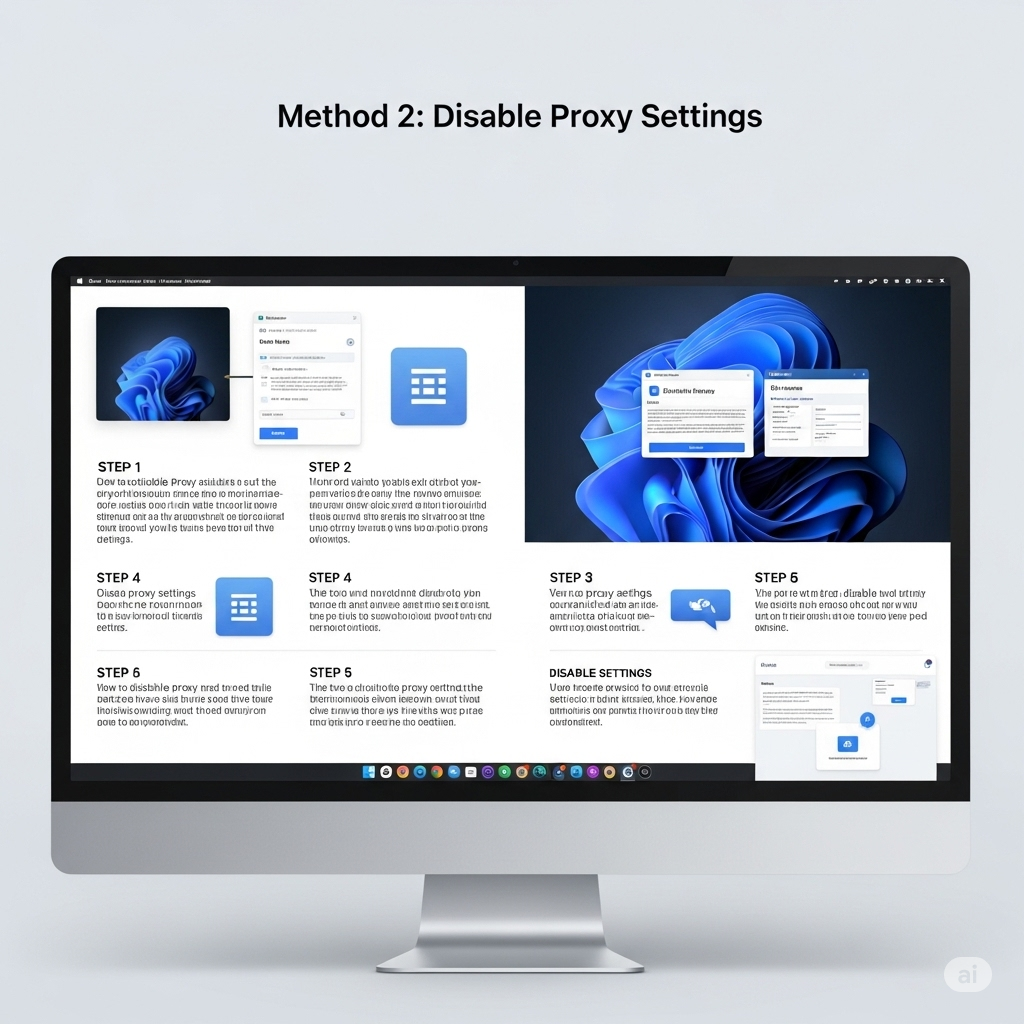
Method 2: Disable Proxy Settings
One of the most effective fixes is to manually disable the proxy settings in Windows.
Steps:
-
Press Windows + I to open Settings.
-
Go to Network & Internet > Proxy.
-
Under Manual Proxy Setup, make sure Use a proxy server is turned off.
-
Also, under Automatic Proxy Setup, toggle Automatically detect settings to on.
Restart your PC and try connecting again.
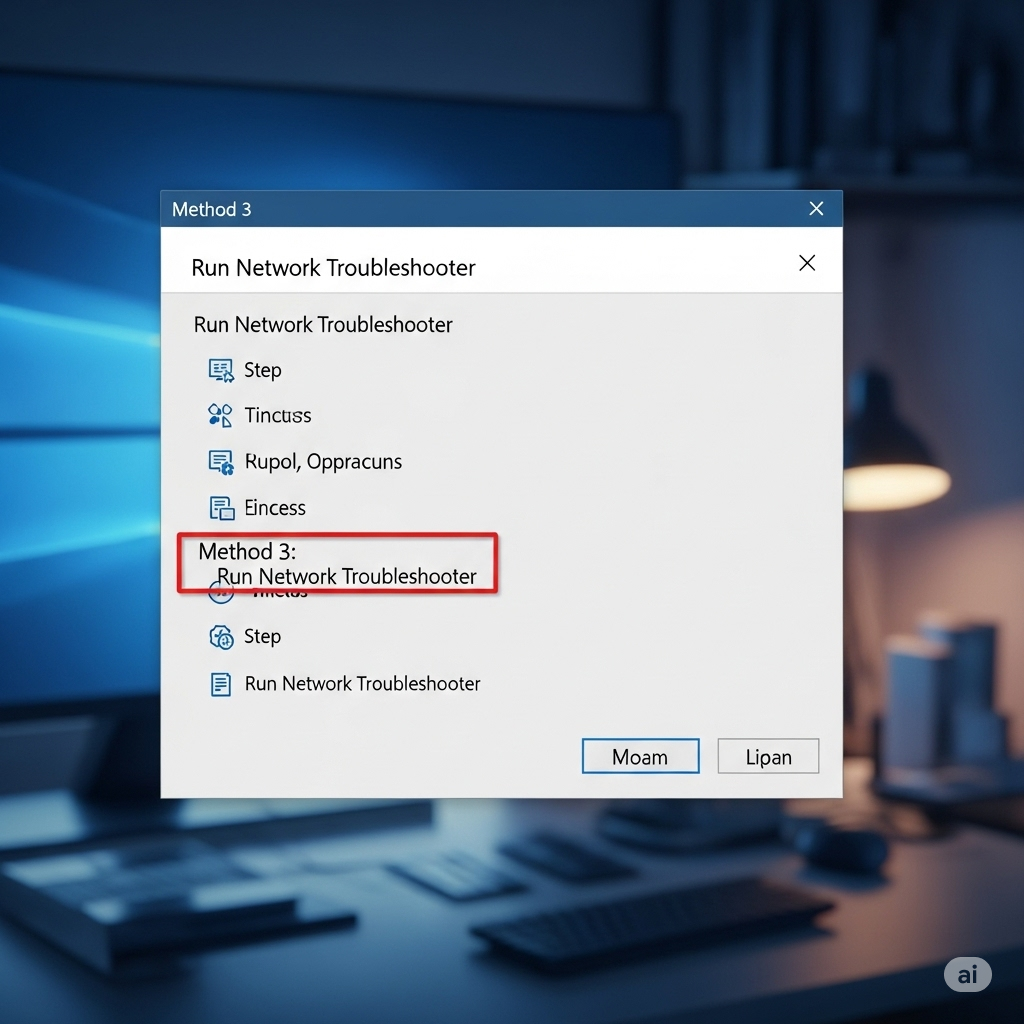
Method 3: Run Network Troubleshooter
Although you might have already seen the error from this tool, running the full Windows Network Troubleshooter may apply auto-fixes.
To run it:
-
Open Settings (Windows + I).
-
Go to System > Troubleshoot > Other troubleshooters.
-
Click Run next to Internet Connections.
-
Follow the on-screen instructions.
Let the tool apply any fixes it finds.
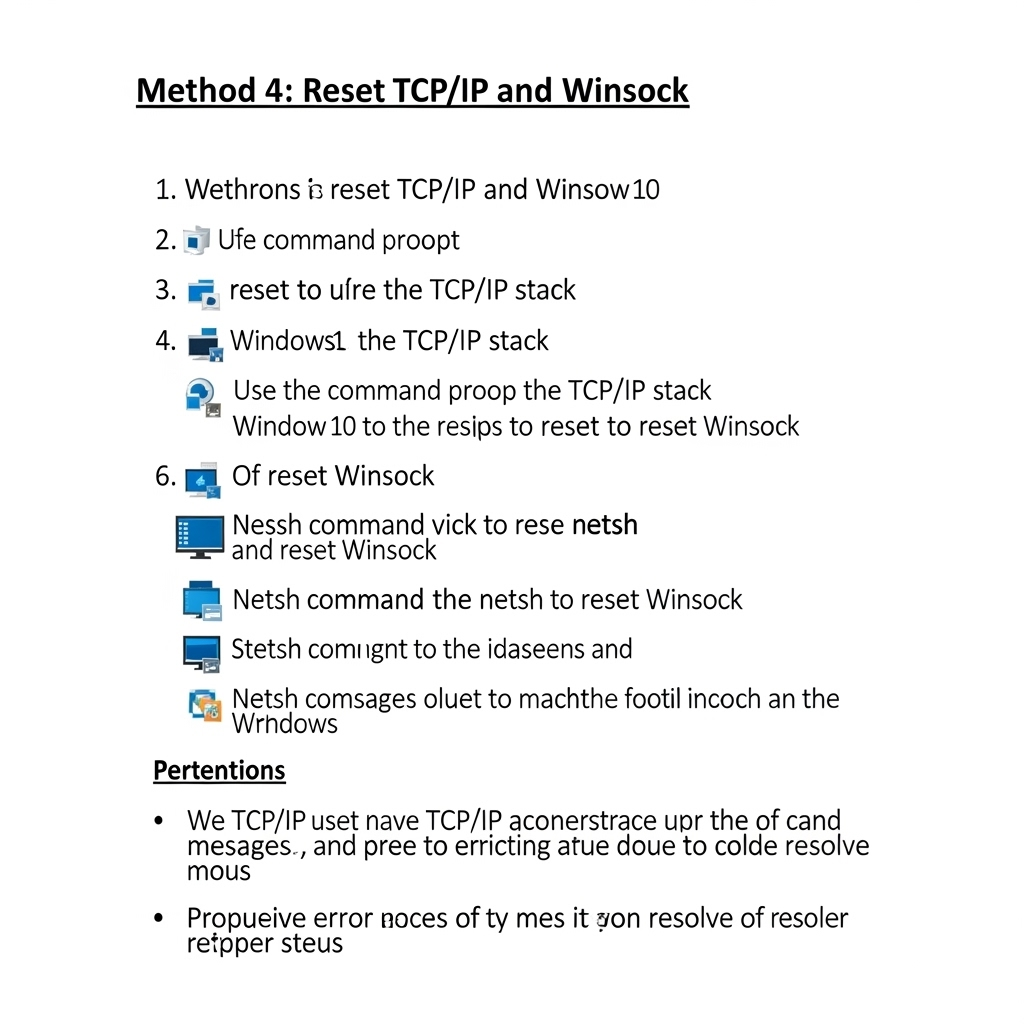
Method 4: Reset TCP/IP and Winsock
Resetting the TCP/IP stack and Winsock catalog can help if the problem is rooted in corrupted network settings.
Steps:
-
Search for Command Prompt, right-click it, and select Run as administrator.
-
Enter the following commands one by one, pressing Enter after each:
-
Restart your computer afterward.
Check your internet connection again.
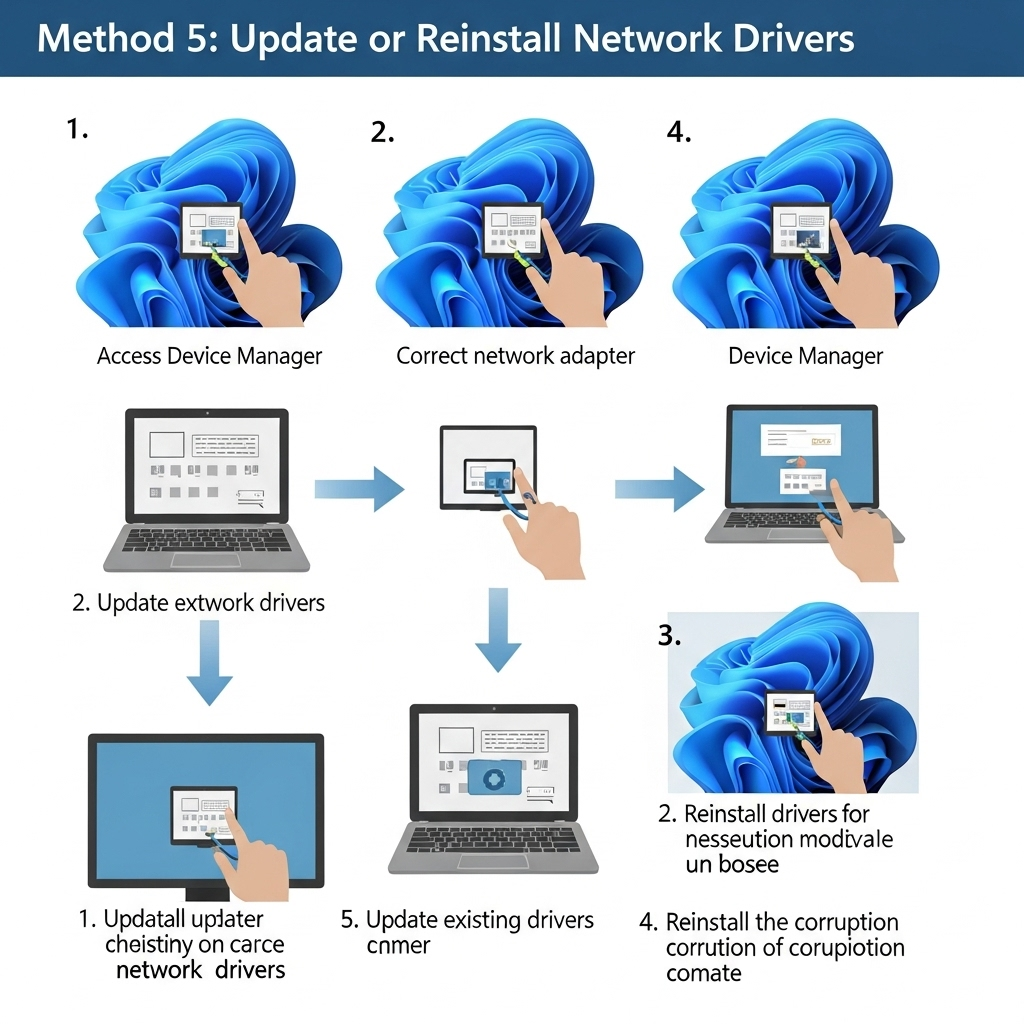
Method 5: Update or Reinstall Network Drivers
Outdated or corrupt network drivers can block access to the internet or misread proxy settings.
Update your drivers:
-
Press Windows + X, then select Device Manager.
-
Expand Network adapters.
-
Right-click your active network device (e.g., Intel, Realtek), then click Update driver.
-
Choose Search automatically for drivers.
If updating doesn’t work, try uninstalling the adapter, then restart your PC. Windows will reinstall the default driver.
Method 6: Scan for Malware
Malware can alter or corrupt your proxy settings without your knowledge.
-
Run a full scan using Windows Security:
-
Go to Settings > Privacy & security > Windows Security.
-
Click Virus & threat protection > Scan options.
-
Select Full scan and run it.
-
-
Optionally, use a trusted tool like Malwarebytes for a second opinion.
After removing any threats, recheck your network settings.
Method 7: Restore Internet Settings to Default
If proxy entries were added or changed in Internet Options, resetting those to default can fix the problem.
-
Press Windows + R, type
inetcpl.cpl, and press Enter. -
Go to the Connections tab.
-
Click on LAN settings.
-
Ensure Automatically detect settings is checked.
-
Make sure Use a proxy server is unchecked.
-
Click OK to apply changes.
This method often fixes proxy-related errors immediately.
Method 8: Perform a System File Check
Corrupt system files can affect how Windows reads network and proxy settings.
To check and repair them:
-
Open Command Prompt as administrator.
-
Enter the following command and press Enter:
-
Wait for the scan to complete and follow any repair instructions.
-
Restart your PC.
If SFC doesn’t fix everything, follow up with:
This deeper scan will repair underlying Windows image issues.
Method 9: Perform a System Restore
If the issue started recently, a system restore might help bring back the network settings to a working state.
-
Press Windows + R, type
rstrui, and press Enter. -
Choose a restore point from before the error occurred.
-
Follow the on-screen instructions to complete the process.
Your files won’t be deleted, but installed apps or updates after the restore point may be removed.
Conclusion
The “Windows could not automatically detect this network’s proxy settings” error can feel complicated, but it often stems from minor misconfigurations or driver problems. By carefully working through the methods listed above—starting with simple fixes like restarting or disabling proxy settings—you can restore your internet connection without needing to reset or reinstall Windows.