



Why Does Skype Keep Closing? Here’s How to Resolve It

Skype is a widely used communication tool, but it can be frustrating when it crashes unexpectedly. This issue can occur due to various reasons, including outdated software, corrupted files, or conflicts with other applications. If you’re facing frequent Skype crashes, here are several troubleshooting steps to help you fix the problem.
1. CHECK FOR WINDOWS AND SKYPE UPDATES
Running an outdated version of Skype or Windows can cause stability issues.
- Open Skype and go to Help & Feedback (or Check for Updates in some versions).
- Update Skype if a new version is available.
- For Windows updates:
- Go to Settings > Update & Security > Windows Update.
- Click Check for updates and install any pending updates.
2. RESTART YOUR COMPUTER
A simple restart can resolve many temporary issues by clearing background processes that might be interfering with Skype.
- Click Start > Power > Restart.
- Relaunch Skype and check if the crashing issue persists.

3. RUN SKYPE AS ADMINISTRATOR
Running Skype with administrative privileges can help resolve permission-related crashes.
- Right-click on the Skype shortcut.
- Select Run as administrator.
- Check if Skype still crashes.

4. DISABLE COMPATIBILITY MODE
If Skype is running in compatibility mode, it may cause crashes.
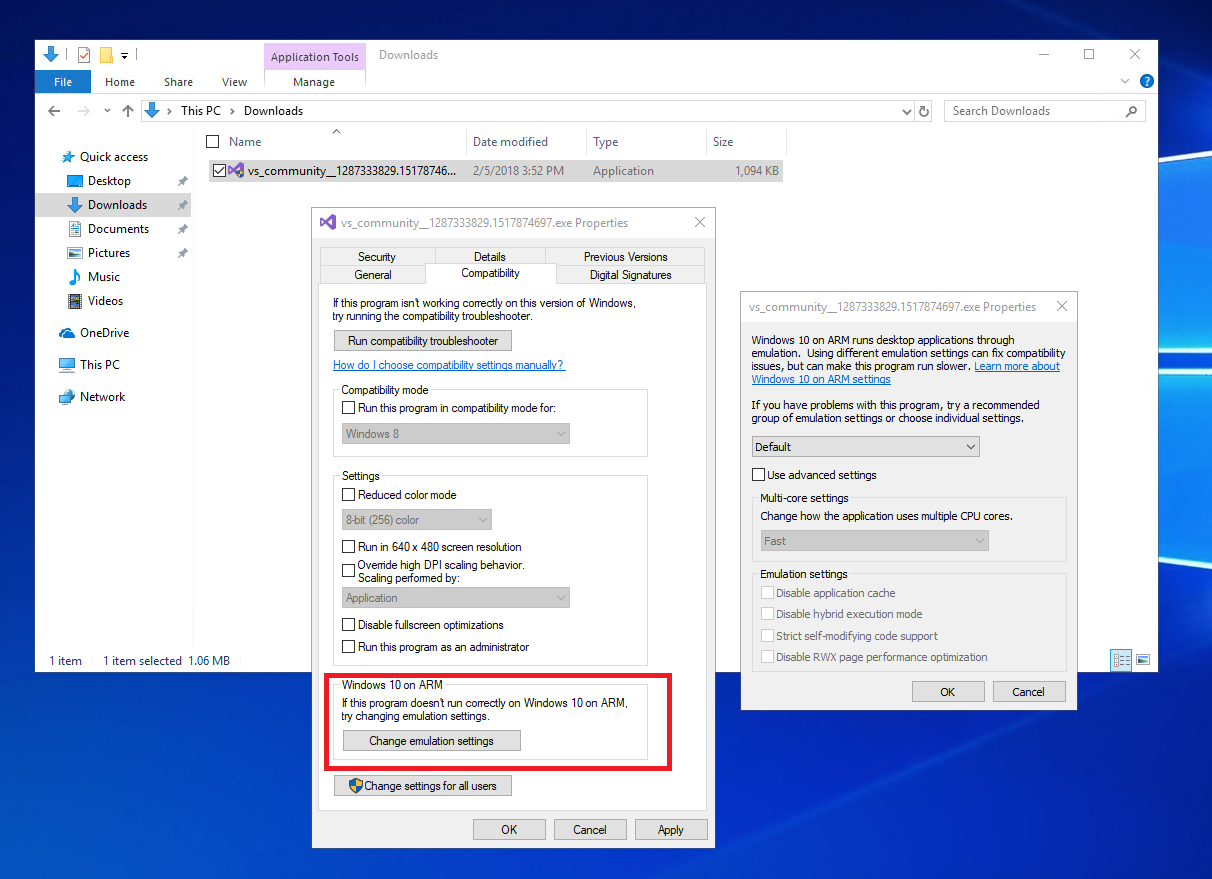
- Right-click the Skype shortcut and select Properties.
- Go to the Compatibility tab.
- Uncheck Run this program in compatibility mode.
- Click Apply > OK, then restart Skype.

5. CLEAR SKYPE CACHE
Corrupt cache files can cause Skype to crash.
- Press Win + R, type
%appdata%\Skype, and hit Enter. - Locate the Skype folder and delete it.
- Restart Skype and check if the issue is resolved.

6. RESET SKYPE SETTINGS
Resetting Skype settings can resolve configuration issues.
- Press Win + R, type
%appdata%, and press Enter. - Locate the Skype folder and rename it to Skype_old.
- Restart Skype and check if it works properly.

7. CHECK FOR CONFLICTING APPLICATIONS
Some applications, like VPNs, firewalls, or security software, can interfere with Skype.
- Disable any active VPN or firewall temporarily.
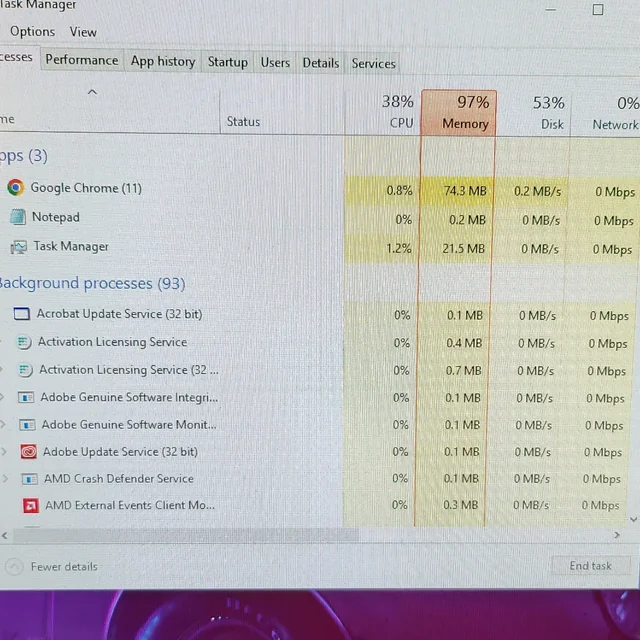
- Close unnecessary background applications using Task Manager (Ctrl + Shift + Esc).
- Restart Skype and check if it crashes.
8. UPDATE GRAPHICS AND AUDIO DRIVERS
Outdated or incompatible drivers can cause Skype to crash.
- Press Win + X and select Device Manager.
- Expand Display adapters and Sound, video and game controllers.
- Right-click your graphics/audio drivers and choose Update driver.
- Select Search automatically for drivers and install updates if available.
- Restart your computer and relaunch Skype.

9. REINSTALL SKYPE
If Skype continues to crash, reinstalling it can fix corrupted installation files.
- Press Win + R, type
appwiz.cpl, and hit Enter. - Locate Skype, right-click it, and select Uninstall.
- Download and install the latest version of Skype from the official website.

10. RUN WINDOWS TROUBLESHOOTER
Windows has a built-in troubleshooter that can detect and fix Skype-related issues.
- Open Settings > Update & Security > Troubleshoot.
- Click Additional troubleshooters.
- Select Program Compatibility Troubleshooter and run it.
- Follow the on-screen instructions and apply any suggested fixes.
11. CHECK INTERNET CONNECTION
A poor internet connection can cause Skype to crash or freeze.
- Restart your router/modem.
- Use a wired Ethernet connection if possible.
- Test your internet speed using online tools like Speedtest.

12. SCAN FOR MALWARE
Viruses or malware can cause applications like Skype to crash.
- Run a full system scan using Windows Defender or third-party antivirus software.
- Remove any detected threats and restart your computer.

FINAL THOUGHTS
Skype crashes can be frustrating, but these solutions should help you resolve the issue. If none of these steps work, consider using the Skype web version or an alternative communication platform while seeking further technical support from Microsoft. Let us know which method worked for you!