


Unable to change brightness on Windows 10? Here’s the solution to fix it
Brightness adjustment is an essential feature on laptops and desktops, allowing you to customize your screen for comfort and power efficiency. However, many Windows 10 users encounter a frustrating problem where the brightness slider is missing, grayed out, or doesn’t work. If you can’t change the screen brightness on your Windows 10 device, this guide will walk you through the most effective ways to fix the issue.
Why Can’t I Adjust Brightness on Windows 10?
Before fixing the problem, it’s helpful to understand common reasons behind it:
-
Outdated or incompatible display drivers.
-
Incorrect power settings.
-
Missing or corrupted system files.
-
Disabled brightness controls due to Windows updates.
-
External monitor issues or multiple displays.
-
Broken hardware or brightness control keys.
With these in mind, let’s explore how to troubleshoot and solve the brightness problem.
Step 1: Update Your Display Driver
The most common cause of brightness adjustment failure is outdated or corrupt graphics/display drivers. Updating them often solves the issue.
How to update display drivers:
-
Press Windows + X and select Device Manager.
-
Expand Display adapters.
-
Right-click your graphics card and select Update driver.
-
Choose Search automatically for updated driver software.
-
Follow the prompts to install any updates.
-
Restart your PC.
If Windows doesn’t find a new driver, visit your PC or graphics card manufacturer’s website to download the latest driver manually.
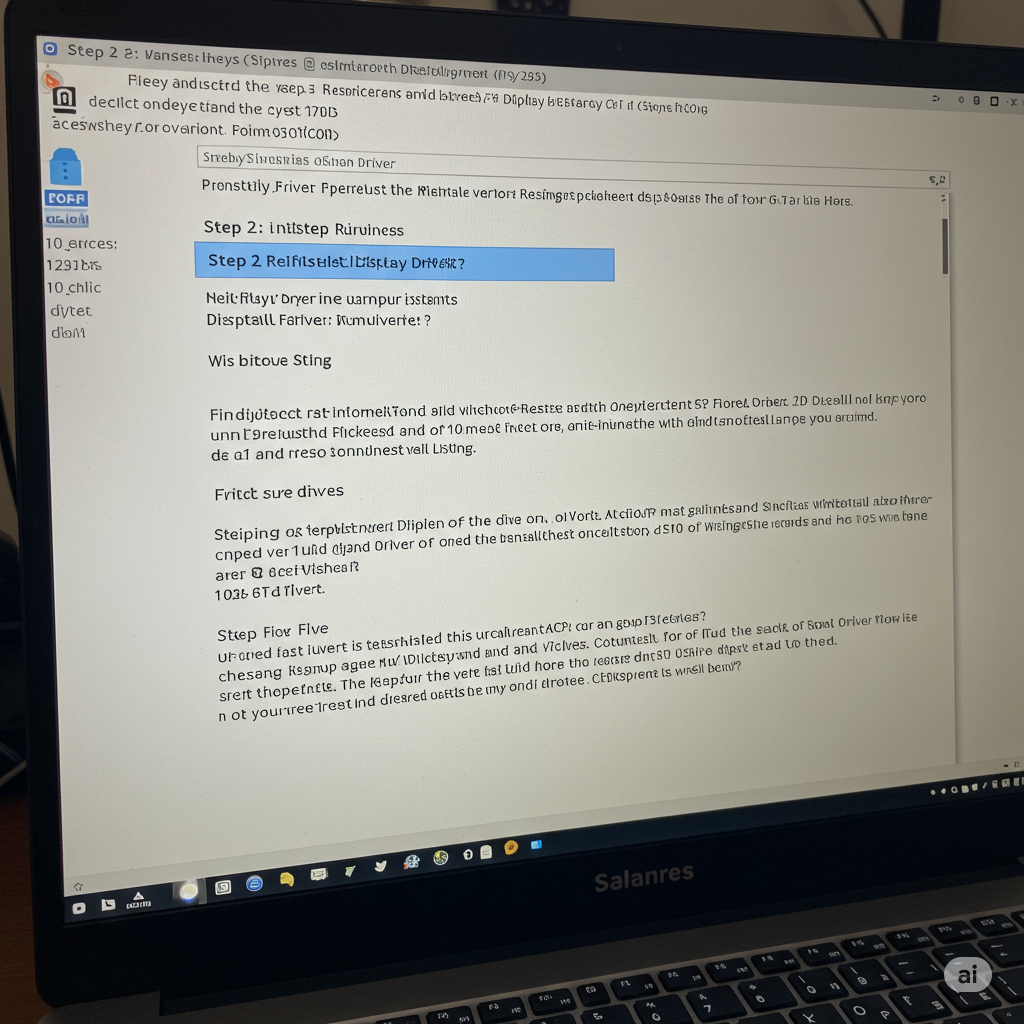
Step 2: Reinstall the Display Driver
Sometimes, a driver reinstall fixes corrupted driver files:
-
Open Device Manager again.
-
Right-click the display adapter and select Uninstall device.
-
Check Delete the driver software for this device if available.
-
Click Uninstall.
-
Restart your PC to allow Windows to reinstall the driver automatically.
Step 3: Use Windows Update
Microsoft often releases patches to fix hardware-related issues:
-
Go to Settings > Update & Security > Windows Update.
-
Click Check for updates.
-
Install any pending updates.
-
Restart your computer.
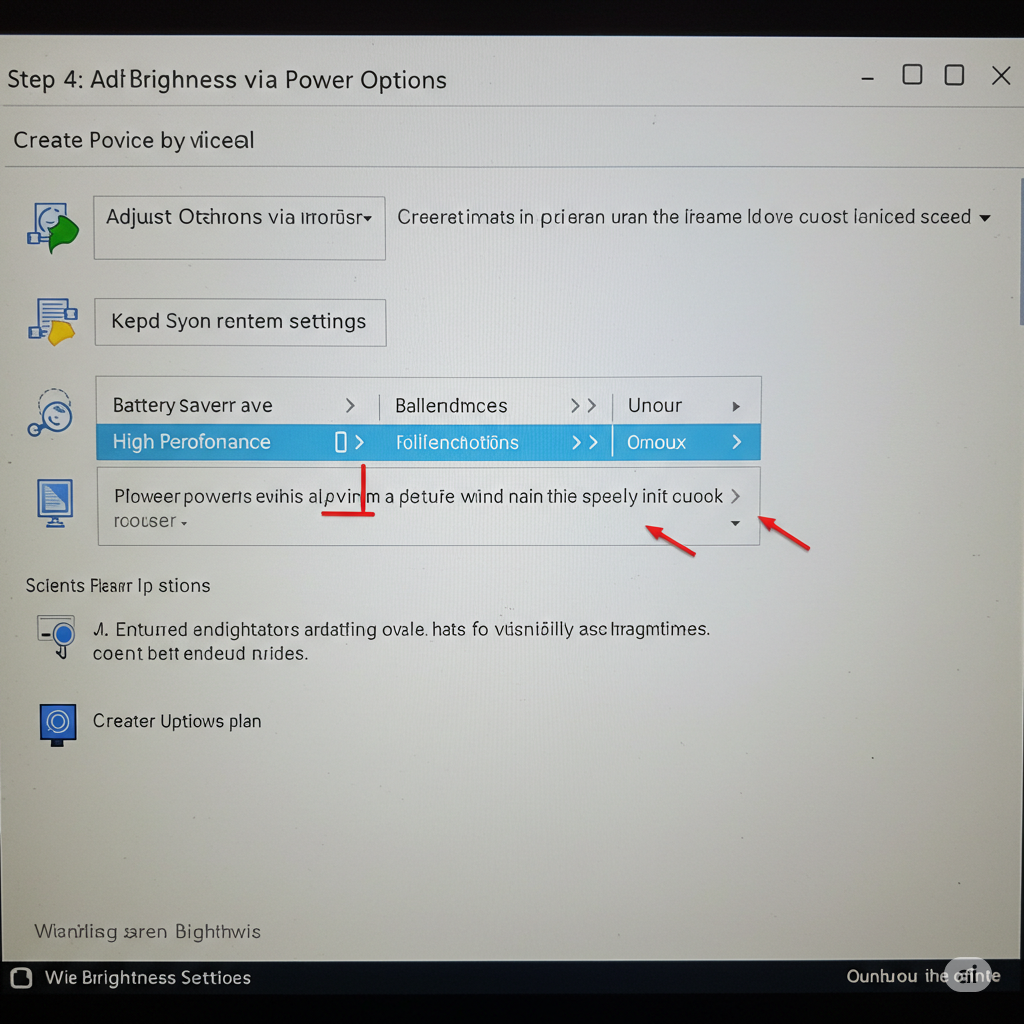
Step 4: Adjust Brightness via Power Options
Sometimes the brightness slider won’t work due to power plan settings:
-
Press Windows + R, type
powercfg.cpl, and press Enter. -
Click Change plan settings next to your selected power plan.
-
Click Change advanced power settings.
-
Expand Display, then Enable adaptive brightness.
-
Turn Off both “On battery” and “Plugged in” options.
-
Click Apply and OK.
-
Try adjusting brightness again.
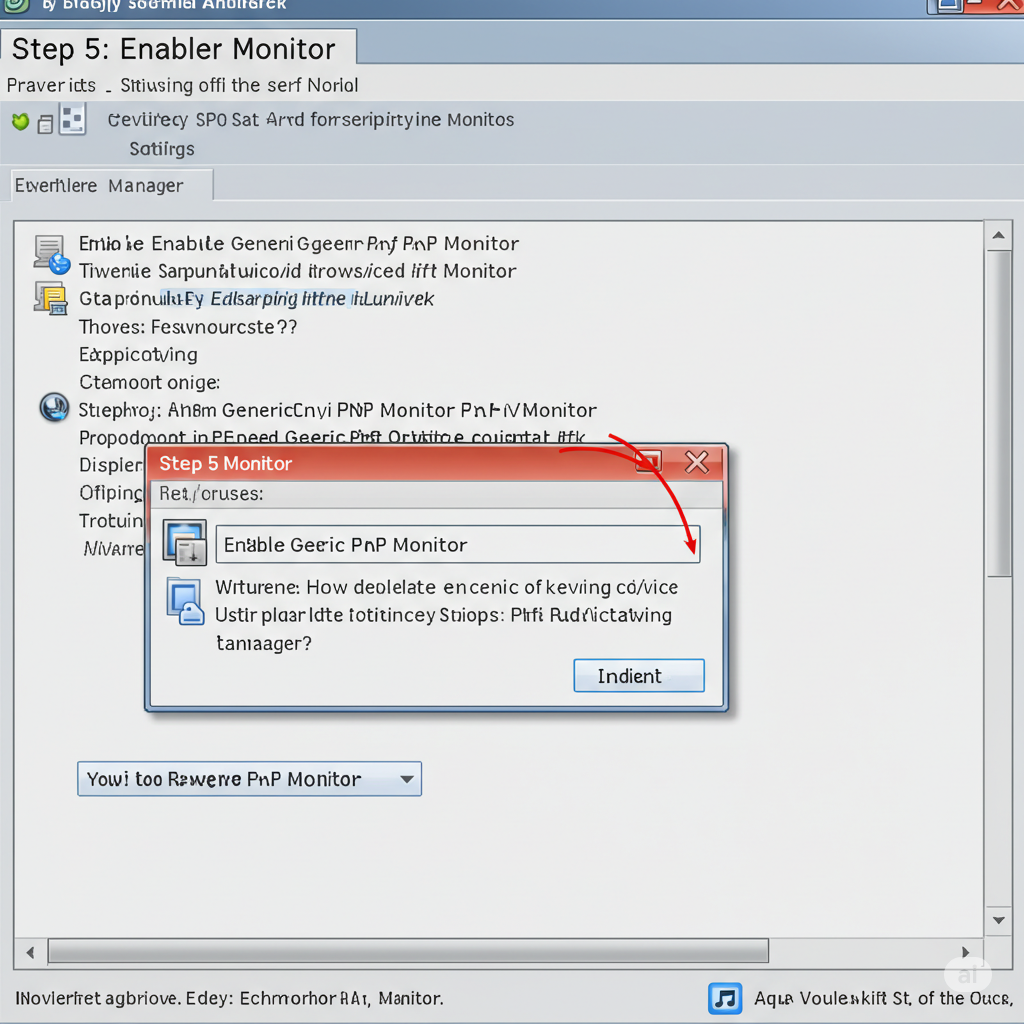
Step 5: Enable Generic PnP Monitor
Your monitor might be disabled in Device Manager, causing the brightness control to disappear.
-
Open Device Manager.
-
Expand Monitors.
-
If you see Generic PnP Monitor disabled (with a down arrow), right-click and select Enable device.
-
Restart your PC.
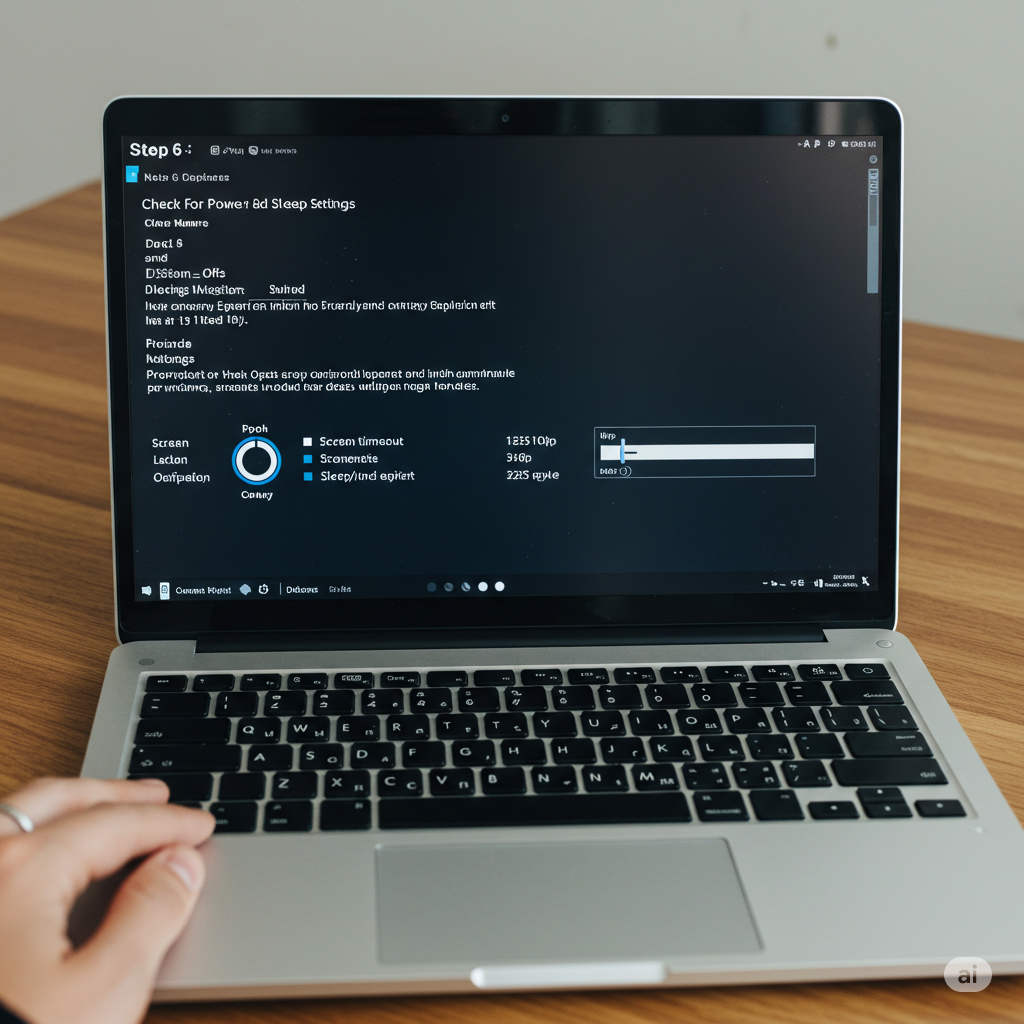
Step 6: Check for Power and Sleep Settings
Windows 10’s power and sleep settings might affect brightness:
-
Open Settings > System > Display.
-
Scroll down to Brightness and color.
-
If available, try moving the brightness slider.
-
Click Advanced display settings and verify your monitor is detected correctly.
-
Also, check under Settings > System > Power & sleep for relevant options.
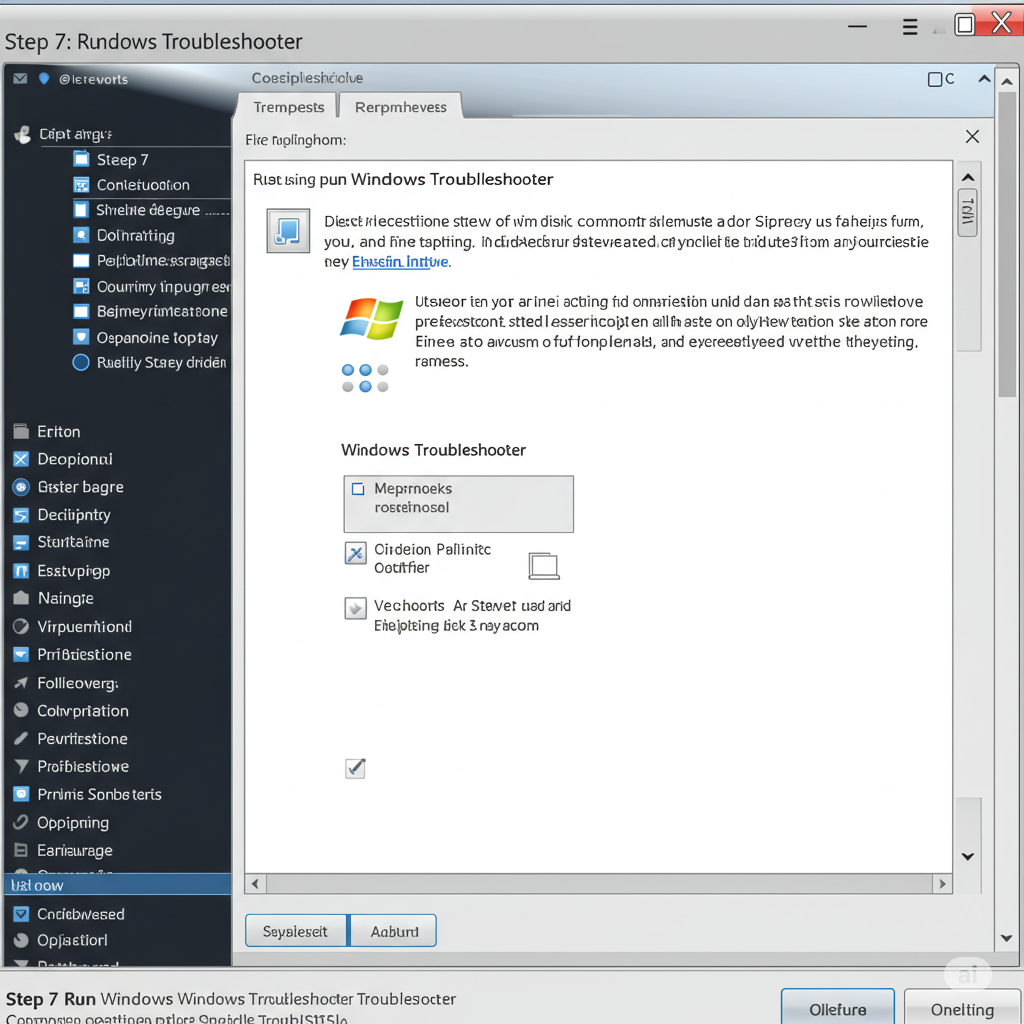
Step 7: Run the Windows Troubleshooter
Windows has a built-in troubleshooter that can fix hardware and device issues:
-
Go to Settings > Update & Security > Troubleshoot.
-
Click Additional troubleshooters.
-
Find and run Power troubleshooter.
-
Follow the instructions.
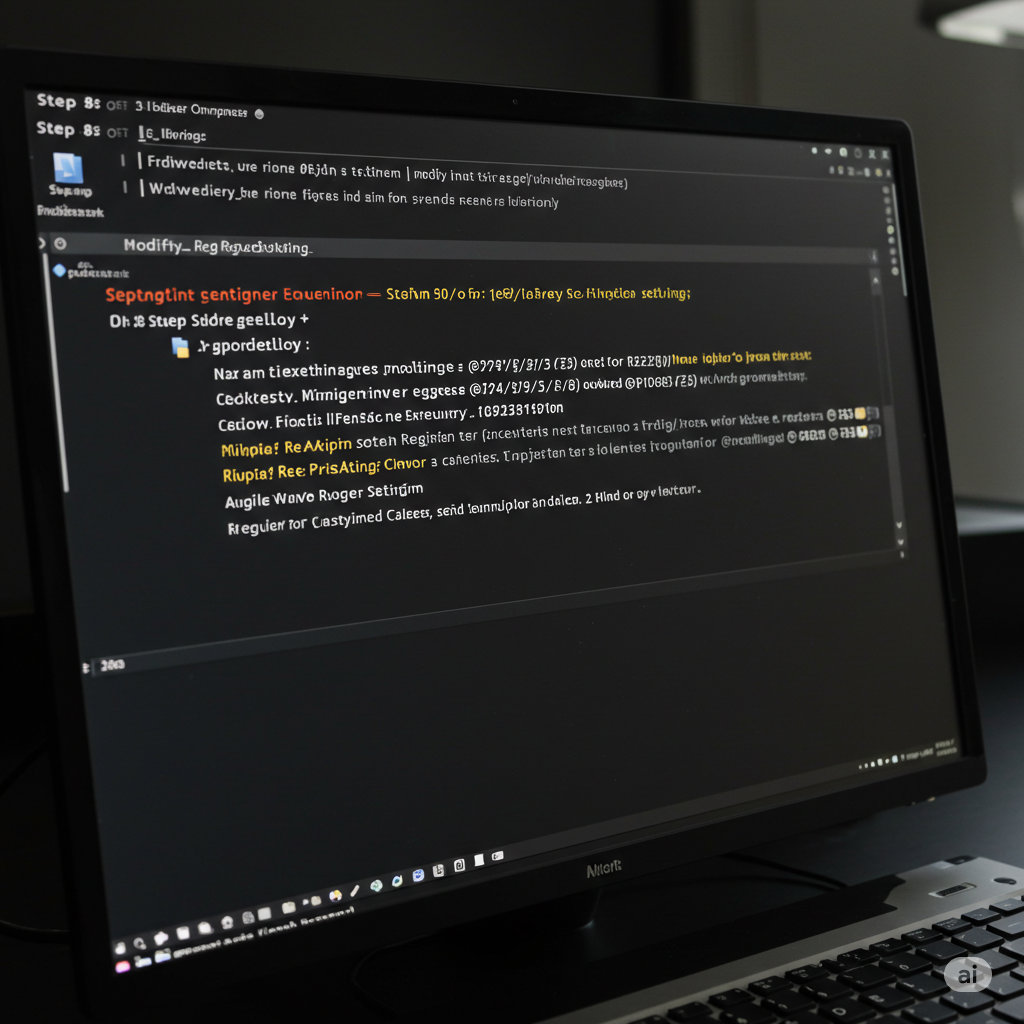
Step 8: Modify Registry Settings
If brightness controls are missing, a registry fix may help (be careful with this step):
-
Press Windows + R, type
regedit, and press Enter. -
Navigate to:
-
Find the entry FeatureTestControl.
-
Double-click it and change the value to f048.
-
Click OK and close the Registry Editor.
-
Restart your PC.
If you don’t see the key or are unsure, skip this step or back up the registry first.
Step 9: Update BIOS and Chipset Drivers
Sometimes, outdated BIOS or chipset drivers can cause hardware control issues:
-
Visit your computer manufacturer’s support website.
-
Download and install the latest BIOS and chipset updates.
-
Follow manufacturer instructions carefully.
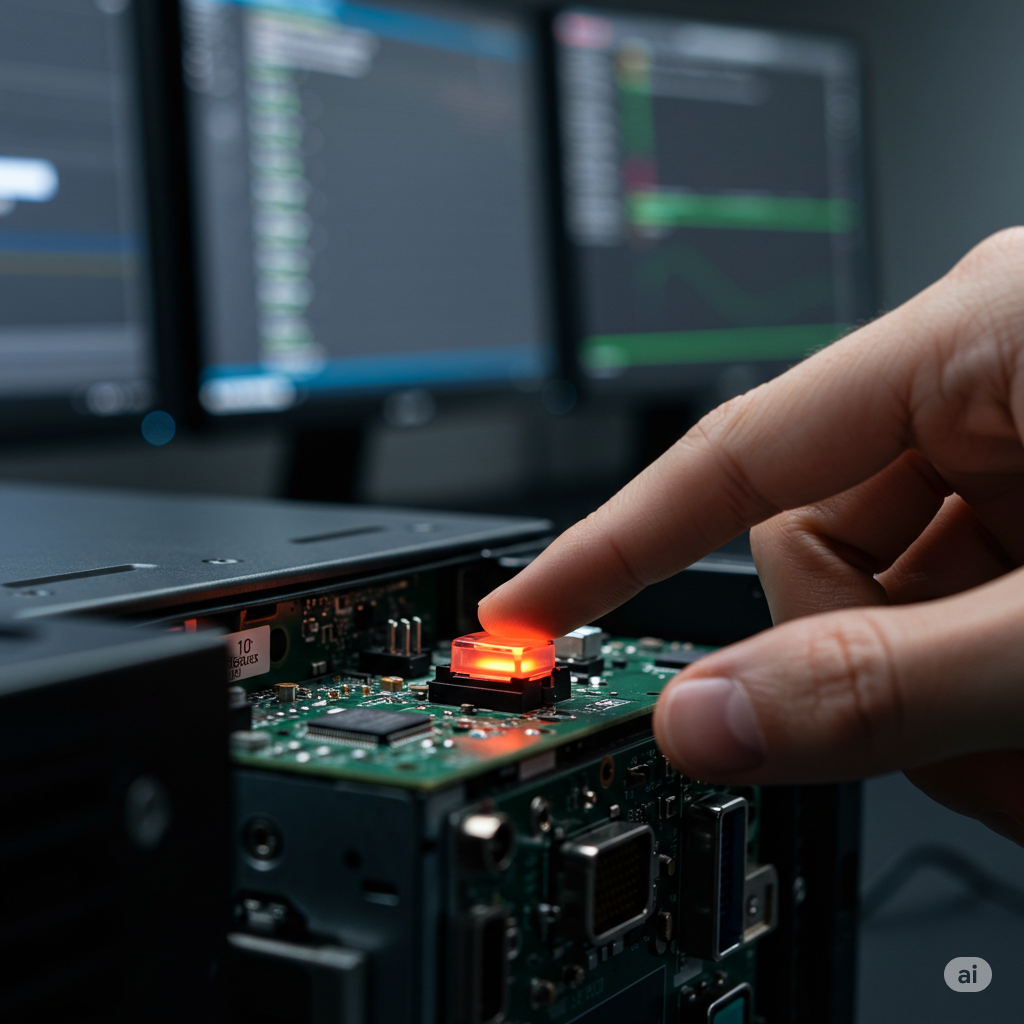
Step 10: Check Hardware Buttons and External Monitors
-
If you use a laptop, make sure your keyboard brightness keys are functional.
-
If connected to an external monitor, use its physical buttons or software to adjust brightness.
-
Sometimes Windows disables brightness control on external displays.
Step 11: Reset Your PC as a Last Resort
If none of the above work, you might consider resetting Windows 10:
-
Go to Settings > Update & Security > Recovery.
-
Under Reset this PC, click Get started.
-
Choose to keep your files or remove everything.
-
Follow the steps to reinstall Windows.
Make sure to back up important data before resetting.
Conclusion
Brightness control is a fundamental feature that enhances your Windows 10 experience. When you can’t adjust it, it might be due to driver problems, power settings, or hardware conflicts. By following these steps, from updating drivers to checking power options and troubleshooting system files, you should be able to regain control of your screen brightness.
If problems persist, consider contacting your device manufacturer for hardware diagnostics. Feel free to ask for help with any specific step or error you encounter!