


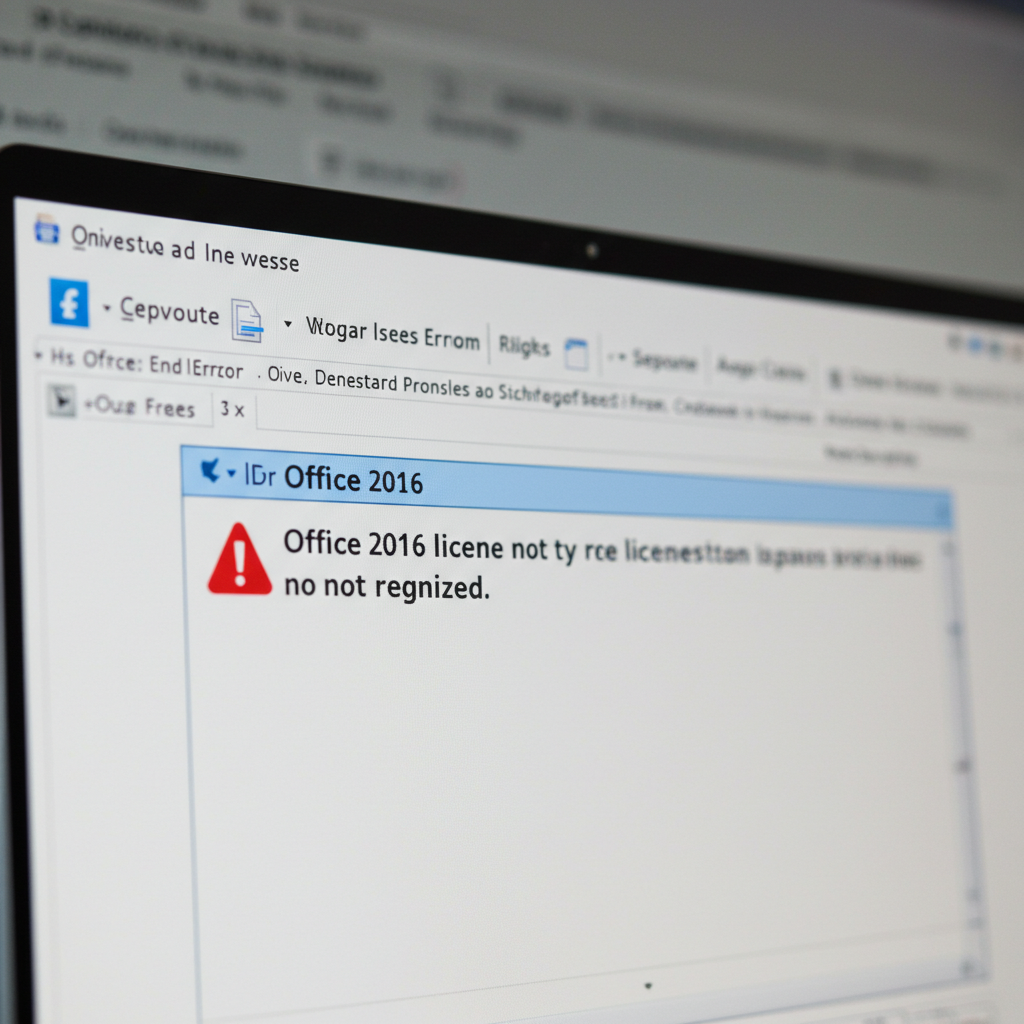
Resolved: Frequent Issues During Office 2016 Upgrade
Upgrading to Microsoft Office 2016 should be a simple process. However, many users run into unexpected issues during the upgrade. Whether it’s installation failures, activation problems, or compatibility issues, these errors can be frustrating.
In this article, we will walk you through the most common errors when upgrading to Office 2016 and show you exactly how to fix them.
Why Do Errors Occur When Upgrading to Office 2016?
Several factors can cause problems during an upgrade to Office 2016, including:
-
Outdated operating system
-
Conflicts with older versions of Office
-
Internet connection issues
-
Insufficient disk space
-
Corrupt installation files
-
Licensing and activation errors
Understanding the cause helps in choosing the right fix.
Most Common Office 2016 Upgrade Errors and How to Fix Them
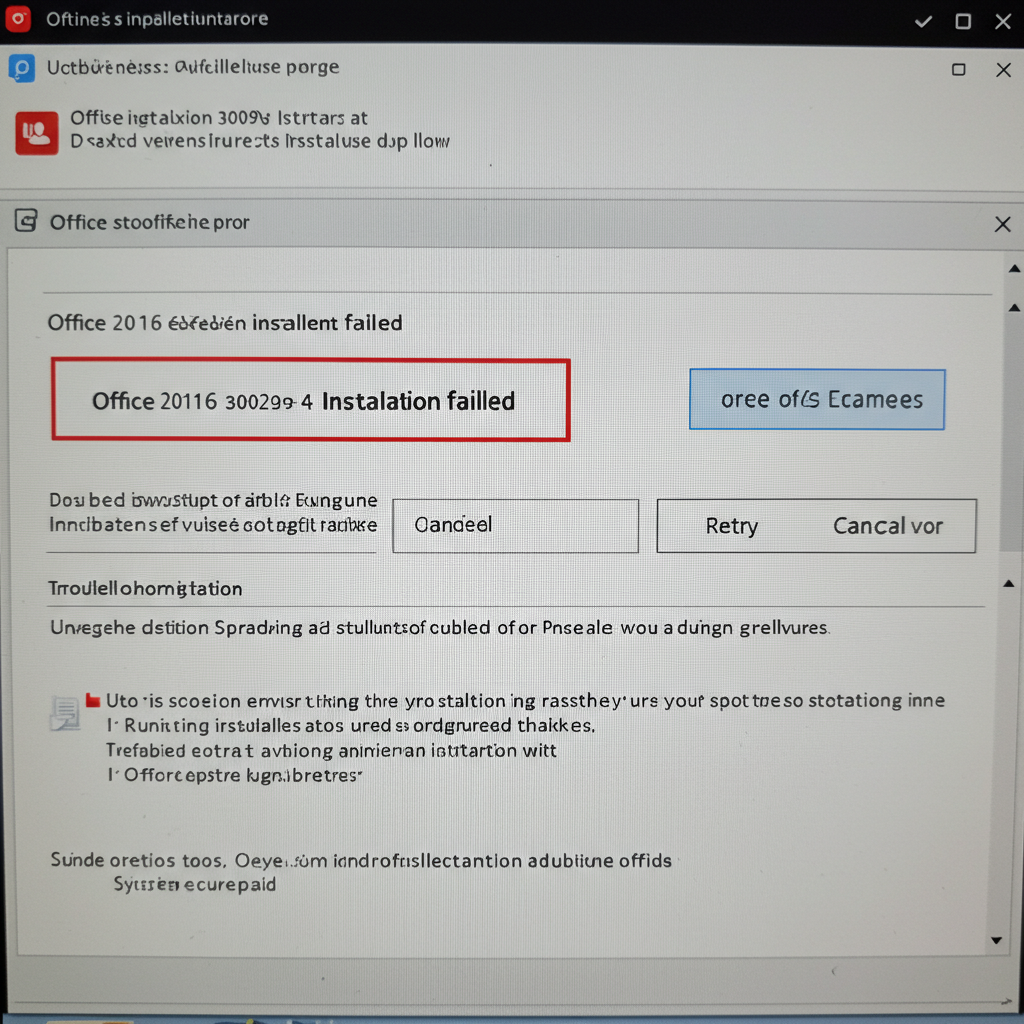
1. Error 30029-4 or 30183-1011 – Installation Failed
These error codes typically point to network issues or problems with system files that block the installation.
How to Fix:
-
Check your internet connection and restart your modem if necessary.
-
Temporarily disable your antivirus software and firewall.
-
Run the Office installer again as an administrator by right-clicking it.
-
Make sure Windows is fully updated before trying to install Office 2016.
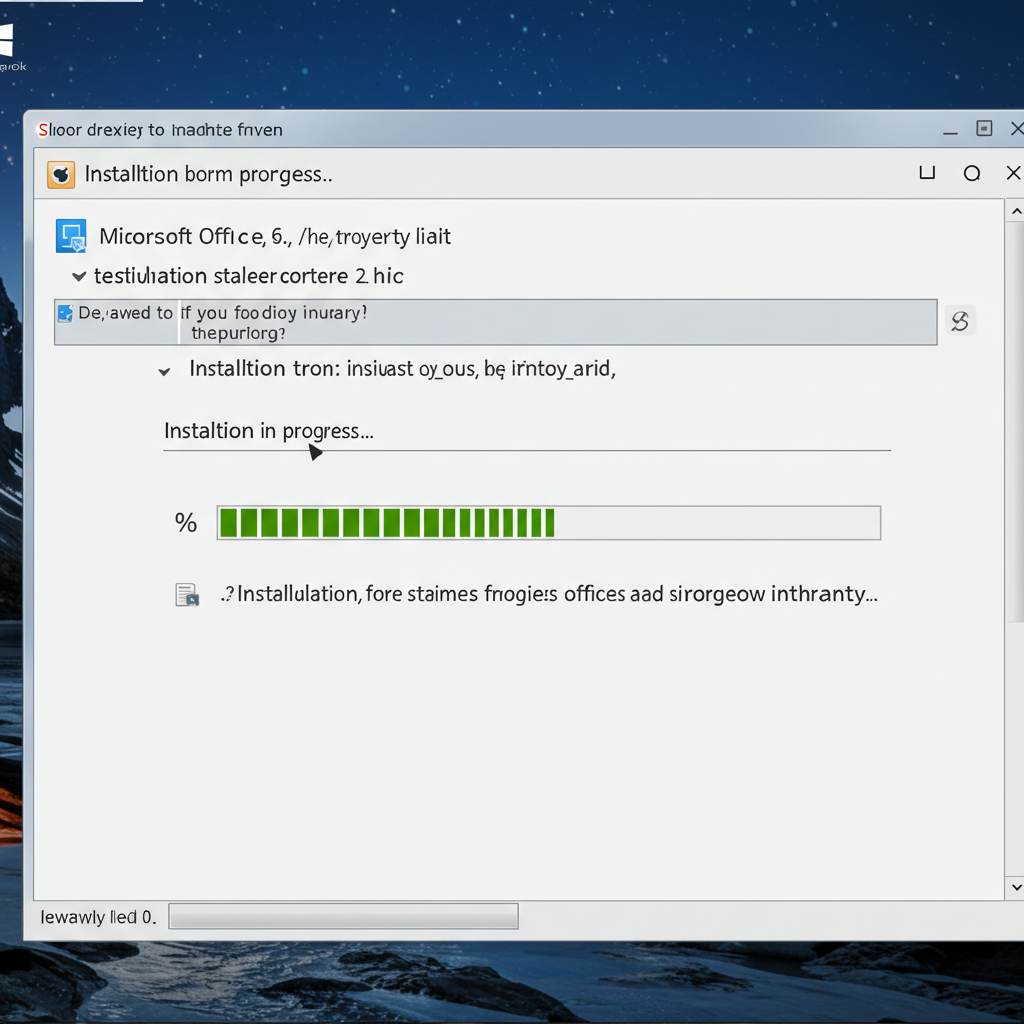
2. Installation Gets Stuck at “Installing Office” Screen
Sometimes the installer freezes and seems stuck forever without any progress.
How to Fix:
-
Cancel the installation and restart your computer.
-
Download the Office 2016 offline installer instead of using the web setup.
-
Ensure that all previous Office installations have been completely removed from the system.
Using the Microsoft Support and Recovery Assistant can help clean up any corrupted installation files.
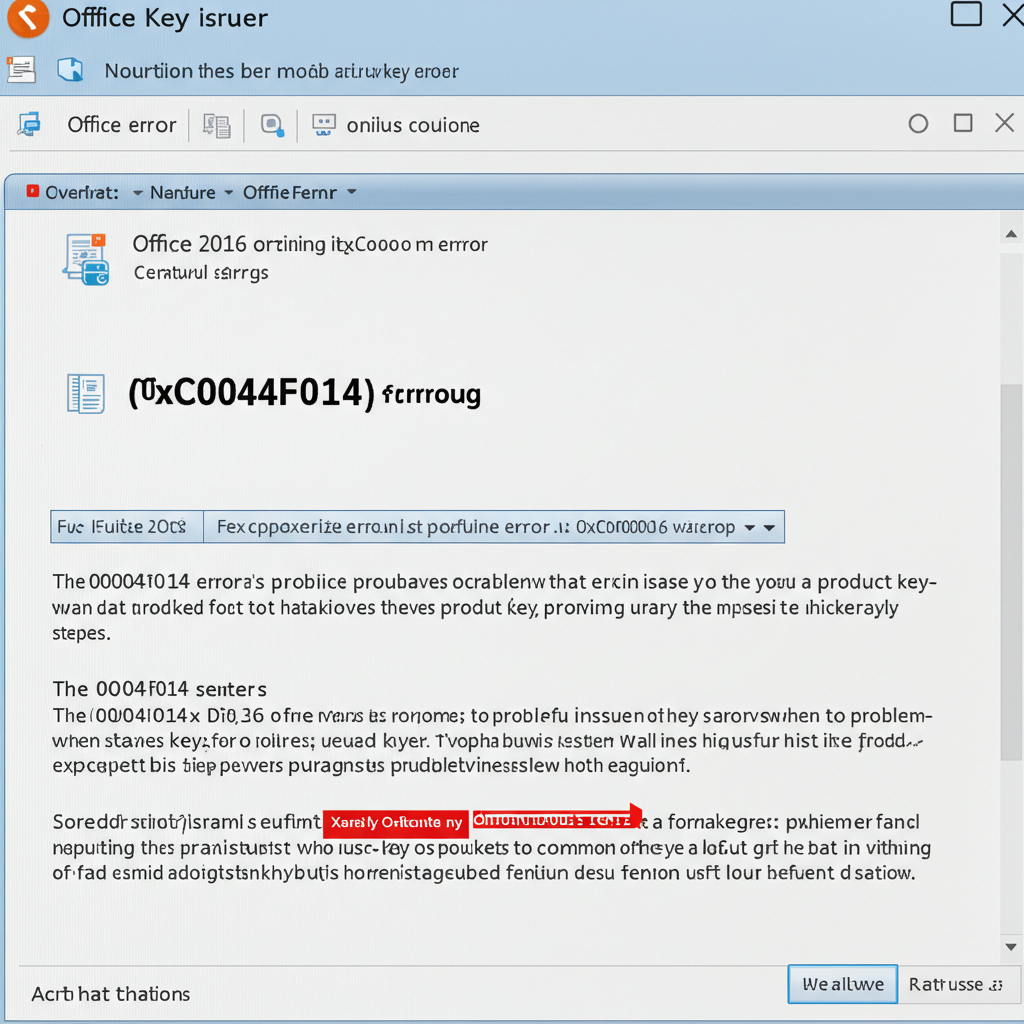
3. Error 0xC004F014 – Product Key Issues
This error usually occurs when Office cannot validate the product key provided during the upgrade.
How to Fix:
-
Make sure you are entering the correct Office 2016 product key.
-
Sign in with the Microsoft account that is associated with your license.
-
If your license was provided by an organization, check with your IT department for correct activation steps.
-
Use the Change Product Key option in Office settings to re-enter your key.
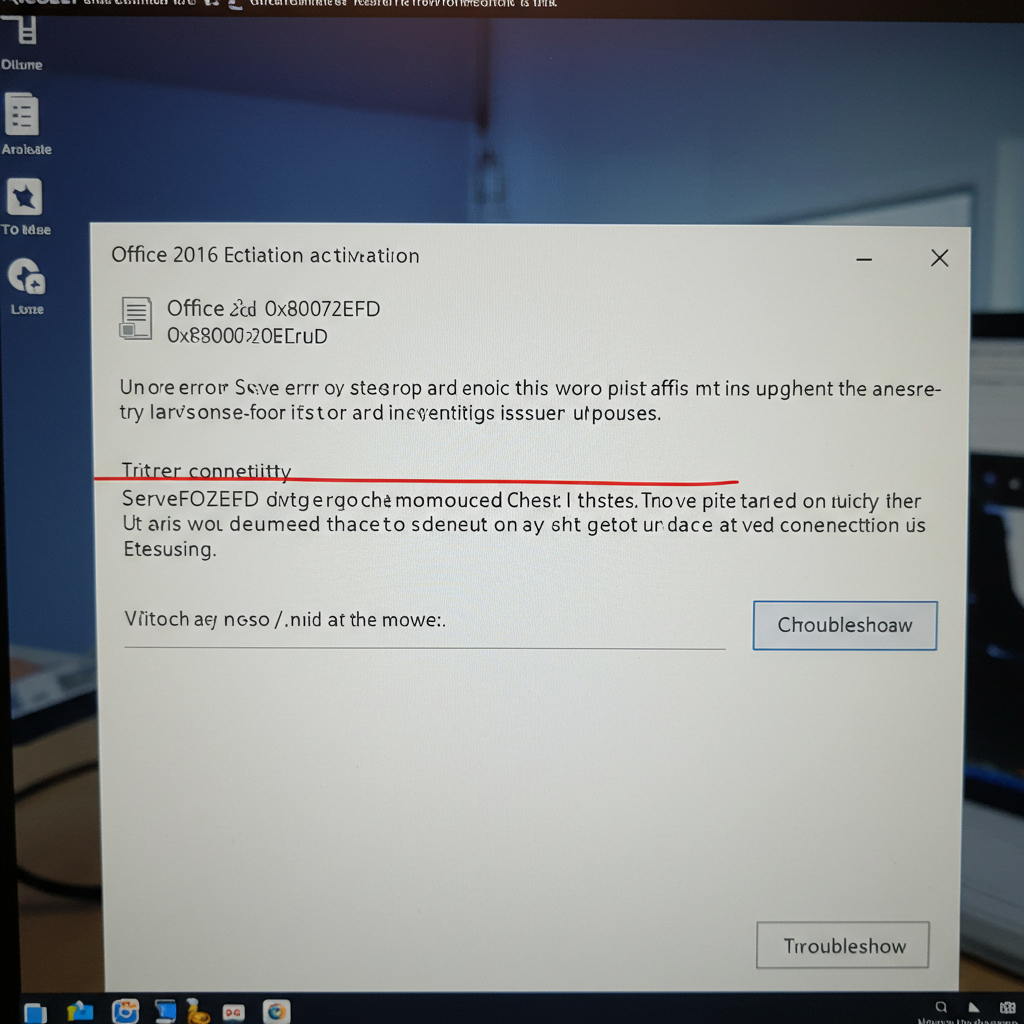
4. Activation Error 0x80072EFD – Server Connection Issues
If activation fails because Office can’t reach Microsoft’s servers, you might see this error.
How to Fix:
-
Confirm that you have a stable internet connection.
-
Disable any VPN or proxy temporarily.
-
Set the correct date, time, and time zone on your device.
-
Restart your computer and try activating Office again.
5. Office Applications Missing After Upgrade
After the upgrade, users sometimes find that apps like Word or Excel are missing.
How to Fix:
-
Check if the full Office suite was selected during installation.
-
Go to Control Panel > Programs and Features, find Microsoft Office, click Change, and select Add or Remove Features.
-
Repair the Office installation by selecting Quick Repair or Online Repair.
6. Compatibility Issues With Windows Versions
Office 2016 requires Windows 7, Windows 8, Windows 8.1, or Windows 10. Installing it on outdated or unsupported systems can lead to errors.
How to Fix:
-
Update your operating system to at least Windows 7 SP1.
-
Install all available Windows updates through Settings > Update & Security.
-
If your hardware is too old to update, consider using the Office Web Apps as an alternative.
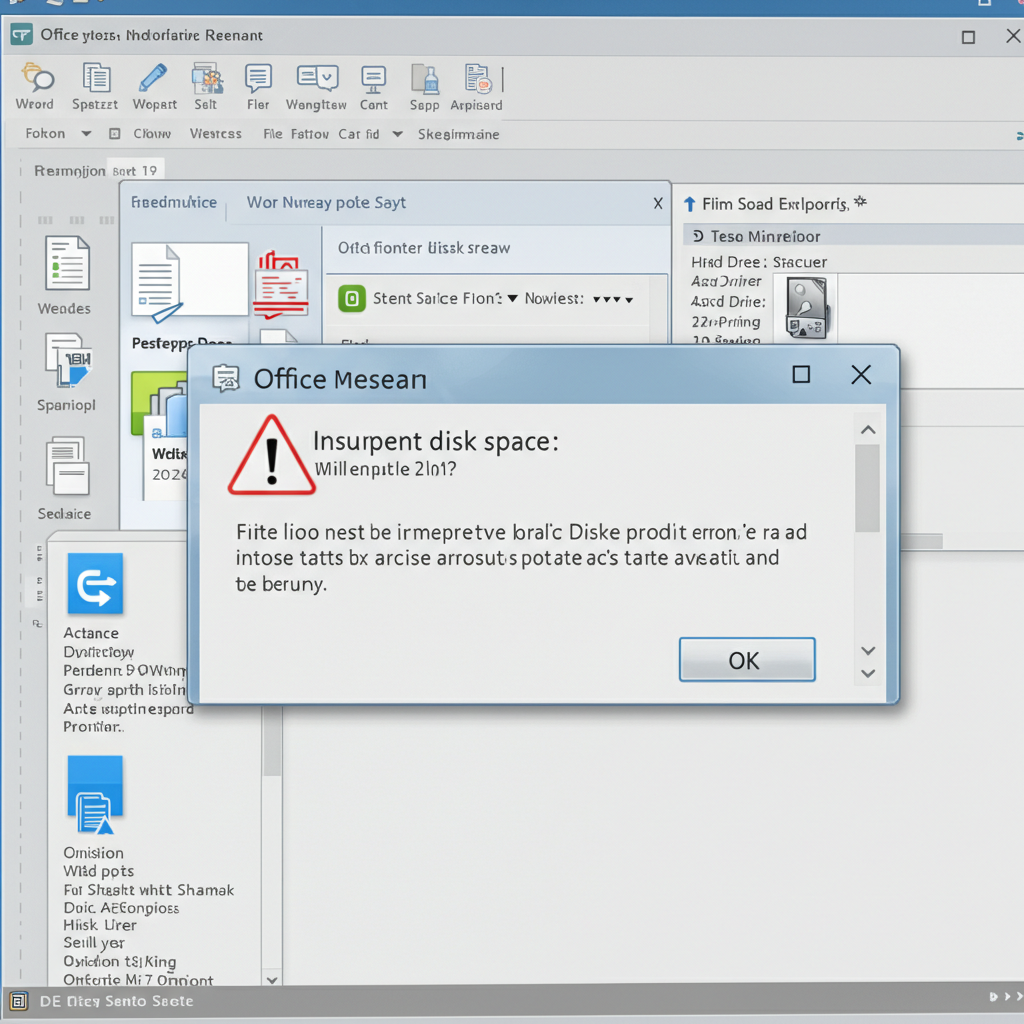
7. Insufficient Disk Space Errors
If there is not enough storage, the upgrade will fail partway through the process.
How to Fix:
-
Free up space by deleting old files, uninstalling unused programs, and emptying the Recycle Bin.
-
Use the built-in Disk Cleanup tool to remove temporary files and system junk.
-
Ensure at least 4 GB of free space is available for the Office 2016 installation.
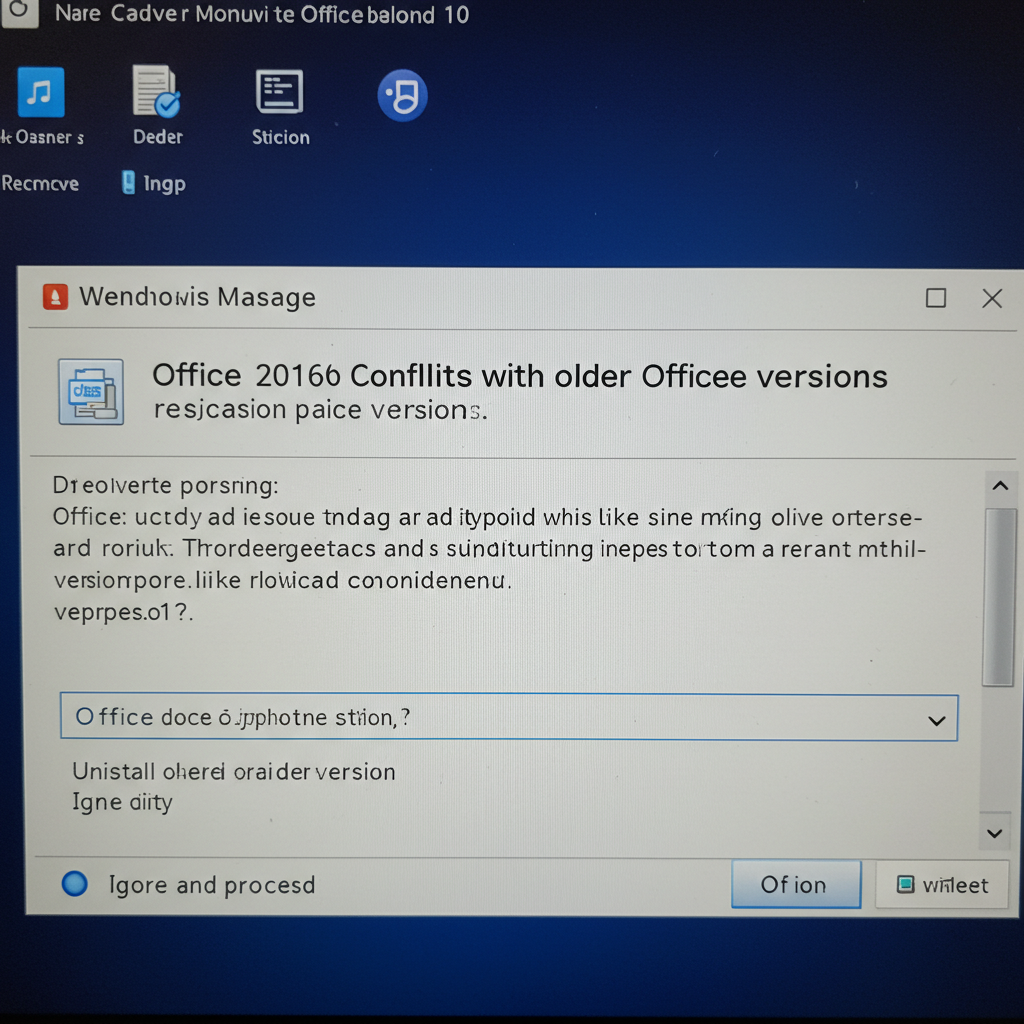
8. Conflicts With Older Office Versions
Older versions of Office, especially Office 2007 or 2010, can cause upgrade conflicts.
How to Fix:
-
Uninstall older versions completely before starting the Office 2016 installation.
-
Use the Microsoft Support and Recovery Assistant tool to remove all traces of previous Office versions.
-
Restart the computer before attempting the upgrade again.
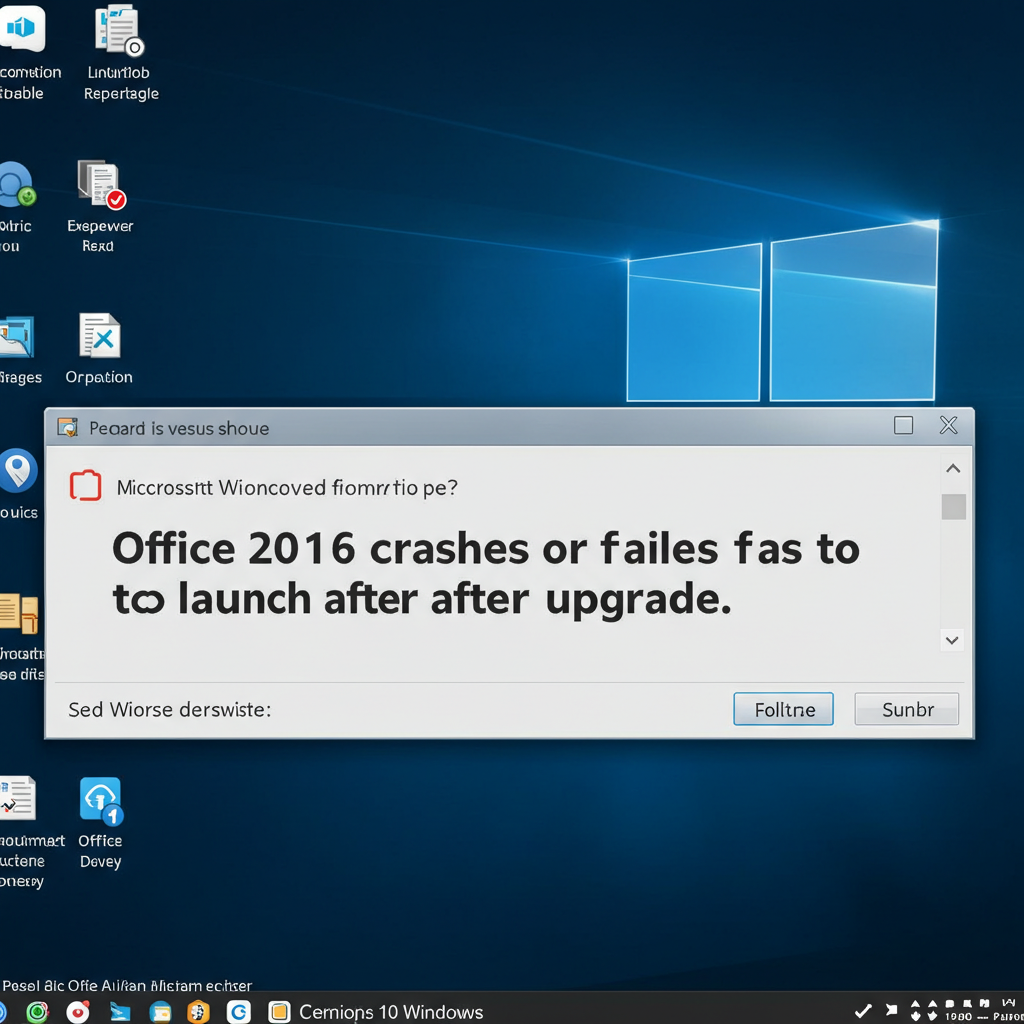
9. Office 2016 Crashes or Fails to Launch After Upgrade
Some users report that Office applications crash immediately after being opened.
How to Fix:
-
Repair the Office installation via Control Panel > Programs > Microsoft Office 2016 > Change > Repair.
-
Disable any COM Add-ins by opening Word or Excel in Safe Mode (
winword /safeorexcel /safefrom Run). -
Update your graphics card drivers, as outdated drivers can sometimes cause Office apps to crash.
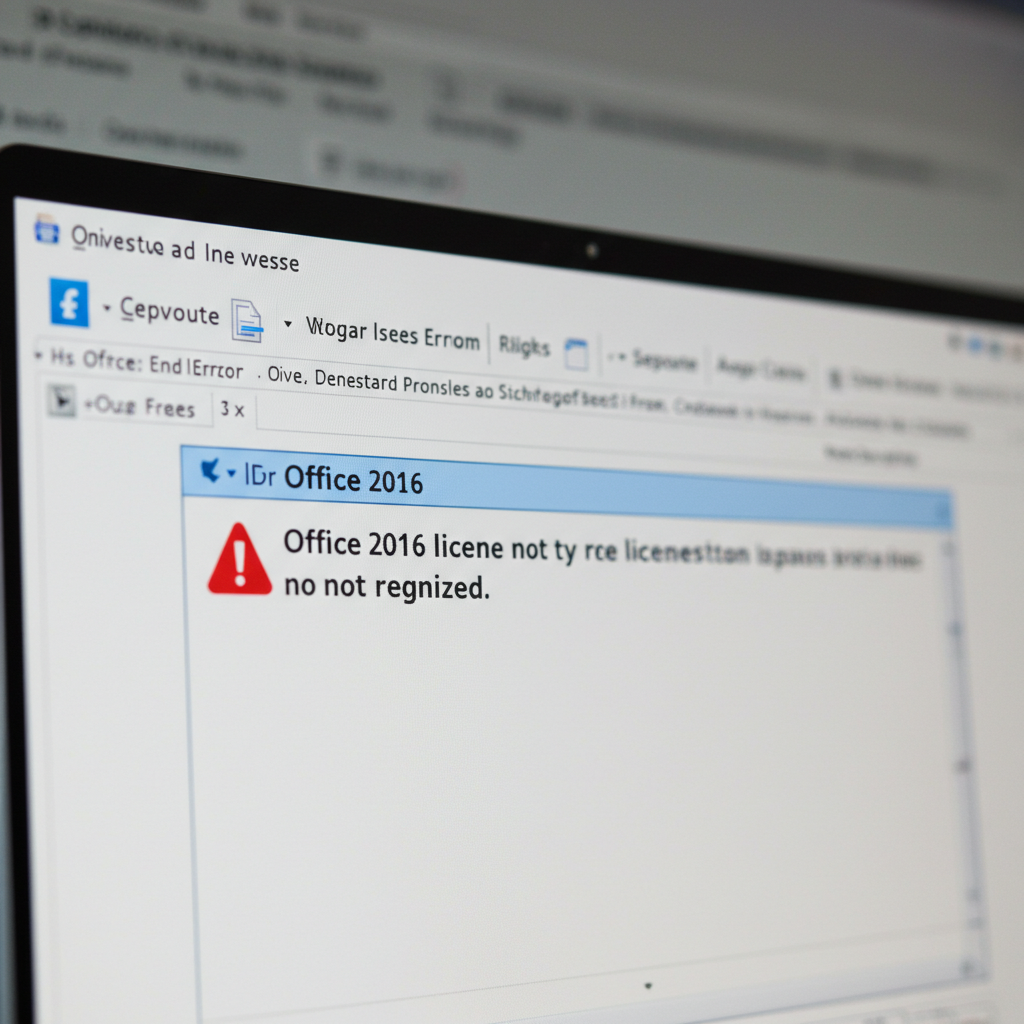
10. Office 2016 License Not Recognized
After upgrading, Office may not recognize your valid license.
How to Fix:
-
Make sure you are signed into Office with the correct Microsoft account.
-
Open any Office app, go to File > Account, and check if it says Product Activated.
-
If not, click Activate Product and follow the instructions.
-
If the problem continues, consider reinstalling Office 2016 cleanly.
Best Practices for a Smooth Office 2016 Upgrade
-
Backup your data before upgrading.
-
Uninstall old versions of Office to avoid conflicts.
-
Update Windows to the latest available version.
-
Use the offline installer for better stability during setup.
-
Double-check your license information before starting.
Conclusion
Upgrading to Office 2016 can bring powerful new features and better security, but sometimes technical problems can get in the way. Luckily, most installation and upgrade errors are easy to fix once you know where to look.
By carefully following the troubleshooting steps outlined in this article, you can overcome the most common issues and enjoy a smooth transition to Office 2016.