


How to Fix Mobile Hotspot Not Working in Windows 10
Windows 10 includes a handy feature called Mobile Hotspot, which allows users to share their internet connection with other devices wirelessly. Whether you’re on a road trip, working remotely, or facing Wi-Fi issues, this feature can save the day. However, many users encounter problems where the mobile hotspot either refuses to turn on or fails to connect.
If your mobile hotspot isn’t working in Windows 10, don’t panic. This comprehensive guide will walk you through the most effective solutions to fix the issue and get you back online in no time.
Common Reasons Why Mobile Hotspot Doesn’t Work
Before diving into the fixes, it’s helpful to understand the potential causes behind the issue. Some of the most common ones include:
-
Outdated or corrupted network drivers
-
Incorrect network configurations
-
Disabled essential Windows services
-
Conflicts with VPNs or firewalls
-
Unsupported wireless hardware
-
Power-saving settings interfering with your wireless adapter
Now let’s move on to the solutions you can try.
Check if Your PC Supports Mobile Hotspot
Not all wireless adapters support the mobile hotspot feature. Here’s how to check:
-
Press Windows + R, type
cmd, and press Enter. -
In the Command Prompt window, type:
-
Look for the line that says Hosted network supported.
-
If it says Yes, your device supports creating a hotspot.
-
If it says No, you’ll need a compatible external Wi-Fi adapter.
Run the Network Adapter Troubleshooter
Windows 10 offers a built-in troubleshooter for network issues:
-
Go to Settings > Update & Security > Troubleshoot.
-
Click Additional troubleshooters.
-
Select Network Adapter, then click Run the troubleshooter.
-
Follow the prompts and restart your computer.
This tool often identifies and resolves basic connectivity issues.
Update Your Network Drivers
Outdated drivers can cause your mobile hotspot to stop functioning properly.
-
Right-click the Start menu and choose Device Manager.
-
Expand the Network adapters section.
-
Right-click your wireless adapter and choose Update driver.
-
Select Search automatically for drivers.
If Windows doesn’t find an update, visit your device manufacturer’s website to download and install the latest driver manually.
Restart Essential Services
Your hotspot relies on several Windows services. If any of these are disabled or malfunctioning, the hotspot won’t work.
-
Press Windows + R, type
services.msc, and press Enter. -
Locate the following services:
-
Windows Connection Sharing (ICS)
-
WLAN AutoConfig
-
-
Right-click each one and select Properties.
-
Set the Startup type to Automatic and click Start if the service isn’t running.
-
Click OK, then restart your PC.
Reset Your Network Settings
Resetting network configurations can help resolve deep-rooted issues.
-
Open Settings > Network & Internet.
-
Scroll down and click Network reset.
-
Click Reset now, then confirm.
Your PC will restart and restore all network settings to their default state. Note: You will need to reconnect to Wi-Fi networks afterward.
Disable Power Saving for Wireless Adapter
Sometimes, Windows disables the Wi-Fi adapter to save power, affecting hotspot functionality.
-
Open Device Manager.
-
Expand Network adapters and right-click your wireless adapter.
-
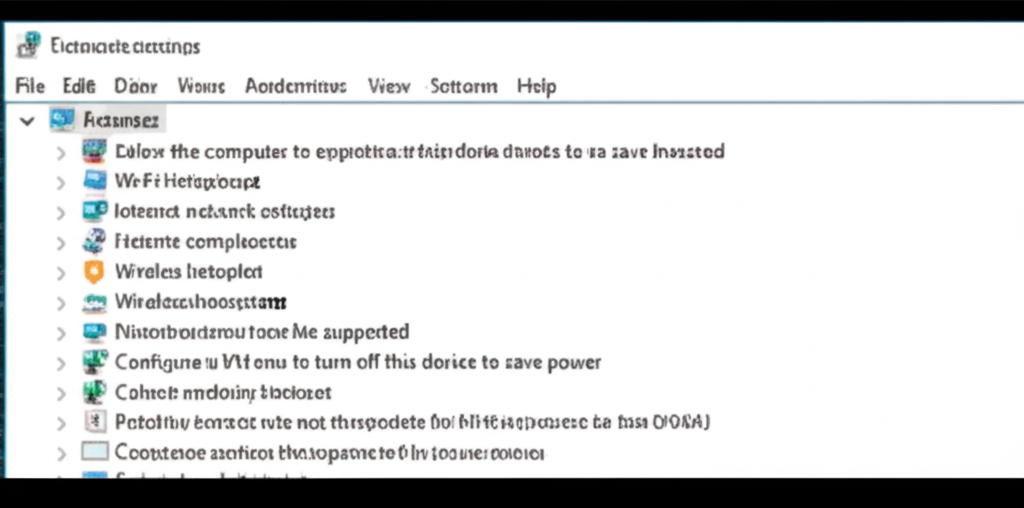
Choose Properties and go to the Power Management tab.
-
Uncheck Allow the computer to turn off this device to save power.
-
Click OK and restart your PC.
This ensures the adapter stays active when you need the hotspot.
Manually Create a Hotspot via Command Prompt
You can bypass the Settings app and create a hotspot using command line tools.
-
Open Command Prompt as Administrator.
-
Run these commands one by one:
Replace
MyHotspotand12345678with your desired network name and password. -
To share your internet connection:
-
Go to Control Panel > Network and Sharing Center > Change adapter settings.
-
Right-click your internet connection and choose Properties.
-
Go to the Sharing tab.
-
Enable Allow other network users to connect… and select your virtual adapter.
-
This method is particularly useful when the standard Mobile Hotspot toggle doesn’t work.
Turn Off VPNs and Firewalls Temporarily
Some VPNs and third-party firewalls block or interfere with the Mobile Hotspot feature.
-
Disable your VPN software.
-
Temporarily turn off third-party firewalls or antivirus software.
-
Check if Mobile Hotspot works.
If it does, configure your security software to allow local network sharing or consider using alternative tools.
Configure the Hotspot Properly
Incorrect settings can stop your hotspot from functioning even when everything else is working.
-
Go to Settings > Network & Internet > Mobile hotspot.
-
Ensure Share my Internet connection with other devices is turned on.
-
Choose the correct internet connection to share.
-
Click Edit to customize your hotspot name and password.
Also, ensure the device you’re connecting with supports the Wi-Fi band selected (some older devices may only support 2.4GHz).
Install Windows Updates
Microsoft occasionally releases patches that fix issues with system features, including Mobile Hotspot.
-
Go to Settings > Update & Security > Windows Update.
-
Click Check for updates.
-
Download and install any available updates.
Restart your system and test the hotspot feature again.
Final Tip: Use Third-Party Hotspot Software
If Windows 10’s built-in feature continues to fail, you can try third-party tools like:
-
Connectify Hotspot
-
MyPublicWiFi
-
mHotspot
These apps often provide more customization and workarounds for hardware limitations.
Conclusion
The Mobile Hotspot feature in Windows 10 is convenient, but it can stop working due to driver issues, incorrect settings, or software conflicts. Fortunately, the solutions above cover all the common causes and should help you restore functionality.
By following this guide, you should be able to turn your Windows 10 PC into a reliable Wi-Fi hotspot again. If the issue persists despite trying all the steps, it may be time to consult with a technician or consider using an external USB Wi-Fi adapter for better compatibility.