


Fix File Explorer Search Function Not Responding
File Explorer is one of the most frequently used tools in Windows. It helps you navigate through files, folders, and drives efficiently. However, many users have reported that the File Explorer search box stops working—they either can’t type into it, results don’t show up, or it becomes unresponsive.
If you’ve encountered this frustrating issue, you’re not alone. Fortunately, there are several effective solutions you can try to bring your File Explorer search functionality back to normal.
This guide will walk you through the most common causes and provide step-by-step instructions to fix the File Explorer search box when it’s not working in Windows 10 or Windows 11.
What Causes the Search Box to Stop Working?
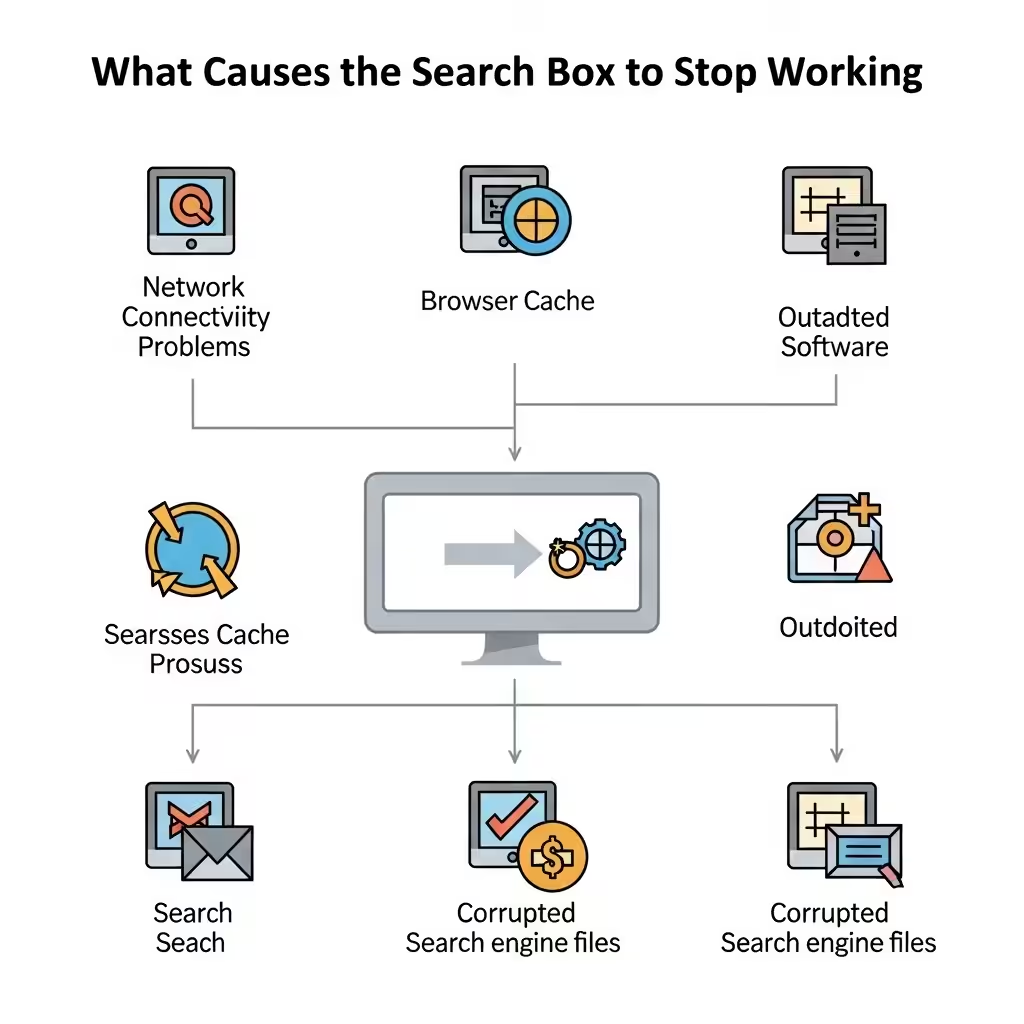
Several factors could contribute to this issue, including:
-
Temporary system glitches
-
Corrupted Windows Search components
-
Faulty system updates
-
Conflicts with indexing
-
Outdated or missing system files
-
Broken Cortana/SearchUI processes
Identifying the specific cause can help you choose the right solution. Let’s explore the most reliable fixes below.
Fix 1: Restart File Explorer
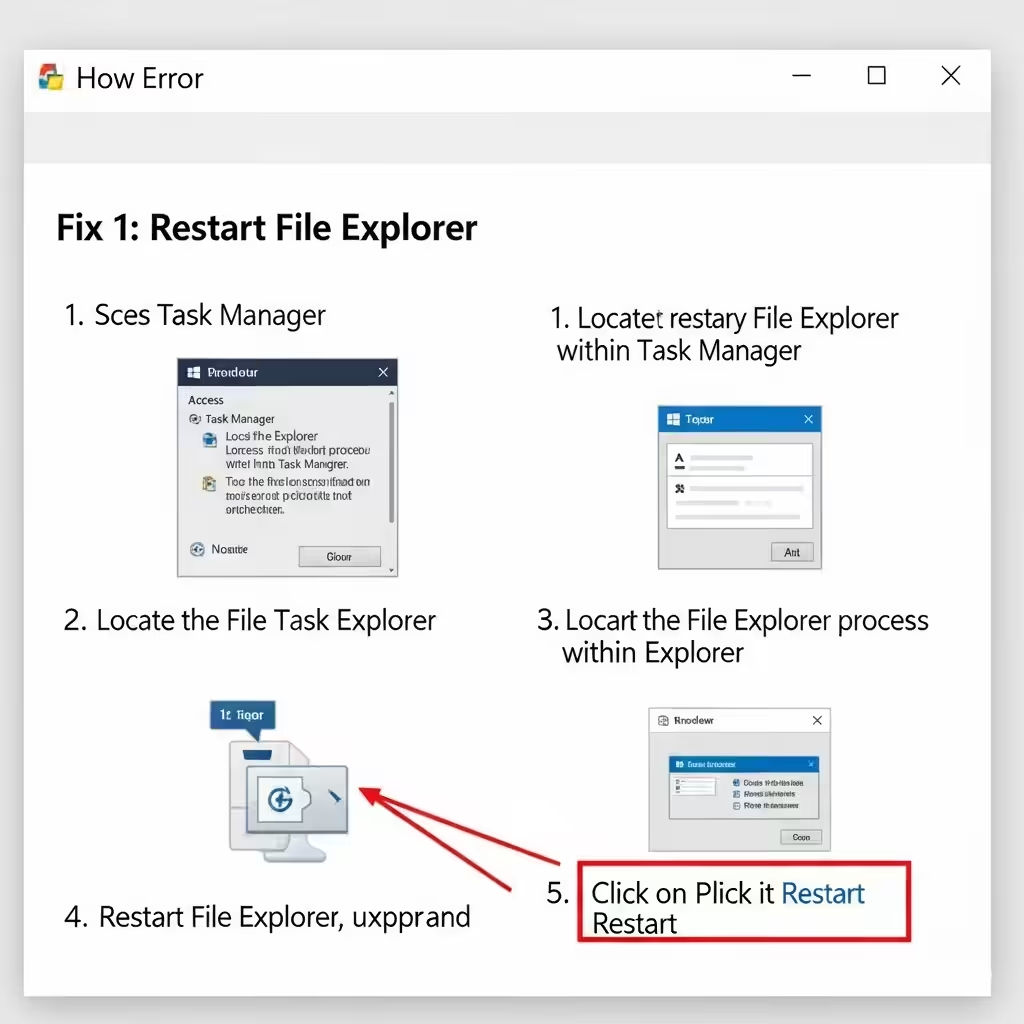
A simple restart of File Explorer can refresh its components, including the search box.
Steps:
-
Press Ctrl + Shift + Esc to open Task Manager
-
Find Windows Explorer in the list
-
Right-click it and select Restart
After the interface reloads, try using the search box again.
Fix 2: Use the Windows Search Troubleshooter
Windows includes a built-in troubleshooter designed to detect and fix search-related problems.
How to run it:
-
Go to Settings > System > Troubleshoot > Other troubleshooters
-
Scroll down and find Search and Indexing
-
Click Run next to it
-
Select the issues you’re experiencing, such as “Search or indexing is not working”
-
Let the tool complete the process
This tool can automatically resolve common search functionality problems.
Fix 3: Rebuild the Search Index
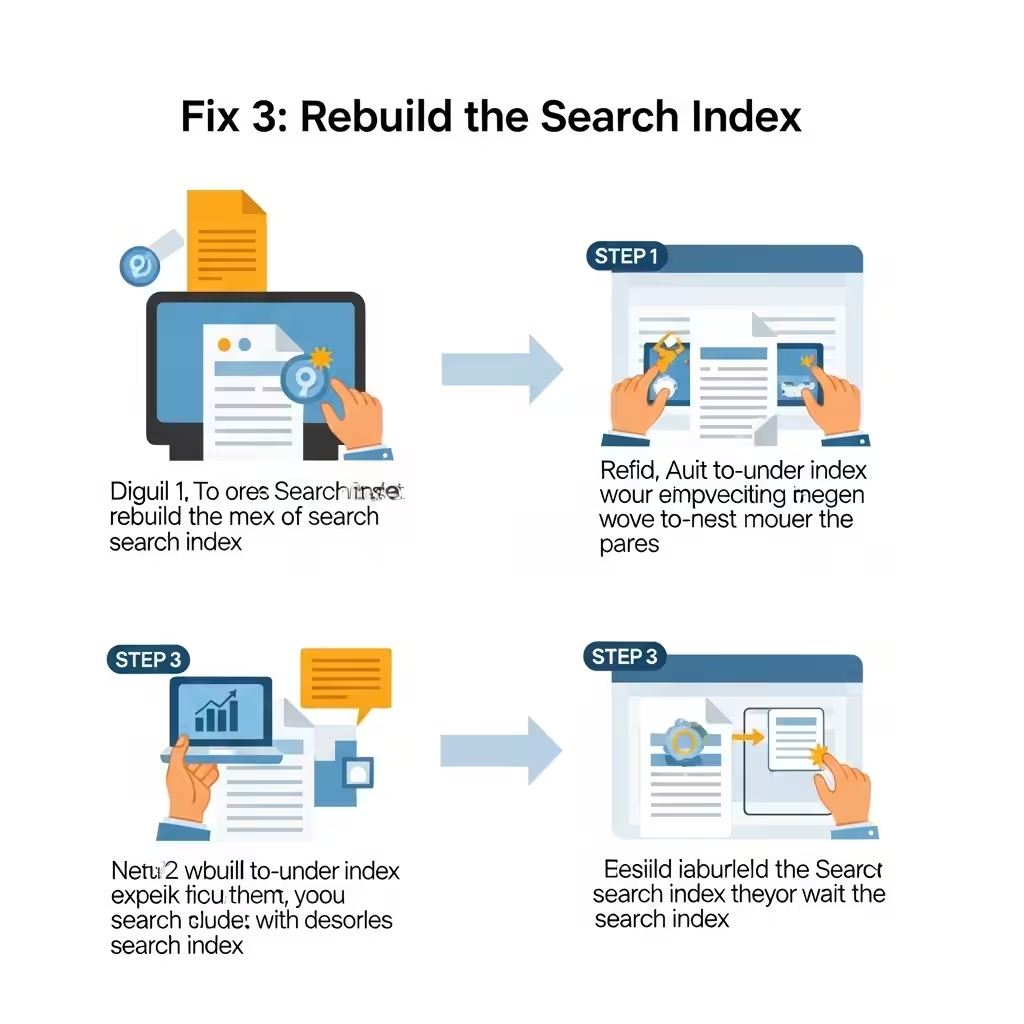
The Windows Search Index helps speed up file searching. If the index is corrupted, your File Explorer search may stop working.
Steps:
-
Press Windows + S and type
Indexing Options -
Click on it to open the control panel
-
Click Advanced
-
Under Troubleshooting, click Rebuild
-
Confirm and wait for the index to rebuild (this may take some time)
After rebuilding, check if the search box is responsive.
Fix 4: Restart Windows Search Service
Sometimes, the Windows Search service may stop functioning, leading to search failures.
How to restart it:
-
Press Windows + R, type
services.msc, and press Enter -
Scroll down to find Windows Search
-
Right-click it and select Restart
-
If it’s not running, choose Start
You can also double-click it, set the Startup type to Automatic, and click Apply.
Fix 5: Run System File Checker and DISM
Corrupted or missing system files can prevent certain features from functioning properly, including the File Explorer search box.
Use System File Checker (SFC):
-
Open Command Prompt as Administrator
-
Type the following command and press Enter:
-
Let the scan complete and repair any issues
Then run DISM:
In the same Command Prompt window, type:
After both scans, restart your computer and test the search box.
Fix 6: Clear File Explorer History
Corrupted history files may interfere with the File Explorer search functionality.
How to clear it:
-
Open Control Panel > File Explorer Options
-
Under the General tab, find Clear under Privacy
-
Click Clear and then OK
This resets recent folder history and may fix unresponsive search behavior.
Fix 7: Uninstall Recent Windows Updates
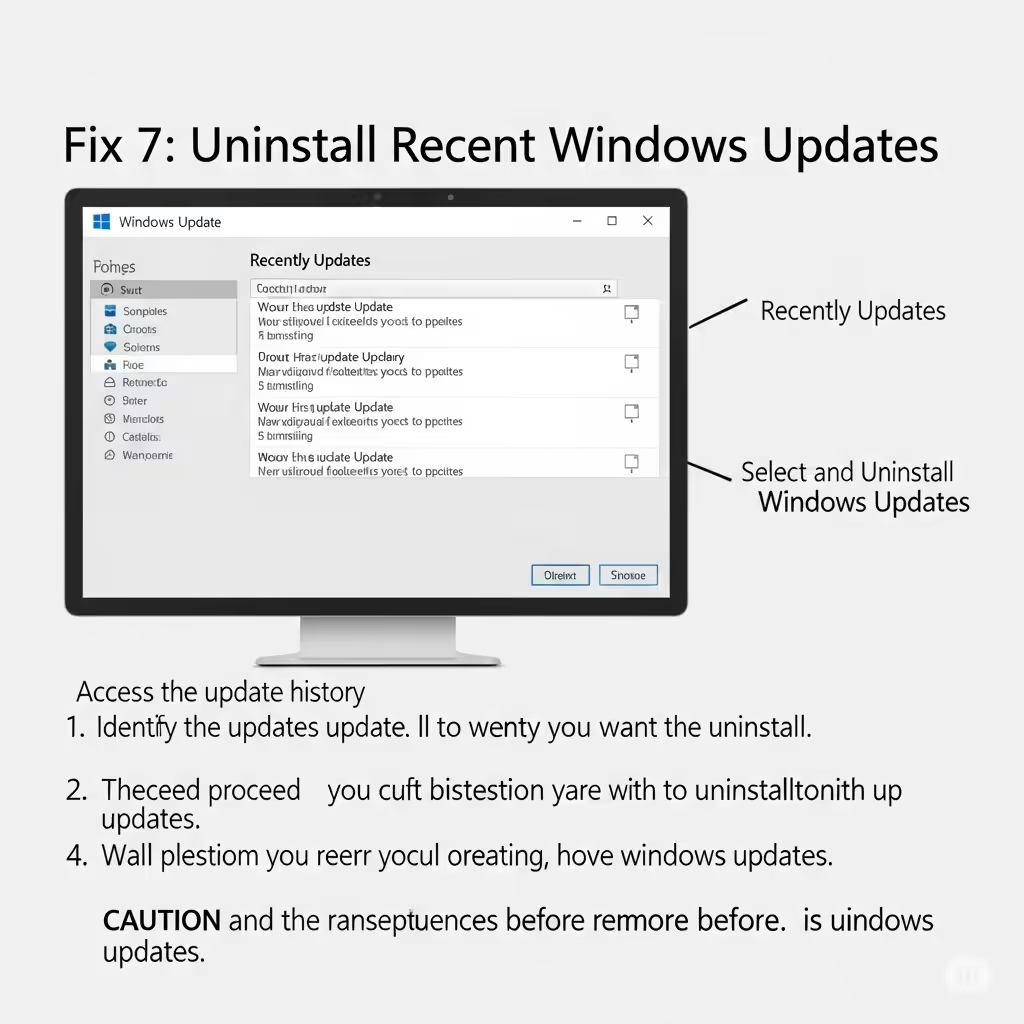
If the issue started after a recent system update, a buggy patch might be the culprit.
Steps:
-
Go to Settings > Windows Update > Update History
-
Click Uninstall updates
-
Select the most recent update and click Uninstall
-
Restart your PC
If the search starts working, you can pause updates until a stable patch is released.
Fix 8: Enable Search Box via Group Policy (for advanced users)
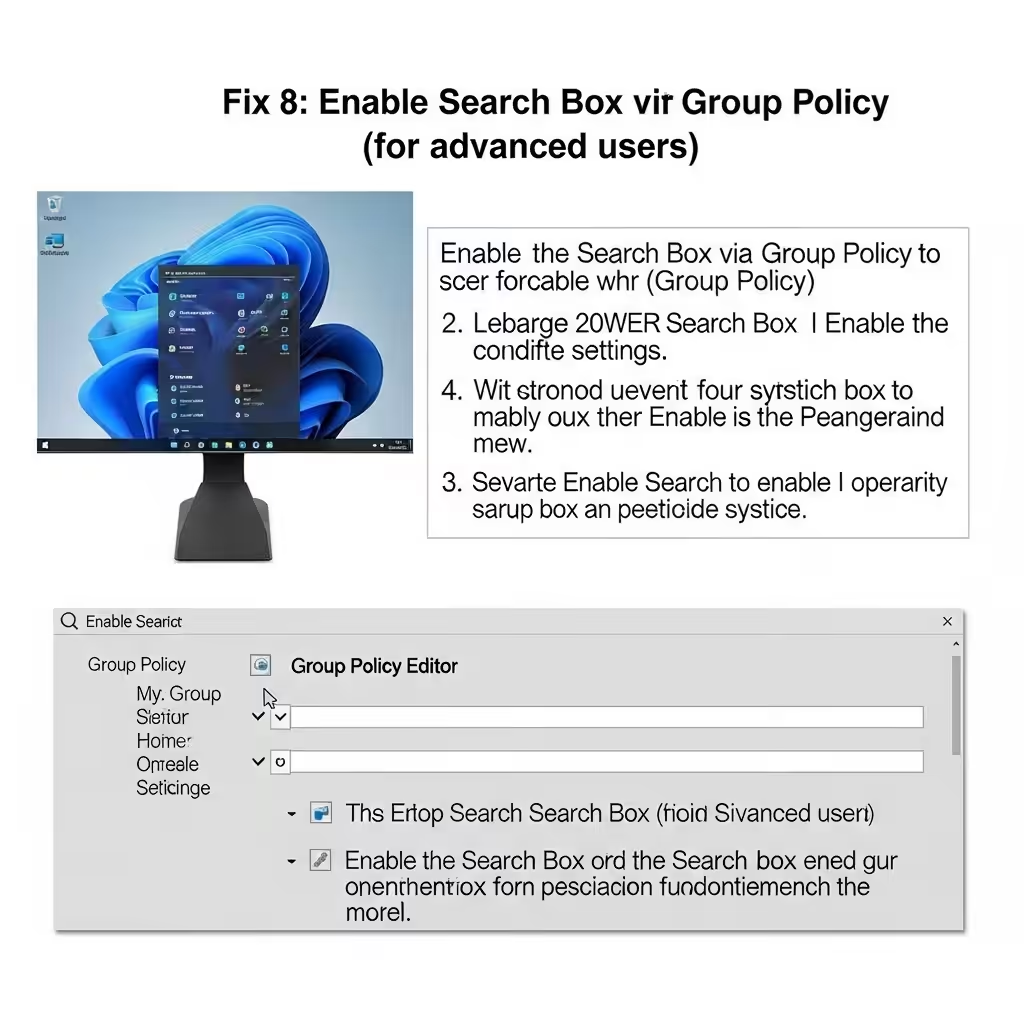
Sometimes, system policies can hide or disable search features. You can re-enable them using the Group Policy Editor (Windows Pro and Enterprise editions only).
Steps:
-
Press Windows + R, type
gpedit.msc, and press Enter -
Navigate to:
-
Find and double-click Turn off display of recent search entries
-
Set it to Disabled or Not Configured
-
Click Apply, then OK
Restart the PC and check the search box.
Fix 9: Use PowerShell to Re-wp-signup.php SearchUI
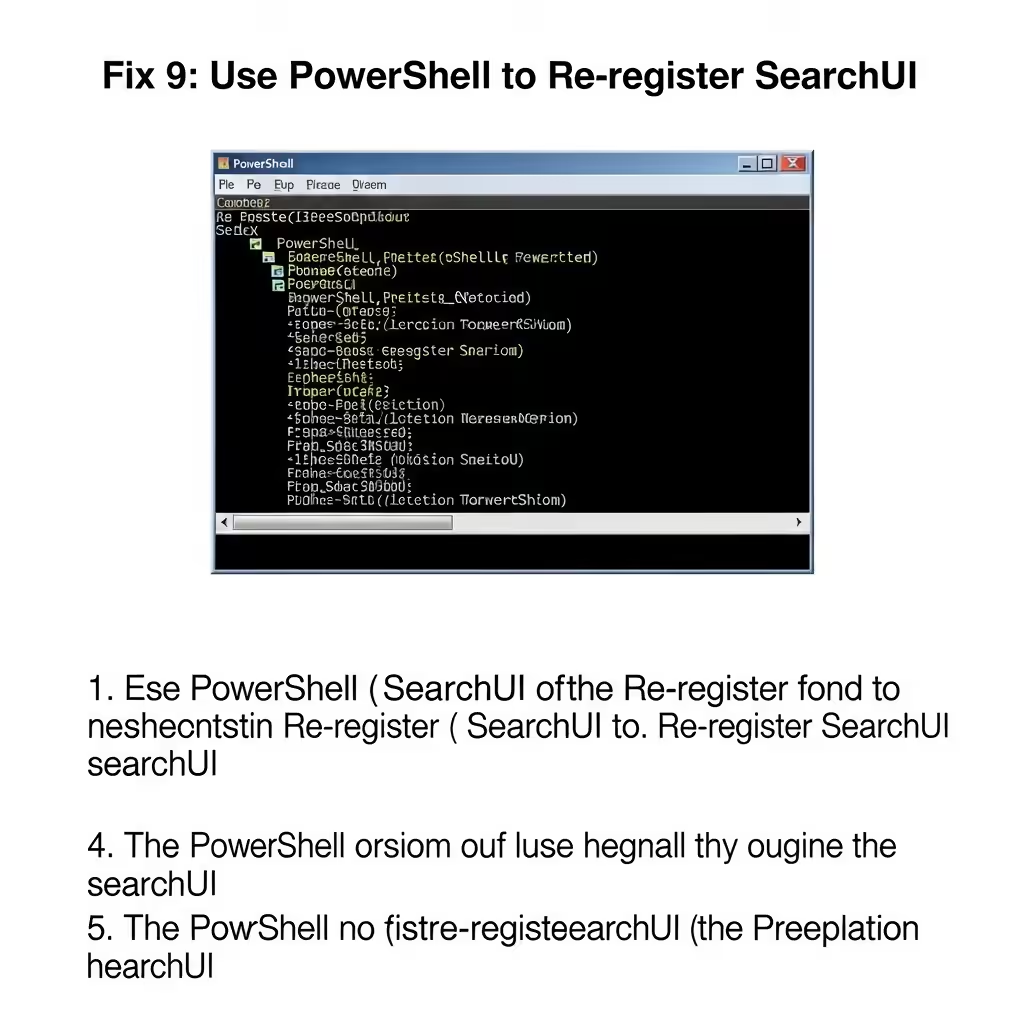
If the Cortana/SearchUI component is broken, it can affect the search box.
How to re-wp-signup.php SearchUI:
-
Open PowerShell as Administrator
-
Paste the following command:
-
Press Enter and let the process finish
-
Restart your computer
This command reinstalls the Cortana/Search component used by the File Explorer search.
Fix 10: Create a New User Profile

If all else fails, your user profile might be corrupted. Creating a new user account can help determine if the problem is profile-specific.
Steps:
-
Go to Settings > Accounts > Family & other users
-
Click Add someone else to this PC
-
Follow the prompts to create a new account
-
Log into the new account and test File Explorer search
If it works there, you may need to transfer your files to the new profile.
Conclusion
A non-functional File Explorer search box can be a major inconvenience, but it’s usually not permanent. Whether it’s caused by indexing errors, corrupted system files, or a malfunctioning background service, the solutions listed above can help restore functionality.
Summary of Fixes:
-
Restart File Explorer and your PC
-
Use the Search & Indexing Troubleshooter
-
Rebuild the search index
-
Restart the Windows Search service
-
Run SFC and DISM
-
Clear File Explorer history
-
Uninstall problematic updates
-
Adjust Group Policy settings
-
Re-wp-signup.php SearchUI with PowerShell
-
Create a new user account if necessary
By following these methods, you should be able to resolve the File Explorer search box issue and return to a smoother file navigation experience.