


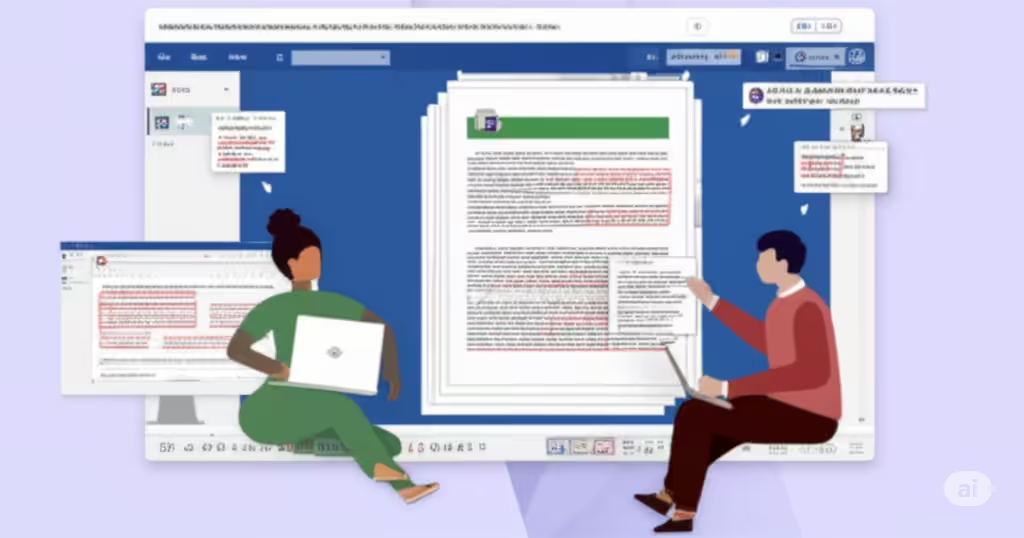
Using Microsoft Word for Real-Time Collaboration
Collaboration is essential in today’s fast-paced digital work environment, and Microsoft Word makes it easier than ever. Whether you’re co-authoring a project report, sharing feedback on a proposal, or working on an academic paper with a team, Word provides robust tools for real-time and asynchronous collaboration.
This guide walks you through all the available methods to collaborate effectively in Microsoft Word—on Windows, Mac, and through the web version (Word Online). From sharing documents to using Track Changes and Comments, here’s everything you need to know to collaborate like a pro.
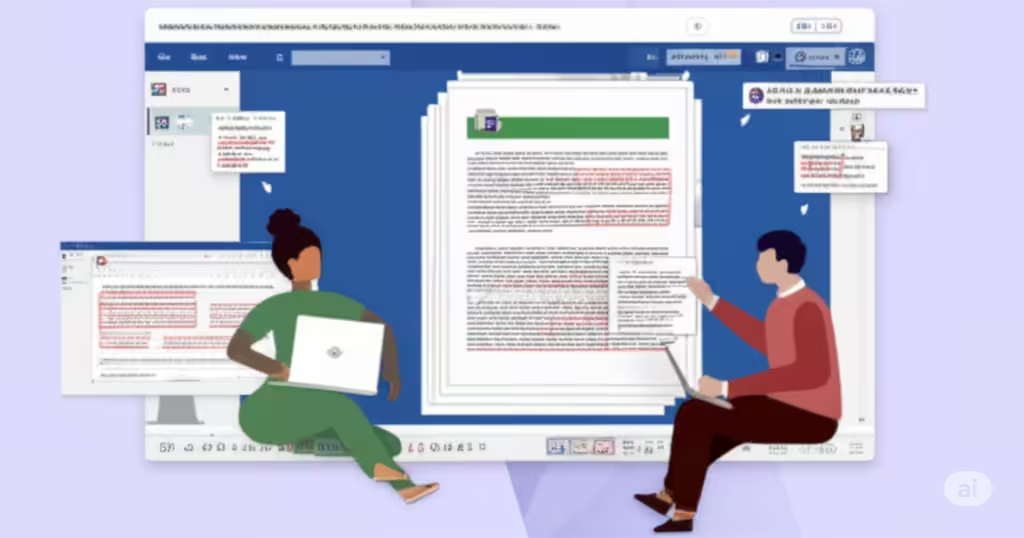
Benefits of Collaborating in Microsoft Word
Collaborating in Word offers several benefits:
-
Real-time editing with multiple people.
-
Cloud storage integration with OneDrive or SharePoint.
-
Commenting and review tools for feedback and revisions.
-
Version history to view or restore previous versions.
-
Cross-platform support, whether you’re using Word on desktop, mobile, or web.
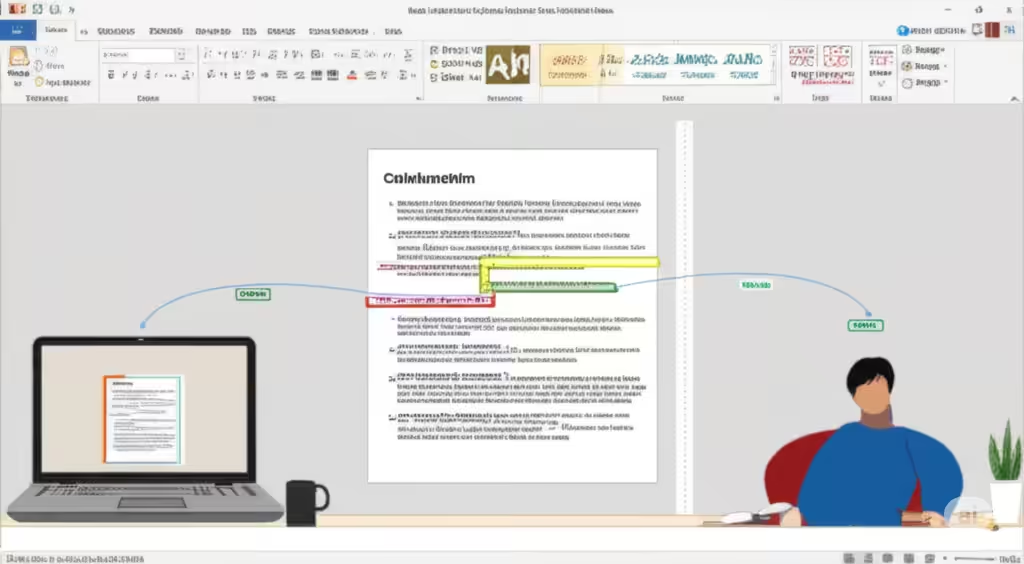
Preparing Your Document for Collaboration
Before sharing, make sure your document is saved to the cloud. This enables real-time collaboration.
Save to OneDrive or SharePoint
-
Open your Word document.
-
Click File > Save As.
-
Choose OneDrive or SharePoint from the list of locations.
-
Name your file and click Save.
Once saved to the cloud, your document is ready to be shared with others.
Sharing Your Document with Others
Word makes it easy to share your file directly from within the app.
Steps to Share:
-
Click the Share button in the top-right corner of the Word window.
-
Enter the email addresses of the people you want to collaborate with.
-
Choose their permission level:
-
Can edit – allows full editing access.
-
Can view – allows read-only access.
-
-
Add an optional message, then click Send.
Alternatively, you can click Copy Link to generate a sharing link that can be sent via chat or email.

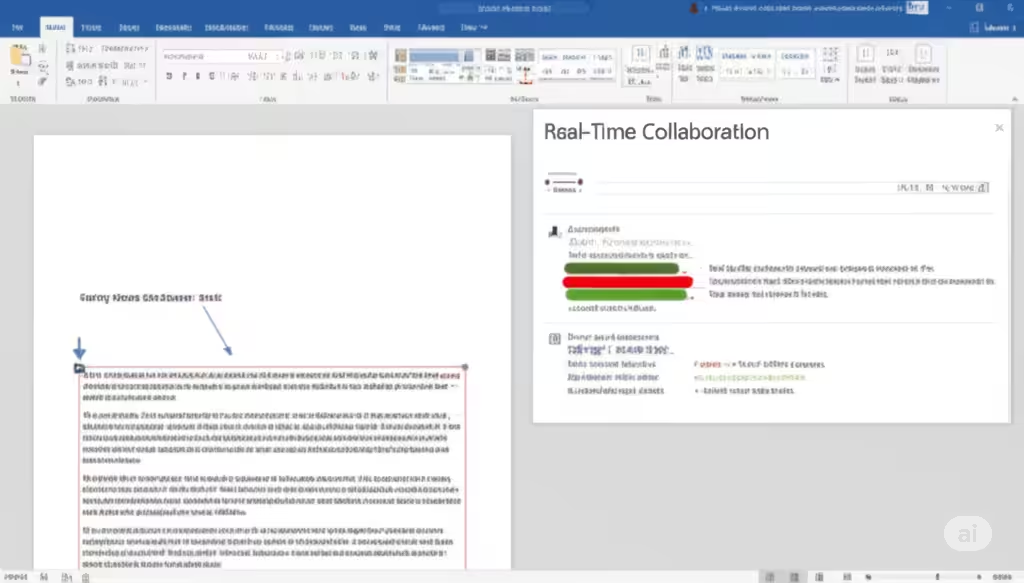
Real-Time Collaboration
If your collaborators open the document using the link you sent and have permission to edit, they can work on the document in real time.
You’ll see:
-
Their names or initials displayed at the cursor position.
-
Edits appearing instantly as they type.
-
Word highlighting the sections others are working on.
Real-time collaboration is fully supported in Word for the Web and the latest Office desktop apps with an internet connection.
Using Track Changes
When you want to keep track of what each person is editing, enable Track Changes.
How to Turn on Track Changes:
-
Go to the Review tab.
-
Click Track Changes.
-
All edits will now appear in red or marked up in the margin.
This feature is ideal for reviewing documents or when you want approval before changes are finalized.
Accepting or Rejecting Changes:
-
Navigate to the Review tab.
-
Use the Accept or Reject buttons to approve or discard each suggested change.
-
You can also Accept All Changes at once if needed.
Adding and Responding to Comments
Comments are perfect for sharing suggestions without altering the actual text.
Add a Comment:
-
Select the text you want to comment on.
-
Go to the Review tab and click New Comment.
-
Type your note and press Post.
Reply to a Comment:
-
Click the comment bubble.
-
Choose Reply, type your response, and press Post.
When a discussion is resolved, click Resolve to mark the thread as complete.
Working with Version History
Version history lets you view or restore previous document versions.
Accessing Version History:
-
Click File > Info.
-
Select Version History.
-
A sidebar will open with a list of previous versions.
-
Click any version to open and compare or Restore if needed.
This feature is especially helpful when someone accidentally deletes content or if conflicting edits were made.
Collaborating in Word for Web
Word Online offers nearly the same collaboration features as the desktop version and is great for quick edits and browser-based work.
Advantages:
-
No installation required.
-
Real-time editing works smoothly.
-
Integrated with Microsoft Teams and OneDrive.
-
Accessible from any device with a web browser.
However, advanced formatting features and some tools may be limited in Word Online compared to the desktop app.
Collaborating in Word on Mac
Mac users have access to the same sharing, commenting, and real-time editing features as Windows users.
To share and collaborate on Word for Mac:
-
Save the document to OneDrive.
-
Click the Share icon in the top-right.
-
Set permissions and send an invite.
Track Changes, Comments, and Version History all function the same way in the Mac version.
Best Practices for Collaboration in Word
-
Set clear roles: Assign who edits, who reviews, and who finalizes.
-
Use comments instead of direct edits for feedback.
-
Communicate outside Word (via Teams or email) for broader discussions.
-
Clean up formatting before finalizing the document.
-
Keep backups, even though version history is reliable.
Troubleshooting Common Collaboration Issues
Others Can’t Edit My Document
-
Make sure the document is saved to OneDrive or SharePoint.
-
Verify that you’ve granted edit permissions.
-
Ask collaborators to open the file in Word Online if the desktop app isn’t syncing properly.
Changes Are Not Syncing
-
Ensure your Office app is up to date.
-
Confirm you’re connected to the internet.
-
Save the document manually if autosave is disabled.
Track Changes Not Working
-
Ensure it’s turned on for everyone.
-
Collaborators must be using a compatible version of Word.
Conclusion
Collaborating in Microsoft Word has evolved far beyond emailing documents back and forth. With real-time editing, sharing through OneDrive, comments, Track Changes, and version control, Word is now a powerful platform for team productivity.
Whether you’re working remotely or in the same office, these tools help streamline the editing process, reduce errors, and keep everyone on the same page. Master these features, and your Word documents will become collaborative masterpieces in no time.