


How to Remove an Unwanted Page in Word on Mac and PC
Deleting a page in Microsoft Word might seem straightforward, but depending on the situation—whether it’s a blank page, a page with content, or a page in the middle of a document—it can be tricky. Unwanted blank pages often appear due to formatting issues, paragraph breaks, or section breaks that are difficult to see.
This guide covers how to delete a page in Word on both Windows and Mac, regardless of whether the page is at the end, in the middle, or completely blank. Let’s walk through the various methods so you can clean up your documents with ease.
Why a Blank Page Appears in Word
Before deleting a page, it’s important to understand why it’s there in the first place. Some common causes include:
-
Extra paragraph marks or line breaks
-
Section breaks that span a new page
-
Page breaks manually inserted
-
Content with invisible formatting
-
Tables or images that force the page layout
Knowing the cause helps determine the best deletion method.
How to Delete a Blank Page in Word (Windows)
If you’re using Microsoft Word on Windows and want to remove an unwanted blank page, follow these methods:
Method 1: Use the Navigation Pane
This method works well when you can’t see what’s causing the blank page.
-
Open your document in Word.
-
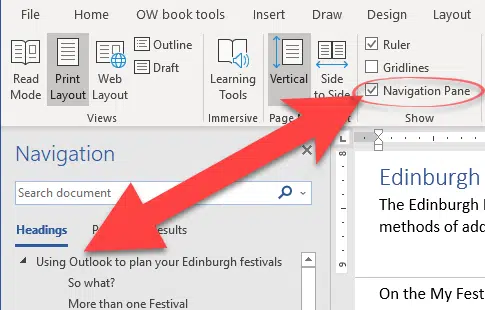
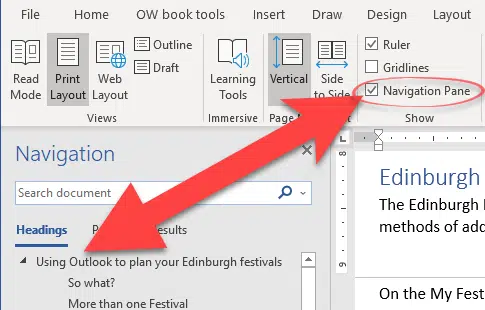
Go to the View tab.
-
Check the Navigation Pane box to open a sidebar.
-
Click on the Pages tab in the pane.
-
Scroll to find the blank page.
-
Click it to jump to the page, then press the Backspace key until it’s gone.
Method 2: Show Paragraph Marks
Paragraph and line break symbols may be causing the page to appear.
-
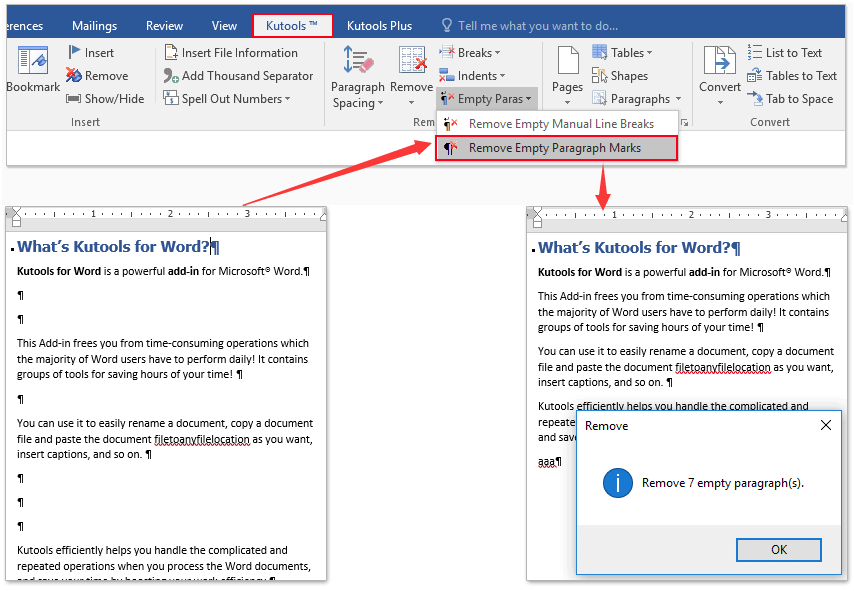
Press Ctrl + Shift + 8 or go to the Home tab and click the ¶ symbol to show formatting marks.
-
Select all paragraph symbols, page breaks, or section breaks on the blank page.
-
Press Delete or Backspace to remove them.
If a page still remains, it could be due to a table or an object extending too far—check for content margins.
Method 3: Remove Page Breaks Manually
Manual page breaks often push content onto a new page.
-
Click at the beginning of the page you want to remove.
-
Press Backspace if the page break is at the end of the previous page.
-
Or, select the Page Break text and delete it.
How to Delete a Page with Content
If the page you want to delete contains text or images, the process is simple:
-
Click and drag to highlight all the content on the page.
-
Press the Delete key.
Alternatively:
-
Place your cursor at the beginning of the page.
-
Hold Shift and click at the end of the page.
-
Press Delete.
This ensures all visible and hidden content is removed.
How to Delete a Page in Word (Mac)
On macOS, Word offers similar tools, though shortcuts differ slightly. Here’s how to remove a page on Word for Mac.
Method 1: Use the Navigation Pane
-
Go to the View menu and select Navigation Pane.
-
Switch to the Pages tab.
-
Scroll and select the page you want to delete.
-
Highlight any paragraph markers or page breaks and delete them.
Method 2: Show Formatting Marks
-
Press Command + 8 or go to the Home tab and click ¶.
-
Locate and select all paragraph and page breaks on the unwanted page.
-
Press the Delete key.
Method 3: Highlight and Delete Page Content
If the page has text:
-
Click and drag your mouse to select all text or press Command + A if the page is isolated.
-
Press Delete.
If deleting content leaves a blank page, repeat the steps to remove paragraph marks or page breaks.
How to Delete the Last Blank Page in Word
Sometimes, Word adds a blank page at the end due to a paragraph mark or a table that forces a new page.
To delete it:
-
Show formatting marks (Ctrl + Shift + 8 on Windows, Command + 8 on Mac).
-
Place your cursor at the end of the document.
-
Press Backspace or Delete until the blank page disappears.
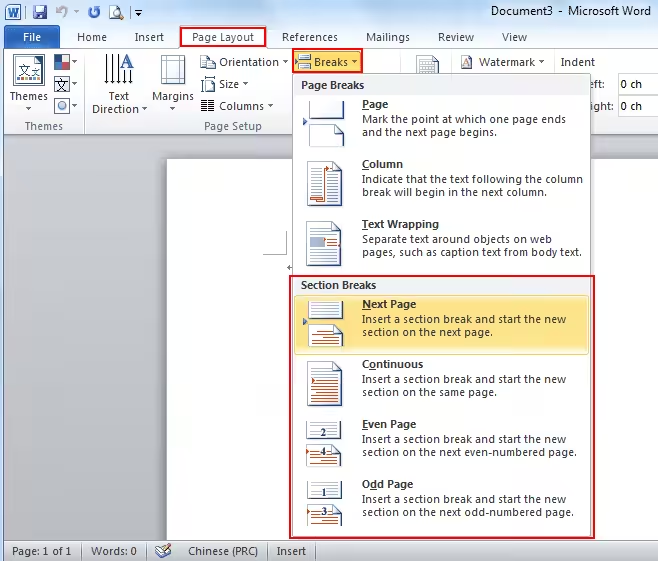
If there’s a section break:
-
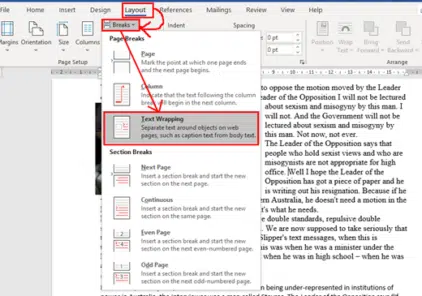
Go to Layout > Breaks > Section Breaks.
-
Delete the section break carefully—note that this may affect headers and footers.
Tips for Avoiding Blank Pages
-
Avoid pressing Enter repeatedly to move to a new page.
-
Use Page Break (Ctrl + Enter) instead of manual spacing.
-
When pasting content from other sources, check for hidden formatting.
-
Use Print Layout view to see how pages are structured.
Using Word Online to Delete a Page
Word Online (in-browser version) has fewer features but still allows for basic deletion.
Steps:
-
Click into the blank or unwanted page.
-
Press Backspace or Delete until the page disappears.
-
Ensure you don’t accidentally remove content on the previous page.
For more precise control, it’s best to use the desktop version.
Common Troubleshooting
I deleted all content, but the page is still there
Try enabling formatting marks to delete lingering paragraph symbols or section breaks.
Deleting a section break messes up formatting
That’s expected—section breaks control margins, orientation, headers, and more. Reconfigure the section’s layout if needed after deleting.
I can’t select the blank page
Use the Navigation Pane to locate and select the page. If that doesn’t work, use Go To (Ctrl + G) and enter the page number.
Conclusion
Deleting a page in Microsoft Word, whether on Windows or Mac, becomes much easier when you understand what’s causing the extra page. Whether it’s blank space, a section break, or leftover formatting, Word provides several tools to remove unwanted pages effectively.
By using the Navigation Pane, formatting marks, and simple keyboard shortcuts, you can take full control of your document’s layout and keep it clean and professional.