


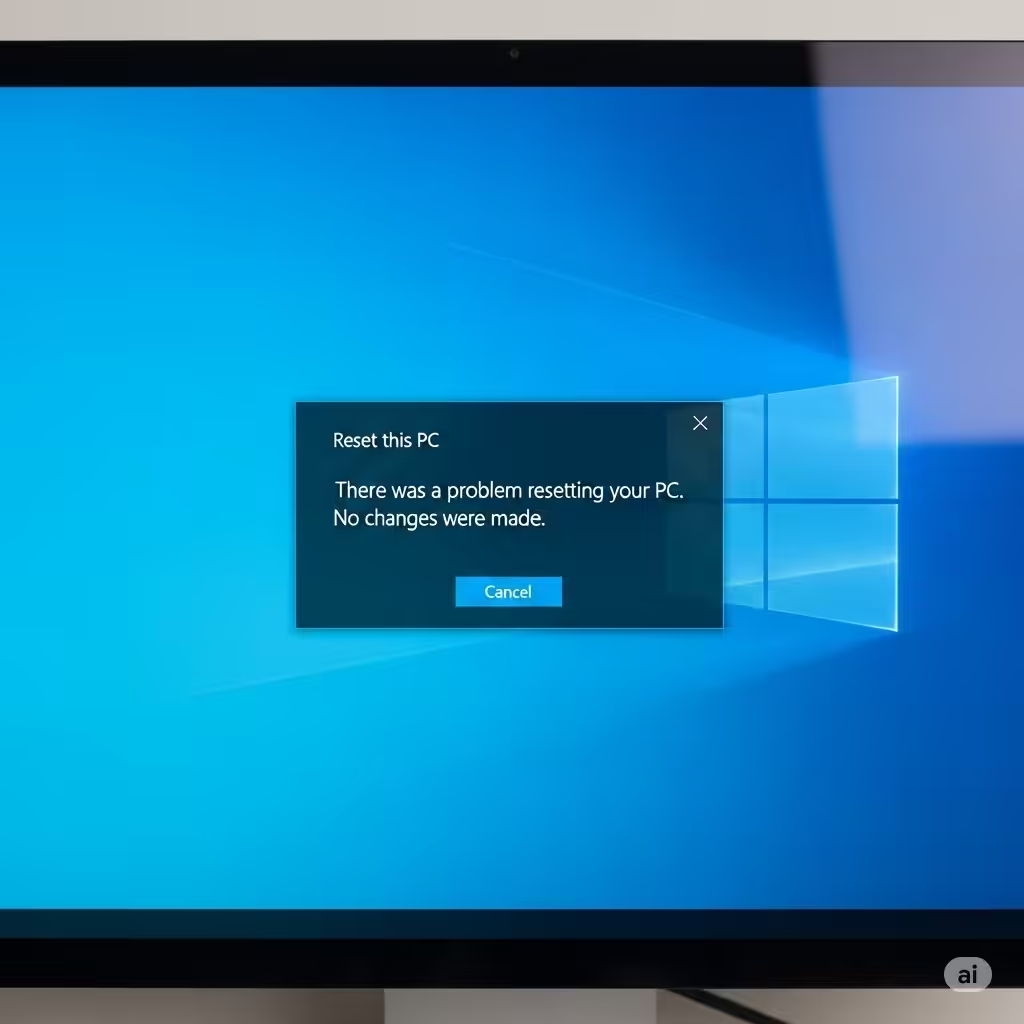
Fixing the “There was a problem resetting your PC” Error Message in Windows 10
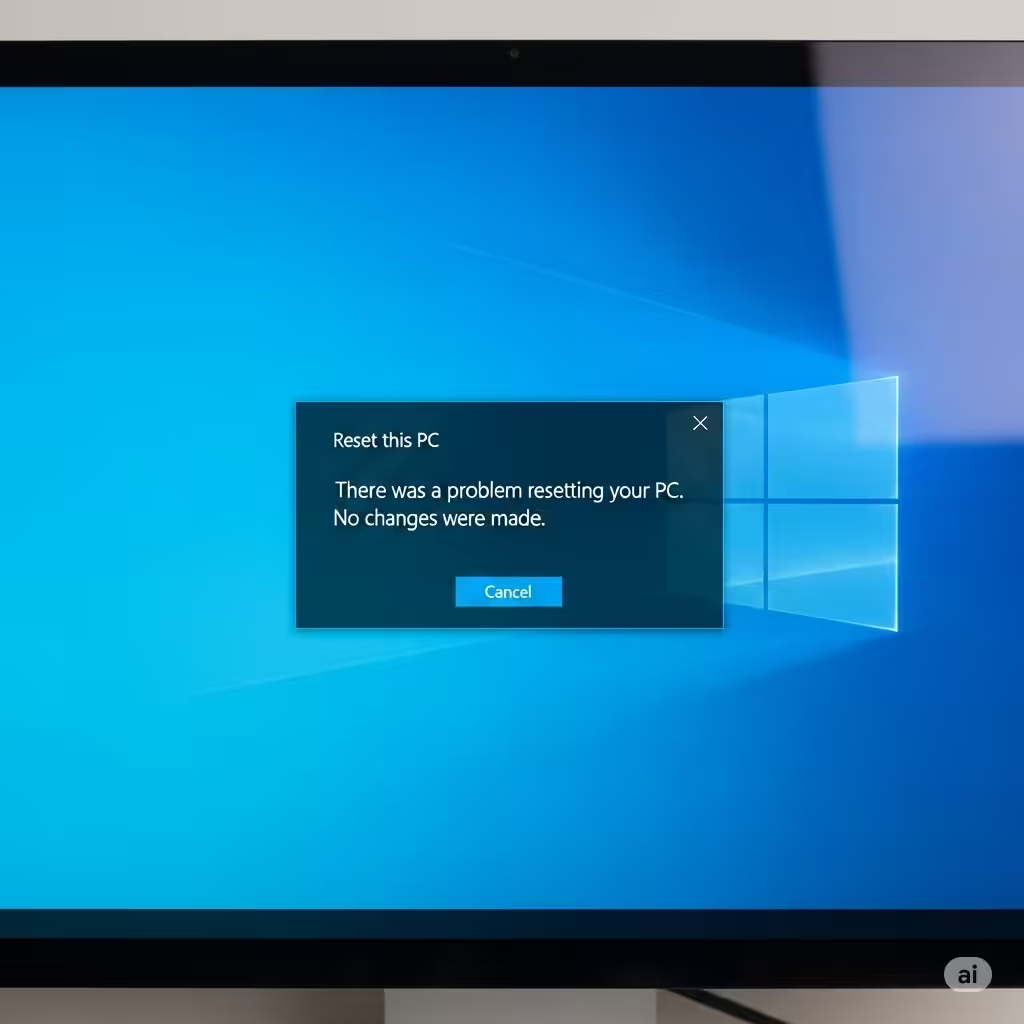
Resetting your PC is often the go-to solution when troubleshooting issues or preparing a system for a fresh start. However, some Windows 10 users encounter the frustrating error message: “There was a problem resetting your PC.” This prevents the reset process from completing and can leave your system in a problematic state.
If you’re facing this error, don’t worry. In this comprehensive guide, we’ll explore the common causes of this issue and walk you through several effective methods to fix it and successfully reset your Windows 10 PC.
Understanding the “There Was a Problem Resetting Your PC” Error
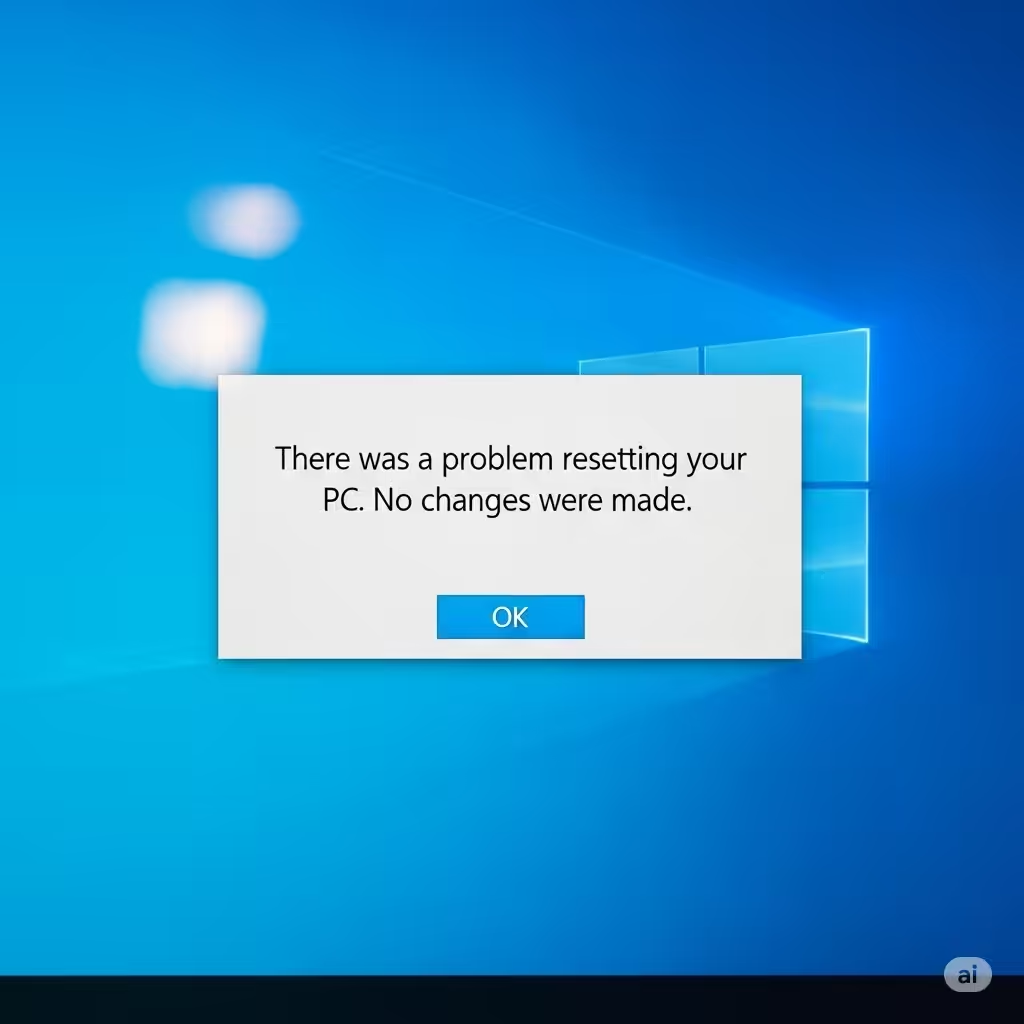
When you attempt to reset your Windows 10 computer through the Settings app or recovery environment, the system usually reinstalls Windows, removing apps and files depending on the reset option chosen. However, the reset process relies on a number of system files and recovery environments to be intact.
The error “There was a problem resetting your PC” can appear due to:
-
Corrupted or missing system files
-
Damaged recovery partition or missing recovery image
-
Problems with Windows Update or system updates
-
Disk errors or bad sectors on the hard drive
-
Interference from third-party software or antivirus
-
File system corruption
Knowing these possible causes helps in applying the correct fix.
How to Fix “There Was a Problem Resetting Your PC” on Windows 10
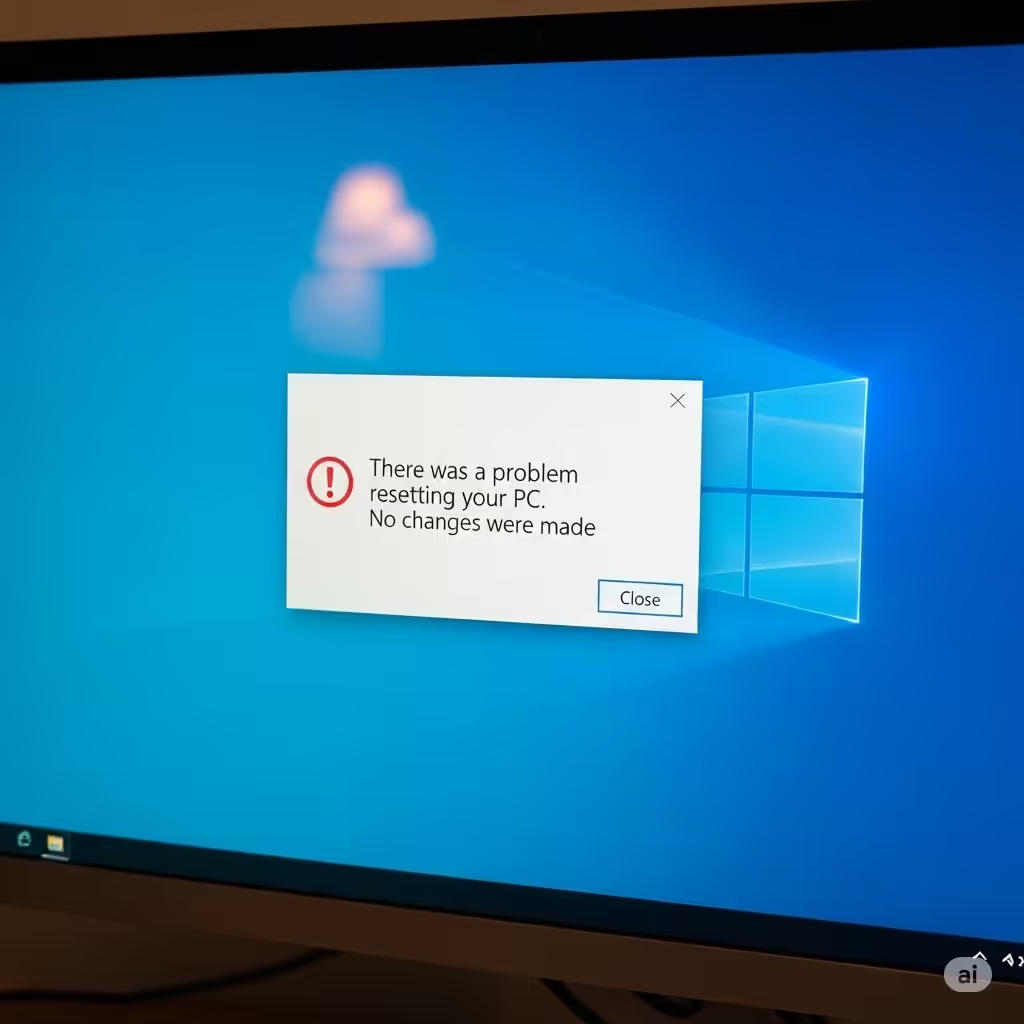
Here are multiple solutions that can help you resolve the problem and successfully reset your PC.
1. Run System File Checker (SFC) and DISM Tools
Corrupted system files can block the reset process. Using SFC and DISM can repair damaged files.
Steps:
-
Press Windows + X, then choose Windows Terminal (Admin) or Command Prompt (Admin).
-
Type the following command and press Enter:
-
Wait for the scan to complete. It will repair corrupted system files automatically.
-
Next, run the DISM tool to repair the Windows image by typing:
-
After completion, restart your computer and try resetting again.
2. Use Windows Recovery Environment (WinRE)
If resetting via Settings fails, try using Windows Recovery Environment.
Steps:
-
Restart your PC and press F11 or Shift + Restart to boot into WinRE.
-
Select Troubleshoot > Reset this PC.
-
Choose whether to keep your files or remove everything and follow the prompts.
If the error persists, proceed to the next solution.
3. Check and Repair Disk Errors
Disk errors can prevent reset. Running a disk check can fix bad sectors.
Steps:
-
Open Command Prompt as Administrator.
-
Run this command to check and fix disk errors:
-
You may be prompted to schedule the scan on next reboot—type Y and press Enter.
-
Restart your PC and allow the disk check to complete.
-
Attempt the reset again.
4. Delete the Recovery Folder
Sometimes the recovery files stored in the Windows Recovery Environment get corrupted.
Steps:
-
Open File Explorer and navigate to:
-
You might need to enable viewing hidden and system files to see this folder.
-
Delete the Recovery folder if it exists.
-
Open Command Prompt as Administrator, then type:
-
These commands disable and then re-enable the recovery environment.
-
Restart your PC and try resetting again.
5. Perform a Clean Installation of Windows 10
If resetting still doesn’t work, you can perform a clean installation using Windows 10 installation media.
Steps:
-
Download the Media Creation Tool from Microsoft’s official website.
-
Use the tool to create a bootable USB drive.
-
Boot from the USB drive and follow the on-screen instructions to install Windows 10 fresh.
-
This will erase your system drive, so back up important files first.
6. Disable Third-Party Antivirus Temporarily
Sometimes antivirus or security software interferes with the reset process.
Steps:
-
Temporarily disable your antivirus software.
-
Try resetting your PC again.
-
Remember to enable your antivirus once the reset is complete.
7. Use System Restore Point
If the reset issue started recently, restoring your system to a previous point can fix corrupted files.
Steps:
-
Open Control Panel > Recovery > Open System Restore.
-
Select a restore point dated before the error started.
-
Follow the prompts to restore your system.
-
After restoration, try resetting again.
Preventive Tips for Future Resets
-
Regularly update Windows and drivers to maintain system integrity.
-
Avoid interrupting updates or resets.
-
Keep recovery partitions intact and do not delete system files.
-
Maintain reliable antivirus software but check for conflicts.
Conclusion
The “There was a problem resetting your PC” error on Windows 10 is frustrating but usually fixable with the methods described above. By repairing corrupted files, checking disk health, and using recovery tools, you can restore your system to working order.
If all else fails, a clean installation guarantees a fresh start, though it requires backing up your data beforehand. Always ensure your important files are backed up regularly to prevent data loss during troubleshooting.
With patience and these steps, you can overcome the reset error and get your Windows 10 PC back to optimal performance.