



How to Resolve the Inaccessible Boot Device Error on Windows 10
The Inaccessible Boot Device error is one of the most frustrating issues Windows 10 users face. Usually, it appears as a Blue Screen of Death (BSOD) during startup, preventing your PC from booting into the operating system. This error means that Windows cannot access the system partition or boot drive, which is essential for starting your computer.
If you are experiencing this issue, don’t panic. In this guide, we’ll explore the possible causes of the inaccessible boot device error and provide step-by-step methods to fix it.
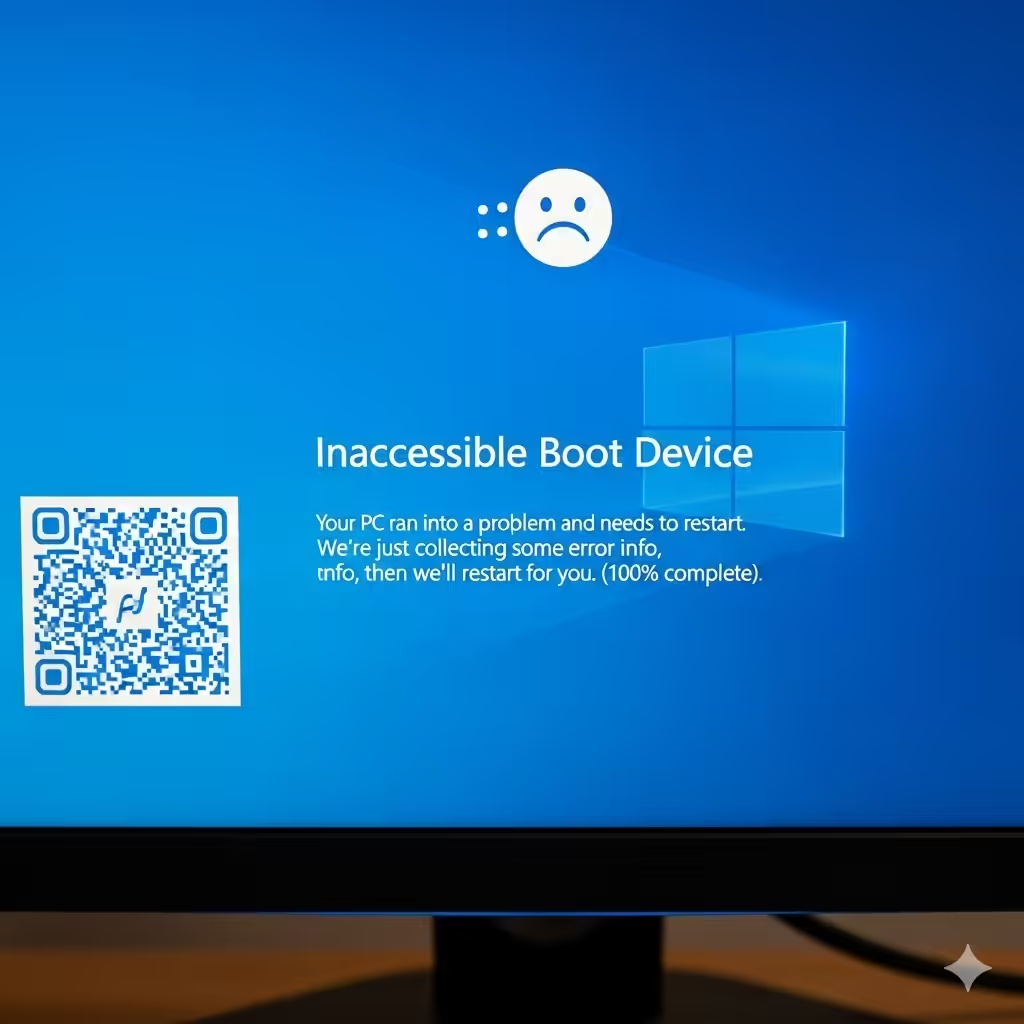
What Causes the Inaccessible Boot Device Error?
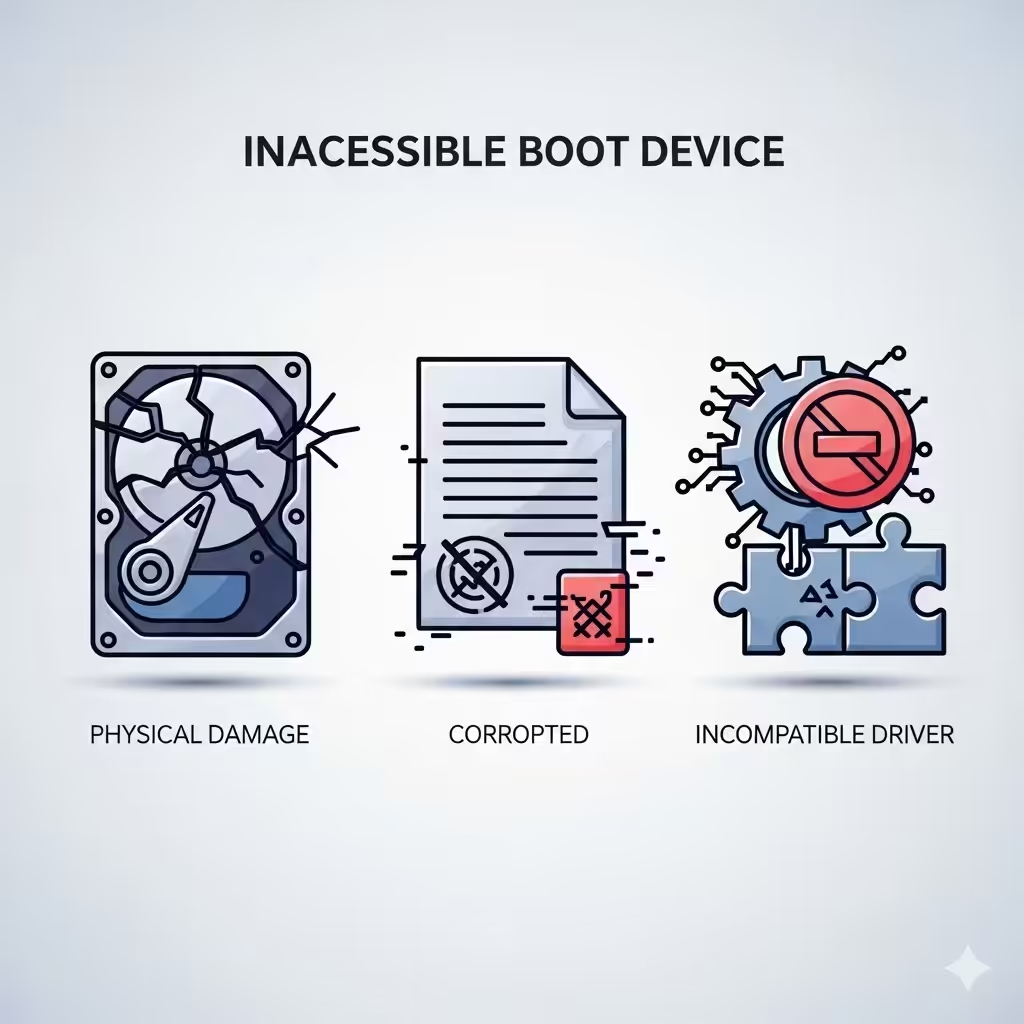
Several factors can trigger this error, including:
-
Corrupt or missing system files.
-
Outdated or incompatible drivers, especially storage drivers.
-
Recent Windows updates or incomplete installations.
-
Issues with the system’s boot configuration data (BCD).
-
Damaged hard drive or SSD sectors.
-
BIOS or UEFI misconfigurations.
Identifying the root cause can help you apply the right fix.
Method 1: Restart Your Computer
Sometimes, the error is temporary and caused by a minor glitch during startup. Simply restarting your PC can fix the problem.
Steps:
-
Press and hold the power button to turn off the system.
-
Wait a few seconds, then restart the computer.
-
If Windows boots successfully, it may have been a one-time issue.
If the error persists, continue with the next solutions.
Method 2: Boot Into Safe Mode
Safe Mode loads Windows with only the essential drivers and services. This helps determine whether third-party drivers or software are causing the issue.
Steps to Enter Safe Mode:
-
Turn off your PC, then power it on and interrupt the boot process three times by holding the power button.
-
On the Automatic Repair screen, select Advanced options > Troubleshoot > Advanced options > Startup Settings > Restart.
-
Press F4 or 4 to boot into Safe Mode.
If Windows loads successfully, you can uninstall problematic drivers or updates.

Method 3: Uninstall Recent Windows Updates
Sometimes, a newly installed Windows update may cause conflicts, leading to the inaccessible boot device error.
Steps:
-
Boot into Safe Mode.
-
Press Windows + I to open Settings.
-
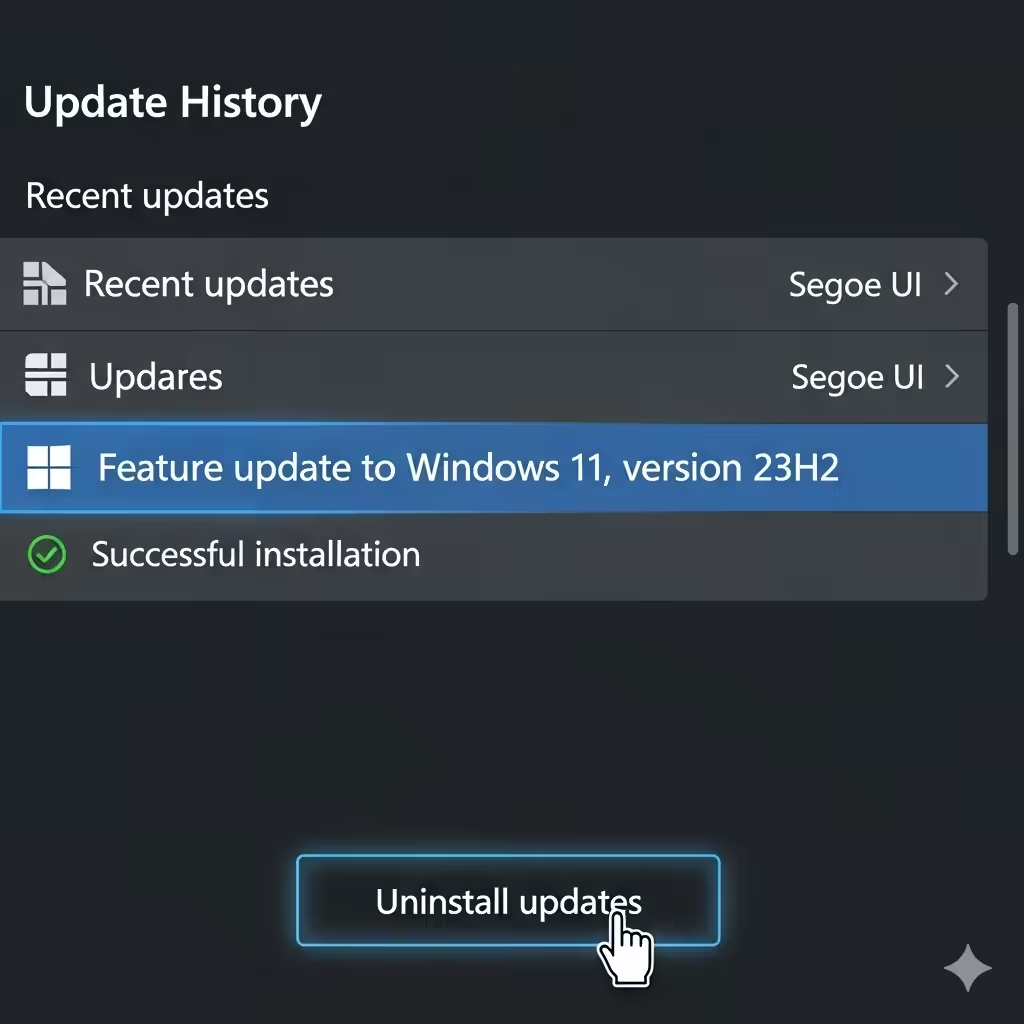
Go to Update & Security > Windows Update > View update history.
-
Click Uninstall updates.
-
Remove the most recent update and restart your PC.
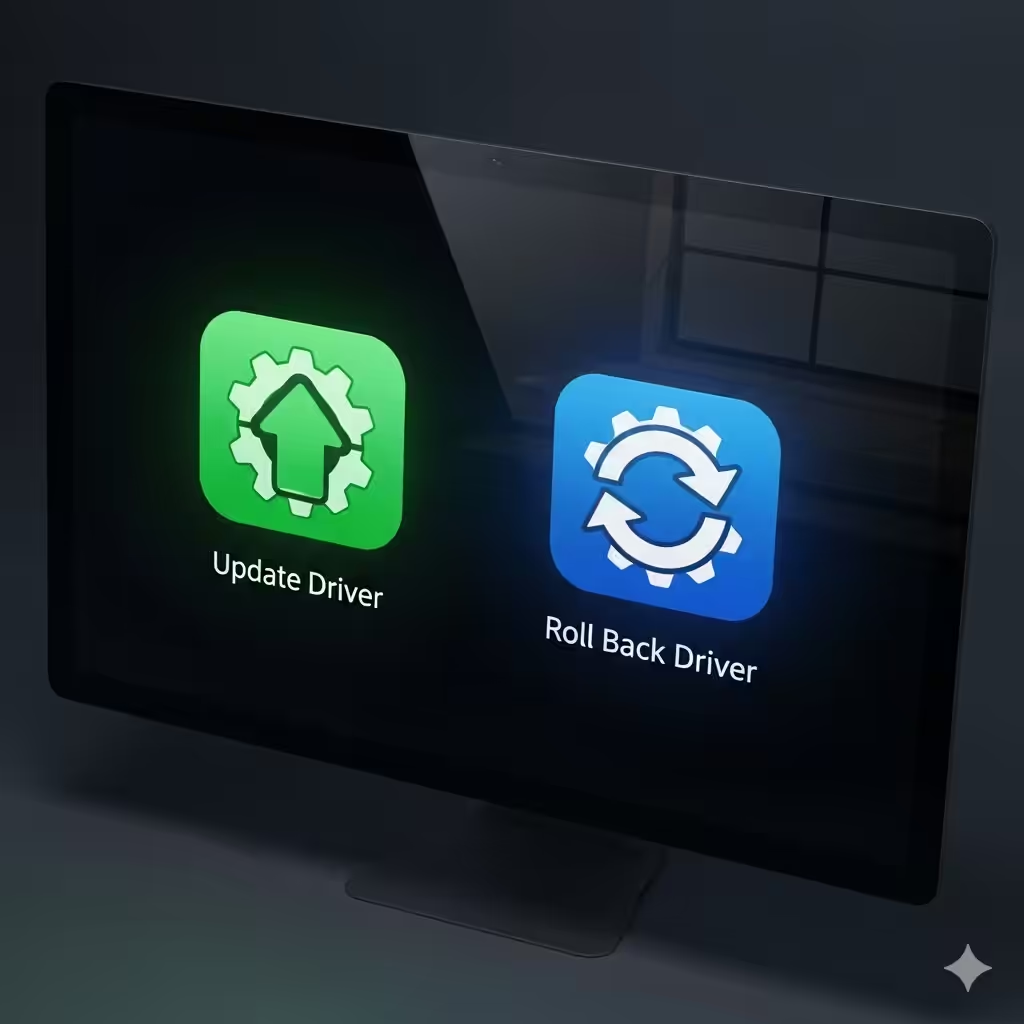
Method 4: Update or Roll Back Drivers
Storage and chipset drivers are the most common culprits behind this error.
Update Drivers:
-
Boot into Safe Mode.
-
Press Windows + X and choose Device Manager.
-
Expand IDE ATA/ATAPI controllers or Storage controllers.
-
Right-click your driver and choose Update driver.
-
Select Search automatically for updated driver software.
Roll Back Drivers:
-
In Device Manager, right-click the storage driver.
-
Select Properties > Driver tab > Roll Back Driver.
-
Restart your PC to see if the issue is resolved.
Method 5: Check and Repair Corrupt System Files
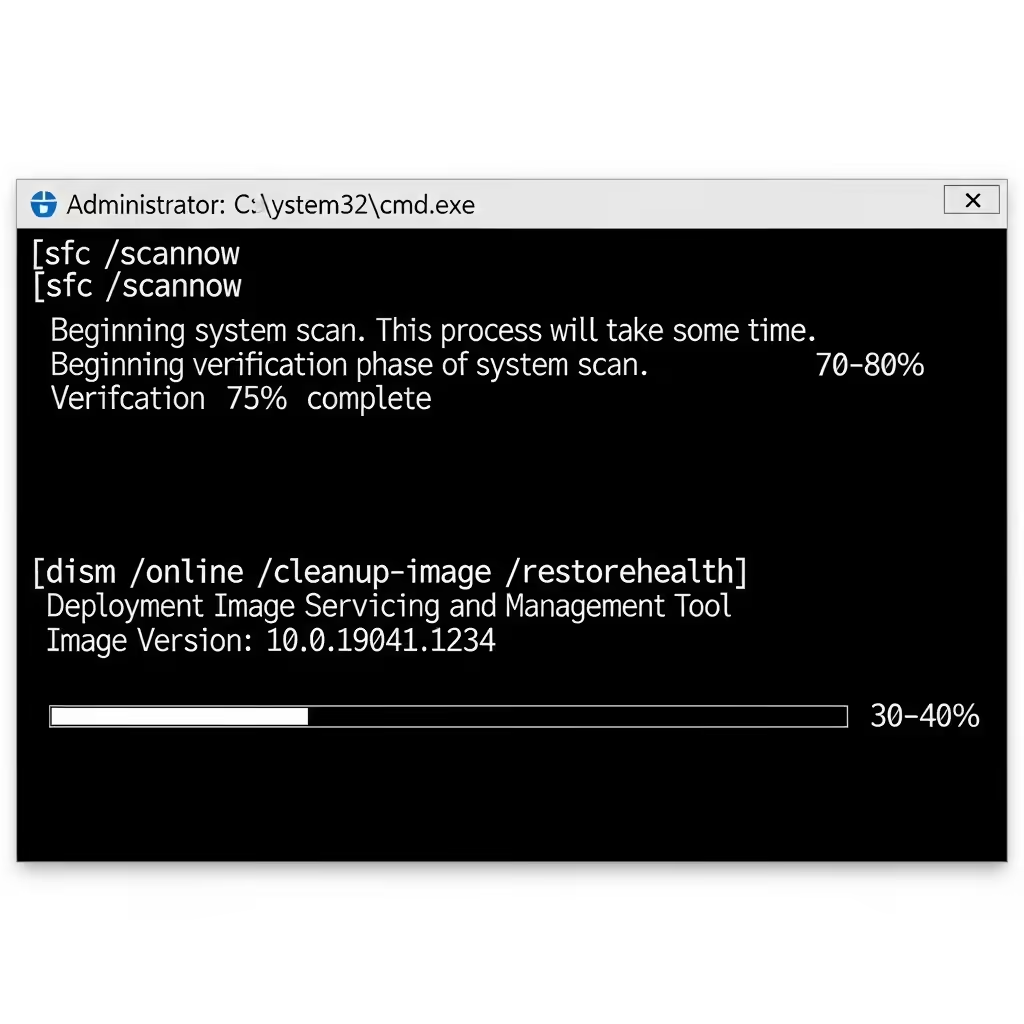
Corrupted system files can prevent Windows from accessing the boot device. Running built-in tools like SFC and DISM can help.
Steps:
-
Boot from a Windows installation media (USB/DVD).
-
Select Repair your computer > Troubleshoot > Advanced options > Command Prompt.
-
Type the following commands one by one:
-
Restart your PC after the scans are complete.
Method 6: Fix Boot Configuration Data (BCD)
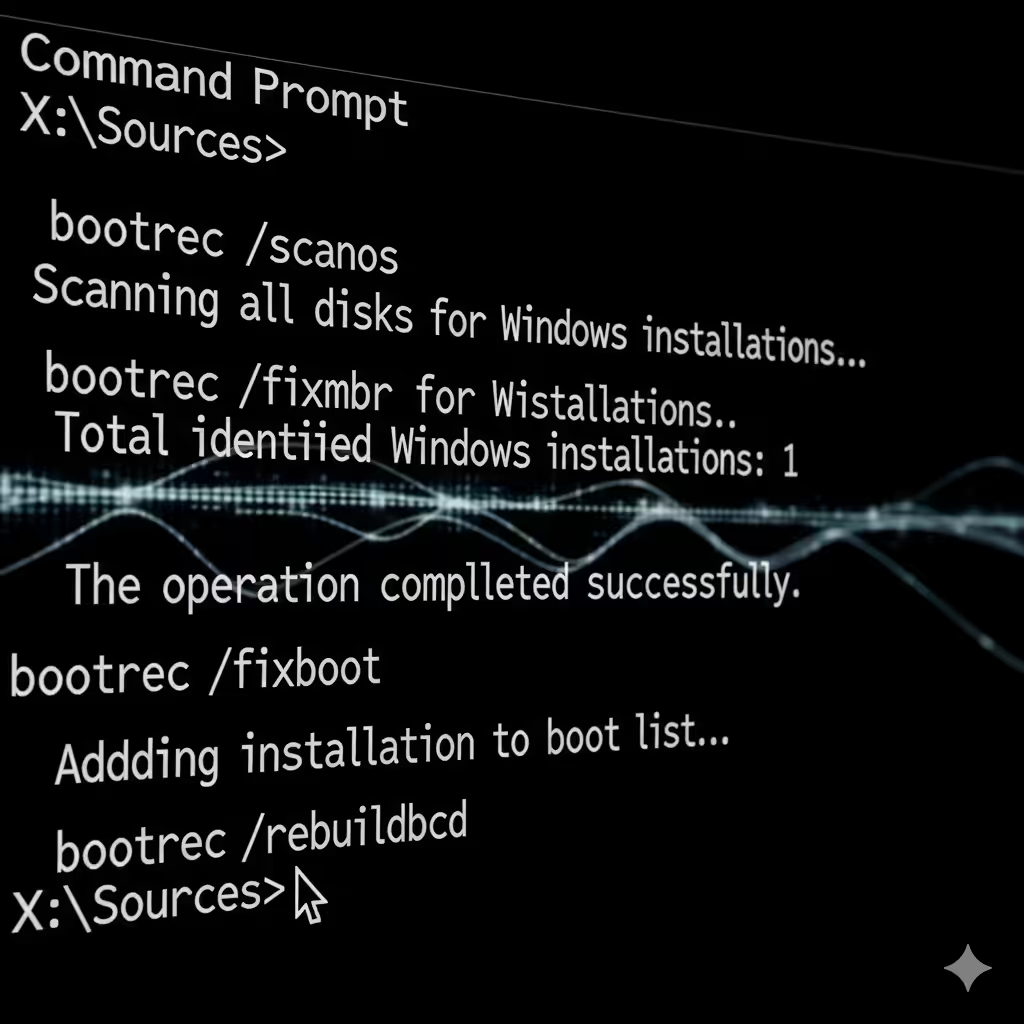
If your Boot Configuration Data is corrupted, Windows may fail to access the boot device.
Steps:
-
Boot from installation media and open Command Prompt.
-
Type the following commands, pressing Enter after each:
-
Restart your computer to check if the error is resolved.
Method 7: Check Hard Drive Health
A failing hard drive or SSD can trigger the inaccessible boot device error.
Steps to Check Disk:
-
Boot into installation media and open Command Prompt.
-
Type:
-
Press Enter and let the tool scan and repair errors.
-
Restart your computer.
If serious damage is found, you may need to replace your hard drive.
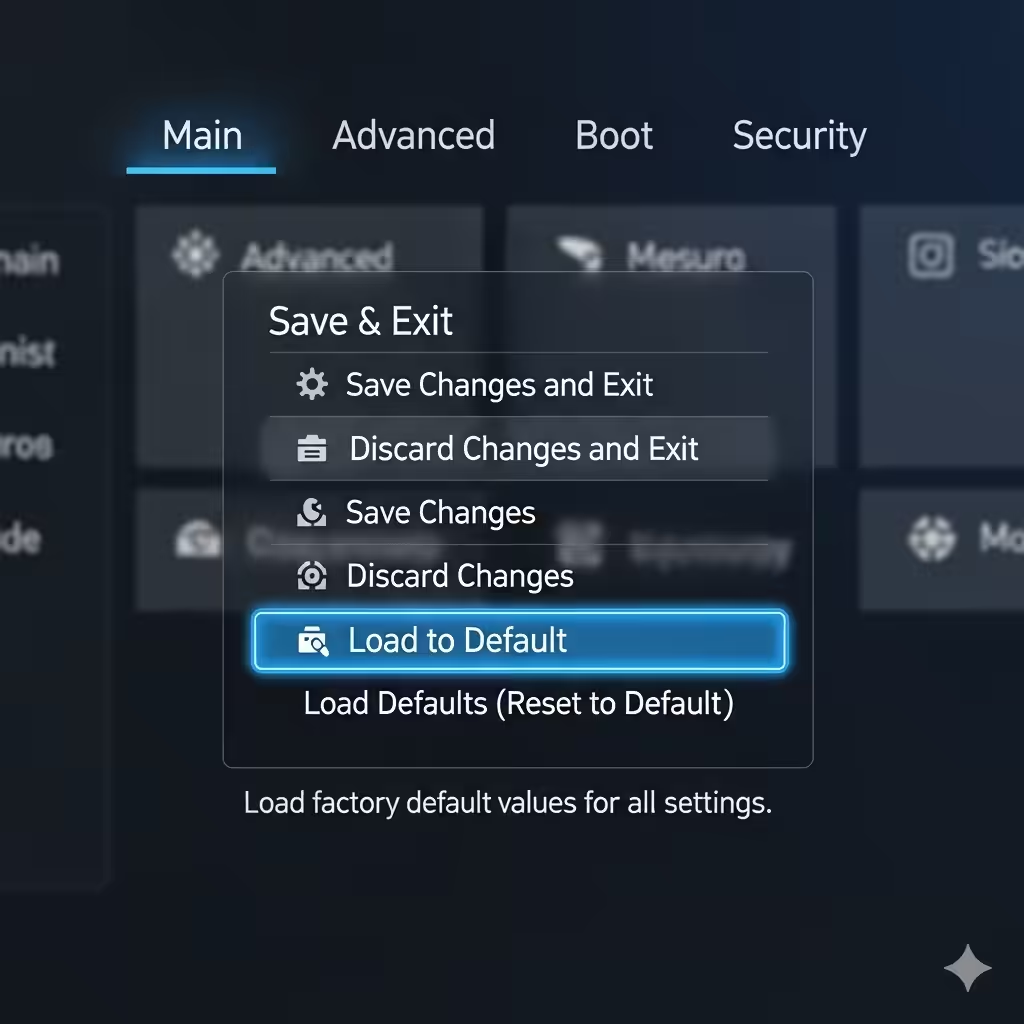
Method 8: Reset BIOS/UEFI Settings
Incorrect BIOS or UEFI configurations can prevent the system from recognizing the boot drive.
Steps:
-
Restart your computer and press the appropriate key (like F2, Del, or Esc) to enter BIOS/UEFI.
-
Select Reset to Default or Load Setup Defaults.
-
Save changes and exit.
This will restore default boot configurations.
Method 9: Use System Restore
If the error started after recent changes, performing a system restore may resolve it.
Steps:
-
Boot into installation media and select Repair your computer.
-
Go to Troubleshoot > Advanced options > System Restore.
-
Select a restore point before the error occurred.
-
Let Windows roll back to that state.

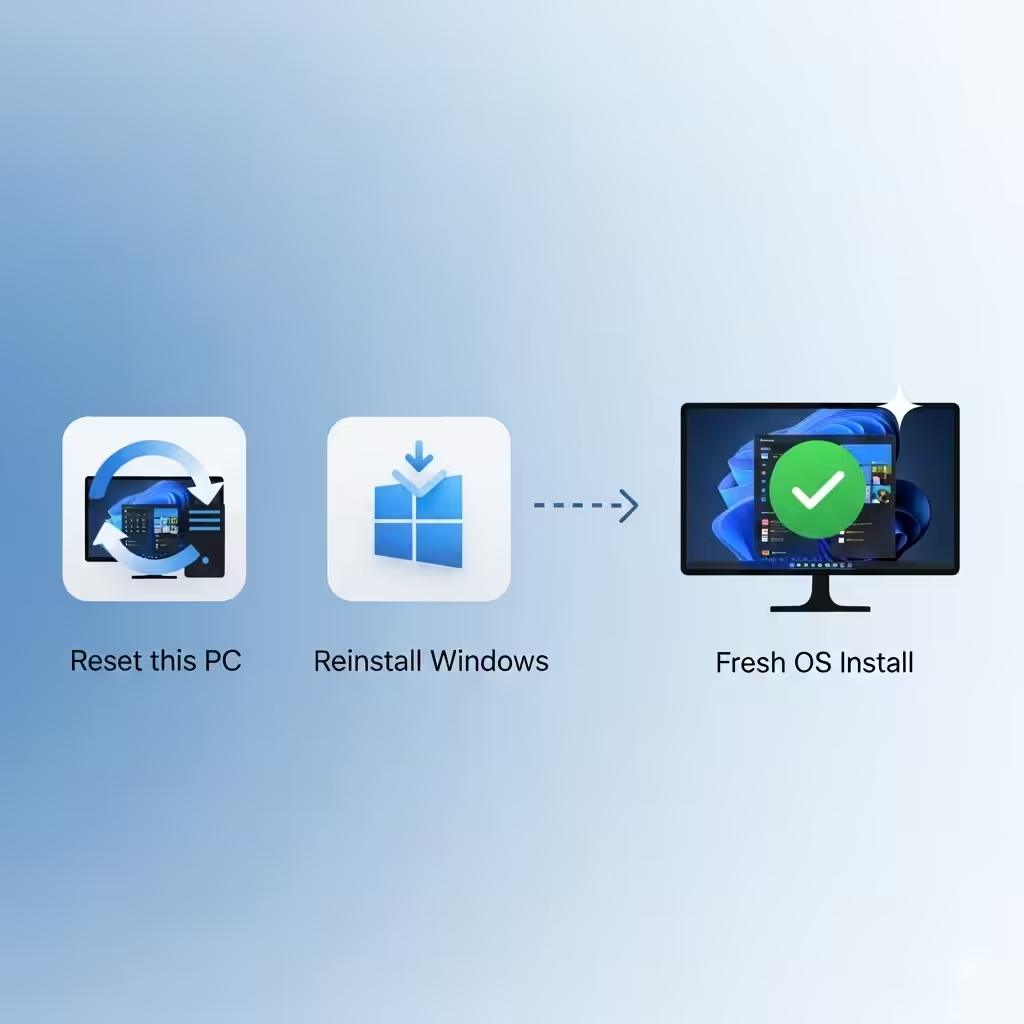
Method 10: Reset or Reinstall Windows
If none of the above methods work, you may need to reset Windows.
Steps:
-
Boot into Advanced Startup Options.
-
Select Troubleshoot > Reset this PC.
-
Choose whether to Keep my files or Remove everything.
If resetting doesn’t work, perform a clean installation of Windows 10 using installation media.
Conclusion
The Inaccessible Boot Device error in Windows 10 can be intimidating, but it’s usually fixable with the right troubleshooting steps. From restarting your PC and checking drivers to repairing system files and resetting BIOS, there are multiple ways to resolve the issue. In severe cases, you may need to reset or reinstall Windows entirely.
By carefully following the methods outlined in this guide, you can restore your system’s functionality and avoid future boot errors.