


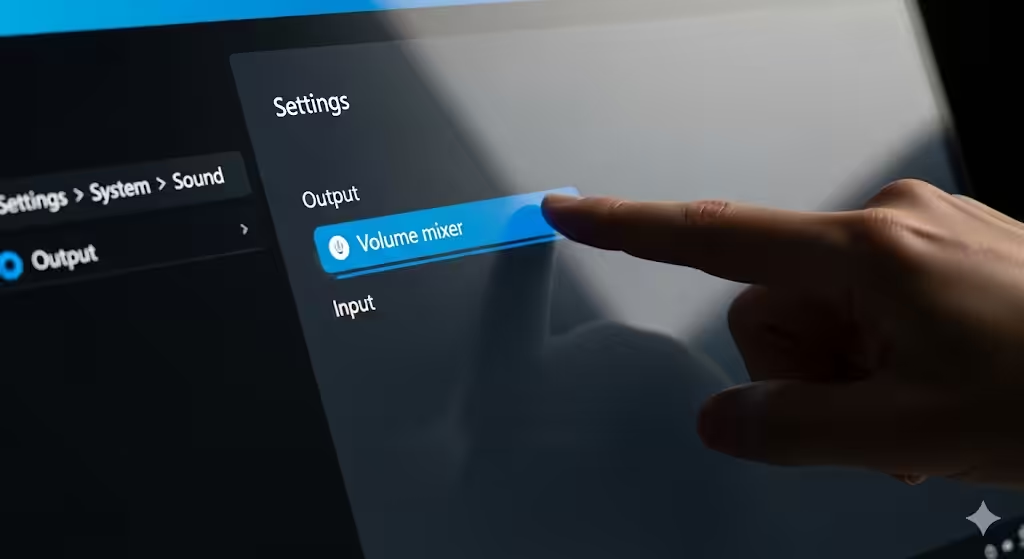
How to Resolve the Issue of Volume Mixer Not Launching in Windows 11
The Volume Mixer in Windows 11 allows users to adjust the sound levels of individual apps, manage output devices, and troubleshoot audio problems. However, many users report that the Volume Mixer sometimes refuses to open or becomes unresponsive. This can be frustrating, especially if you need quick access to control sound for different applications.
Fortunately, there are multiple ways to fix the Volume Mixer not opening issue in Windows 11. This guide will explain the possible causes and provide step-by-step solutions.
Common Causes of Volume Mixer Issues in Windows 11
Before jumping into the fixes, it’s helpful to understand why the Volume Mixer might stop working:
-
System glitches or temporary bugs in Windows Explorer.
-
Outdated or corrupted audio drivers.
-
Conflicts with third-party audio software.
-
Disabled audio services running in the background.
-
Pending Windows updates affecting system stability.
-
Corrupted system files that interfere with sound settings.
Method 1: Restart Windows Explorer
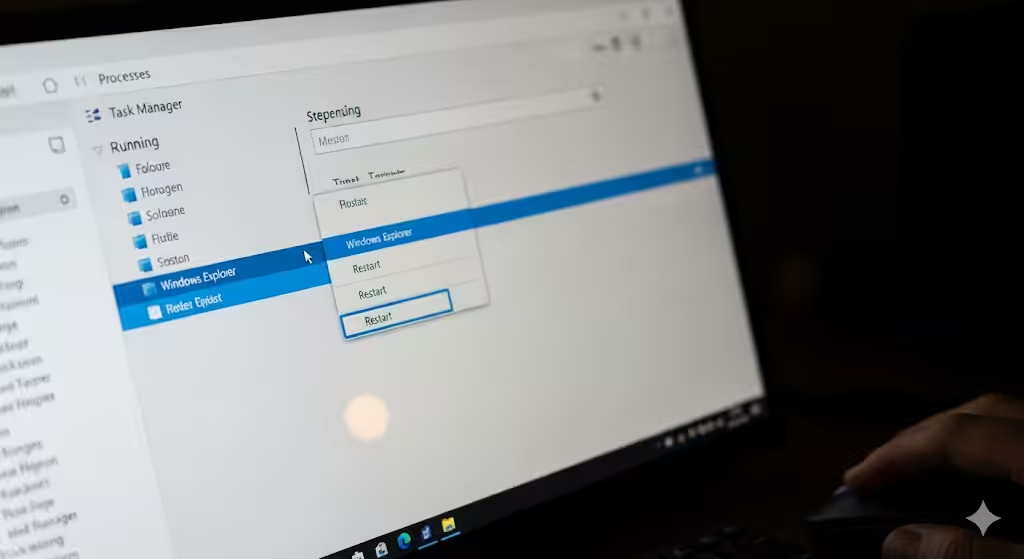
Sometimes, the Volume Mixer doesn’t open because of a glitch in Windows Explorer. Restarting it often resolves the problem.
-
Press Ctrl + Shift + Esc to open Task Manager.
-
Locate Windows Explorer in the list.
-
Right-click it and select Restart.
-
Try opening the Volume Mixer again.
Method 2: Use the New Settings Volume Mixer
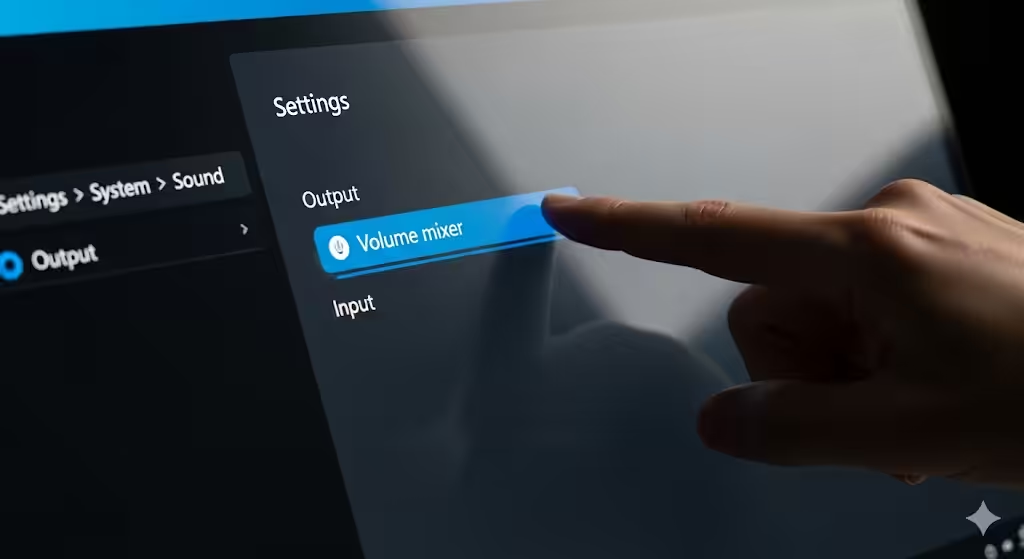
In Windows 11, Microsoft redesigned the audio settings. If the classic Volume Mixer doesn’t open, you can access it through Settings.
-
Press Windows + I to open Settings.
-
Go to System > Sound.
-
Scroll down and click Volume mixer.
-
Adjust app volumes directly from there.
If Settings also fails to open, proceed with further fixes.
Method 3: Run Audio Troubleshooter
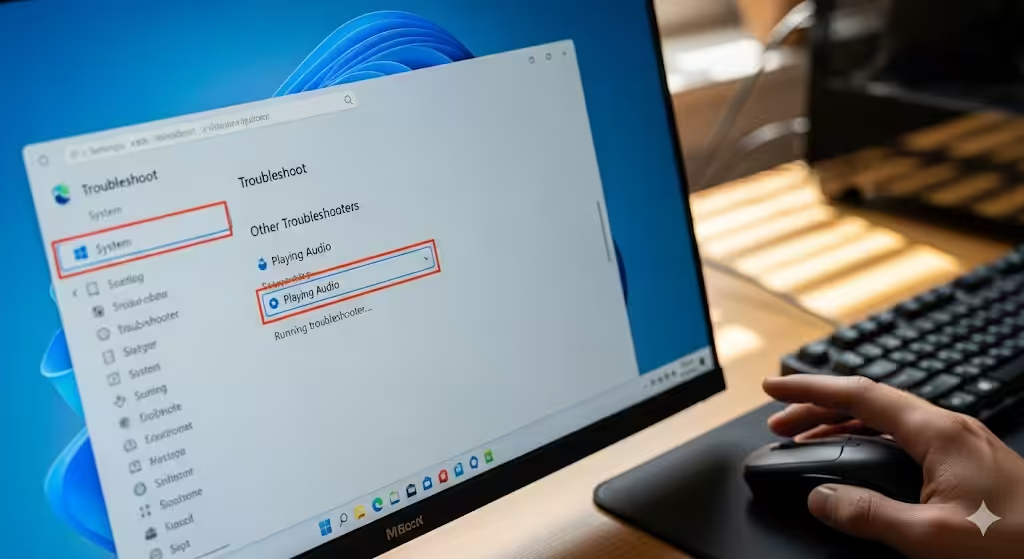
Windows 11 includes built-in troubleshooters that detect and fix audio-related issues.
-
Open Settings with Windows + I.
-
Navigate to System > Troubleshoot > Other troubleshooters.
-
Find Playing Audio and click Run.
-
Follow the on-screen instructions.
This process may automatically fix the Volume Mixer issue.
Method 4: Update or Reinstall Audio Drivers
Outdated or corrupted drivers are one of the most common reasons for audio control issues.
-
Press Windows + X and choose Device Manager.
-
Expand Sound, video and game controllers.
-
Right-click your audio device and select Update driver.
-
Choose Search automatically for drivers.
If updating doesn’t help:
-
Right-click the audio device again.
-
Select Uninstall device and restart your PC.
-
Windows will reinstall the driver automatically.
Method 5: Restart Windows Audio Services
If the Windows Audio service is disabled, the Volume Mixer won’t function correctly.
-
Press Windows + R, type
services.msc, and press Enter. -
Locate Windows Audio and Windows Audio Endpoint Builder.
-
Right-click each service and select Restart.
-
Make sure the Startup type is set to Automatic.
Method 6: Check for Windows Updates
Microsoft frequently releases updates to fix bugs in Windows 11.
-
Open Settings with Windows + I.
-
Go to Windows Update.
-
Click Check for updates.
-
Install any available updates and restart your PC.
Method 7: Run System File Checker (SFC)
Corrupted system files may prevent the Volume Mixer from working properly.
-
Open Command Prompt as administrator.
-
Type the command:
-
Press Enter and wait for the scan to finish.
-
Restart your computer.
Method 8: Use DISM Tool
If SFC cannot fix the issue, use the DISM (Deployment Imaging and Servicing Management) tool.
-
Open Command Prompt as administrator.
-
Type the following commands one by one:
-
Restart your computer once the process is complete.
Method 9: Try Opening Volume Mixer via Run Command
If the usual shortcut doesn’t work, try launching it directly.
-
Press Windows + R to open the Run dialog.
-
Type:
-
Press Enter to open the Volume Mixer.
Method 10: Disable Third-Party Audio Enhancements
Third-party audio tools, like Dolby or Realtek enhancements, sometimes interfere with Windows audio controls.
-
Open Control Panel.
-
Navigate to Hardware and Sound > Sound.
-
Right-click your audio device and choose Properties.
-
Go to the Enhancements tab.
-
Check Disable all enhancements.
-
Click Apply and OK.
Method 11: Create a New User Profile
If your user account is corrupted, system functions like Volume Mixer may stop working.
-
Open Settings > Accounts > Family & other users.
-
Click Add account to create a new user.
-
Sign in with the new account.
-
Test if the Volume Mixer works.
Method 12: Perform a System Restore
If the issue began recently after updates or software changes, restoring your system may resolve it.
-
Press Windows + R, type
rstrui, and press Enter. -
Choose a restore point before the problem occurred.
-
Follow the prompts to complete the restore.
Preventing Volume Mixer Problems in Windows 11
To avoid running into this issue again, consider these preventive measures:
-
Keep Windows and drivers updated.
-
Avoid unnecessary third-party audio software.
-
Regularly restart your system to clear glitches.
-
Run SFC and DISM scans periodically to maintain system health.
Conclusion
The Volume Mixer not opening in Windows 11 can be caused by glitches, driver issues, or corrupted system files. Luckily, most of the fixes are straightforward, such as restarting Windows Explorer, updating drivers, running troubleshooters, or repairing system files with SFC and DISM.
By following the step-by-step methods outlined in this guide, you can restore full control over your audio settings and prevent future issues with the Volume Mixer.