


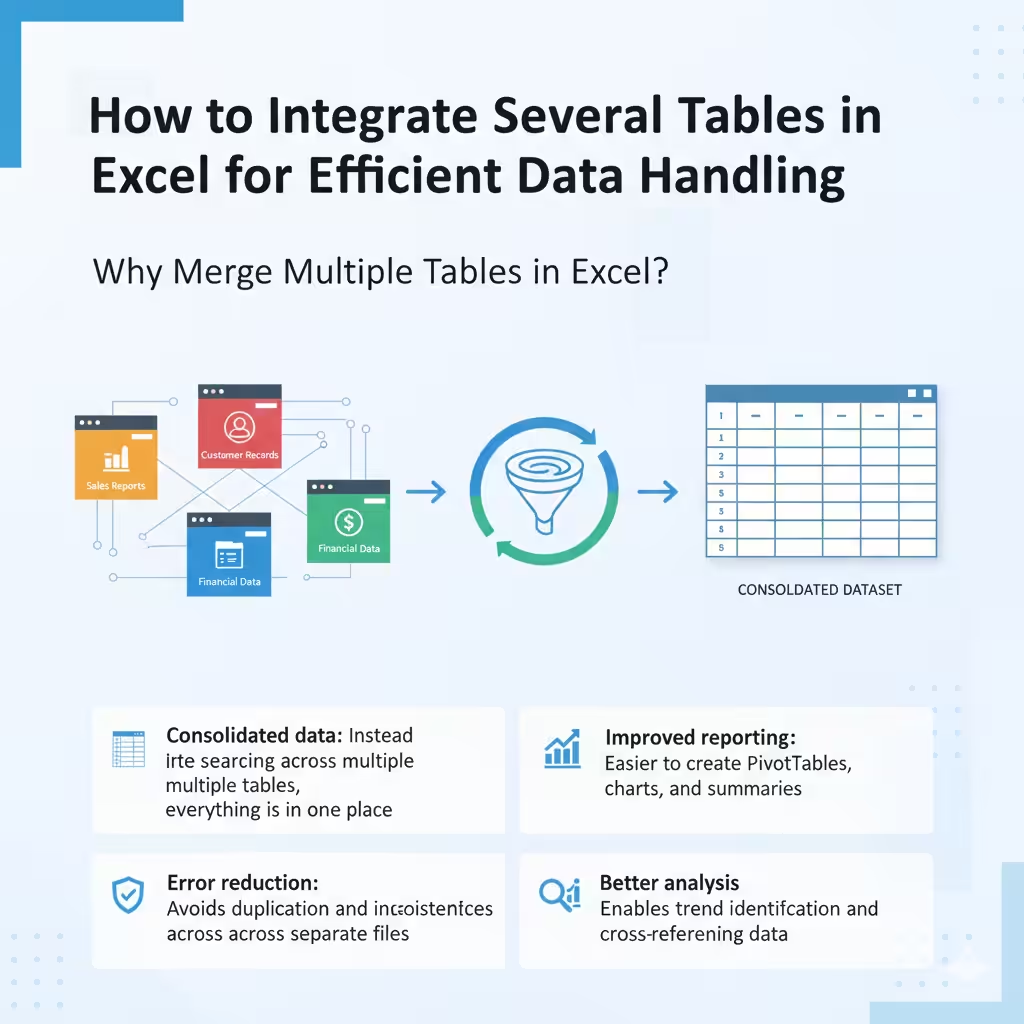
How to Integrate Several Tables in Excel for Efficient Data Handling
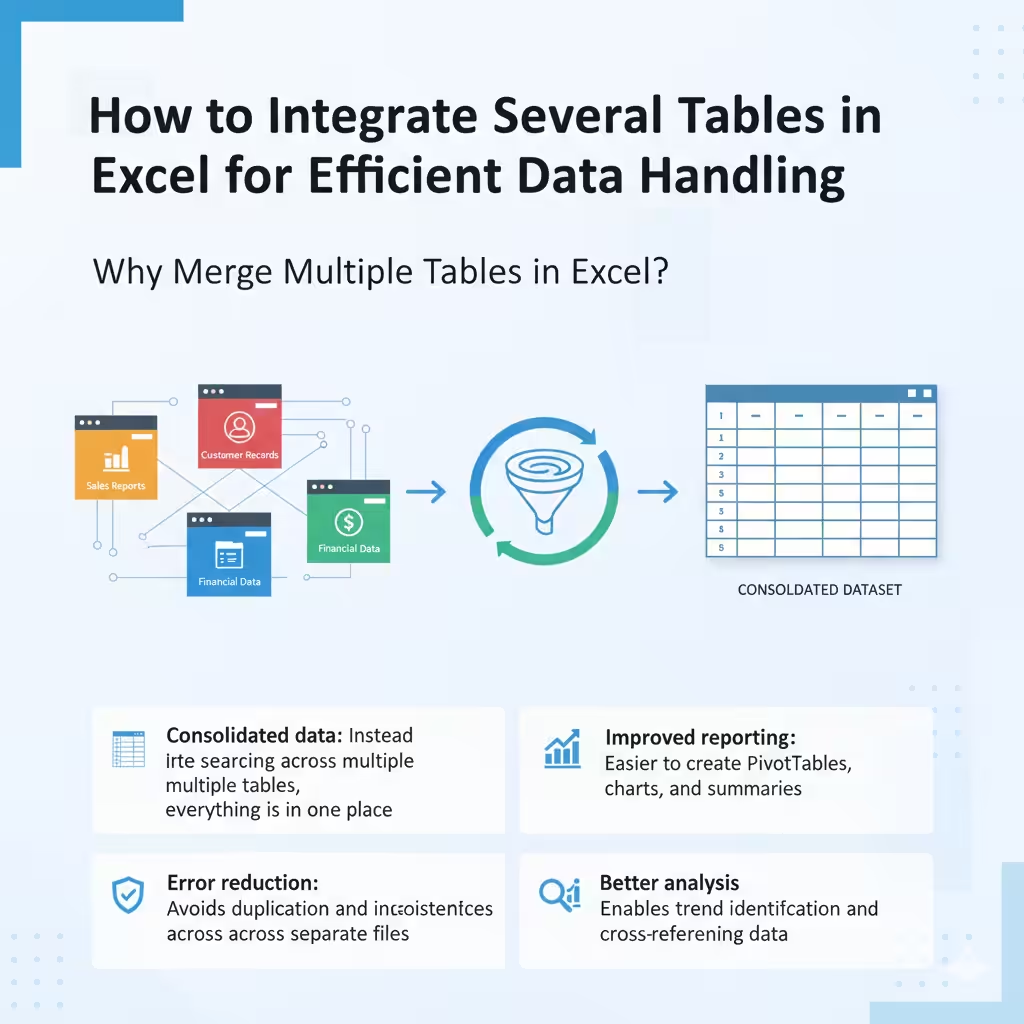
Managing large amounts of data in Excel can be challenging, especially when your information is scattered across multiple tables or sheets. Merging tables helps consolidate your data, making it easier to analyze, report, and draw insights. Whether you’re handling sales reports, customer records, or financial data, combining multiple tables into one structured dataset can save time and reduce errors.
This guide will walk you through different ways to merge multiple tables in Excel, from basic copy-paste techniques to advanced tools like Power Query.
Why Merge Multiple Tables in Excel?
Before diving into the steps, it’s important to understand why merging tables is useful:
-
Consolidated data: Instead of searching across multiple tables, everything is in one place.
-
Improved reporting: Easier to create PivotTables, charts, and summaries.
-
Error reduction: Avoids duplication and inconsistencies across separate files.
-
Better analysis: Enables trend identification and cross-referencing data.
Method 1: Copy and Paste Manually
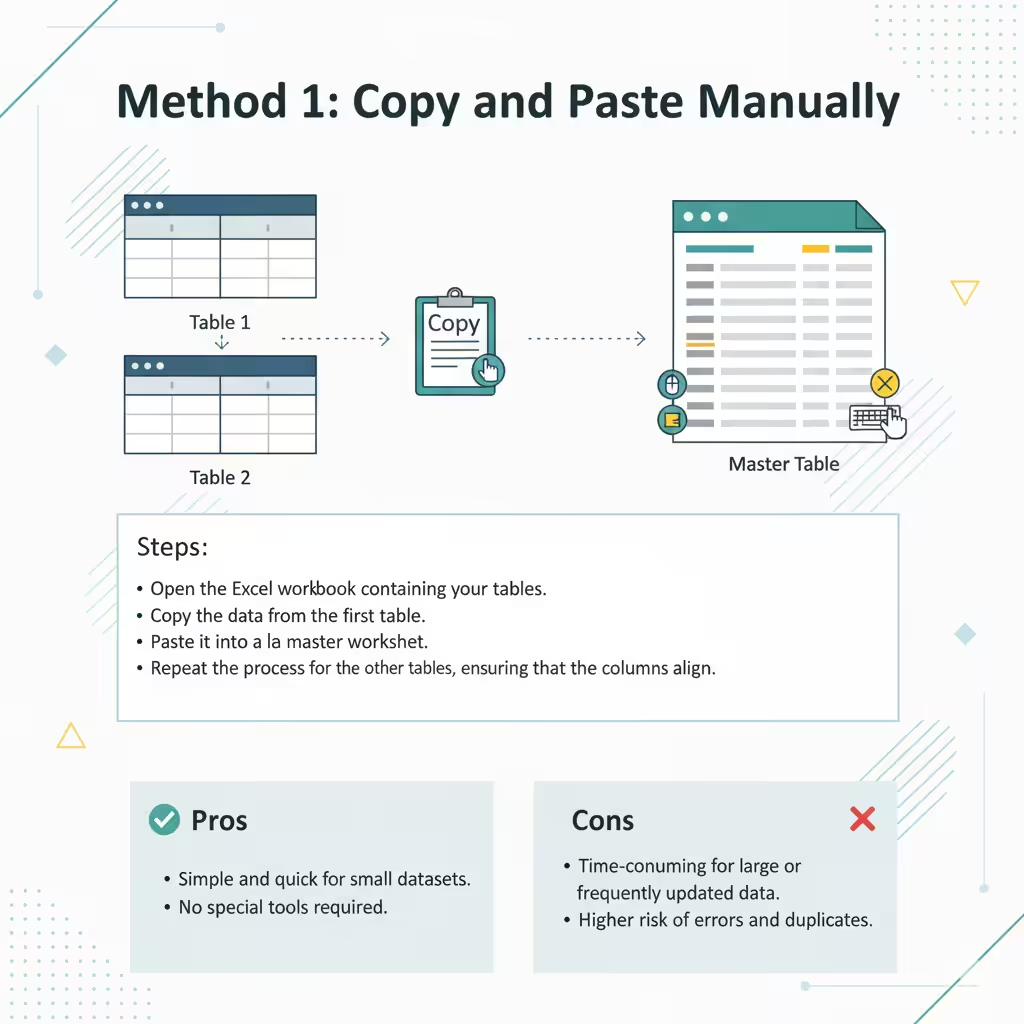
The most straightforward way to merge tables is by copying and pasting data.
Steps:
-
Open the Excel workbook containing your tables.
-
Copy the data from the first table.
-
Paste it into a master worksheet.
-
Repeat the process for the other tables, ensuring that the columns align.
Pros:
-
Simple and quick for small datasets.
-
No special tools required.
Cons:
-
Time-consuming for large or frequently updated data.
-
Higher risk of errors and duplicates.
Method 2: Use Excel’s Consolidate Tool
Excel includes a Consolidate feature that can merge data from multiple ranges.
Steps:
-
Go to the worksheet where you want the merged data.
-
Click Data > Consolidate.
-
Choose a function such as Sum, Average, or Count.
-
Add the ranges from different tables.
-
Check Top row and Left column if you want Excel to match labels.
-
Click OK to combine the data.
Pros:
-
Automates data summarization.
-
Useful for combining numerical data.
Cons:
-
Limited flexibility.
-
Works best for data with identical structures.
Method 3: Merge Tables Using VLOOKUP or INDEX-MATCH
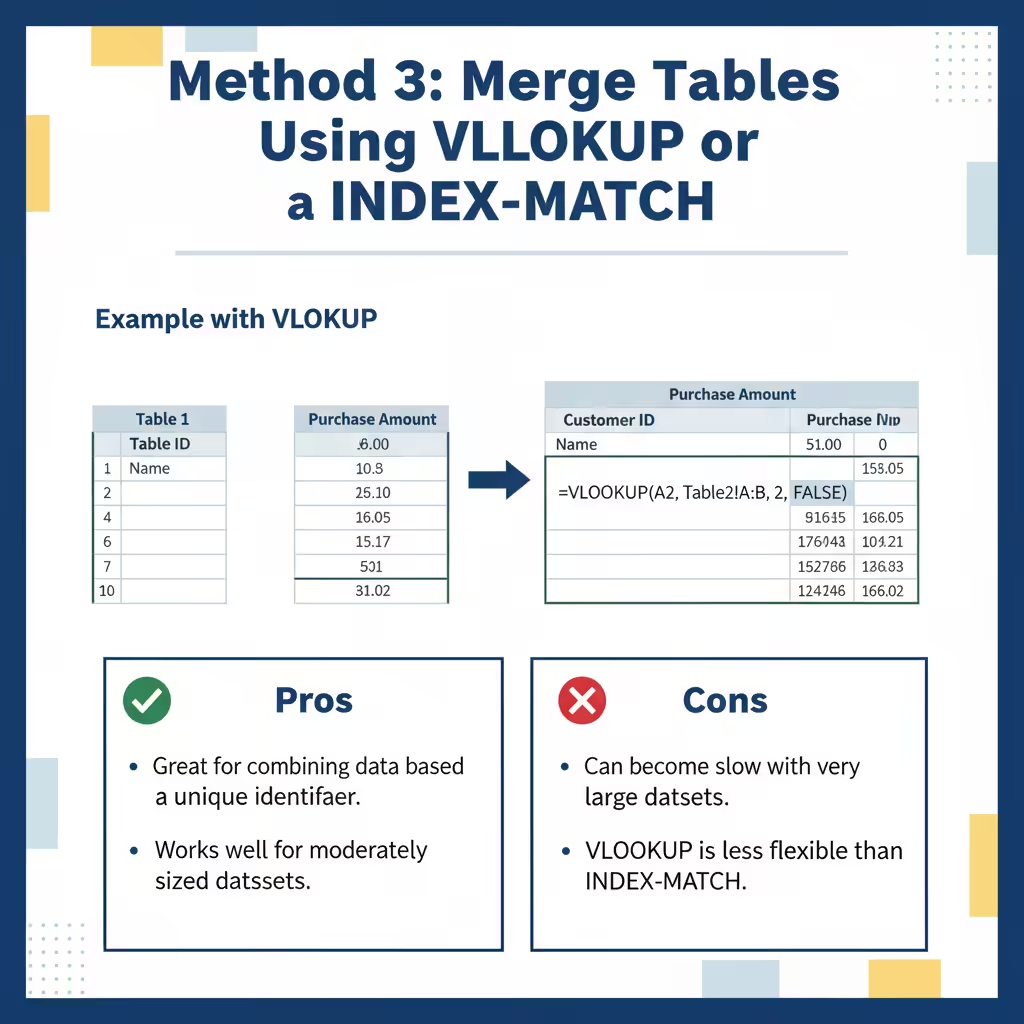
If your tables share a common column (like an ID or product name), you can merge them using lookup functions.
Example with VLOOKUP:
Suppose you have:
-
Table 1: Customer ID and Name
-
Table 2: Customer ID and Purchase Amount
You can pull purchase amounts into Table 1 using:
Pros:
-
Great for combining data based on a unique identifier.
-
Works well for moderately sized datasets.
Cons:
-
Can become slow with very large datasets.
-
VLOOKUP is less flexible than INDEX-MATCH.
Method 4: Merge Tables with Power Query
Power Query is one of the most powerful tools in Excel for data management. It allows you to import, clean, and merge tables efficiently.
Steps:
-
Go to Data > Get & Transform Data > Get Data.
-
Select your data source (Excel workbook, text file, database, etc.).
-
Load the tables into Power Query Editor.
-
Use the Append Queries option to stack tables with the same columns.
-
Use the Merge Queries option to combine tables based on a common field (like Customer ID).
-
After preparing the data, click Close & Load to return it to Excel.
Pros:
-
Handles large and complex datasets.
-
Automates future updates (just refresh the query).
-
Highly flexible and customizable.
Cons:
-
Learning curve for beginners.
-
Requires Excel 2016 or later (or Power Query add-in for older versions).
Method 5: Merge Using PivotTables
PivotTables are not designed to directly merge tables, but they can summarize multiple datasets effectively.
Steps:
-
Consolidate your tables into one using Power Query or the Consolidate tool.
-
Insert a PivotTable from the merged data.
-
Use fields to analyze totals, averages, or comparisons.
Pros:
-
Excellent for data analysis and reporting.
-
Flexible and interactive summaries.
Cons:
-
Requires data to be combined first.
-
Not ideal for raw data merging.
Best Practices for Merging Tables in Excel
-
Ensure consistent formatting: Column headers and data types should match across tables.
-
Remove duplicates: Use Data > Remove Duplicates after merging.
-
Validate merged data: Double-check totals and entries to ensure accuracy.
-
Use structured references: Convert tables to Excel Tables (Ctrl + T) for better management.
-
Automate updates: Use Power Query or formulas instead of manual merging whenever possible.
Common Mistakes to Avoid
-
Mismatched columns: Leads to misaligned or missing data.
-
Overwriting original data: Always keep a backup before merging.
-
Ignoring data cleaning: Dirty data can cause incorrect results after merging.
-
Not documenting steps: If multiple people work with the file, unclear methods can cause confusion.
Conclusion
Merging multiple tables in Excel is an essential skill for anyone handling data across different sources or reports. For quick and small tasks, copy-paste or the Consolidate tool works fine. For medium-sized datasets, VLOOKUP or INDEX-MATCH is effective. However, for complex or frequently updated data, Power Query is the most powerful and efficient solution.
By applying the right method and following best practices, you can transform scattered tables into organized datasets, making reporting and analysis faster, more accurate, and more professional.