


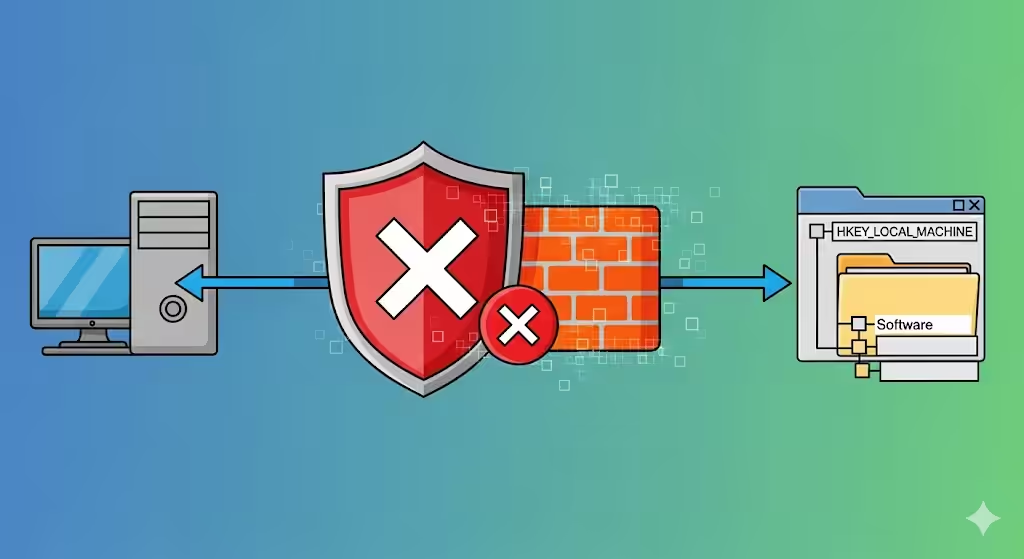
Steps to Block Network Access to the Registry on Windows 7
The Windows Registry is a critical part of the operating system that stores configuration settings for both Windows and installed applications. While it is essential for proper functionality, allowing network access to the Registry can pose a serious security risk. On Windows 7, administrators may want to disable this feature to protect systems from unauthorized access, malware, or remote attacks.
This guide will walk you through why disabling remote access to the Registry is important, and the different methods to do it safely.
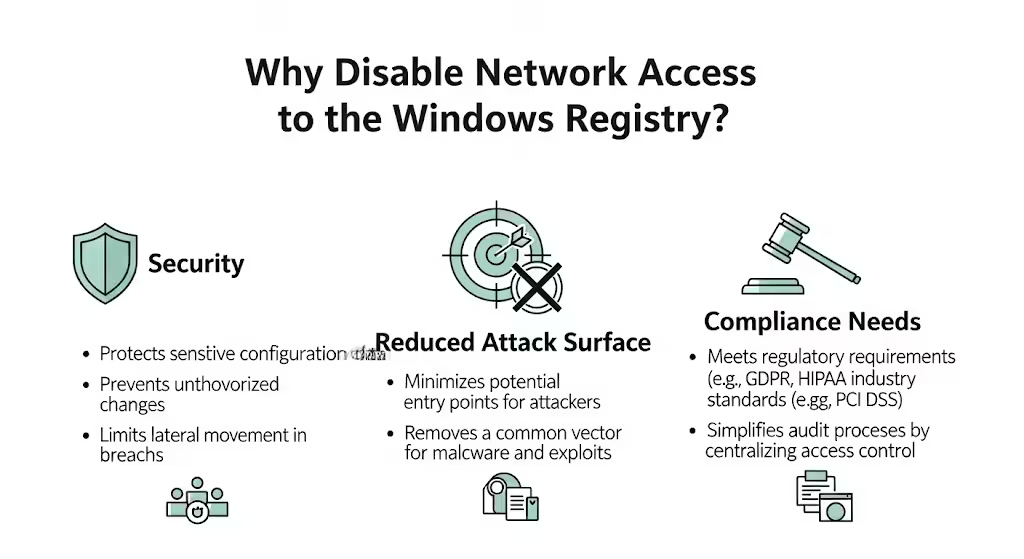
Why Disable Network Access to the Registry?
By default, Windows allows certain services and administrative tools to connect remotely to the Registry. However, this feature can be exploited by attackers if not properly secured.
Key reasons to disable it include:
-
Security protection: Prevents hackers from tampering with sensitive system configurations.
-
Reduced attack surface: Limits the number of ways malicious software can compromise a system.
-
Compliance needs: Some organizations must enforce strict policies to comply with data protection regulations.
-
Stability: Minimizes accidental changes made remotely by inexperienced users or administrators.
Method 1: Disable Remote Registry Service
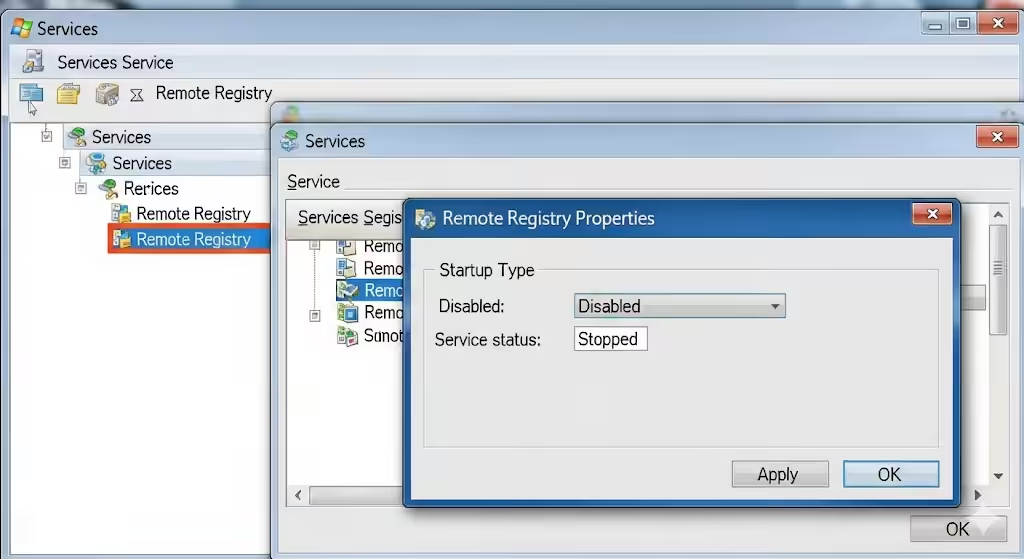
The Remote Registry Service in Windows 7 allows other computers to connect and modify the Registry remotely. Disabling this service is the most straightforward way to block network access.
Steps:
-
Press Windows + R to open the Run dialog box.
-
Type services.msc and press Enter.
-
Scroll down to find Remote Registry in the list.
-
Right-click it and choose Properties.
-
In the Startup type dropdown menu, select Disabled.
-
If the service is running, click Stop.
-
Click Apply, then OK.
Once disabled, no one can remotely access your Registry, even with administrative credentials.
Method 2: Use Group Policy Editor
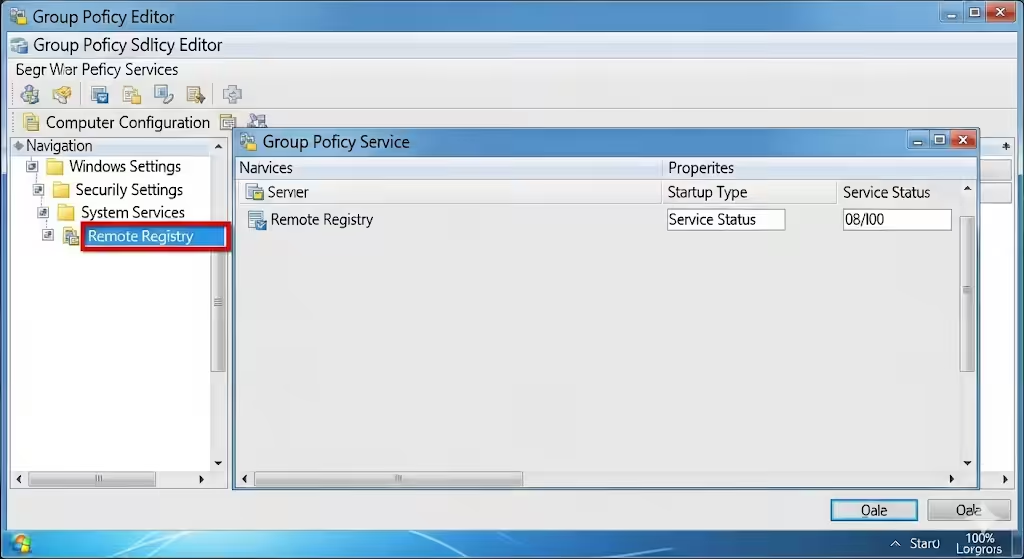
If you’re managing multiple computers in a network or prefer a more centralized control method, the Local Group Policy Editor can be used.
Steps:
-
Press Windows + R, type gpedit.msc, and press Enter.
-
In the Group Policy Editor, navigate to:
Computer Configuration > Windows Settings > Security Settings > System Services -
Find Remote Registry in the list of services.
-
Double-click it, select Define this policy setting, and then choose Disabled.
-
Apply the changes and restart your computer if necessary.
This ensures that the Remote Registry service stays disabled across reboots.
Method 3: Block Registry Access with Windows Firewall
Another effective approach is to use the Windows Firewall to block remote connections to the Registry service.
Steps:
-
Go to Control Panel > System and Security > Windows Firewall.
-
On the left panel, click Advanced settings.
-
In the Windows Firewall with Advanced Security window, select Inbound Rules.
-
Locate rules associated with Remote Registry or Remote Administration.
-
Right-click and choose Disable Rule or Block Connection.
This adds an extra layer of protection by preventing network traffic from reaching the Registry service.
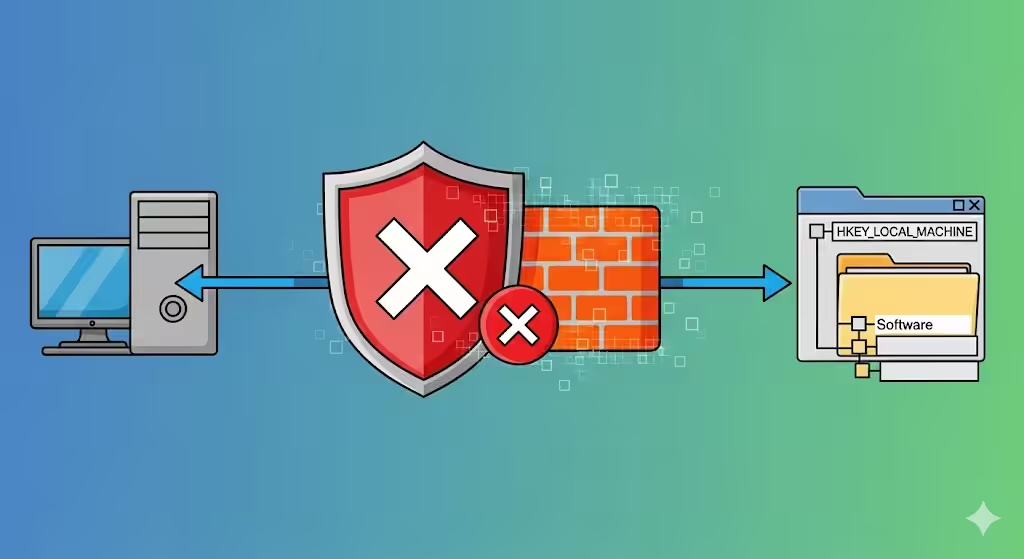
Method 4: Modify Registry Permissions Locally
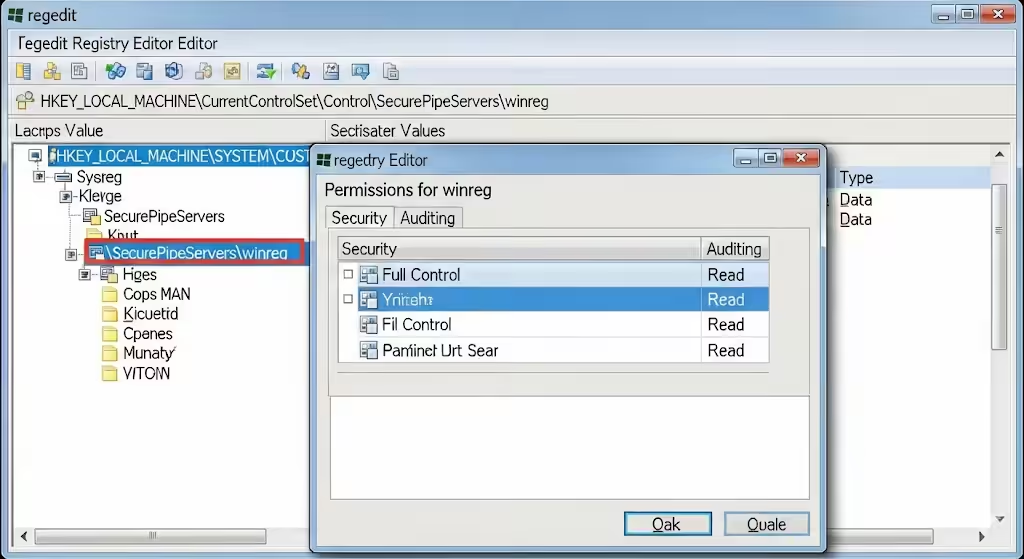
If you want more granular control, you can modify Registry permissions directly to block remote access. This method is more advanced and should be used carefully.
Steps:
-
Press Windows + R, type regedit, and hit Enter.
-
Navigate to:
HKEY_LOCAL_MACHINE\SYSTEM\CurrentControlSet\Control\SecurePipeServers\winreg -
Right-click winreg and select Permissions.
-
Adjust or remove permissions for users or groups that should not have remote access.
-
Click OK to apply changes.
Be careful not to remove essential system permissions, as this can cause instability.
Verifying That Network Access Is Disabled
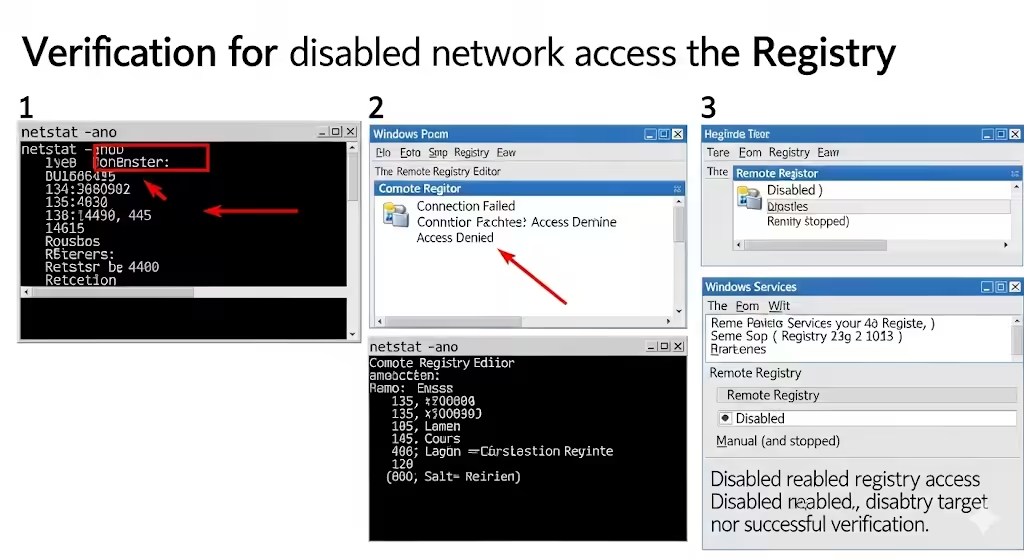
After applying one or more of these methods, you should confirm that remote access is indeed disabled.
-
Try connecting from another machine using regedit > Connect Network Registry. If configured correctly, the connection should fail.
-
Check the Services panel to confirm that the Remote Registry service is not running.
-
Use netstat -ano in Command Prompt to check for listening ports related to remote administration.
Best Practices for Registry Security
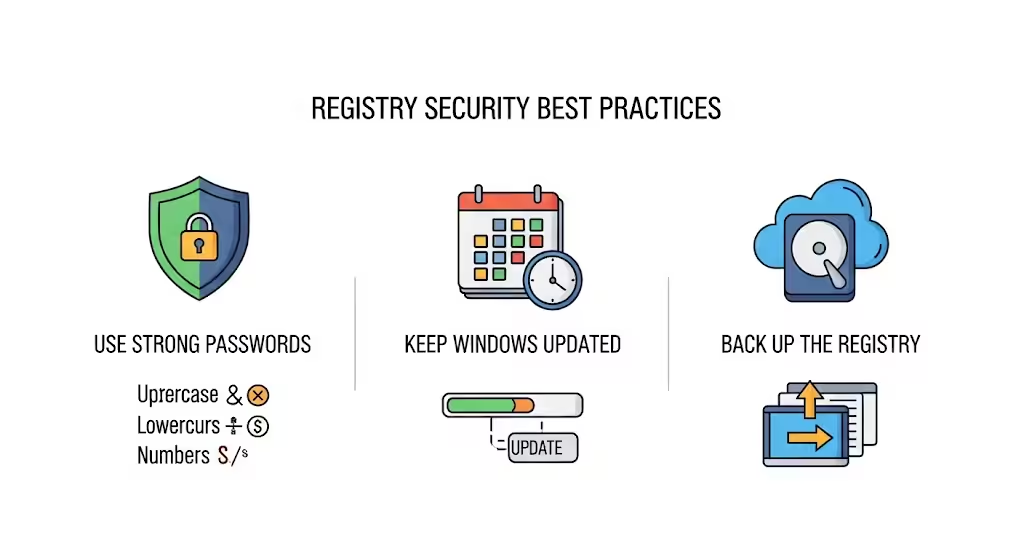
In addition to disabling network access, you can further secure the Windows Registry with the following tips:
-
Restrict local access: Limit Registry editing permissions to trusted administrators only.
-
Use strong passwords: Ensure all administrator accounts have secure passwords.
-
Keep Windows updated: Install the latest patches and updates for ongoing protection.
-
Back up the Registry: Before making changes, always back up your Registry using Export in regedit.
-
Use antivirus protection: Malware often targets the Registry, so keeping security software updated is critical.
When Should You Keep Network Access Enabled?
While disabling remote access improves security, there are scenarios where administrators may need it enabled, such as:
-
Enterprise environments: Centralized IT teams managing large networks may require remote Registry access for troubleshooting.
-
Automated deployments: Some scripts and tools depend on Registry access for configuration.
In such cases, instead of fully disabling it, you can restrict access using firewall rules, strong authentication, and auditing.

Conclusion
Disabling network access to the Windows Registry on Windows 7 is a vital step toward strengthening system security. Whether you use the Remote Registry Service settings, Group Policy, Firewall rules, or Registry permissions, each method provides a reliable way to protect your system from unauthorized remote modifications.
For most home users and small businesses, turning off the Remote Registry service is the easiest and safest approach. Larger organizations may prefer Group Policy for centralized management.
By taking this precaution and following best practices, you reduce the attack surface of your Windows 7 computer and ensure that critical system settings remain safe from external threats.