


The Ultimate Guide to Sorting Data in Excel
Sorting in Excel is one of the most useful tools available for organizing data. Whether you are working with a small list of names or a large dataset with thousands of rows, sorting helps you quickly make sense of your information. By arranging data in a meaningful order, you can analyze it more effectively, find patterns, and make better decisions.
This comprehensive guide will walk you through the different ways to sort in Excel, from simple ascending or descending order to more advanced custom sorts.
Why Sorting Matters in Excel
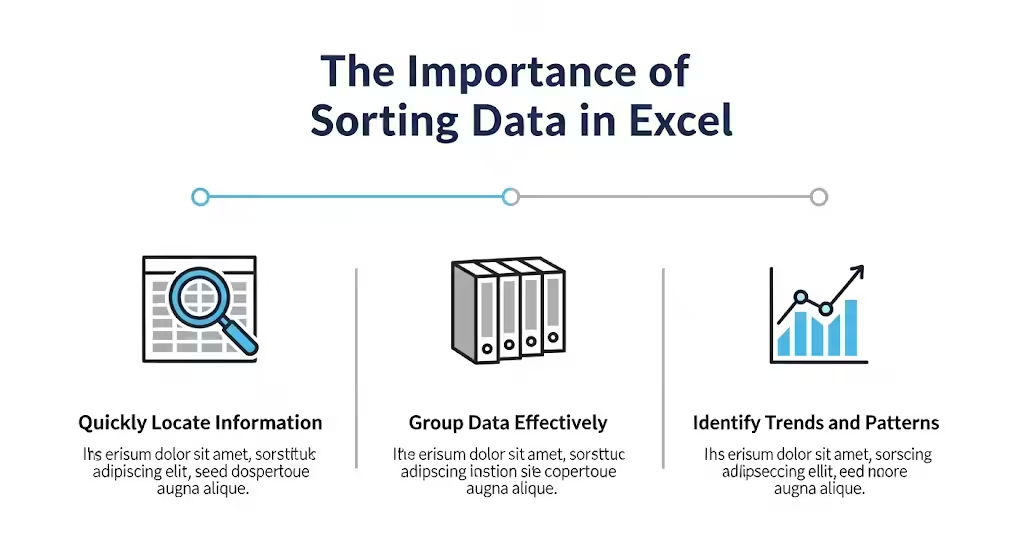
Sorting is more than just organizing data alphabetically or numerically. It allows you to:
-
Quickly locate information.
-
Group similar data together for analysis.
-
Prepare data for reports or presentations.
-
Identify trends or anomalies in datasets.
-
Save time when working with large spreadsheets.
By mastering sorting, you can transform messy, unorganized data into clear and structured information.
Basic Sorting in Excel
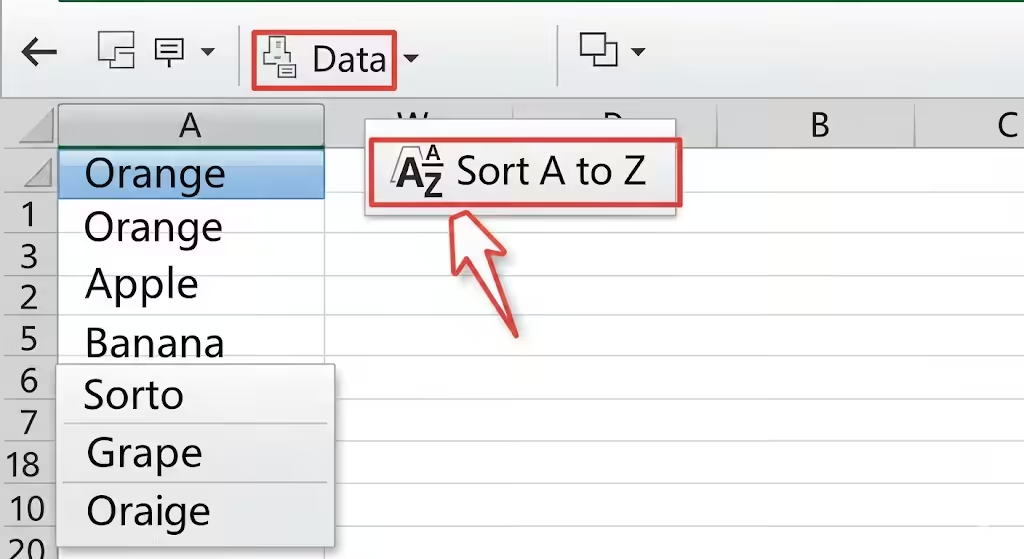
The simplest way to sort data in Excel is by using the Sort Ascending or Sort Descending options.
Steps to Sort a Single Column:
-
Select the column containing the data you want to sort.
-
Go to the Data tab on the Ribbon.
-
Click either Sort A to Z (ascending) or Sort Z to A (descending).
For example, if you have a list of names, Sort A to Z will arrange them alphabetically from A to Z, while Sort Z to A will reverse the order.
Sorting Numbers
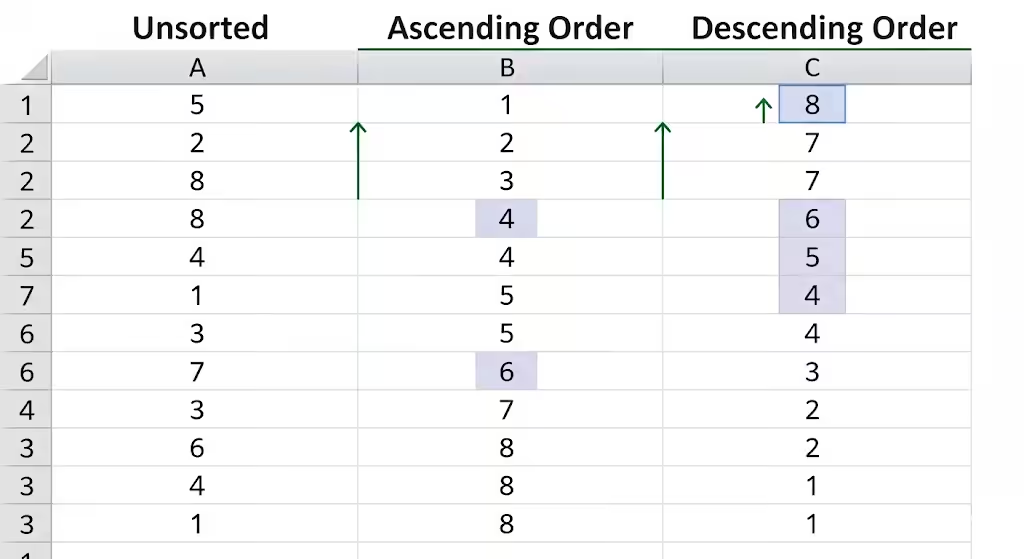
Numbers can be sorted in the same way as text. Sorting them in ascending order will list the smallest numbers first, while descending order places the largest numbers at the top.
This is particularly useful for financial reports, test scores, or any dataset where ranking is important.
Sorting Dates
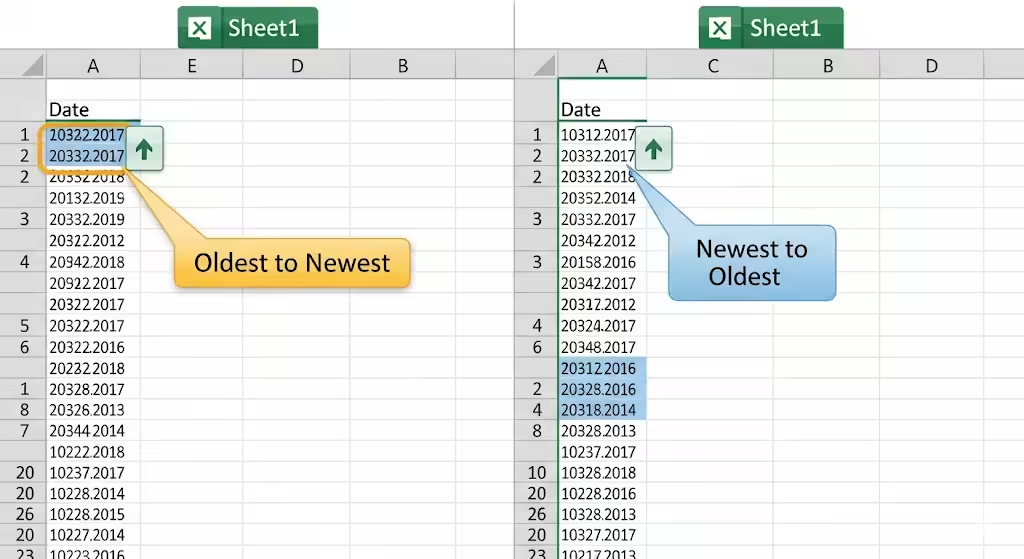
Excel recognizes dates as numerical values, which makes sorting them very straightforward.
-
Sort oldest to newest places earlier dates at the top.
-
Sort newest to oldest arranges the most recent dates first.
For instance, when managing project deadlines, sorting by date helps you prioritize tasks that need immediate attention.
Custom Sorting in Excel
Sometimes, you need more control over how your data is organized. That’s where Custom Sort comes in.
Steps for Custom Sort:
-
Highlight the dataset you want to sort.
-
Go to the Data tab and click on Sort.
-
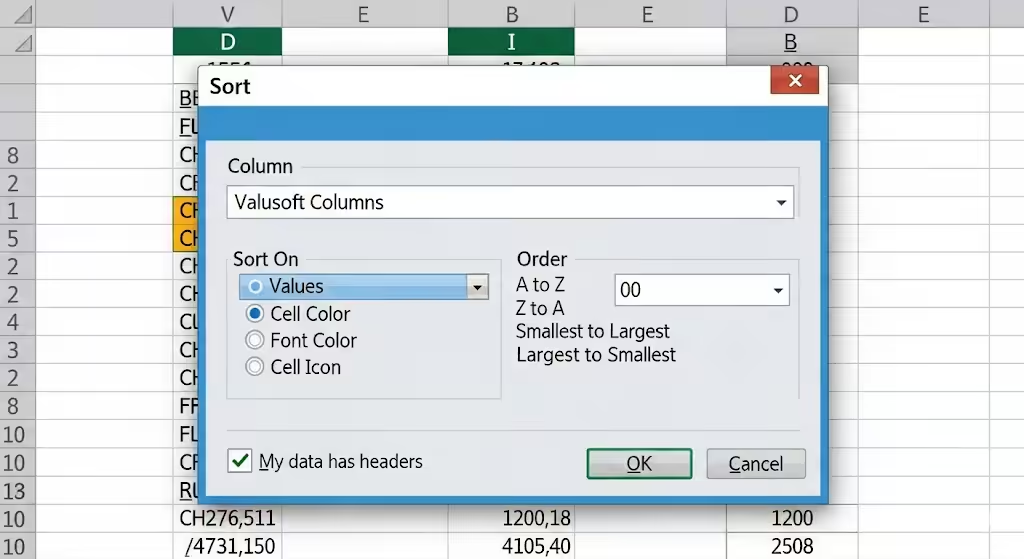
In the Sort dialog box, choose the column you want to sort by.
-
Select Values, Cell Color, Font Color, or Cell Icon depending on your needs.
-
Pick the order (e.g., A to Z, Z to A, or custom order).
This flexibility allows you to sort not only by values but also by formatting. For example, you can group all highlighted cells at the top of your list.
Multi-Level Sorting
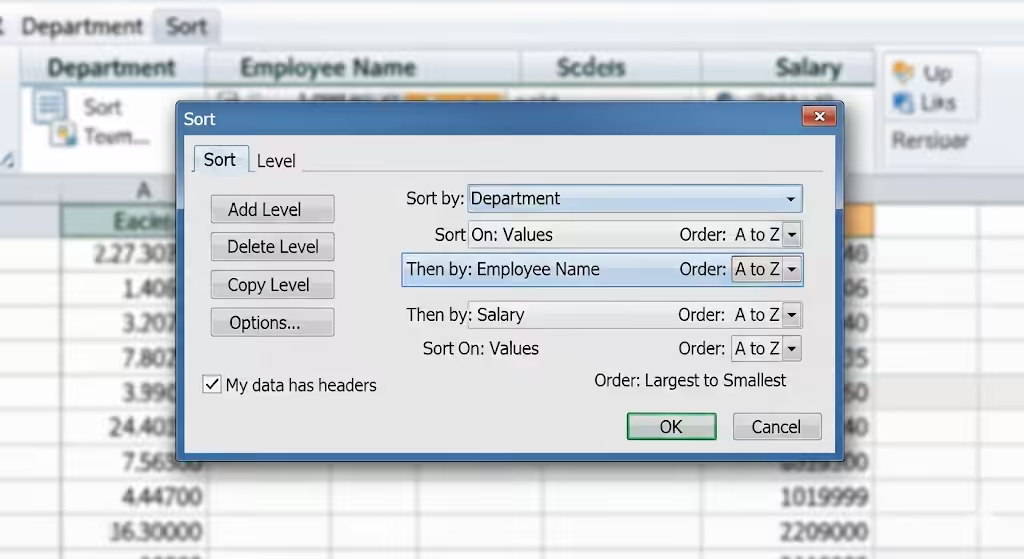
In many cases, a single level of sorting is not enough. You may want to sort by multiple criteria, such as department first, then employee name within each department.
Steps for Multi-Level Sorting:
-
Select your dataset.
-
Go to Data > Sort.
-
Click Add Level in the Sort dialog box.
-
Choose the first column to sort by (e.g., Department).
-
Add a second level (e.g., Employee Name).
-
Apply and review the results.
With multi-level sorting, Excel organizes the data by the first column and then arranges the secondary column within that order.
Sorting by Custom Lists
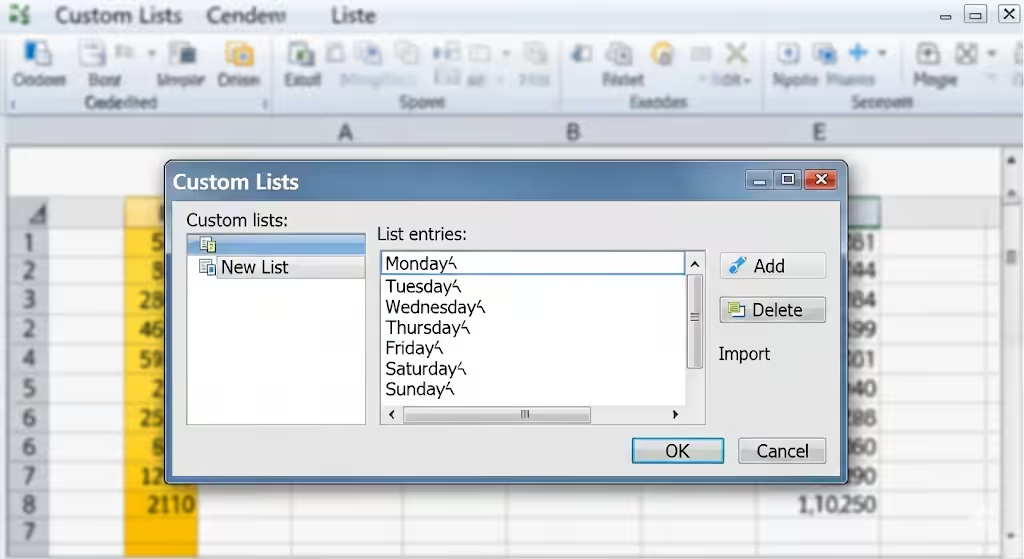
Excel allows you to create Custom Lists for sorting data in a non-standard order. This is useful when sorting by days of the week or months of the year, since alphabetical sorting would not display them in the correct sequence.
Example:
-
Go to File > Options > Advanced > Edit Custom Lists.
-
Enter your custom sequence, such as: Monday, Tuesday, Wednesday, Thursday, Friday.
-
Once saved, use this list as a sorting option.
This ensures that Excel arranges data in the order you want, not just alphabetically.
Sorting by Colors or Icons
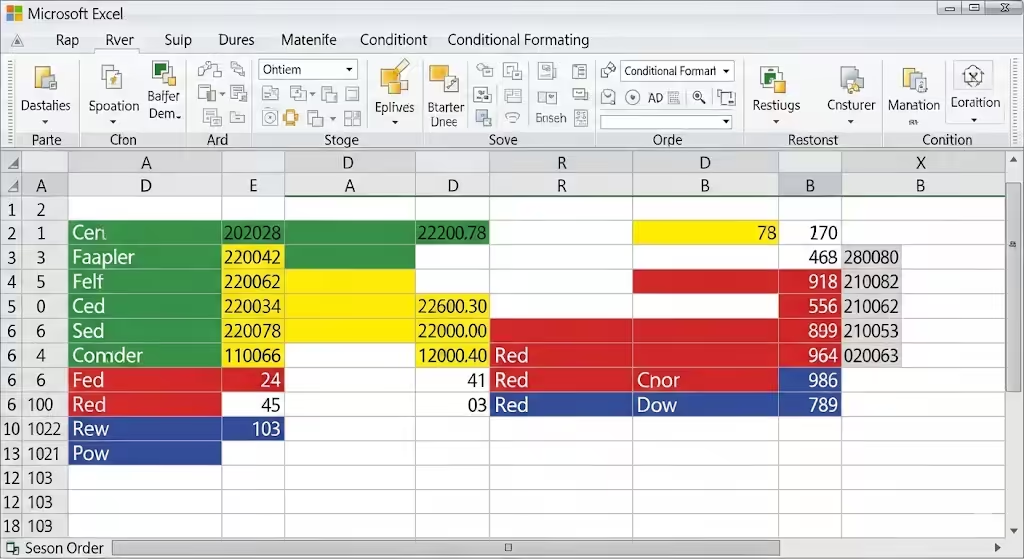
Conditional formatting in Excel often highlights important data with colors or icons. You can sort based on these visual indicators to make analysis easier.
Steps:
-
Apply conditional formatting to your data.
-
Go to Data > Sort.
-
In the Sort dialog box, select Cell Color, Font Color, or Cell Icon.
-
Choose whether to place highlighted cells at the top or bottom.
For example, if you highlight overdue tasks in red, sorting by color can push them to the top for quick review.
Common Problems When Sorting
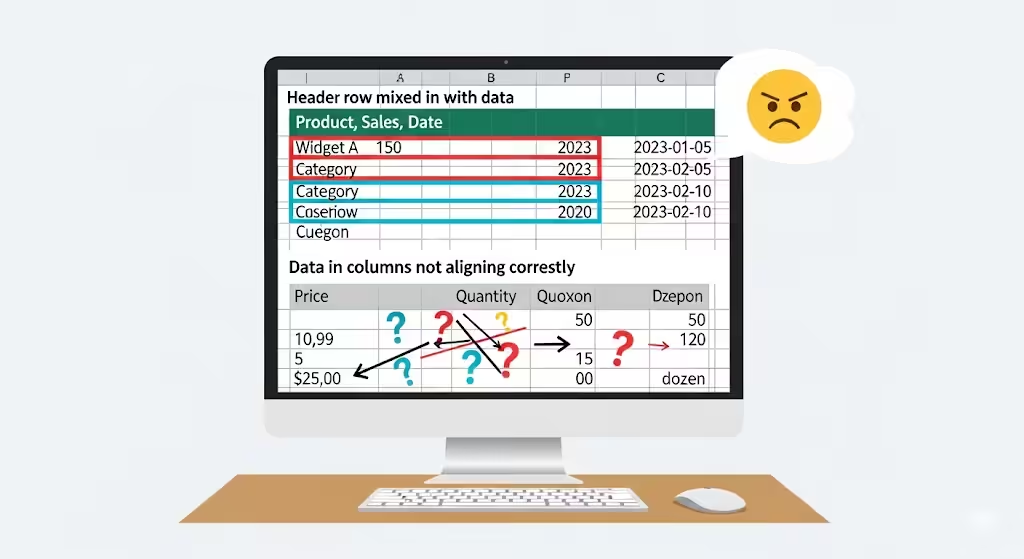
While sorting is straightforward, some issues can arise:
-
Header row gets mixed into data – Make sure “My data has headers” is checked in the Sort dialog box.
-
Data does not align correctly – Always select the full dataset, not just a single column.
-
Merged cells cause errors – Unmerge cells before sorting to avoid problems.
-
Sorting removes original order – If needed, add a helper column with row numbers before sorting.
By being aware of these issues, you can avoid mistakes that disrupt your dataset.
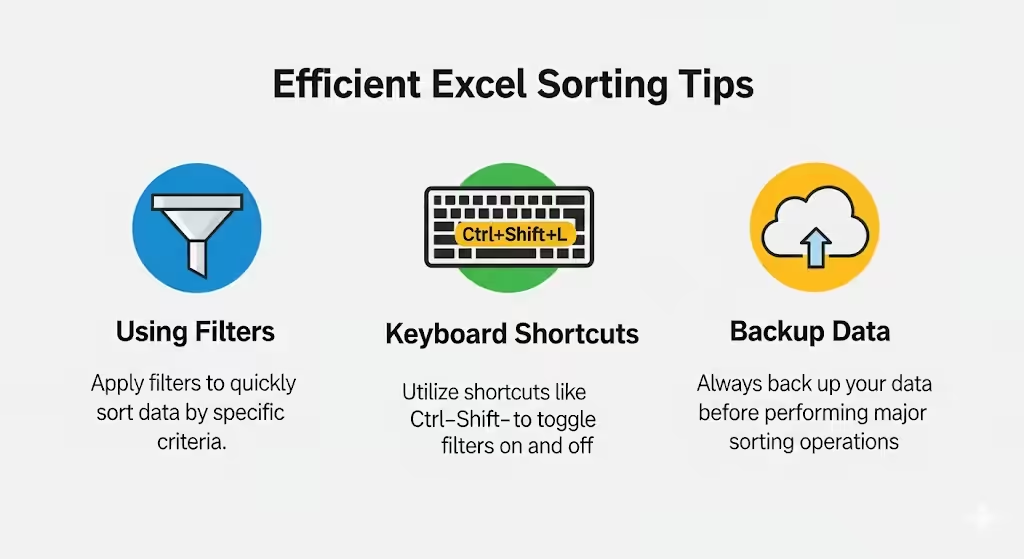
Tips for Efficient Sorting
-
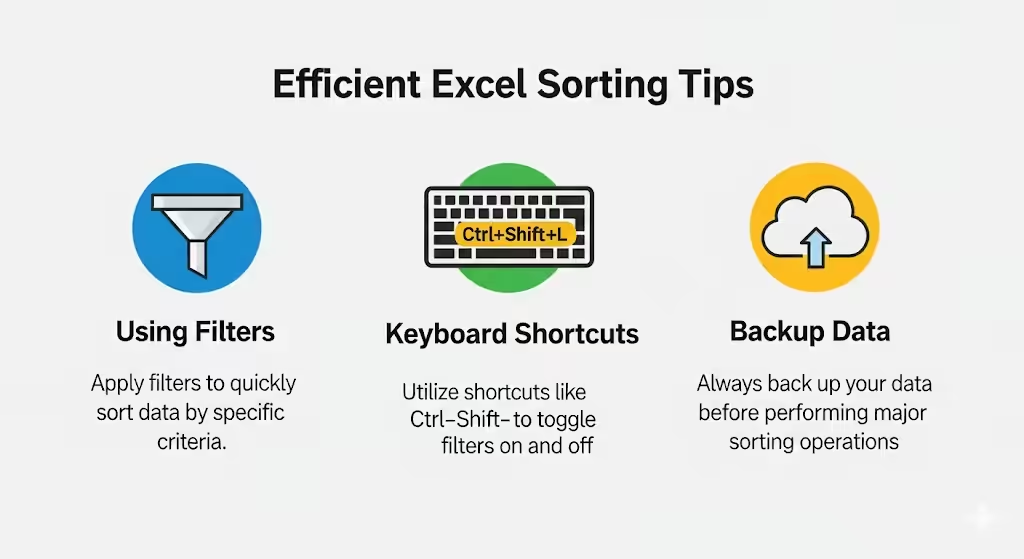
Always keep a backup of your data before sorting, especially for large datasets.
-
Use Filters along with sorting to analyze specific subsets of data.
-
Add a Helper Column when you need more advanced sorting logic.
-
Save time with keyboard shortcuts: Alt + D + S opens the Sort dialog box.
-
Combine sorting with pivot tables for deeper data analysis.
Conclusion
Sorting in Excel is a powerful feature that goes far beyond simple alphabetical or numerical order. From basic sorting to advanced options like multi-level sorting, custom lists, and sorting by color, Excel provides all the tools you need to organize your data effectively.
By learning and applying these techniques, you can transform raw, unorganized information into structured, easy-to-analyze datasets. Whether you are handling financial reports, project deadlines, or customer records, mastering sorting will help you save time, work more efficiently, and make better decisions.