


Fixing the Windows 10 Error 0x8007007B Step by Step
The 0x8007007B error code is a common issue encountered by Windows 10 users, especially when attempting to activate their operating system. This error often prevents proper activation, leading to limitations in customization and occasional reminders that Windows is not activated. Understanding the causes and methods to fix this problem is essential for ensuring your system runs smoothly and remains fully licensed.
This guide will explain what the 0x8007007B error means, why it happens, and step-by-step solutions to resolve it.
What Does the 0x8007007B Error Code Mean?
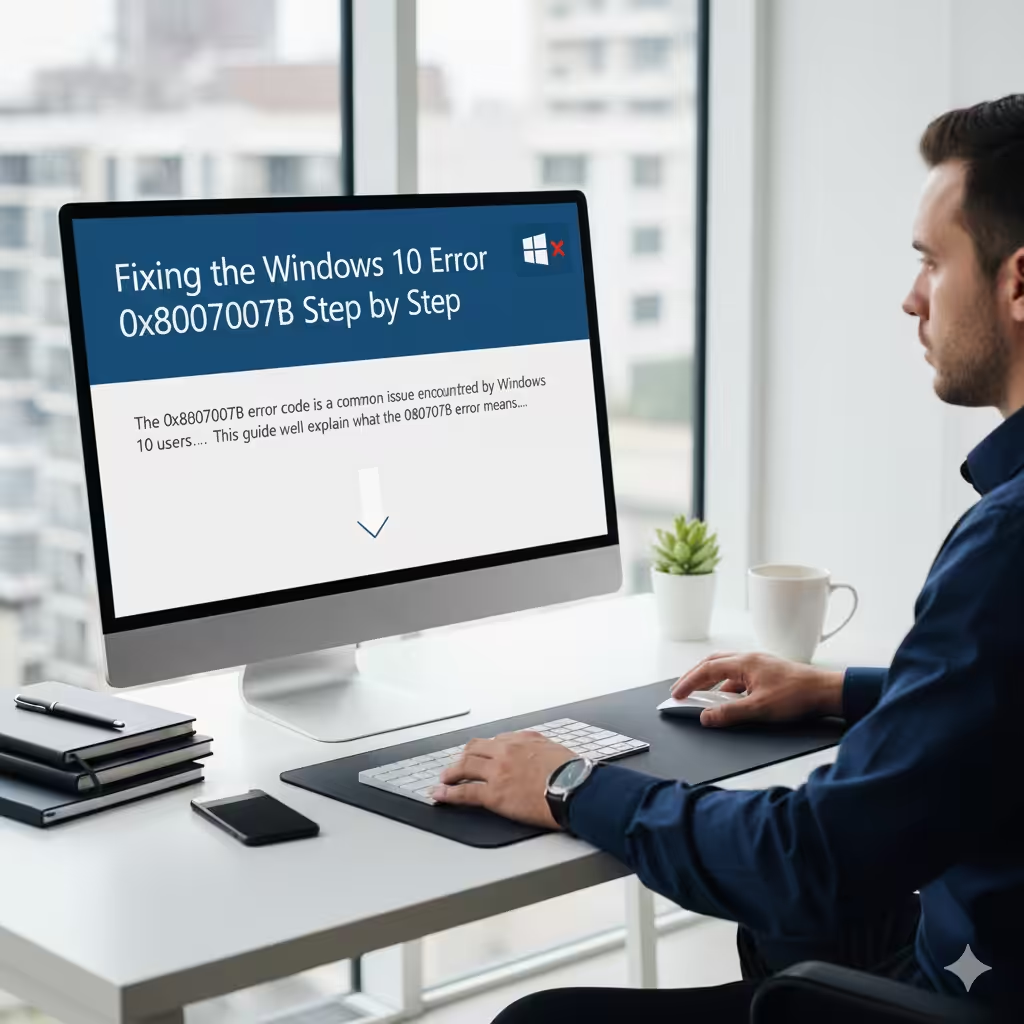
The 0x8007007B error typically occurs during Windows activation. The error message often states:
“Windows cannot be activated right now. Error code: 0x8007007B.”
This usually points to a problem with the product key or the activation server. Specifically, it often relates to issues with the Key Management Service (KMS), which businesses use to activate multiple devices with a single license. If you are using a personal license, this error may occur because the system is incorrectly trying to use KMS activation.
Common Causes of Error 0x8007007B
To fix the problem effectively, it helps to understand the underlying causes. Some of the most frequent ones include:
-
Entering an incorrect or invalid product key.
-
Windows attempting to use a KMS server that is unavailable.
-
Corruption in the system files related to activation.
-
Issues with the Windows licensing service.
-
Improper installation of Windows or tampering with license settings.
Fix 1: Use a Valid Product Key
One of the most straightforward solutions is to check your product key.
-
Press Windows + I to open Settings.
-
Navigate to Update & Security > Activation.
-
If Windows shows it cannot activate, click Change product key.
-
Enter a valid 25-character product key.
If you have purchased Windows, the product key should be available in your confirmation email or on the original packaging.
Fix 2: Activate Windows via Command Prompt
If the activation process fails through settings, you can use Command Prompt to activate manually.
-
Press Windows + S, type cmd, right-click Command Prompt, and select Run as administrator.
-
Type the following command to install your product key:
Replace your-product-key with your actual key.
-
Next, type:
-
Press Enter and wait for confirmation that Windows is activated.
This method forces Windows to attempt activation directly.
Fix 3: Check Your Internet Connection
A poor or unstable internet connection may prevent Windows from contacting the Microsoft activation servers.
-
Ensure you are connected to a stable network.
-
Restart your router or modem.
-
Temporarily disable VPN or proxy connections.
After ensuring a stable connection, try activating Windows again.
Fix 4: Run the Windows Activation Troubleshooter
Windows 10 has a built-in tool that can automatically fix activation problems.
-
Open Settings with Windows + I.
-
Go to Update & Security > Activation.
-
Click on Troubleshoot.
-
Wait for Windows to detect and fix activation-related issues.
If a valid license is linked to your Microsoft account, the troubleshooter can often resolve the 0x8007007B error.
Fix 5: Reset the Licensing Service
Corrupted licensing files may prevent successful activation. Resetting them can help.
-
Open Command Prompt as administrator.
-
Type the following commands one by one and press Enter after each:
-
Restart your computer and try activating Windows again.
Fix 6: Run System File Checker (SFC)
System file corruption may also cause this activation error. Running SFC can repair damaged files.
-
Open Command Prompt as administrator.
-
Type:
-
Press Enter and allow the scan to complete.
-
Restart your computer once the repair process finishes.
After restarting, attempt activation again.
Fix 7: Use DISM to Repair System Image
If SFC alone doesn’t resolve the issue, you can use the DISM tool.
-
Open Command Prompt as administrator.
-
Type the following command:
-
Press Enter and wait for the process to complete.
-
Restart your PC and try activating Windows.
Fix 8: Contact Microsoft Support
If none of the above methods work, your product key may be blocked, expired, or incompatible with your Windows version.
In this case:
-
Go to Settings > Update & Security > Activation.
-
Click on Contact Support or visit the official Microsoft support website.
-
Provide your product key and proof of purchase.
Microsoft support can verify your license and assist with activation.
Fix 9: Consider Reinstalling Windows
As a last resort, if system corruption or incorrect installation is preventing activation, reinstalling Windows 10 may be necessary.
-
Backup your important data.
-
Create a bootable USB drive with the latest Windows 10 version.
-
Perform a clean installation and enter your product key during setup.
This ensures a fresh start with a clean and properly licensed system.
Conclusion
The 0x8007007B error code in Windows 10 is usually related to activation issues, most often caused by an invalid product key or misconfigured licensing settings. Fortunately, there are several effective fixes available—from simply entering the correct product key to running tools like SFC, DISM, or using the Activation Troubleshooter.
If these methods fail, contacting Microsoft support or reinstalling Windows should help you resolve the issue. By following the steps in this guide, you can fix the 0x8007007B error and ensure your Windows 10 installation is properly activated.