


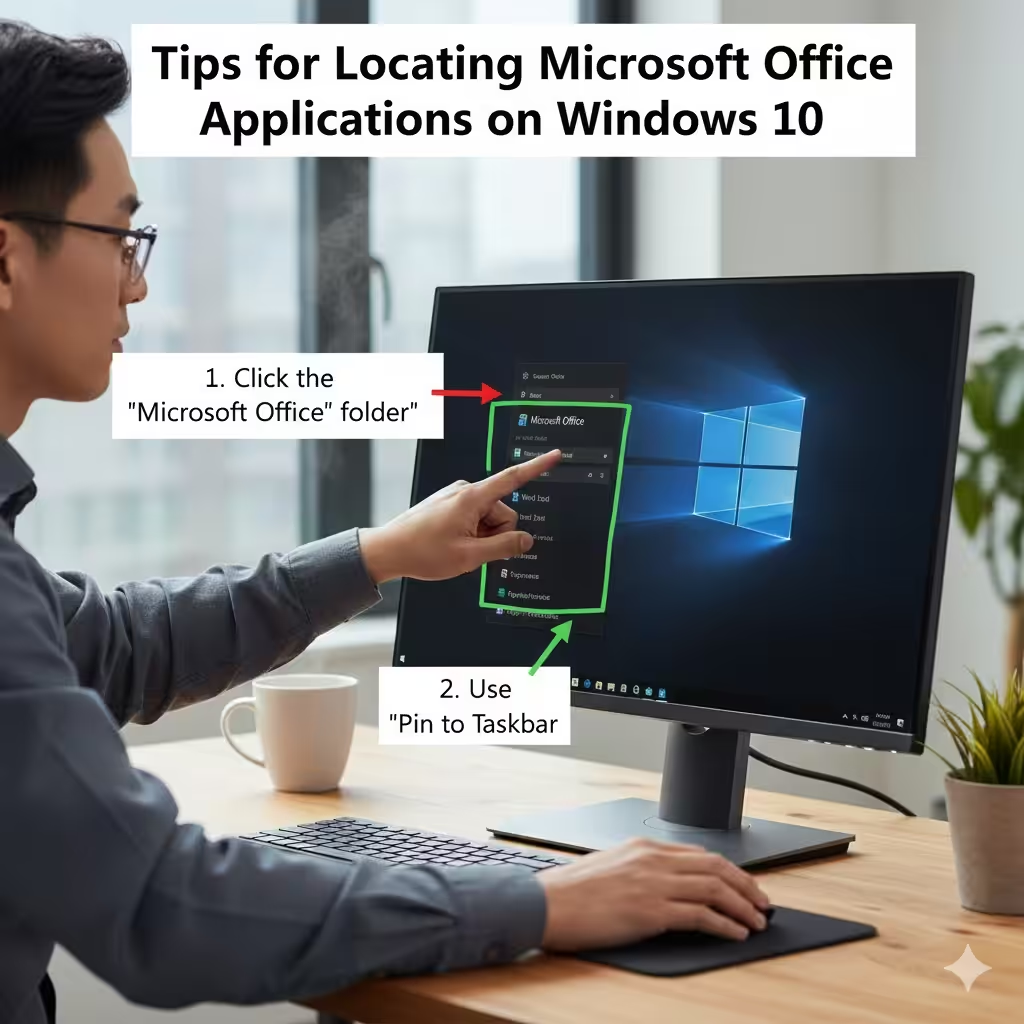
Tips for Locating Microsoft Office Applications Across Windows Versions
Microsoft Office is one of the most widely used productivity suites in the world, including applications such as Word, Excel, PowerPoint, Outlook, and OneNote. However, new users or those upgrading from older versions of Windows sometimes struggle to locate these apps after installation. Knowing the different methods to access Office apps across Windows versions can save time and improve productivity.
This guide will show you how to find Microsoft Office applications in Windows 10, Windows 8, and Windows 7, as well as tips to organize, pin, and troubleshoot the apps for easier access.
Finding Office Apps in Windows 10
Windows 10 has a modern interface with multiple ways to locate installed programs.
1. Using the Start Menu
-
Click the Start button in the lower-left corner.
-
Scroll through the list of applications to find Microsoft Office.
-
Click the folder named Microsoft Office to expand and access Word, Excel, PowerPoint, Outlook, and other apps.
2. Using the Search Bar
-
Click the Search box next to the Start button or press Windows + S.
-
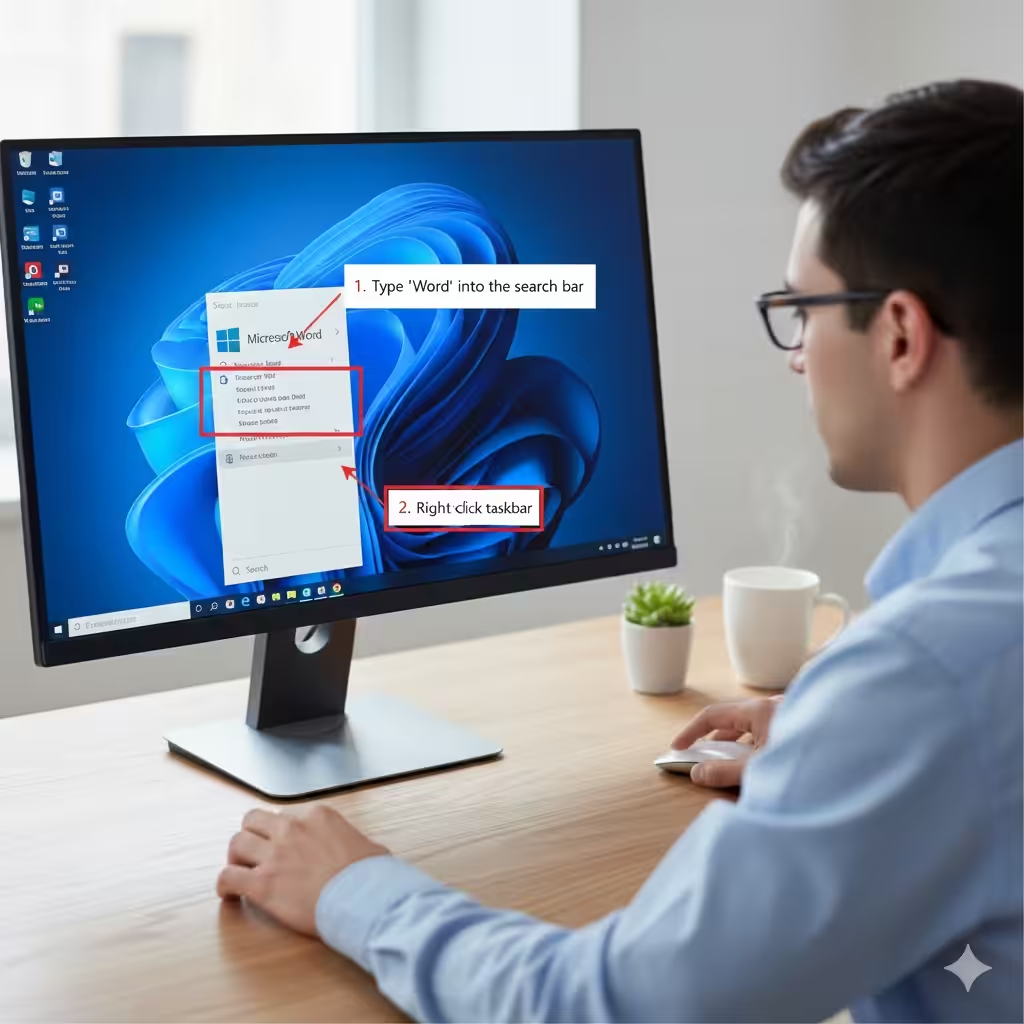
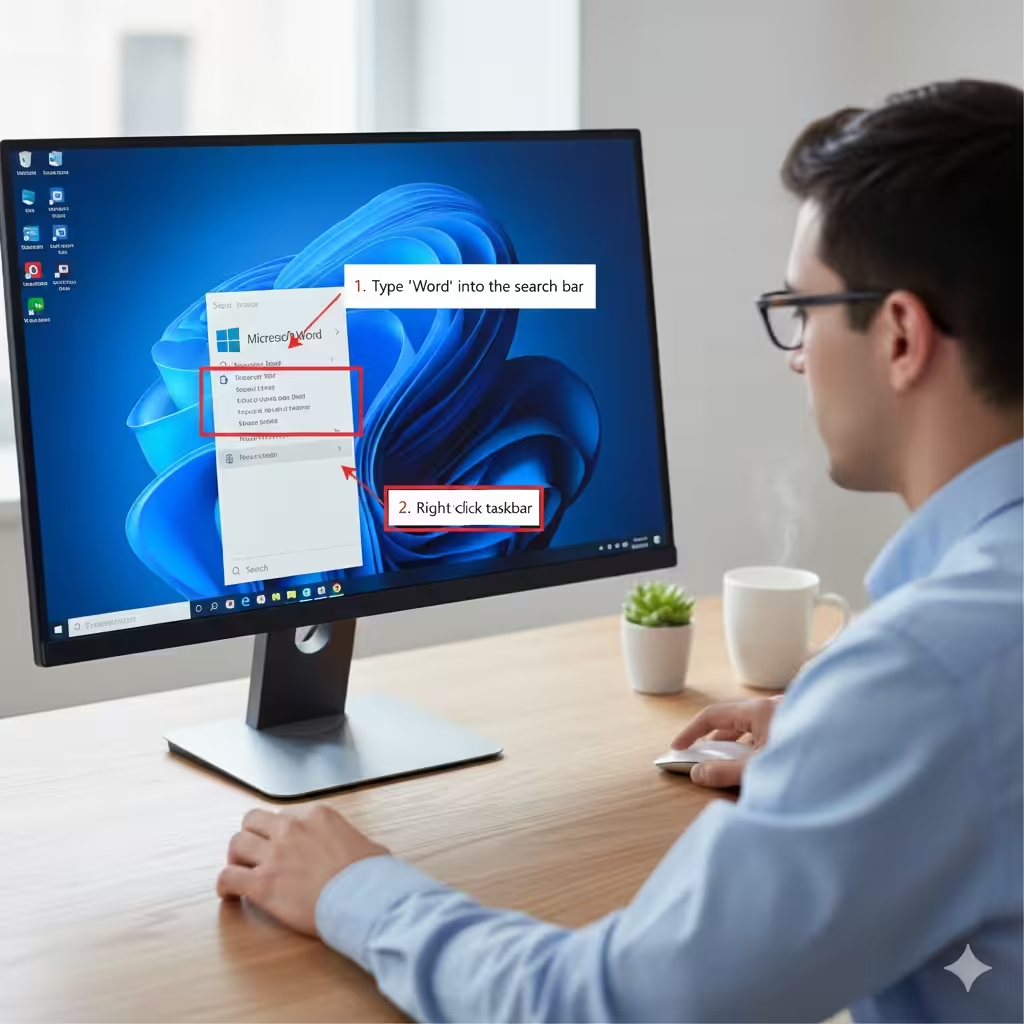
Type the name of the app, e.g., Word or Excel.
-
Select the app from the search results to open it.
3. Pinning Office Apps to Start or Taskbar
To make access faster:
-
Right-click the app in the Start menu.
-
Select Pin to Start to display a tile on the Start menu.
-
Select Pin to taskbar to create a shortcut on the taskbar.
Finding Office Apps in Windows 8
Windows 8 has a slightly different interface due to the Start Screen and tiled layout.
1. Using the Start Screen
-
Press the Windows key to open the Start Screen.
-
Look for the Microsoft Office group of tiles.
-
Click the app you want to launch, such as Word, Excel, or PowerPoint.
2. Using the Search Charm
-
Open the Charms menu by moving your mouse to the upper-right corner or pressing Windows + C.
-
Click Search.
-
Enter the name of the Office app.
-
Click the app in the results.
3. Pinning Apps for Easier Access
-
Right-click the app tile.
-
Select Pin to Start or Pin to Taskbar for quick future access.
Finding Office Apps in Windows 7
Windows 7 uses the classic Start menu, which is very straightforward.
1. Using the Start Menu
-
Click the Start button in the lower-left corner.
-
Select All Programs.
-
Locate the Microsoft Office folder.
-
Click the folder to expand and choose the application you want.
2. Using the Search Box
-
Click the Start button.
-
In the search box at the bottom, type the app’s name.
-
Click the app in the search results to open it.
3. Creating Shortcuts
-
Right-click the app in the Start menu and choose Send to → Desktop (create shortcut) for faster access.
Alternative Methods to Access Office Apps
Even if you cannot find Office through the Start menu or search, there are other ways to locate your applications.
1. Using File Explorer
-
Open File Explorer.
-
Navigate to the default installation folder:
-
For most Office versions:
C:\Program Files\Microsoft Office\root\OfficeXX(replace XX with your version number, e.g., 16 for Office 2016).
-
-
Look for
.exefiles such as WINWORD.EXE for Word or EXCEL.EXE for Excel. -
Double-click to open the application.
2. Using the Run Dialog
-
Press Windows + R to open the Run dialog.
-
Type the application name, e.g.,
winwordfor Word orexcelfor Excel. -
Press Enter to launch the app.
3. Searching the Start Menu Manually
Sometimes apps do not appear because they were not installed with the default shortcuts. Check for other Office folders or subfolders in your Start menu.
Organizing Office Apps for Easy Access
Once you have located your Office applications, organizing them can save time in the long term.
1. Pin to Taskbar
-
Right-click the app and select Pin to taskbar for instant access.
2. Pin to Start Menu or Start Screen
-
Right-click the app and select Pin to Start to create a tile.
3. Create Desktop Shortcuts
-
Drag the app from the Start menu to the desktop.
-
This creates a shortcut for one-click access.
4. Group Apps
-
Create a folder in the Start menu for all Office apps to keep them organized.
Troubleshooting Missing Office Apps
Occasionally, you may not find the Office apps even after installation. Here are common causes and solutions:
1. Office Not Installed Correctly
-
Re-run the installation setup from Microsoft Office setup files or Microsoft 365 portal.
2. Start Menu Index Issues
-
Restart your computer to refresh the Start menu.
-
Rebuild the search index in Control Panel → Indexing Options → Advanced → Rebuild.
3. Uninstalled by Accident
-
Open Control Panel → Programs → Programs and Features to check if Office is installed.
-
Reinstall if necessary.
4. Wrong User Account
-
Ensure you are signed in with the account that installed Office.
Conclusion
Finding Microsoft Office applications in Windows 10, Windows 8, or Windows 7 is simple once you understand the methods available. Using the Start menu, search functionality, File Explorer, or Run dialog, you can quickly access Word, Excel, PowerPoint, Outlook, and other apps. Additionally, organizing your Office apps by pinning them to the Start menu, taskbar, or desktop can improve efficiency. Following the troubleshooting tips ensures that you can always locate and launch your Office applications without unnecessary delays.