


Managing Contacts and Calendar Events in MS Outlook: A Complete Guide
Managing your schedule and staying connected with important people is essential for productivity—whether for work, school, or personal life. Microsoft Outlook offers a powerful combination of calendar and contact management tools designed to help you stay organized, track appointments, and maintain a structured workflow.
This comprehensive guide will walk you through how to effectively manage your Calendar and Contacts in MS Outlook, including how to create events, share calendars, manage address books, and sync your information across devices.
Understanding the Outlook Calendar and Contacts Features
Before diving into the steps, it’s important to understand what makes Outlook a powerful productivity tool. The Outlook Calendar helps you schedule meetings, set reminders, and plan events, while the Contacts feature stores detailed information about people you communicate with.
These two tools work seamlessly together so that meeting invitations, emails, and shared events remain organized and easy to manage.
How to Access Calendar and Contacts in Outlook
Outlook provides two primary ways to access these features:
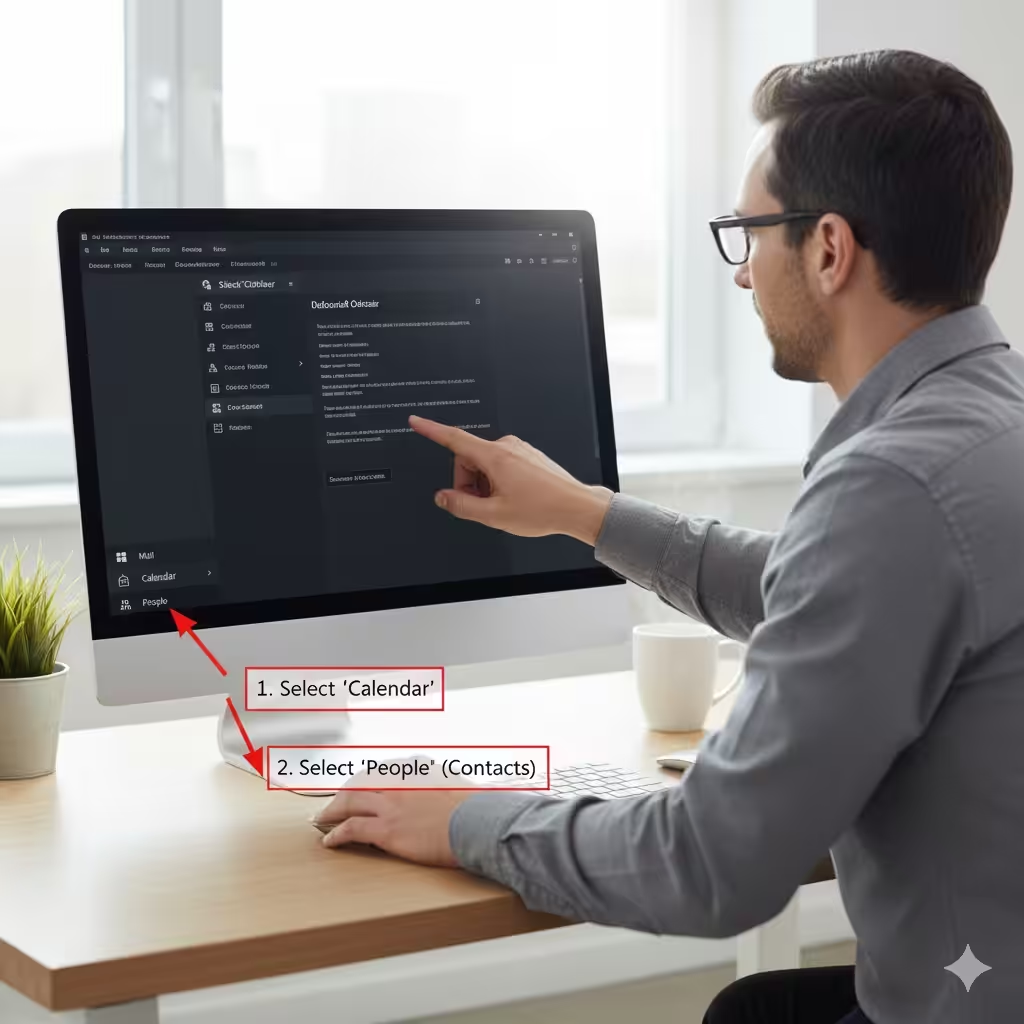
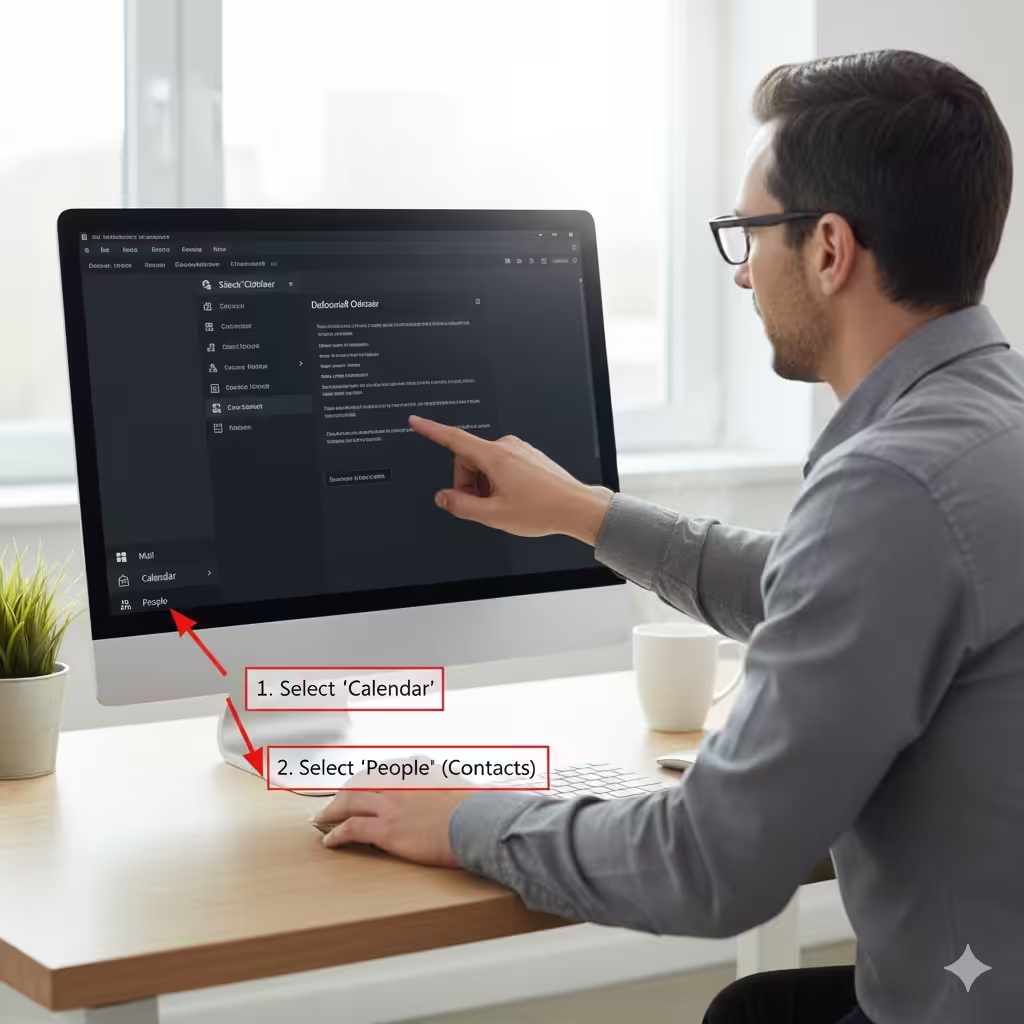
1. Using the Navigation Pane
-
Open Microsoft Outlook.
-
At the bottom-left corner, select Calendar to view and manage events.
-
Select People to access and edit your contact list.
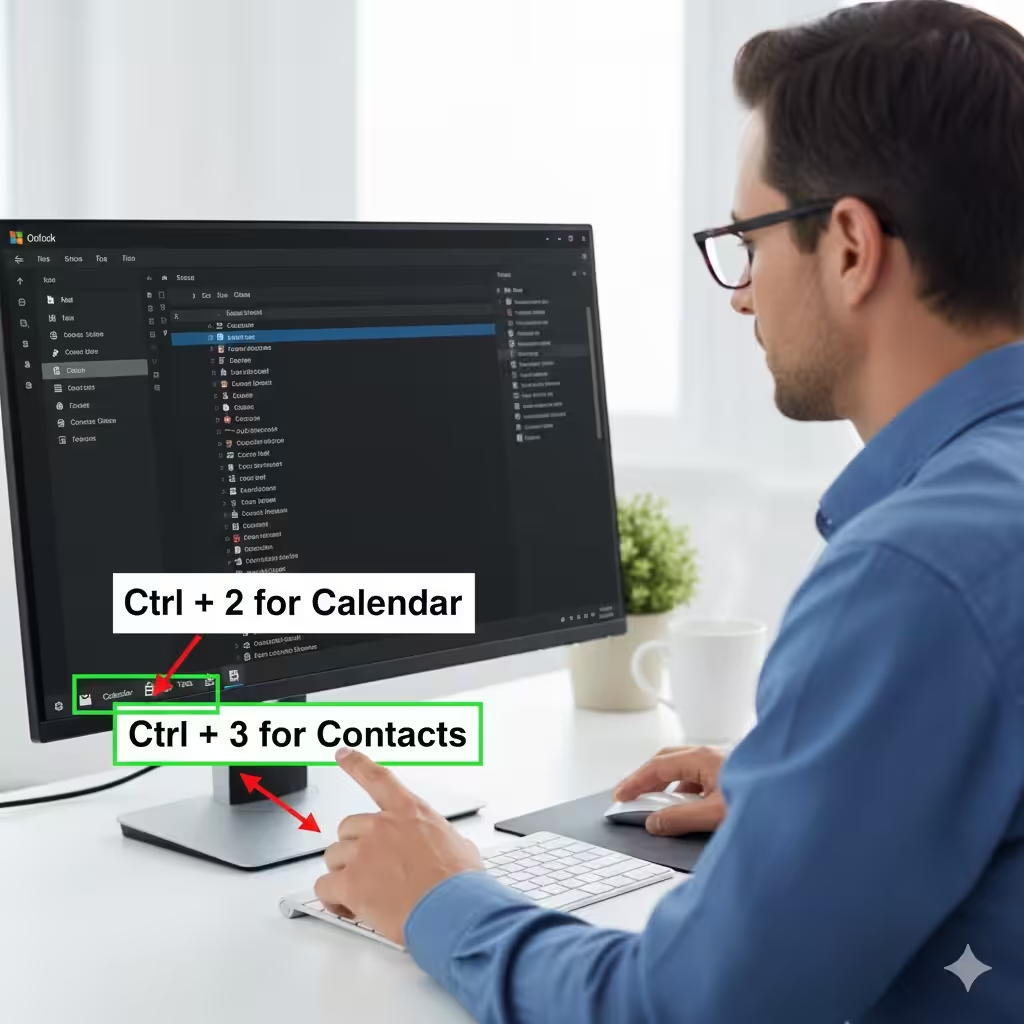
2. Using Keyboard Shortcuts
-
Press Ctrl + 2 to open Calendar.
-
Press Ctrl + 3 to open Contacts.
These shortcuts help you quickly switch between sections while working.
How to Manage Your Outlook Calendar
The Outlook Calendar supports multiple views and advanced scheduling tools.
Creating a New Event or Meeting
To create an event:
-
Open the Calendar.
-
Click New Appointment for a personal reminder or New Meeting for an event involving others.
-
Fill in:
-
Title
-
Location
-
Start/End time
-
Reminder
-
Notes or attachments
-
-
Click Save & Close.
Using Meeting Invitations
If inviting others:
-
Choose New Meeting.
-
Add participants in the To field.
-
Use the Scheduling Assistant to find the best available time.
Setting Reminders and Categories
Reminders help you stay on track:
-
Choose a reminder time (e.g., 15 minutes before).
-
Assign categories with colors to visually organize events.
Changing Calendar Views
Outlook offers flexible views:
-
Day
-
Work Week
-
Week
-
Month
-
Schedule View
Switching views helps you visualize your upcoming commitments more easily.
Sharing Your Calendar
Sharing is useful for teams or families.
-
Go to Home > Share Calendar.
-
Select who to share it with.
-
Choose permission levels:
-
View only
-
View availability
-
Edit events
-
Importing or Subscribing to Calendars
You can add other calendars like holidays or project schedules:
-
Import .ics files.
-
Subscribe to online calendars via URL.
How to Manage Contacts in Outlook
The Contacts section stores details like emails, phone numbers, birthdays, and notes.
Adding a New Contact
To create a contact:
-
Open People.
-
Click New Contact.
-
Fill the fields:
-
Name
-
Email(s)
-
Phone number(s)
-
Organization
-
Birthday
-
Notes
-
-
Select Save & Close.
Creating a Contact Group
Useful for mailing lists (teams, departments, classes).
-
Go to Home > New Contact Group.
-
Click Add Members.
-
Choose from:
-
Outlook contacts
-
Address book
-
New email address
-
Editing an Existing Contact
Open a contact and click Edit to update details.
Organizing Contacts with Categories
Assign color categories for:
-
Clients
-
Coworkers
-
Family
-
Vendors
-
Projects
This makes searching and sorting easier.
Searching for Contacts Quickly
Use the search bar in the People section to find contacts by:
-
Name
-
Email address
-
Company
-
Category
Syncing Calendar and Contacts Across Devices
One of Outlook’s strongest features is its ability to sync with multiple devices.
Syncing with Mobile Devices
On your smartphone:
-
Go to Settings.
-
Add your Microsoft / Outlook account.
-
Enable sync for Mail, Calendar, and Contacts.
Syncing Across Windows and macOS
Simply log in with your Microsoft account in Outlook, and your data syncs automatically.
Tips to Improve Calendar and Contact Management
1. Use Rules to Automate Updates
Rules help organize invitations or emails related to events.
2. Add Notes to Meetings
Notes help track agenda items, task lists, and meeting outcomes.
3. Keep Your Contact List Clean
Periodically review and remove duplicates.
4. Use Contact Photos
Helps visually identify colleagues or clients.
5. Archive Old Calendar Items
Improves performance and keeps your calendar clean.
Common Issues and Solutions
Events Not Showing on Calendar
-
Ensure the correct calendar is selected in the left pane.
-
Make sure syncing is enabled.
Duplicate Contacts
Use Outlook’s Clean Up Contacts feature or merge manually.
Reminders Not Appearing
-
Check notification settings.
-
Restart Outlook to refresh its reminder system.
Conclusion
Managing calendars and contacts in Microsoft Outlook is essential for staying organized, productive, and connected. By understanding how to create events, share calendars, maintain contact lists, and sync data across devices, you gain full control over your scheduling and communication.
With these tools and tips, Outlook becomes more than an email application—it becomes your personal productivity hub.