


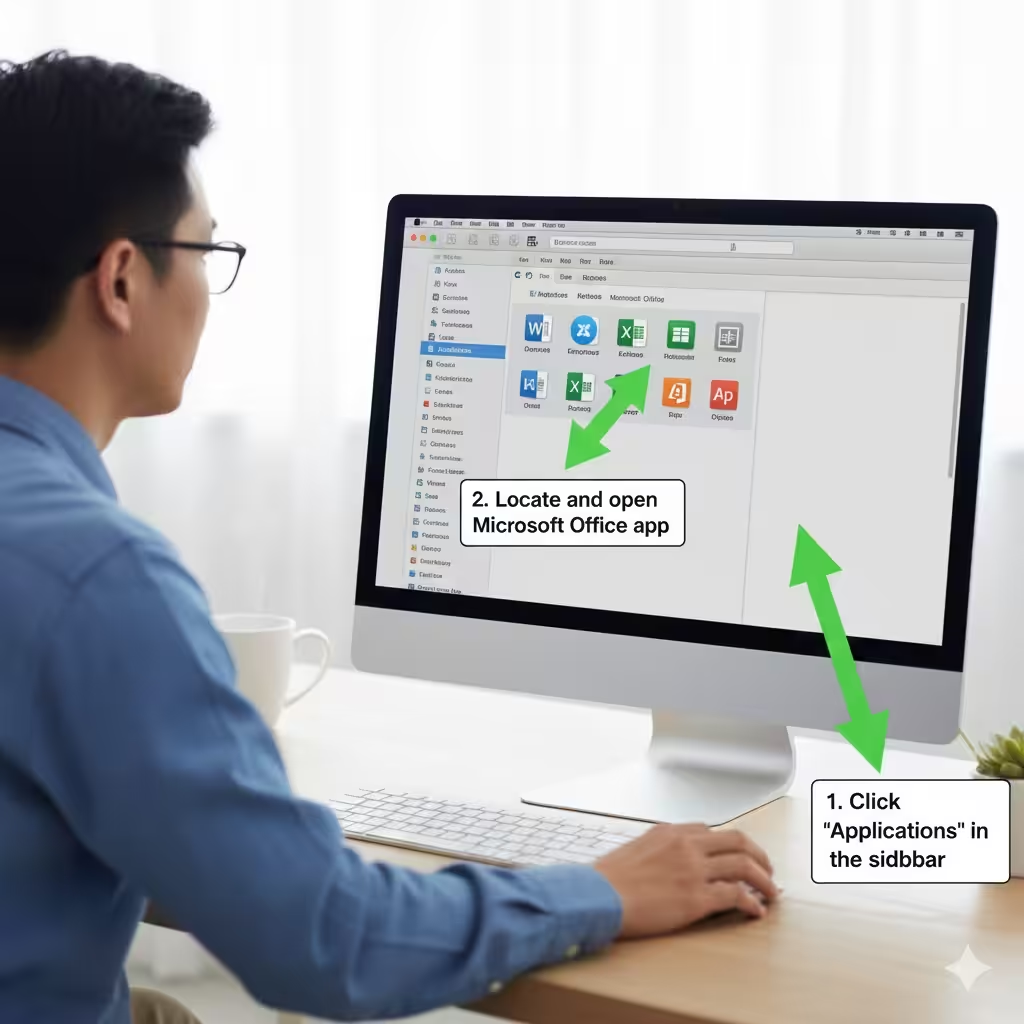
Where to Find Office Apps on macOS
Microsoft Office has long been one of the most widely used productivity suites in the world, offering powerful tools like Word, Excel, PowerPoint, Outlook, and OneNote. While installing Office on macOS is usually straightforward, many users find themselves unsure where to locate the apps after installation. Whether you are new to Mac, transitioning from Windows, or simply trying to locate missing applications, this guide will walk you through every possible method to find your Office apps quickly and easily.
In this comprehensive guide, you’ll learn how to find Office apps on a Mac, alternative ways to access them, how to organize them for easier use, and what to do if the apps do not appear after installation.
Where Office Apps Are Usually Installed on macOS
The first thing to understand is that macOS follows a consistent application-storage structure. All apps installed from the Mac App Store or directly from downloaded installers normally appear in the Applications folder. This includes Microsoft Office.
Default Installation Location
When you install Microsoft Office for Mac (either Microsoft 365 or Office 2019/2021):
-
Word
-
Excel
-
PowerPoint
-
OneNote
-
Outlook
-
Teams (optional)
-
OneDrive (optional)
are placed in the Applications folder.
How to Access the Applications Folder
There are multiple ways to open this folder:
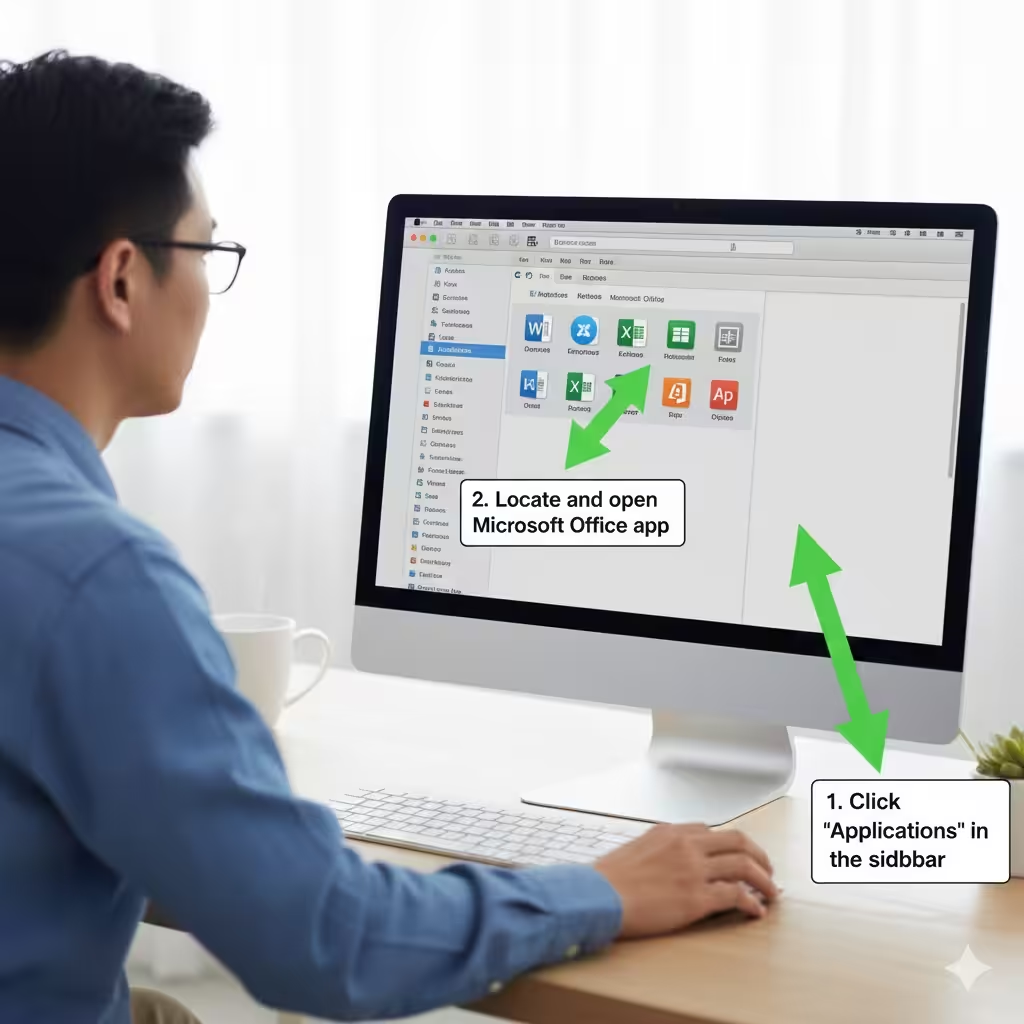
Method 1: Using Finder
-
Click the Finder icon in the Dock.
-
In the left sidebar, click Applications.
-
Scroll to find your Microsoft Office apps.
Method 2: Using the Go Menu
-
In the top bar, click Go.
-
Select Applications.
-
Locate the Office apps in the list.
Method 3: Using Spotlight Search
Press Command + Space, type the name of an Office app such as “Word” or “Excel,” and it should appear immediately.
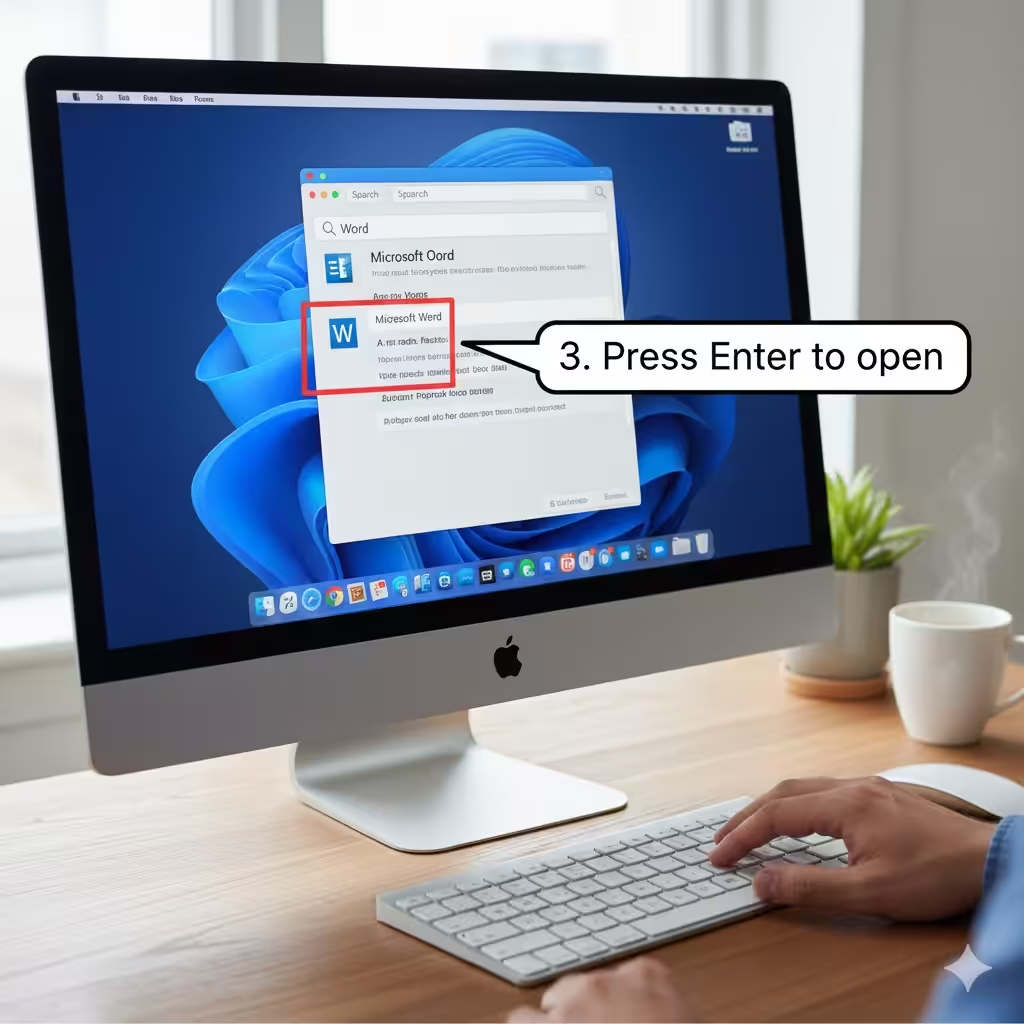
Using Spotlight to Quickly Locate Office Apps
Spotlight Search allows you to instantly locate apps without browsing through folders. It is especially useful if you are not sure where the app is stored or if you want to open it quickly.
How to Use Spotlight
-
Press Command + Space.
-
Type the name of the Office app (for example, Word).
-
Select it from the results and press Enter.
If Spotlight does not show the Office app, you may need to rebuild the Spotlight index or troubleshoot the installation.
Finding Office Apps in Launchpad
Launchpad is the macOS equivalent of the App Drawer on iOS. It displays all installed apps in a grid layout.
How to Open Launchpad
-
Press F4 on your keyboard (or the icon showing a grid of squares).
-
Or use the gesture: pinch with your thumb and three fingers on a trackpad.
Finding Office Apps
-
Open Launchpad.
-
Look for the Microsoft icons:
-
Word (blue icon with “W”)
-
Excel (green icon with “X”)
-
PowerPoint (orange icon with “P”)
-
Outlook (blue envelope icon)
-
OneNote (purple icon)
-
-
Click the app you want to launch.
If you have many apps, swipe left or right to browse through multiple pages.
Adding Office Apps to the Dock for Quick Access
If you use Office frequently, you can add your apps to the Dock for one-click convenience.
How to Pin Office Apps to the Dock
-
Open any Office app, such as Word.
-
While the app is open, right-click its icon in the Dock.
-
Select Options.
-
Click Keep in Dock.
Repeat the steps for Excel, PowerPoint, Outlook, or any other Office app.
Once pinned, the app will remain in your Dock even after closing it.
Using Finder Search to Locate Office Applications
If Office apps are not appearing where you expect, Finder search can help you track down the app files.
Steps to Search Using Finder
-
Open Finder.
-
Click the search bar in the top right corner.
-
Type Microsoft Word, Excel, or the name of another Office app.
-
Look for entries labeled “Application.”
If Finder cannot locate the apps, they may not be installed correctly.
Locating Office Apps Installed from the Mac App Store
If you downloaded Office from the Mac App Store instead of Microsoft’s website, you can also find the apps directly in the App Store.
How to Re-Open Apps from the App Store
-
Open the App Store.
-
Click your profile picture in the bottom-left corner.
-
Look under Purchased.
-
Scroll to find Microsoft Word, Excel, or PowerPoint.
-
Click Open.
This method helps especially when confirming whether an app is installed.
What to Do If Office Apps Do Not Appear
Sometimes, the Office apps may not show up even after a successful installation. Below are the most common causes and fixes.
1. Installation Was Interrupted
Restart your Mac and reinstall Office from:
-
Microsoft 365 portal
-
Office.com
-
The downloaded installation package
2. App Permissions Are Restricted
macOS System Settings may block apps from running.
To fix:
-
Open System Settings.
-
Go to Privacy & Security.
-
Scroll to see if a message says Microsoft apps were blocked.
-
Click Allow Anyway, if available.
3. Spotlight Index Is Corrupted
If Spotlight cannot find Office apps, rebuilding the index may help.
To rebuild:
-
Open System Settings.
-
Go to Siri & Spotlight.
-
Scroll down and click Spotlight Privacy.
-
Add the Macintosh HD folder and remove it again.
Spotlight will re-index your drive.
4. Office Version Is Outdated
Older versions of Office may not be compatible with the latest macOS.
Update your apps from:
-
The Microsoft AutoUpdate tool
-
The Mac App Store
5. Files Were Moved or Deleted
Avoid manually moving apps out of the Applications folder, as this may break references.
If the apps are missing entirely, reinstall Office.
How to Organize Office Apps for Easier Access
To keep your workspace tidy and efficient, you can arrange your Office apps into folders or groups.
Creating Folders in Launchpad
-
Open Launchpad.
-
Drag one Office app onto another.
-
A folder will be created automatically.
-
Name the folder something like “Office Suite.”
Organizing in the Applications Folder
-
Open Finder → Applications.
-
Create a new folder (right-click → New Folder).
-
Move your Office apps inside.
This does not affect how the apps run, but helps keep things clean.
Conclusion
Finding Office apps on a Mac is simple once you understand where macOS stores applications and how to navigate tools like Finder, Launchpad, Spotlight, and the Dock. Whether you installed Office through the Microsoft website or the Mac App Store, your apps will normally appear in the Applications folder or Launchpad. Using the methods covered in this guide, you can quickly locate, open, and organize Word, Excel, PowerPoint, Outlook, and other Microsoft tools with ease.