


A Guide to Setting Up OneDrive on Mobile Devices
OneDrive is Microsoft’s cloud storage service that allows you to save files online, access them from any device, and sync data automatically. Whether you are using an iPhone, iPad, Android phone, or Android tablet, OneDrive makes it easy to store documents, photos, and videos securely while keeping them available wherever you go. Setting it up on your mobile device helps you work more efficiently, back up important content, and share files effortlessly.
This step-by-step guide will show you how to install, set up, and use OneDrive on both iOS and Android devices, along with useful features and troubleshooting tips.
Why You Should Use OneDrive on Your Mobile Device
Before diving into the setup steps, it helps to understand the advantages of using OneDrive on your smartphone or tablet.
Key Benefits
-
Easy Access to All Your Files: Your documents, photos, and videos stay synced across devices.
-
Automatic Backup: Prevent data loss by backing up mobile photos and videos.
-
Seamless Collaboration: Share files with others or collaborate in real time using Word, Excel, or PowerPoint.
-
Large Storage Options: Free storage is available, with upgrades for larger needs.
-
Cross-Platform Support: Works smoothly with iOS, Android, Windows, and macOS.
OneDrive gives you flexibility whether you’re at home, in the office, or on the move.
Downloading the OneDrive App on iPhone or iPad
Setting up OneDrive on iOS devices is straightforward. You will need an Apple ID and an active internet connection.
Step-by-Step Instructions
Step 1: Open the App Store
Locate and launch the App Store on your iPhone or iPad.
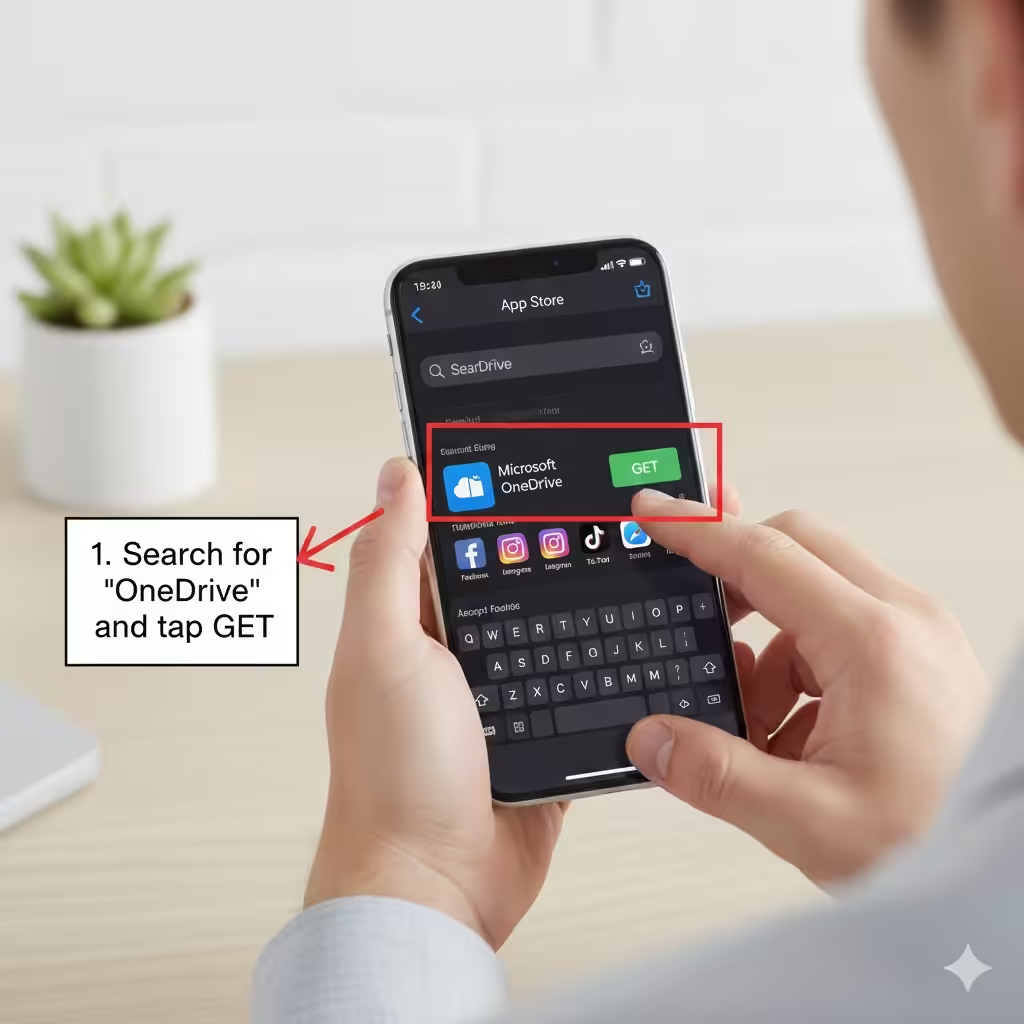
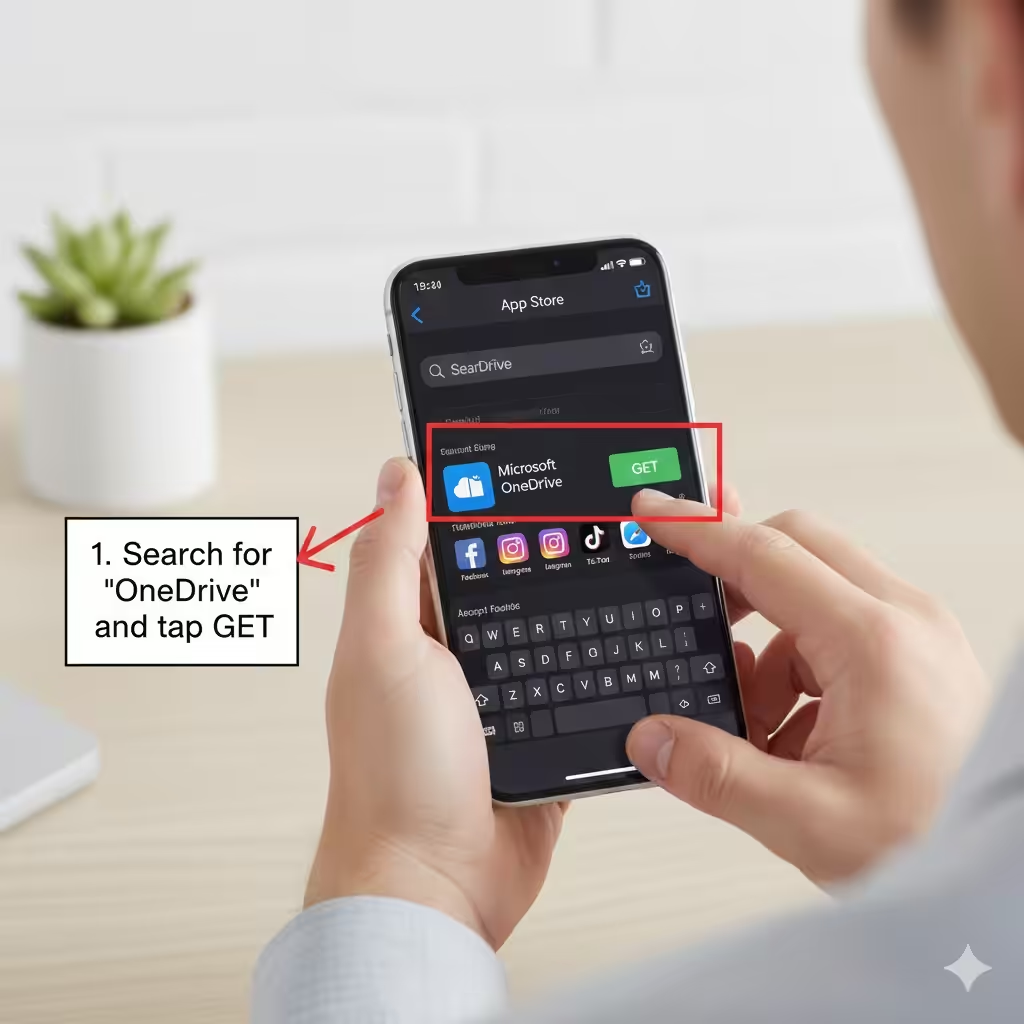
Step 2: Search for OneDrive
Tap the search bar and type OneDrive.
The Microsoft OneDrive app should appear at the top of the results.
Step 3: Download the App
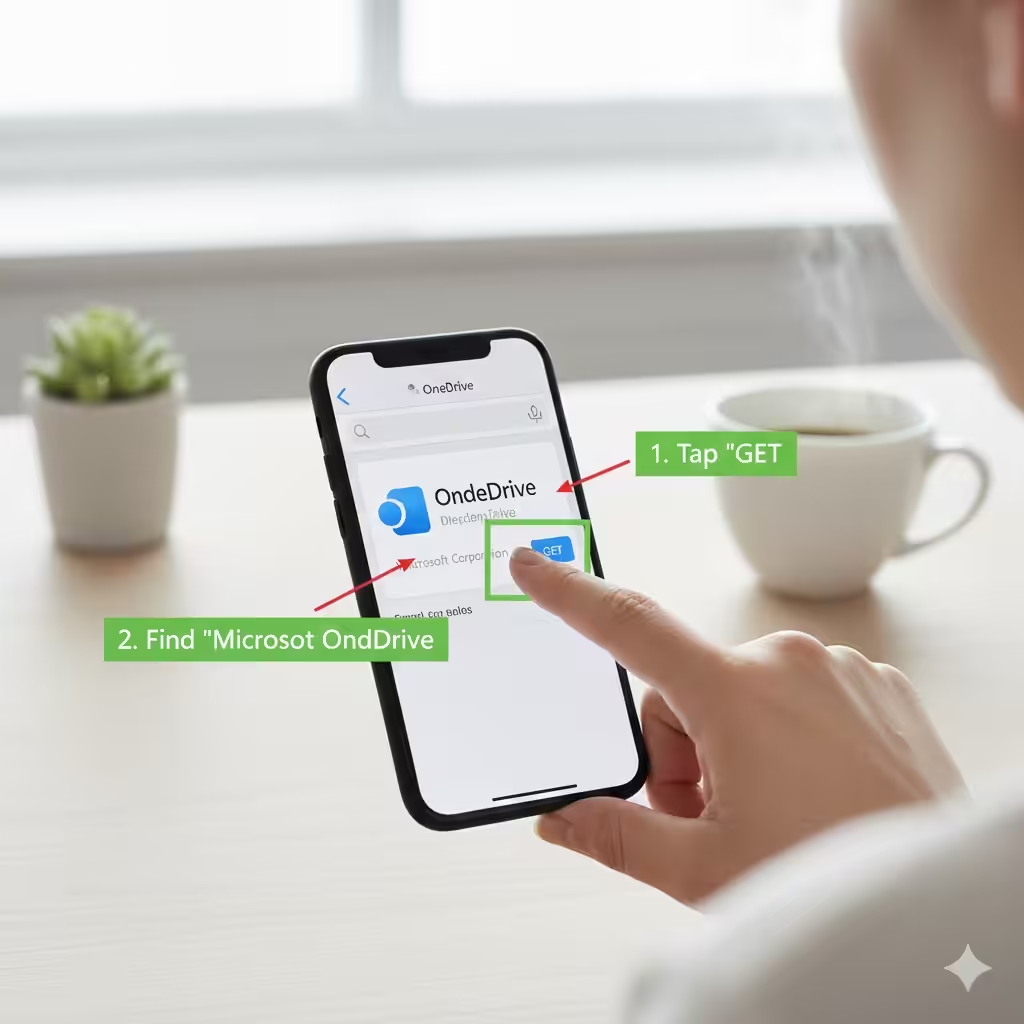
Tap Get, then confirm installation using your Apple ID, Face ID, or Touch ID.
Step 4: Open OneDrive
Once installation is complete, tap Open.
Step 5: Sign In
Enter your Microsoft account email and password.
If you don’t already have an account, you can create one directly through the app.
Step 6: Allow Permissions
OneDrive may request access to:
-
Photos
-
Camera
-
Notifications
-
Contacts (optional)
Grant the permissions necessary for the features you want to use, such as photo backup.
Downloading the OneDrive App on Android Phones or Tablets
The process is similar to iOS but uses the Google Play Store.
Step-by-Step Instructions
Step 1: Open the Google Play Store
Find the Play Store icon and tap it.
Step 2: Search for OneDrive
Use the search bar to type OneDrive.
Step 3: Install the App
Tap Install and wait for the download to finish.
Step 4: Launch OneDrive
Open the app once installation is complete.
Step 5: Sign In
Enter your Microsoft account details.
If you don’t have an account, tap Create one.
Step 6: Grant Permissions
Depending on your Android version, OneDrive may request access to:
-
Media
-
Photos
-
Camera
-
Notifications
-
Files and storage
Accept the permissions required for proper functionality.
How to Enable Photo and Video Backup
OneDrive’s most popular feature on mobile is automatic photo and video backup. This ensures your memories stay protected even if you lose or damage your device.
Enabling Backup on iPhone or iPad
-
Open the OneDrive app.
-
Tap your profile picture in the top left.
-
Select Settings.
-
Tap Camera Upload.
-
Turn on Camera Upload.
-
Choose whether to upload using Wi-Fi only or cellular data as well.
-
Enable options like Upload in Background or Include Videos.
Enabling Backup on Android Devices
-
Open OneDrive on your Android phone or tablet.
-
Tap the Me icon (or profile picture).
-
Select Settings.
-
Tap Camera Upload.
-
Turn on the toggle switch.
-
Select whether to upload using Wi-Fi or mobile data.
-
Choose to include videos or not.
Once enabled, new photos and videos automatically upload to OneDrive, keeping them safe.
How to Upload Files Manually
You may also want to upload files manually, such as PDFs, documents, or downloaded content.
Uploading on iPhone or iPad
-
Open OneDrive.
-
Tap the + (plus) icon.
-
Choose Upload.
-
Browse your device’s files.
-
Select the items you want to upload.
Uploading on Android
-
Open OneDrive.
-
Tap the + icon.
-
Select Upload.
-
Navigate to the folder or file you want to upload.
-
Tap to confirm.
Creating and Managing Folders
Organizing your files helps you find what you need quickly.
Steps to Create a Folder
-
In OneDrive, tap the + icon.
-
Choose Create Folder.
-
Name your folder.
-
Confirm to save it.
You can move, rename, or delete folders anytime by pressing and holding the folder icon.
How to Share Files from OneDrive
Sharing is one of OneDrive’s most powerful features. You can send files to family, friends, or colleagues instantly.
How to Share on iOS and Android
-
Open OneDrive.
-
Locate the file or folder you want to share.
-
Tap the three dots or Share button.
-
Choose whether recipients can view only or edit.
-
Copy the link or send it via email, messaging apps, or social media.
Sharing settings can be changed or removed anytime.
Syncing OneDrive with Office Mobile Apps
OneDrive integrates seamlessly with mobile versions of Word, Excel, and PowerPoint.
How to Enable Sync
-
Sign in to the Office apps using the same Microsoft account used in OneDrive.
-
Your OneDrive files will appear automatically in the Open and Save sections.
-
Edits made on your phone sync instantly to OneDrive.
This makes it easy to work on documents from anywhere.
Troubleshooting Common OneDrive Setup Issues
While setting up OneDrive is usually simple, you may occasionally encounter problems.
1. Not Enough Storage Space
If backups stop because storage is full, you can:
-
Buy additional storage
-
Delete old files
-
Move files to another service
2. Camera Upload Not Working
Try:
-
Enabling background app refresh
-
Verifying permissions
-
Checking your Wi-Fi connection
-
Updating the OneDrive app
3. Unable to Sign In
Make sure:
-
Your Microsoft account password is correct
-
Your device is connected to the internet
-
Two-factor authentication is working properly
4. Files Not Syncing
Possible solutions:
-
Restart the app
-
Ensure you have stable internet
-
Update the app to the latest version
-
Log out and back into your OneDrive account
Conclusion
Setting up OneDrive on your phone or tablet is an excellent way to store, access, and protect your files effortlessly. With features like automatic camera backup, manual uploading, folder organization, and file sharing, OneDrive offers powerful cloud-based tools for any mobile user. By following the steps in this guide, you can get OneDrive running smoothly on your iOS or Android device and make the most of its capabilities.