


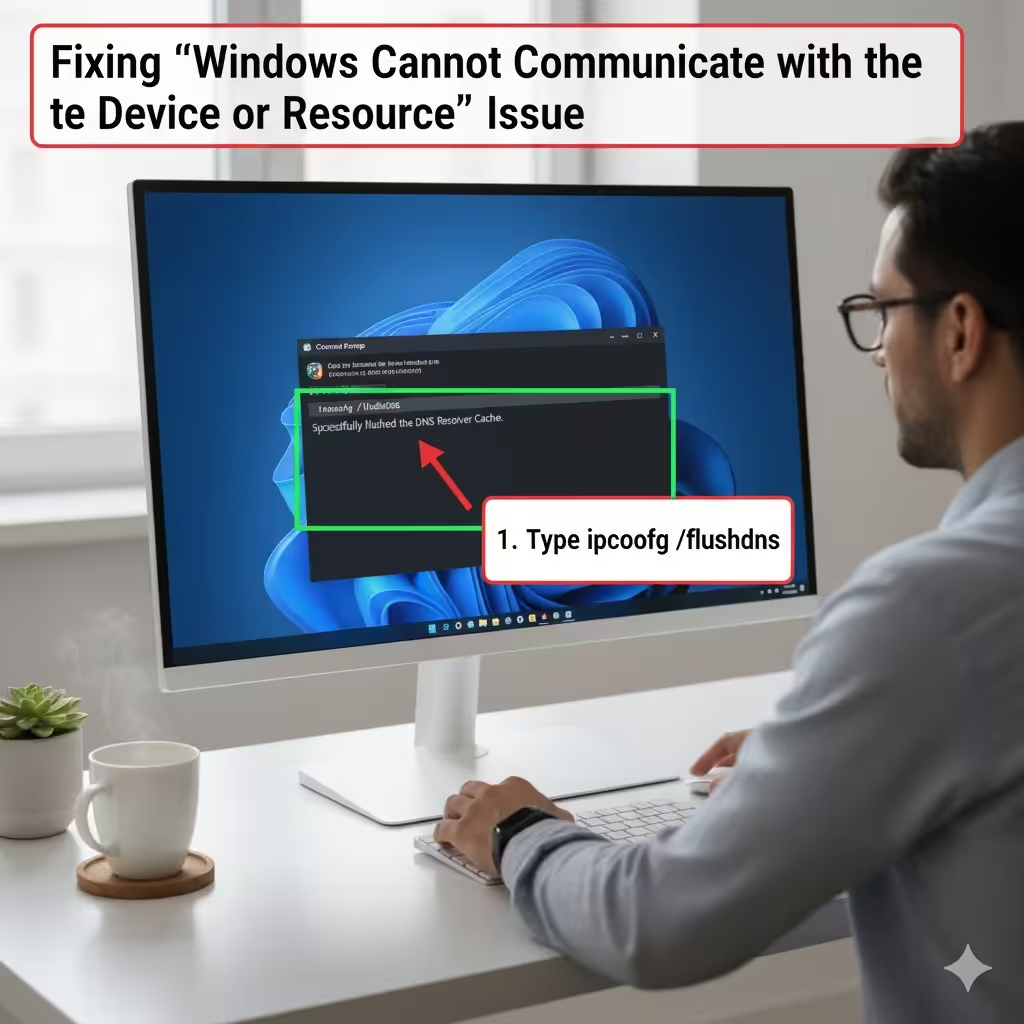
Fixing the “Windows Cannot Communicate with the Device or Resource” Issue
The error message “Windows can’t communicate with the device or resource (primary DNS server)” appears when Windows cannot connect to the DNS server that translates domain names into IP addresses. Without DNS resolution, websites, apps, and certain online services cannot load properly. This problem often appears in Windows 10 and Windows 11, but it can also occur in older Windows versions.
This guide explains the common causes of the issue and provides step-by-step methods to fix it. By following the solutions below, you can restore your internet connection and prevent the error from returning.
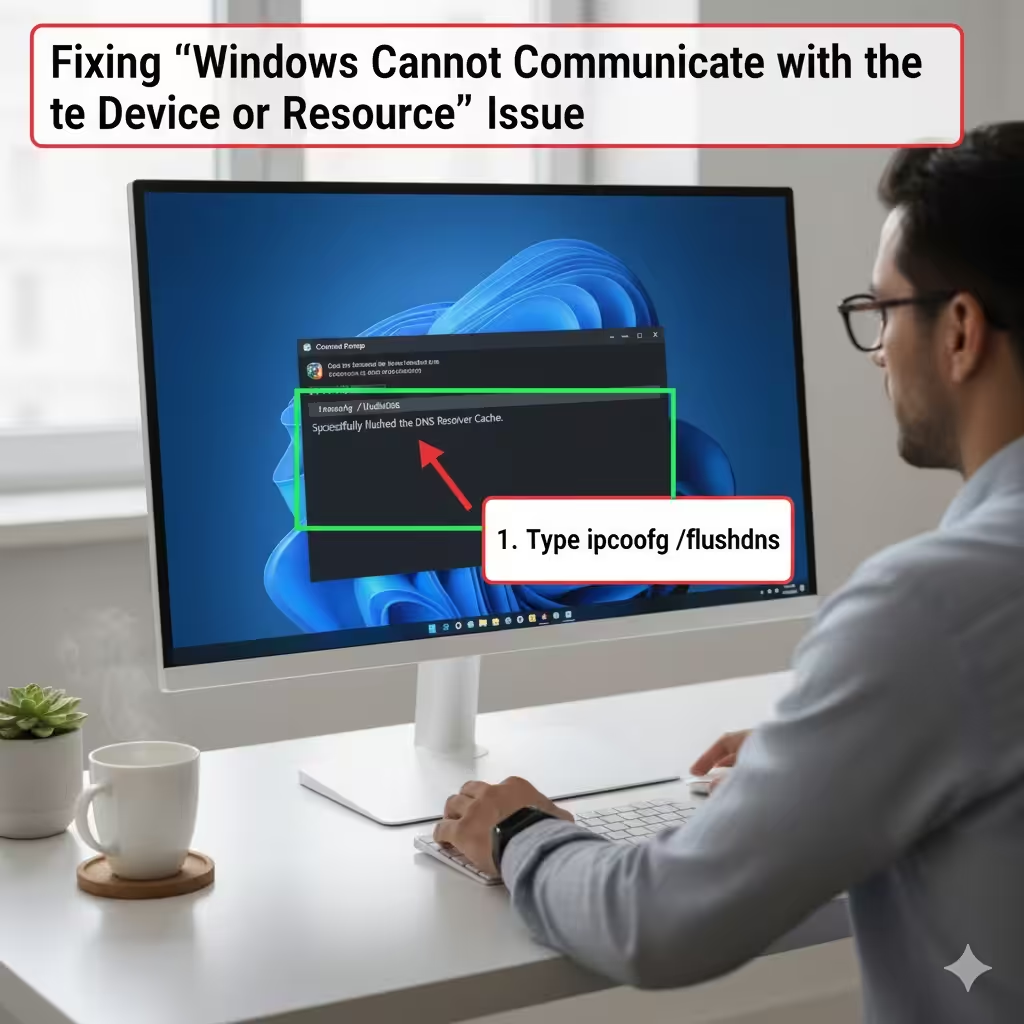
Why This Error Happens
This network error usually appears when your PC tries to access the internet but fails to reach the DNS server. Common causes include:
-
Incorrect network settings
-
Corrupted DNS cache
-
Faulty or outdated network drivers
-
Misconfigured IPv4/IPv6 settings
-
Problems with your router or modem
-
ISP DNS server outages
-
Malware or firewall interference
Understanding these root causes will help you identify the right fix more quickly.
Check Your Internet Connection First
Before trying advanced solutions, verify the basics.
1. Restart Your Router and PC
-
Turn off your router and modem.
-
Wait at least 10 seconds.
-
Turn them back on.
-
Restart your computer.
This refreshes your network connection and resolves many temporary communication problems.
2. Try a Different Device
-
If other devices also have trouble connecting, the issue is likely with your network or ISP, not your PC.
-
If only your computer has the issue, continue with the steps below.
Method 1: Reset DNS and TCP/IP Settings
One of the most effective solutions is resetting Windows networking components.
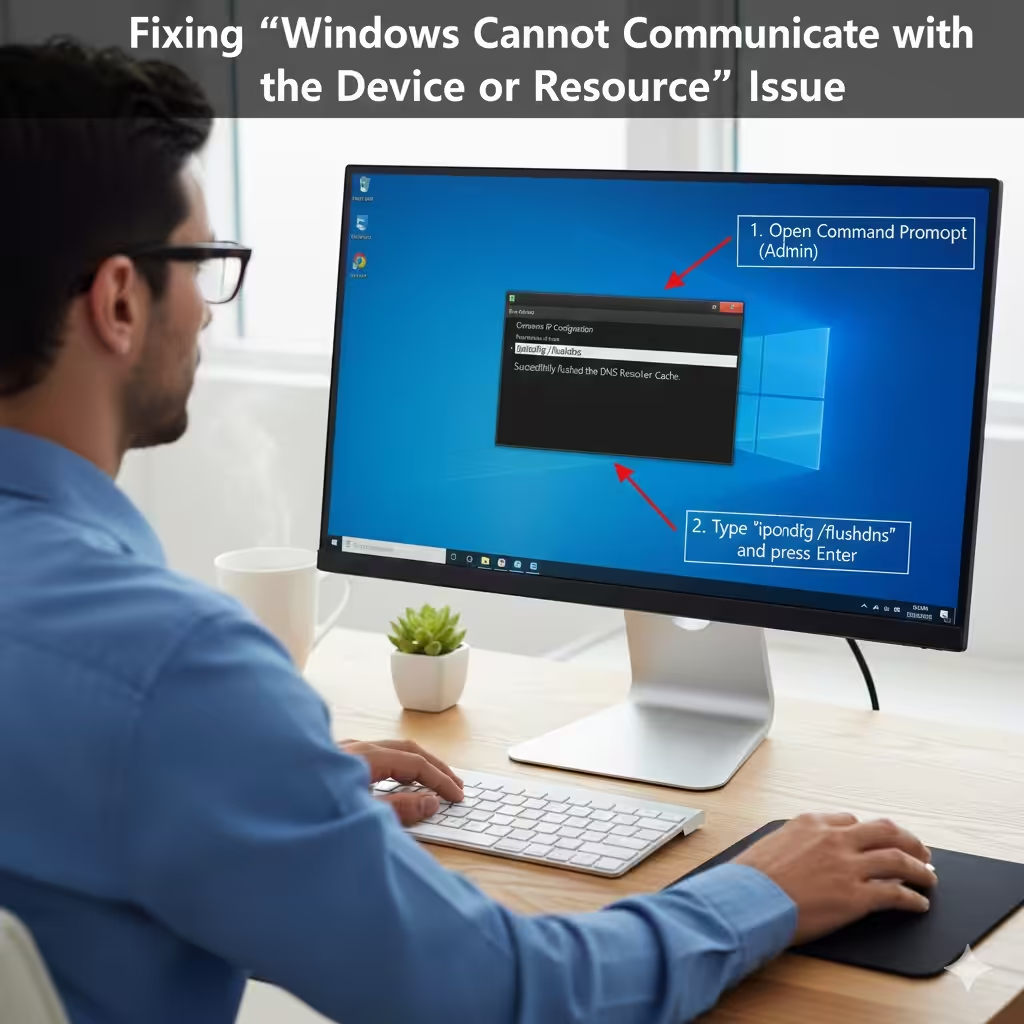
Reset DNS Cache
-
Open Command Prompt as Administrator.
-
Enter the following command:
-
Press Enter.
Reset IP Configuration
Type the following commands one by one:
Reset TCP/IP Stack
Then enter:
Restart your PC. This fix often resolves corrupted DNS and IP entries that cause communication errors.
Method 2: Change Your DNS Server Manually
If your ISP’s DNS servers are slow, unreachable, or malfunctioning, switching to a public DNS server can help.
Use Google DNS or Cloudflare DNS
-
Open Control Panel.
-
Go to Network and Sharing Center.
-
Click Change adapter settings on the left.
-
Right-click your network connection (Wi-Fi or Ethernet).
-
Select Properties.
-
Highlight Internet Protocol Version 4 (IPv4).
-
Click Properties.
Under Use the following DNS server addresses, enter:
Google DNS
-
Preferred DNS: 8.8.8.8
-
Alternate DNS: 8.8.4.4
or
Cloudflare DNS
-
Preferred DNS: 1.1.1.1
-
Alternate DNS: 1.0.0.1
Click OK to save the settings.
Repeat for IPv6 (Optional)
You can also update IPv6 DNS with:
Google DNS:
-
2001:4860:4860::8888
-
2001:4860:4860::8844
Cloudflare DNS:
-
2606:4700:4700::1111
-
2606:4700:4700::1001
Restart your PC and test your internet again.
Method 3: Enable “Obtain DNS Server Automatically”
If you previously set DNS manually and it’s incorrect, Windows may be unable to communicate with the DNS server.
To enable automatic DNS detection
-
Open Control Panel → Network and Sharing Center.
-
Select Change adapter settings.
-
Right-click your network and choose Properties.
-
Select Internet Protocol Version 4 (IPv4).
-
Click Properties.
-
Choose:
-
Obtain an IP address automatically
-
Obtain DNS server address automatically
-
-
Click OK.
Automatic DNS often helps when your ISP or router provides DNS directly.
Method 4: Update or Reinstall Network Drivers
Outdated or corrupted network drivers are a common cause of DNS and communication errors.
Update Network Drivers
-
Press Windows + X.
-
Select Device Manager.
-
Expand Network adapters.
-
Right-click your network device.
-
Choose Update driver.
-
Select Search automatically for drivers.
Reinstall the Driver Completely
If updating doesn’t help:
-
Right-click the network adapter.
-
Select Uninstall device.
-
Restart your PC.
-
Windows will reinstall the correct driver automatically.
This resets all driver-related communication issues.
Method 5: Check Proxy Settings
Incorrect proxy settings may cause Windows to misroute network requests.
Disable Unwanted Proxy Settings
-
Open Settings.
-
Go to Network & Internet.
-
Select Proxy.
-
Under Manual proxy setup, turn off Use a proxy server.
-
Under Automatic proxy setup, enable Automatically detect settings.
Try browsing again to see if the error disappears.
Method 6: Disable IPv6 (If Necessary)
Some routers and ISPs do not fully support IPv6. This can cause DNS or communication conflicts.
Disable IPv6
-
Open Control Panel.
-
Go to Network and Sharing Center → Change adapter settings.
-
Right-click your network adapter.
-
Choose Properties.
-
Uncheck Internet Protocol Version 6 (IPv6).
-
Click OK.
Restart your computer afterward.
Method 7: Temporarily Disable Firewall or Antivirus
Security programs sometimes block DNS queries or misidentify them as threats.
Try temporarily disabling:
-
Windows Defender Firewall
-
Third-party antivirus
-
VPN software
If the internet works after disabling them, you may need to:
-
Add your browser or DNS service as an exception
-
Reinstall the security software
-
Update the firewall rules
Never keep your firewall disabled for long periods.
Method 8: Reset Your Router to Default Settings
If your router is misconfigured, resetting it may resolve the issue.
Factory Reset Procedure
-
Locate the reset button on the router.
-
Press and hold it for 10–15 seconds.
-
The router will reboot and restore default settings.
Afterward, reconnect to Wi-Fi and test your connection again.
Method 9: Scan for Malware
Some malware modifies DNS settings or network configurations.
Run a Full Scan
Use:
-
Windows Security
-
Malwarebytes
-
Any reputable antivirus
Remove any detected threats and restart the PC.
Method 10: Contact Your ISP
If none of the above works, your ISP’s DNS servers may be experiencing issues. Contacting them can confirm whether the problem is on their end.
Conclusion
The error “Windows can’t communicate with the device or resource” can occur for various reasons, but it is usually fixable with the right steps. By resetting DNS settings, updating network drivers, adjusting IP configuration, or simply switching DNS servers, you can quickly restore your internet connection.
With this comprehensive guide, you now have multiple troubleshooting methods to identify the cause and fix the problem efficiently. If the issue persists, contacting your ISP or performing a full network reset may be the final solution.