


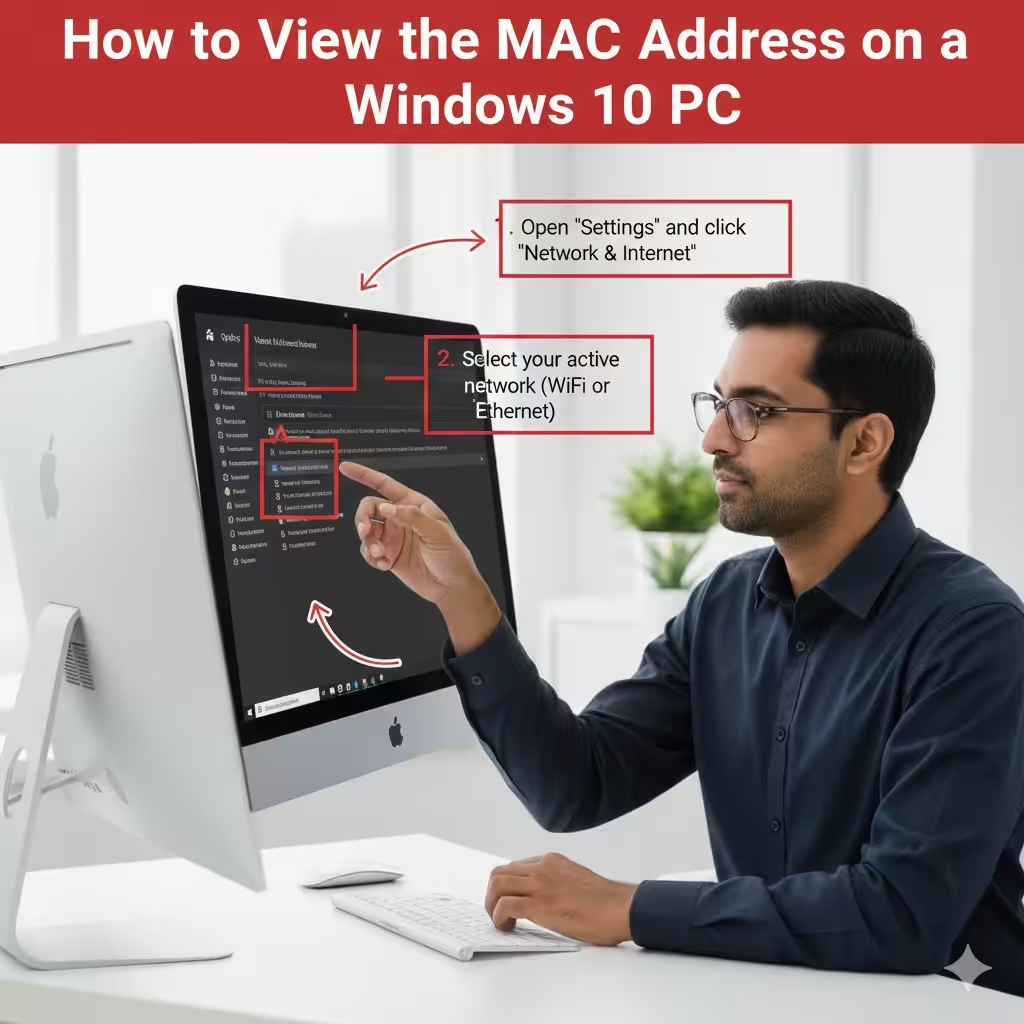
How to View the MAC Address on a Windows 10 PC
Every device connected to a network has a unique identifier known as a MAC address (Media Access Control address). This 12-digit hexadecimal number helps networks identify devices, manage permissions, and ensure secure communication. On Windows 10, finding the MAC address is a simple task, but the steps may vary depending on the method you choose. Whether you’re configuring a router, troubleshooting network issues, or setting up device filtering, knowing how to locate your system’s MAC address is essential.
This comprehensive guide covers multiple methods for finding the MAC address on Windows 10, using settings, Command Prompt, PowerShell, Control Panel, and your network adapter properties.
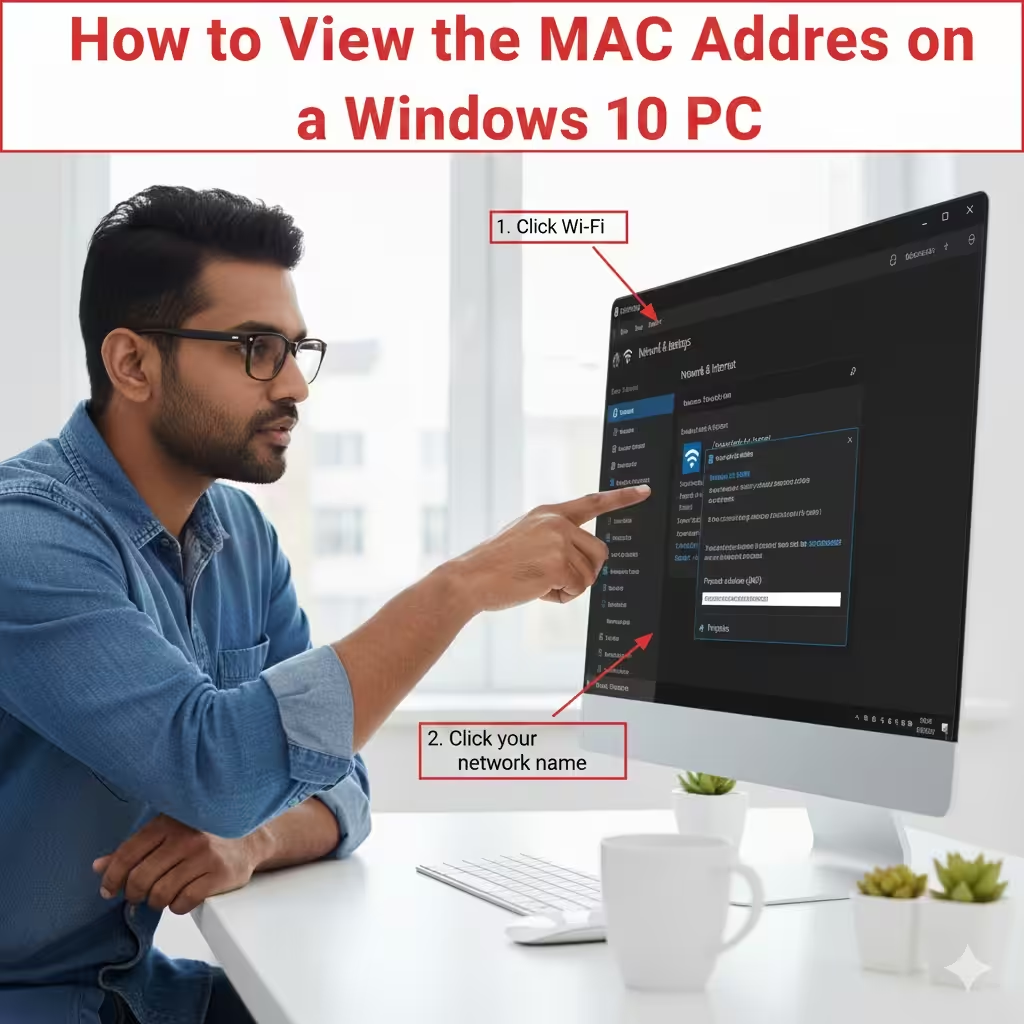
What Is a MAC Address?
A MAC address is a unique hardware identifier assigned to your network interface card (NIC). It’s made up of six pairs of characters (letters A–F and numbers 0–9), such as:
A1-B2-C3-D4-E5-F6
Each network adapter—Wi-Fi, Ethernet, or Bluetooth—has its own MAC address. This means your computer may have several MAC addresses if it supports multiple connection types.
Why You Might Need a MAC Address
Finding your MAC address is useful for several reasons:
-
Setting up MAC filtering on your router
-
Troubleshooting connectivity problems
-
Identifying devices on your network
-
Improving network security
-
Configuring static IP assignments
Understanding where to find this identifier helps streamline network management.
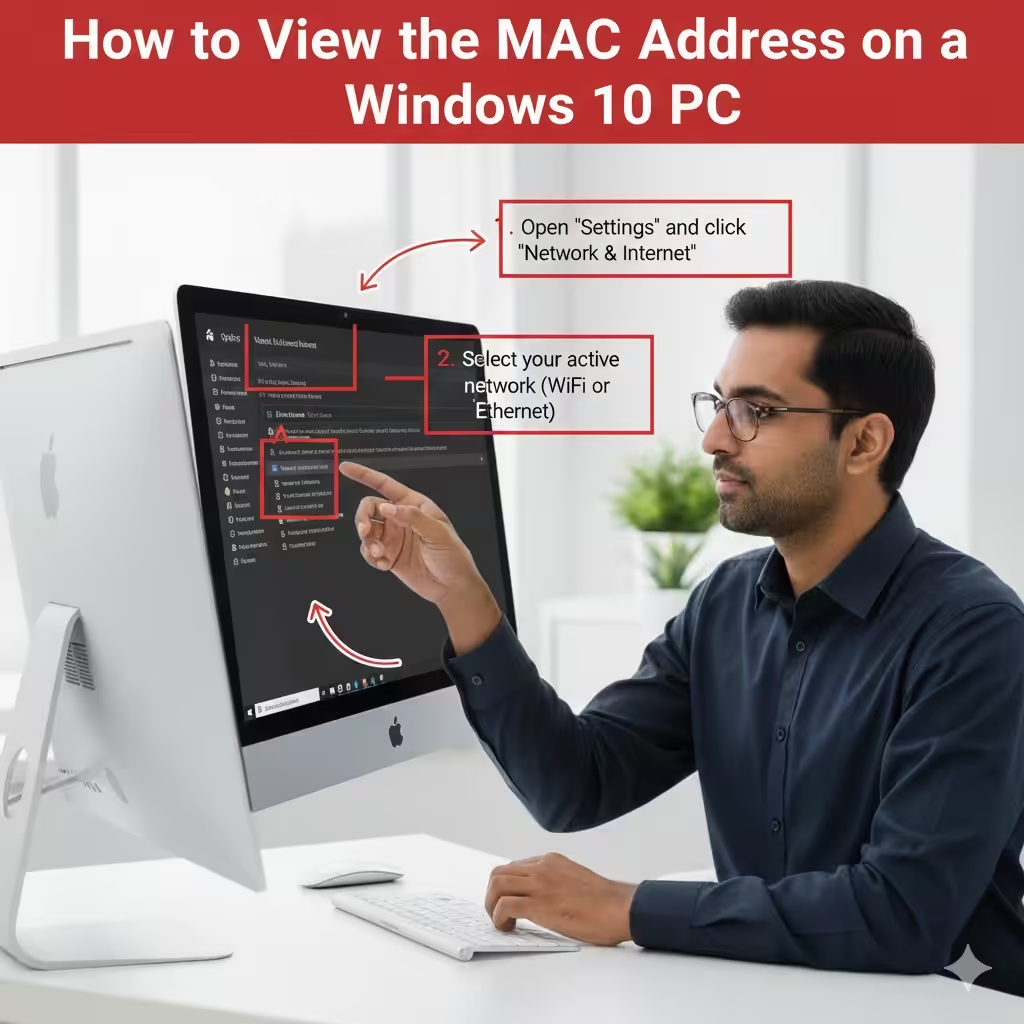
Find the MAC Address Using Windows Settings
The Settings app provides one of the simplest ways to locate your network adapter’s MAC address.
How to Find the MAC Address Through Settings
-
Open Settings by pressing Win + I.
-
Click Network & Internet.
-
Choose the type of connection you want to check:
-
Wi-Fi for wireless
-
Ethernet for wired
-
-
Click on the network name you’re connected to.
-
Scroll down to find Physical address (MAC).
You will see a 12-character value such as:
00-1A-2B-3C-4D-5E
This is the MAC address for the selected network adapter.
Why Use This Method?
This method is beginner-friendly and ideal if you need the MAC address of the adapter currently in use. It also displays useful information such as IP address, signal strength (Wi-Fi), and connection properties.
Find the MAC Address Using Command Prompt
If you prefer a command-line approach or need MAC addresses for all network adapters, the Command Prompt is an excellent tool.
Steps to View MAC Addresses Using Command Prompt
-
Press Win + R, type cmd, and press Enter.
-
In the Command Prompt window, type:
-
Press Enter.
This command lists detailed network configuration information for every adapter on your device.
Where to Locate the MAC Address in the Output
Look for the adapter you want to check. Under each adapter, the MAC address appears as:
Physical Address . . . . . : 00-0C-29-AB-7E-9F
You might see several adapters listed (Wi-Fi, Ethernet, Bluetooth, virtual adapters, VPNs). Identify the active one by checking the “Media State” or “IPv4 Address.”
Why Use Command Prompt?
-
Displays all adapters in one place
-
Shows more technical details
-
Works even if the Settings app is inaccessible
-
Preferred by IT professionals and advanced users
Find the MAC Address Using PowerShell
PowerShell offers another quick method with clean output.
How to Check MAC Addresses with PowerShell
-
Right-click the Start button.
-
Select Windows PowerShell or PowerShell.
-
Type the following command:
-
Press Enter.
This displays all network adapters along with their corresponding MAC addresses.
Optional Detailed Command
To see more detailed information:
This command expands all information per adapter, making it easier to identify the correct one.
Benefits of Using PowerShell
-
Clean, readable output
-
Faster than typing “ipconfig /all”
-
Works well with scripts or advanced network configurations
Find the MAC Address Using Control Panel
Though older than Windows Settings, the Control Panel still provides a reliable way to access network configuration.
Steps to Find the MAC Address via Control Panel
-
Open the Control Panel.
-
Go to Network and Internet.
-
Click Network and Sharing Center.
-
Select Change adapter settings on the left.
-
Right-click the network adapter you want to check.
-
Choose Status.
-
Click Details.
Look for Physical Address, which shows the MAC address.
Why This Method Is Helpful
This path allows you to quickly check the status and properties of each adapter and is familiar to users of older Windows versions.
Find the MAC Address From Network Adapter Properties
Another way to retrieve the MAC address is through Device Manager.
How to View MAC Address in Device Manager
-
Press Win + X and choose Device Manager.
-
Expand Network adapters.
-
Right-click your network adapter.
-
Select Properties.
-
Go to the Advanced tab.
-
Look for Network Address or Locally Administered Address.
If your MAC address isn’t displayed directly, it may show under the Details tab:
-
Select Property: Network Address
-
View the value listed
When This Method Is Useful
This method is useful when you want to verify if a MAC address has been manually changed, spoofed, or configured by software.
Find the MAC Address Using System Information
System Information provides a complete hardware summary.
Steps to Use System Information
-
Press Win + R, type msinfo32, and press Enter.
-
Expand Components.
-
Select Network → Adapter.
Scroll through the entries to find MAC Address, typically labeled as:
MAC Address: 00-50-56-C0-00-01
Benefits
-
Shows all adapters including virtual ones
-
Provides detailed technical specs
-
Helpful for diagnosing hardware-related issues
Find the MAC Address by Checking Your Router
You can also find your device’s MAC address directly from your router’s management interface—useful if the PC is offline.
How to Find the MAC Address via Router
-
Log in to your router’s admin page (usually 192.168.1.1 or 192.168.0.1).
-
Go to Connected Devices, LAN Status, or DHCP Clients.
-
Look for your PC’s name or IP.
-
The MAC address will be displayed next to the device.
Why Use This Method?
If your computer cannot boot, connect to Wi-Fi, or enter Windows, checking the router is often the only available method.
MAC Address Formats You May See
Windows may display the MAC address in different formats:
-
00-1A-2B-3C-4D-5E (hyphen-separated)
-
00:1A:2B:3C:4D:5E (colon-separated)
-
001A2B3C4D5E (no separators)
All represent the same identifier.
Final Thoughts
Finding the MAC address on Windows 10 is easy, and multiple methods are available depending on your preference and needs. Whether you use the Settings app for simplicity, Command Prompt or PowerShell for detailed information, or Control Panel and System Information for legacy access, each approach reliably shows the MAC address of your network adapters.
Knowing how to access this information helps with network troubleshooting, device setup, and managing secure connections. By following the steps in this guide, you can quickly locate your MAC address and manage your Windows 10 networking features with confidence.