


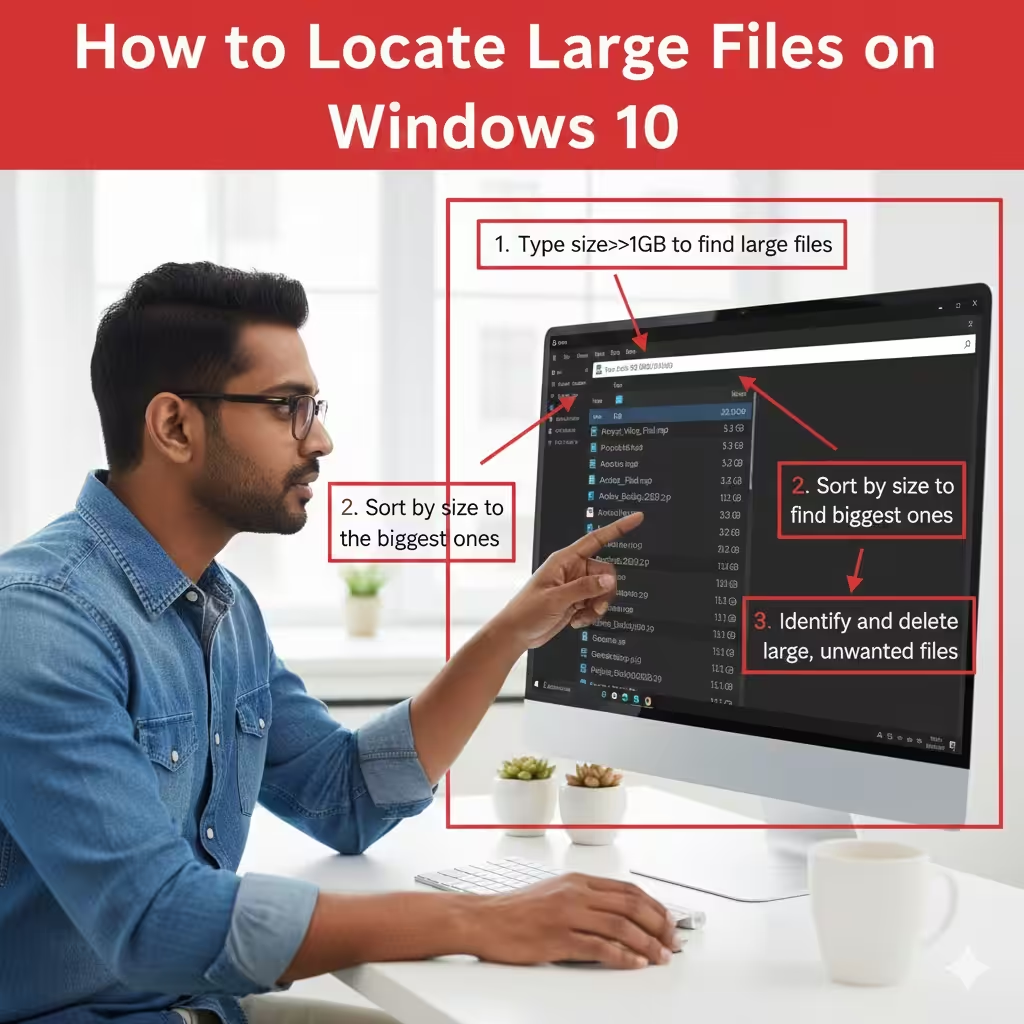
How to Locate Large Files on Windows 10
Over time, your Windows 10 computer can accumulate large files that take up valuable disk space, slow down performance, and prevent you from installing updates or new applications. Whether these files come from old downloads, system logs, temporary files, or forgotten media, locating and removing them is crucial for keeping your system running smoothly. Fortunately, Windows offers multiple built-in tools and methods to help you track down space-consuming items quickly and safely.
This comprehensive guide covers various ways to find large files on Windows 10, including File Explorer, Storage Sense, third-party tools, Command Prompt, PowerShell, and more.
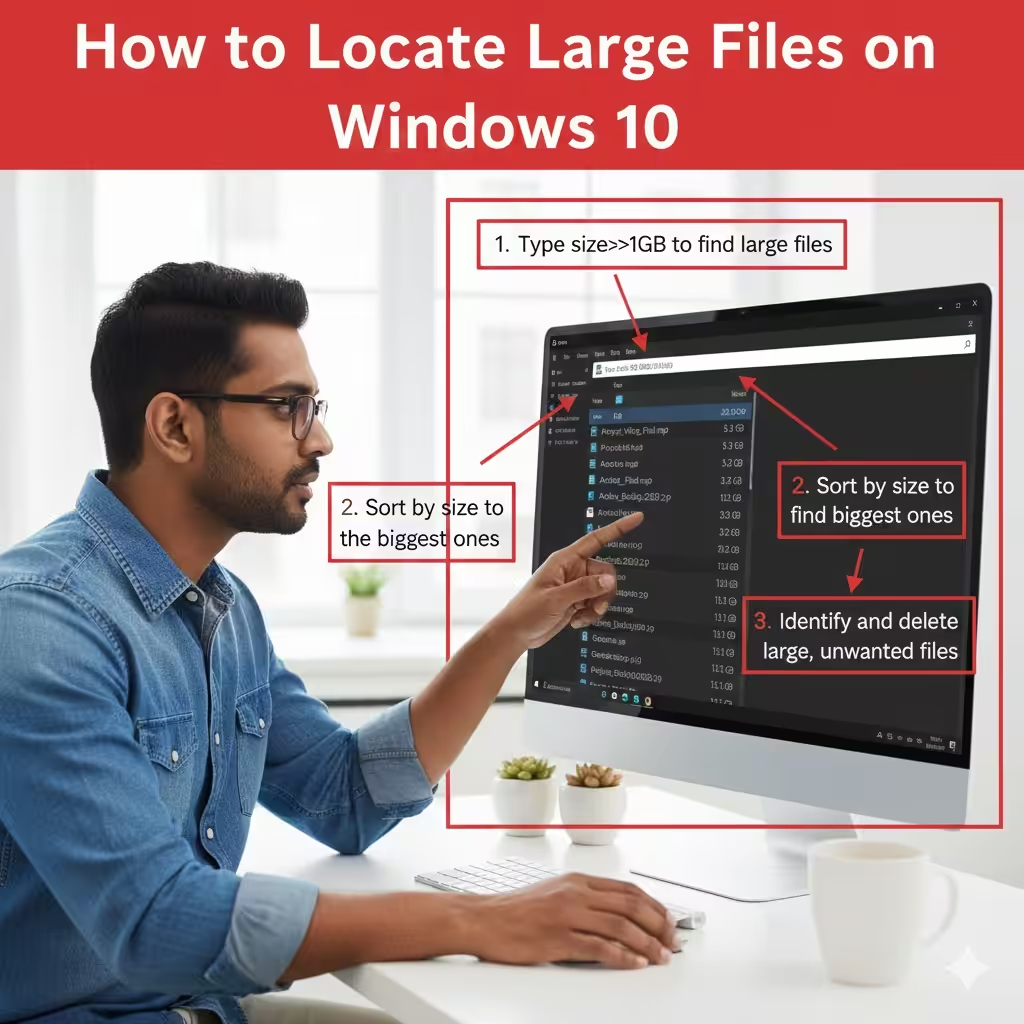
Why Finding Large Files Matters
Large files consume significant storage space, especially on SSDs with limited capacity. Identifying them offers several benefits:
-
Improves system performance
-
Frees up space for updates and apps
-
Helps manage storage more efficiently
-
Prevents disk-full warnings
-
Makes it easier to organize your files
Whether you’re cleaning up your PC or preparing for a major update, finding these large files is an essential maintenance step.
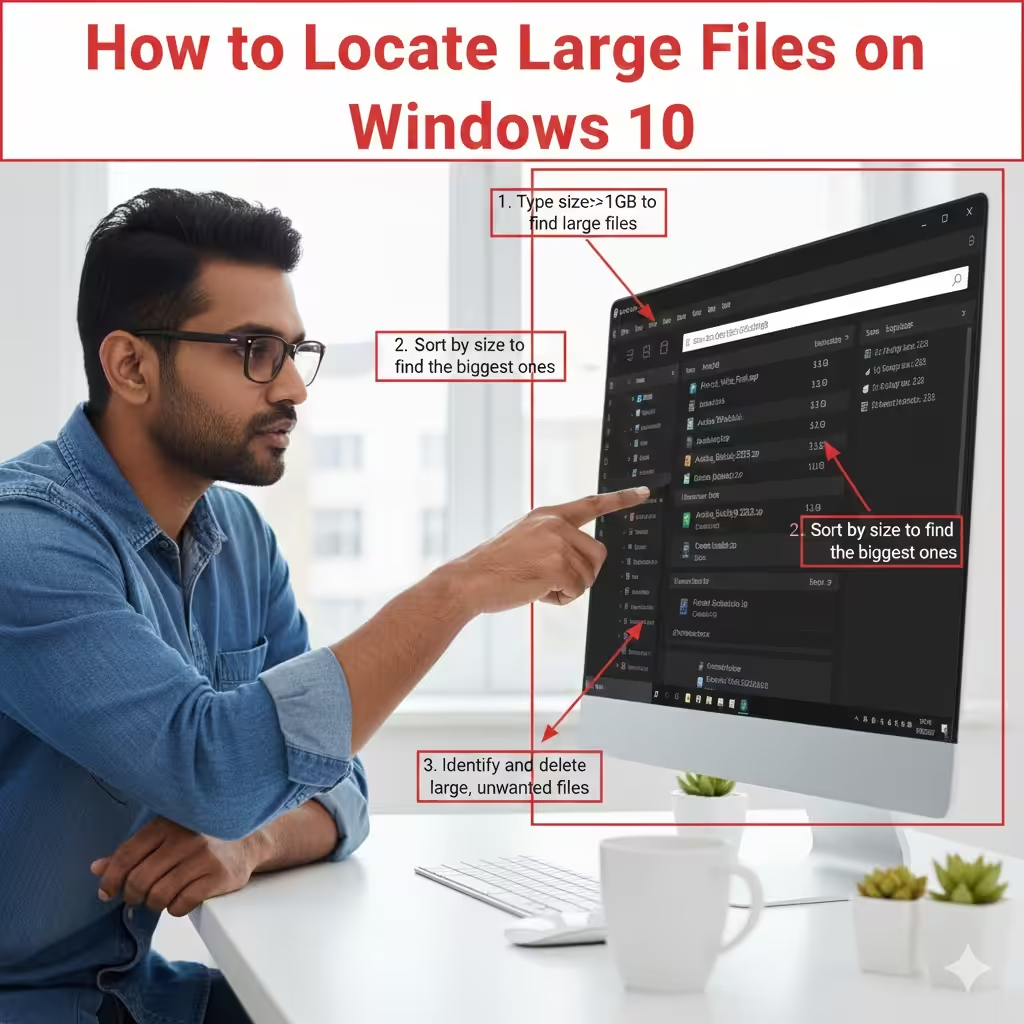
Use File Explorer Search to Find Large Files
File Explorer offers built-in filters to help you easily locate files based on their size.
How to Search for Large Files Using File Explorer
-
Press Win + E to open File Explorer.
-
Navigate to the drive you want to search (e.g., C:).
-
Click the Search box in the top-right corner.
-
Type:
You can replace 1GB with:
-
size:>500MB -
size:>2GB -
size:giant(128MB–1GB) -
size:huge(16MB–128MB)
-
Press Enter and let Windows scan the drive.
Why This Method Is Effective
File Explorer filters files instantly and allows sorting by size, date, and type. You can also right-click any result to open the file location, delete it, or inspect properties.
Use Storage Sense to Locate Large Files
Storage Sense is a built-in Windows feature that analyzes disk usage and highlights large items.
How to Find Large Files with Storage Sense
-
Open Settings using Win + I.
-
Go to System.
-
Select Storage.
-
Click on the drive (usually Local Disk (C:)).
-
Under Storage Breakdown, review categories like:
-
Temporary files
-
Apps & features
-
Pictures
-
Videos
-
Other files
-
Storage Sense sorts files and categories by size, making it easy to spot the heaviest items.
Extra Tip: Use “View Large or Unused Files”
Some builds of Windows 10 include an option called View large or unused files under Storage Sense. This helps you identify items you may have forgotten about.
Use Command Prompt to Find Large Files
Command Prompt lets you scan directories for large files with advanced filtering.
How to Search for Large Files via CMD
-
Open Command Prompt as administrator.
-
Enter the command below (searching for files over 1GB):
Replace 1073741824 with another size in bytes as needed.
Why Use Command Prompt?
CMD is extremely fast and can scan even massive drives without freezing or lagging. It’s ideal for power users and administrators.
Use PowerShell to Find Large Files
PowerShell offers more control and flexibility than CMD for locating large files.
Use This PowerShell Command
-
Open PowerShell as administrator.
-
Run:
This command scans the C drive recursively, sorts results by file size, and displays the largest files first.
Advantages of PowerShell
-
More detailed output
-
Faster than File Explorer
-
Customizable filters
-
Helpful for advanced users or IT technicians
Use WinDirStat to Visually Identify Large Files
WinDirStat is a popular free tool that gives you a visual map of your storage.
How WinDirStat Works
-
Each folder and file is represented as a block.
-
Larger blocks = larger files.
-
Color-coding shows file types (videos, documents, archives, etc.).
Why It’s Useful
WinDirStat makes it incredibly easy to spot huge files at a glance, especially those hidden deep within folders.
Use TreeSize Free to Scan for Large Files
TreeSize Free is another third-party tool widely used for disk analysis.
Key Features
-
Displays folder sizes in a tree structure
-
Sorts by largest folders or files
-
Allows filtering by file type or extension
-
Scans network drives
TreeSize is especially useful if you’re dealing with storage problems on external drives or servers.
Check the Downloads, Videos, and Pictures Folders
Some of the largest files on your PC often come from everyday usage.
Common Places Where Large Files Accumulate
-
Downloads: installers, archives, update files
-
Videos: screen recordings, camera footage
-
Pictures: RAW images, old photo collections
-
Documents: backups, exported files
-
Desktop: mistakenly stored large items
Make sure to review, sort, or delete unnecessary items from these folders regularly.
Look for ISO, ZIP, and RAR Files
Many large files come in archive formats or disk images.
Examples of Large File Types
-
.iso— system images -
.zip/.rar— compressed folders -
.mp4/.mov— videos -
.psd— Photoshop files -
.bak— backup files
Use File Explorer search filters like:
This helps you locate forgotten archives that may be consuming gigabytes of space.
Check for Old Backups and System Images
Windows and other software may automatically create backups or restore points, which can grow very large.
Where These Files Are Stored
-
Windows System Image Backup (under FileHistory)
-
Backup folders created by applications
-
Old restore points
-
Shadow copies
Consider removing outdated backups if you’re confident they’re no longer needed.
Clean Up Temporary Files
Temporary files can easily grow into gigabytes over time.
How to Delete Temp Files
-
Press Win + R, type temp, and press Enter.
-
Delete everything in the folder.
-
Repeat with:
You can also use:
-
Disk Cleanup
-
Storage Sense’s Temporary Files section
Final Thoughts
Finding large files on Windows 10 is essential for freeing up space, especially on devices with smaller drives. With tools like File Explorer, Storage Sense, Command Prompt, PowerShell, and third-party applications such as WinDirStat and TreeSize, you can quickly identify and remove unwanted large files.
Regularly scanning your PC ensures smoother performance, makes room for updates, and helps you stay organized. By following the steps in this guide, you’ll be able to manage your storage more effectively and keep your Windows 10 system running efficiently.