


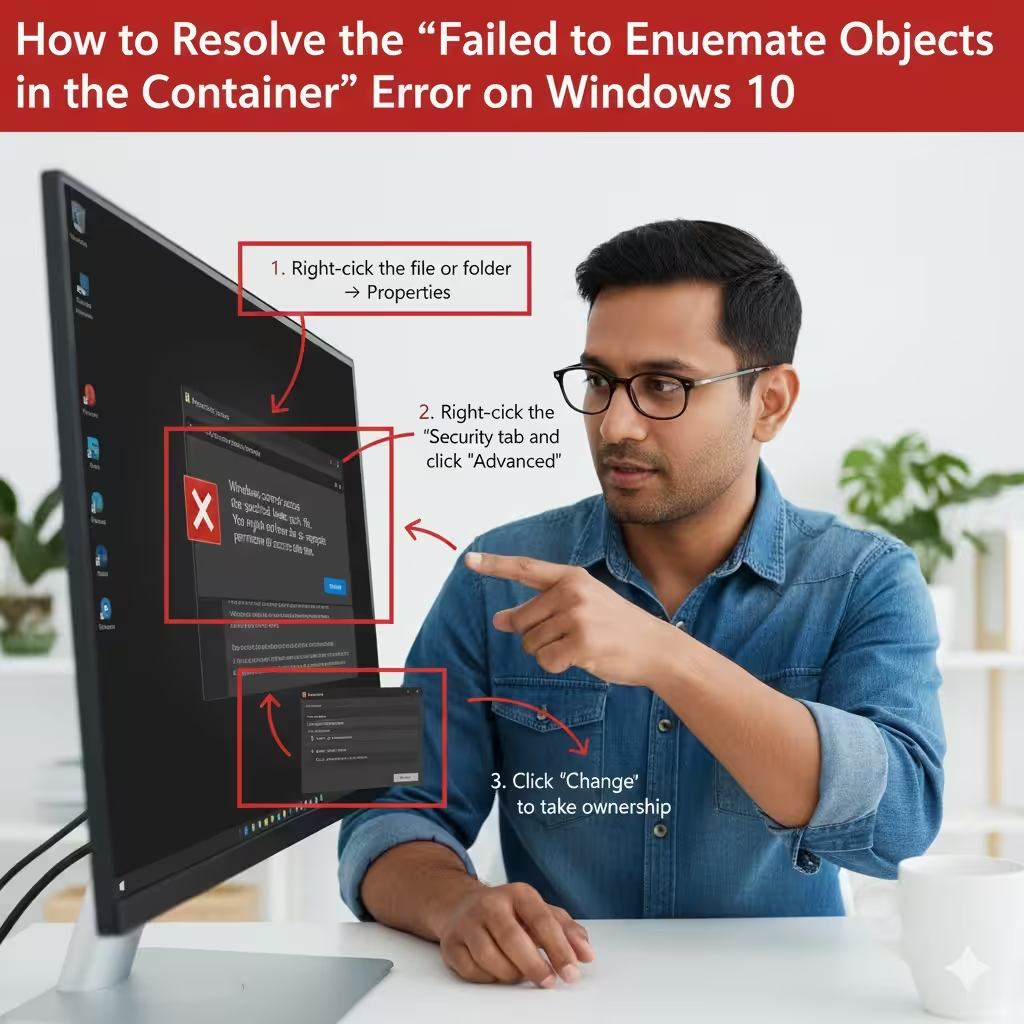
How to Resolve the “Failed to Enumerate Objects in the Container” Error on Windows 10
The “Failed to Enumerate Objects in the Container” error on Windows 10 usually appears when you try to change the permissions of a file or folder. This problem prevents you from modifying ownership or access rights and can interrupt important tasks like sharing files, installing applications, or performing administrative actions. Fortunately, there are several effective methods to fix this error and regain control over your files.
This guide explains the causes, solutions, and step-by-step instructions to help you resolve the issue quickly and safely.
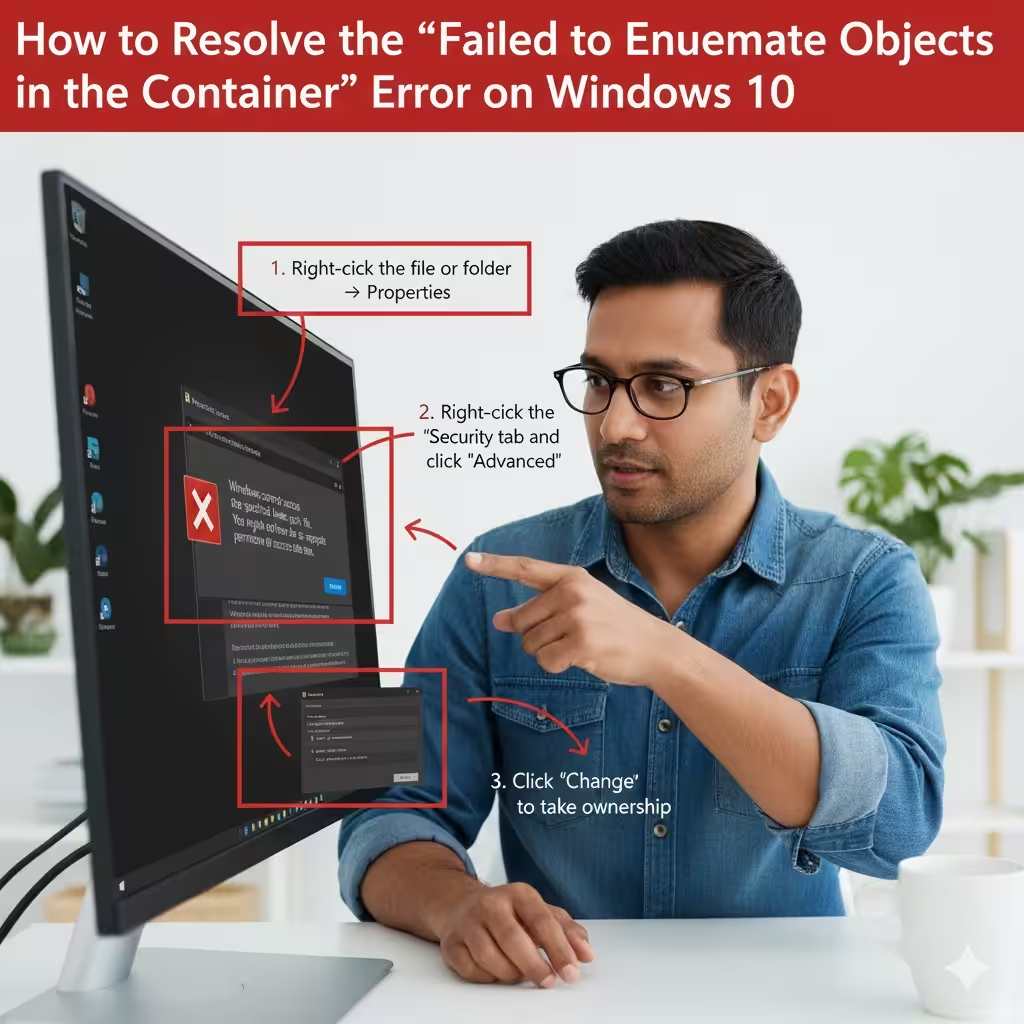
What Causes the “Failed to Enumerate Objects in the Container” Error?
This error typically occurs when Windows cannot read the security information from a file or folder. The most common causes include:
-
Corrupted file permissions
-
Insufficient administrative rights
-
Damaged system files
-
Conflicts from third-party security software
-
Restricted access inherited from parent folders
-
Incorrect ownership of files or directories
Understanding the reason behind the error helps you apply the right fix.
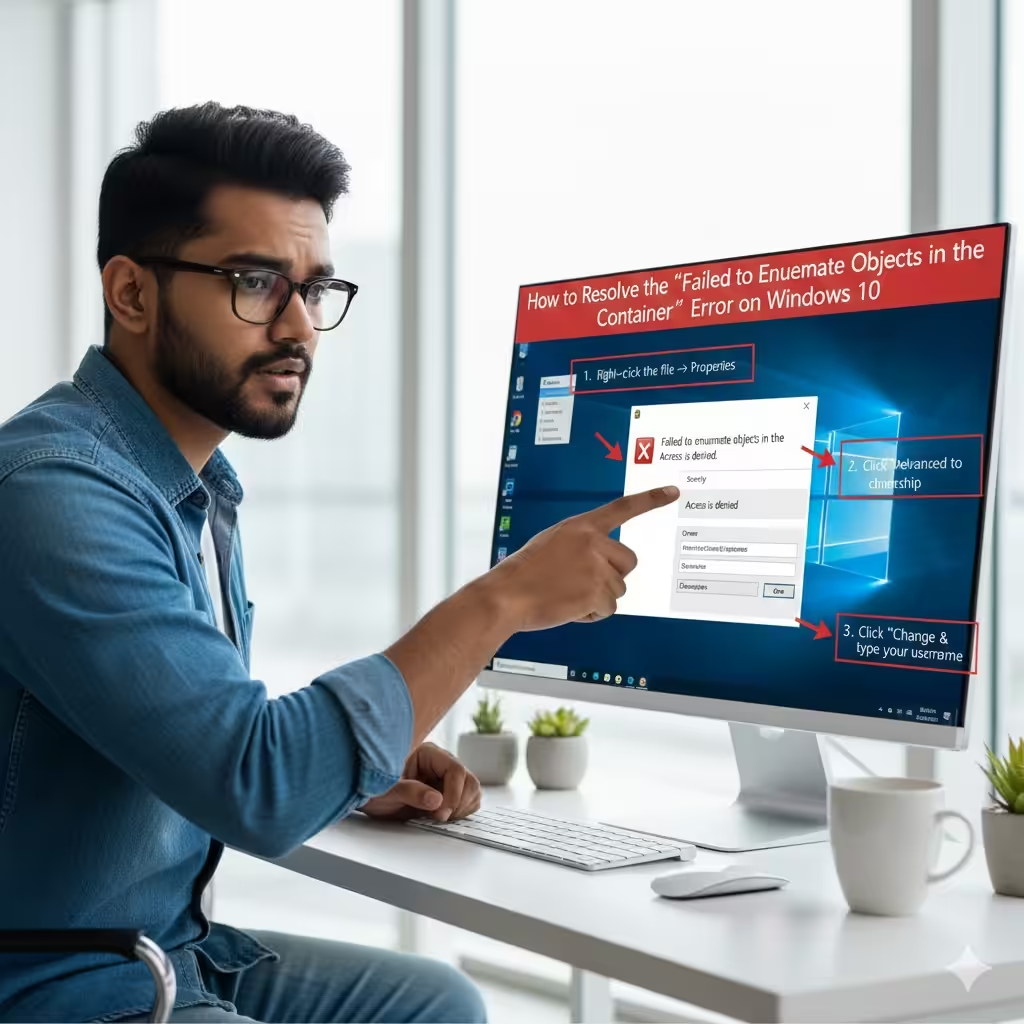
Fix 1: Change Ownership of the File or Folder
The most effective method to resolve this error is to take ownership of the affected file or folder.
Step-by-Step: Change Ownership
-
Right-click the file or folder causing the error.
-
Select Properties.
-
Open the Security tab.
-
Click Advanced.
-
Look for Owner at the top and click Change.
-
Type your Windows username in the field.
-
Click Check Names to confirm.
-
Select OK.
-
Check the box Replace owner on subcontainers and objects.
-
Click Apply and then OK.
After taking ownership, try changing the permissions again and check if the error is gone.
Fix 2: Give Yourself Full Control Permissions
Once ownership is transferred, you may still need to assign full control to your account.
How to Set Full Control
-
Right-click the folder.
-
Choose Properties → Security tab.
-
Click Edit.
-
Select your user account.
-
Check the box next to Full Control.
-
Click Apply → OK.
If the permission update succeeds, the error should be resolved.
Fix 3: Disable User Account Control (UAC) Temporarily
Microsoft includes a feature called User Account Control, which helps protect your system by preventing unauthorized changes. However, it may sometimes interfere with editing permissions.
Steps to Disable UAC
-
Press Win + R, type control, and press Enter.
-
Open User Accounts.
-
Select Change User Account Control settings.
-
Drag the slider to Never notify.
-
Click OK.
-
Restart your PC.
Try adjusting the folder permissions again. Remember to re-enable UAC afterward for security.
Fix 4: Use Command Prompt to Take Ownership
If the graphical interface doesn’t work, Command Prompt can help you bypass restrictions.
Using Command Prompt to Take Ownership
-
Press Start, type Command Prompt.
-
Right-click and choose Run as administrator.
-
Enter the following command to take ownership:
-
Then assign full control:
-
Press Enter after each command.
After the commands run, check if the folder permissions update successfully.
Fix 5: Turn Off Third-Party Security Software
Some third-party antivirus or security tools restrict permission changes. Programs like those from Avast or other security suites may block editing access.
Try the Following:
-
Disable real-time protection temporarily
-
Pause firewall features
-
Check if the antivirus has “Folder protection” or “Ransomware shield” features
-
Attempt the permission change again
If the fix works, add the folder to the antivirus exclusion list.
Fix 6: Restart Your PC in Safe Mode
Safe Mode loads only essential services, which can prevent other applications from blocking permission changes.
How to Boot into Safe Mode
-
Open Settings.
-
Go to Update & Security.
-
Click Recovery.
-
Under Advanced startup, choose Restart now.
-
Select Troubleshoot → Advanced options → Startup Settings.
-
Click Restart.
-
Choose Enable Safe Mode.
Once in Safe Mode, try editing the permissions again. Afterward, restart normally.
Fix 7: Disable Permission Inheritance
Some folders inherit complex permissions from their parent directory, causing conflicts.
Disable Inheritance
-
Right-click the folder → Properties.
-
Go to the Security tab → Advanced.
-
Click Disable inheritance.
-
Choose Convert inherited permissions into explicit permissions.
-
Apply the changes.
Now try adjusting the permissions manually.
Fix 8: Check and Repair System Files
Corrupted system files can prevent Windows from reading or modifying permissions.
Run SFC and DISM
-
Open Command Prompt as administrator.
-
Run the System File Checker:
-
After completion, run DISM:
-
Restart your computer.
Try again to adjust the folder permissions.
Fix 9: Create a New Administrator Account
If your current Windows profile is corrupted, a new administrator account may solve the issue.
Create a New Account
-
Open Settings.
-
Go to Accounts → Family & other users.
-
Click Add someone else to this PC.
-
Select I don’t have this person’s sign-in information.
-
Choose Add a user without a Microsoft account.
-
Create a username and password.
-
Set the account type to Administrator.
Log in with the new account and try changing the file permissions again.
Fix 10: Reset Folder Permissions to Default
If the file or folder has many conflicting permissions, resetting everything may help.
Reset Permissions via Command Prompt
-
Open Command Prompt as admin.
-
Use this command:
-
Press Enter.
Windows will restore the folder’s permissions to its original settings.
Final Thoughts
The “Failed to Enumerate Objects in the Container” error on Windows can be frustrating, especially when you need full control over your files. Fortunately, most of the issues stem from permission conflicts or ownership problems, which can be resolved with the methods above.
By taking ownership, adjusting access rights, disabling restrictions, or using Command Prompt tools, you can regain control over your folders and continue your work without interruption. If the problem persists, consider repairing system files or creating a new administrator account.