


Troubleshooting the “No Audio Output Device Installed” Issue on Windows 10
Seeing the message “No Audio Output Device Is Installed” on your computer can be frustrating—especially when you need sound for work, entertainment, or communication. This issue usually means your system cannot detect or properly use the audio device. Fortunately, the problem is often fixable with a few troubleshooting steps.
This guide explains the causes of the error and provides detailed fixes you can follow on your own. Each solution is written in clear steps so anyone can apply them confidently.
Common Causes of the Audio Device Not Installed Error
Before diving into the solutions, it’s helpful to understand why this problem occurs. The most common causes include:
-
Corrupted or missing audio drivers
-
Disabled audio device
-
Hardware conflicts after updates
-
Outdated system files
-
Incorrect BIOS or system settings
-
Damaged audio components (rare)
By identifying the possible cause, you’ll be able to apply the most effective fix.
Restart Your Computer First
You should begin with a simple system restart. A temporary glitch can cause the operating system to misread your audio hardware.
Steps:
-
Click Start.
-
Select Power.
-
Choose Restart.
If the error persists after restarting, continue with the steps below.
Update or Reinstall the Audio Driver
Many users experience the “No Audio Output Device Is Installed” error due to broken or missing drivers.
Update the Audio Driver
-
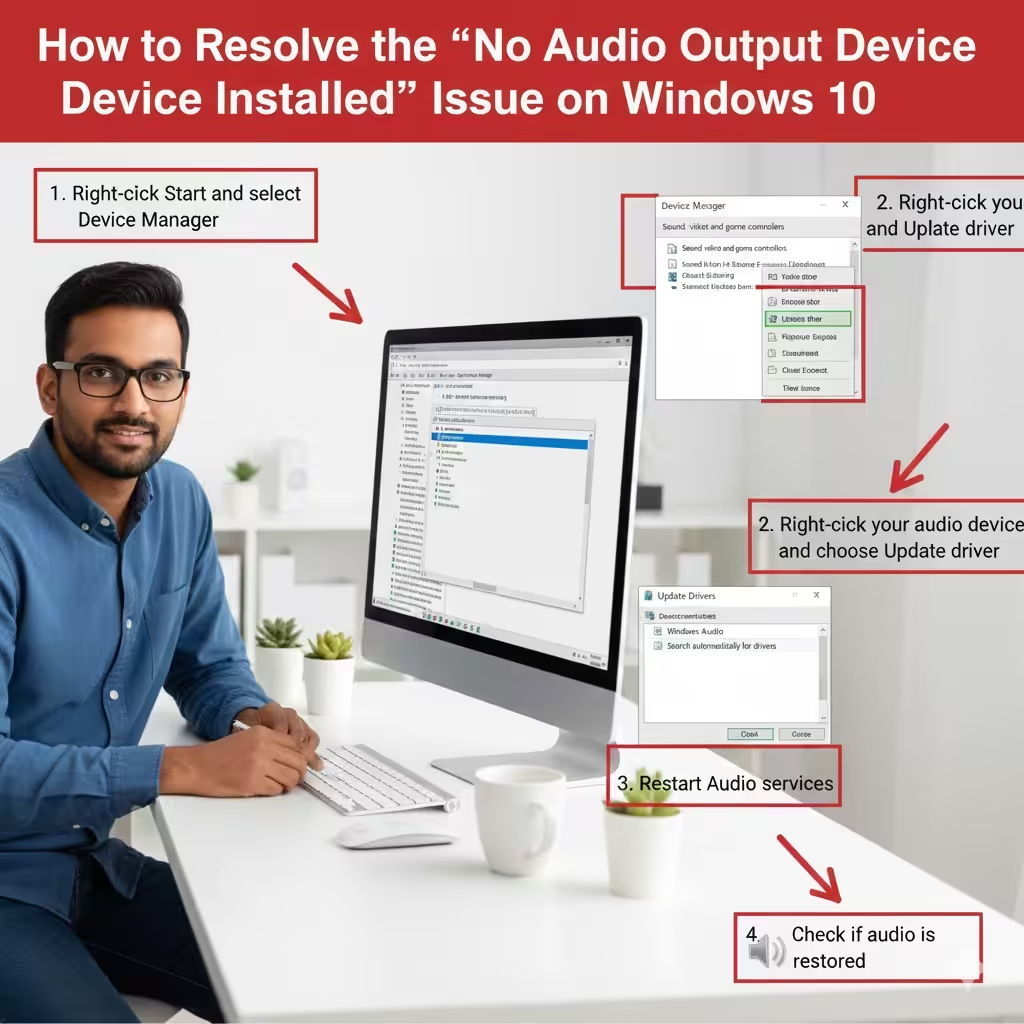
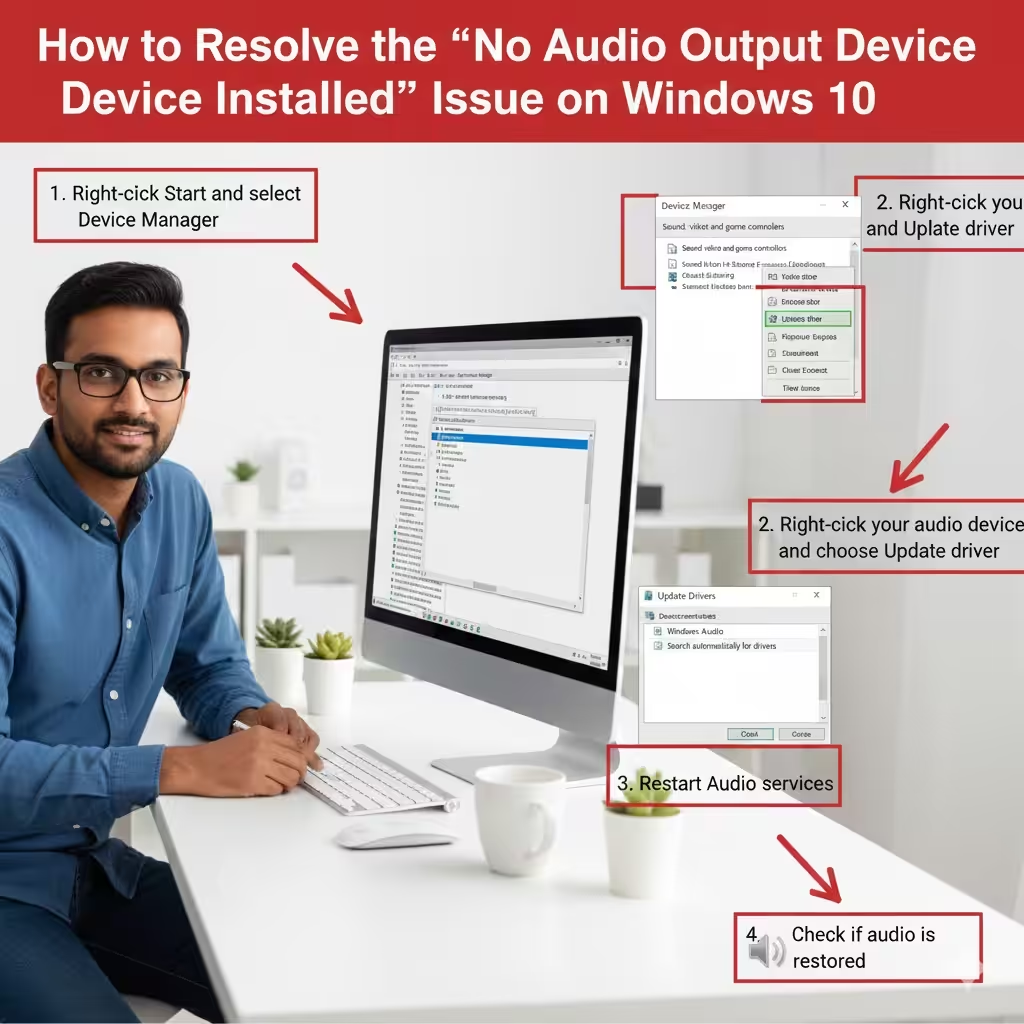
Right-click Start and select Device Manager.
-
Expand Sound, video and game controllers.
-
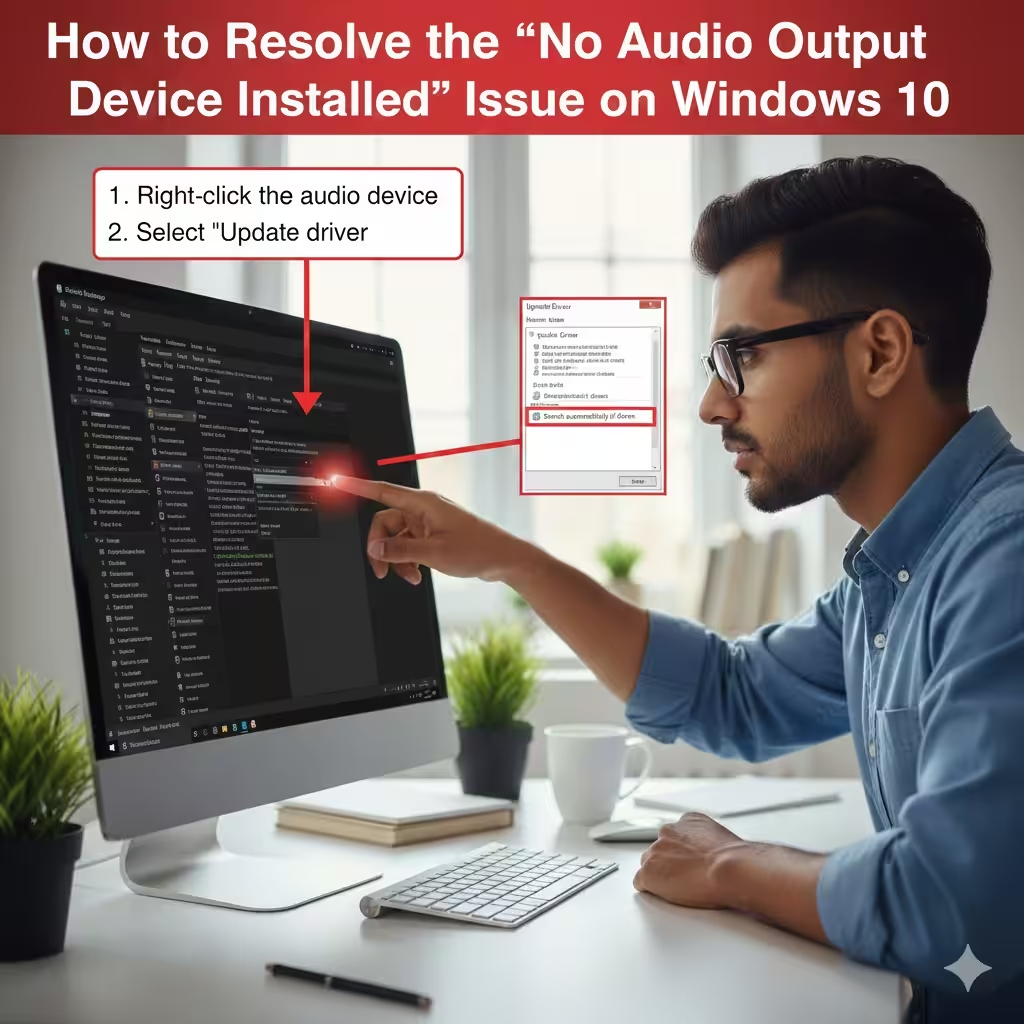
Right-click your audio device (e.g., Realtek, High Definition Audio).
-
Select Update driver.
-
Choose Search automatically for drivers.
Restart your PC and check if audio is restored.
Reinstall the Audio Driver
Sometimes updating is not enough. Reinstalling ensures the driver is completely refreshed.
-
Open Device Manager.
-
Right-click the audio device.
-
Select Uninstall device.
-
Check Delete the driver software for this device if available.
-
Restart your PC.
Microsoft will automatically install the proper driver during reboot.
Enable the Audio Device in Device Manager
If the audio device is disabled, Windows cannot use it.
-
Open Device Manager.
-
Expand Sound, video and game controllers.
-
If you see a downward arrow on the audio device, it is disabled.
-
Right-click it and choose Enable device.
Check to see if the sound icon appears again in the taskbar.
Run the Windows Audio Troubleshooter
Troubleshooters often detect issues automatically and apply recommended fixes.
-
Open Settings.
-
Go to Update & Security.
-
Select Troubleshoot.
-
Click Additional troubleshooters.
-
Choose Playing Audio and click Run the troubleshooter.
Follow the on-screen suggestions and restart your PC if prompted.
Restart Windows Audio Services
If audio services stop working, your system will not produce sound even with working drivers.
-
Press Win + R, type services.msc, and press Enter.
-
Look for the following services:
-
Windows Audio
-
Windows Audio Endpoint Builder
-
Remote Procedure Call (RPC)
-
-
For each service:
-
Right-click and select Restart.
-
Ensure Startup type is set to Automatic.
-
After restarting the services, check if audio returns.
Install the Latest Windows Updates
Missing updates can cause hardware conflicts or outdated drivers.
-
Open Settings.
-
Select Update & Security.
-
Click Windows Update.
-
Select Check for updates.
Install all available updates, reboot your system, and test the audio.
Check for Hidden Devices in Device Manager
The audio device may be hidden due to corruption.
-
Open Device Manager.
-
Click View.
-
Select Show hidden devices.
-
Look again under Sound, video and game controllers.
-
If audio devices appear in gray, right-click and uninstall them.
-
Restart your PC.
Windows will reinstall fresh audio drivers.
Use System Restore
If the issue started after an update or installation, a restore point may fix it.
-
Press Win + R, type rstrui, press Enter.
-
Choose Choose a different restore point.
-
Select a date when the audio worked properly.
-
Click Next → Finish.
Your PC will reboot and restore the system settings.
Check BIOS Audio Settings
In rare cases, the audio device is disabled in BIOS.
-
Restart your PC.
-
Press the required key (often F2, Del, or F10) to enter BIOS.
-
Look for settings like Onboard Audio, Integrated Audio, or HD Audio.
-
Make sure it is Enabled.
-
Save changes and restart.
Test with External Audio Devices
You can plug in:
-
USB headphones
-
USB speakers
-
Bluetooth audio devices
If these work, the issue may be with the internal sound card.
Perform a Clean Installation of Windows (Last Resort)
If none of the above solves the issue, your system files may be heavily damaged.
A clean installation resets the system completely.
Before proceeding, back up all files.
You can download installation media using the Windows Media Creation Tool.
This step is recommended only when all other troubleshooting methods fail.
Final Thoughts
The “No Audio Output Device Is Installed” error on Windows 10 can be annoying, but in most cases, it’s easy to fix with the right steps. By updating drivers, enabling audio devices, and restarting essential services, you can restore sound to your system quickly. Hardware failures are rare, so software-based solutions usually resolve the problem.