


Ways to Resolve the Battery Icon Not Showing or Grayed Out on Windows 10
The battery icon in Windows 10 is an essential part of your taskbar, especially if you are using a laptop. It helps you keep track of your device’s battery percentage, charging status, and power mode. However, many users encounter an issue where the battery icon is missing, invisible, or grayed out. This problem can occur due to taskbar settings, disabled system icons, outdated drivers, or system glitches.
This guide walks you through all the possible solutions to restore your missing battery icon and keep your device running smoothly.
Why the Battery Icon Goes Missing or Appears Grayed Out
Several factors can cause the power icon to disappear from the taskbar. The most common reasons include:
-
The battery icon is turned off in taskbar settings
-
The system icon for power is disabled
-
Windows Explorer encountered a glitch
-
Outdated or disabled battery drivers
-
Corrupted system files
-
Recent updates or setting changes
-
Taskbar configuration errors
Understanding the cause helps you apply the most effective fix.
Make Sure the Battery Icon Is Enabled in Taskbar Settings
The battery icon may simply be turned off in your taskbar settings.
How to check:
-
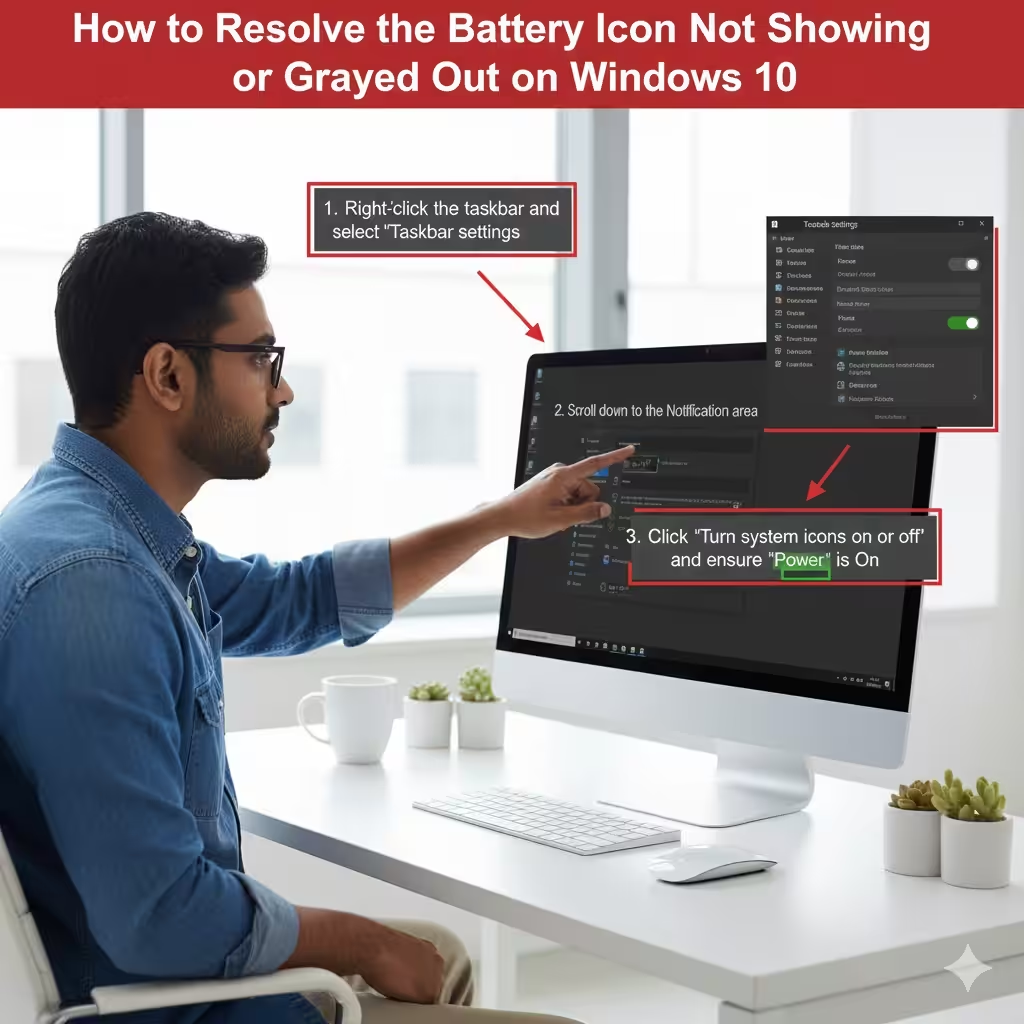
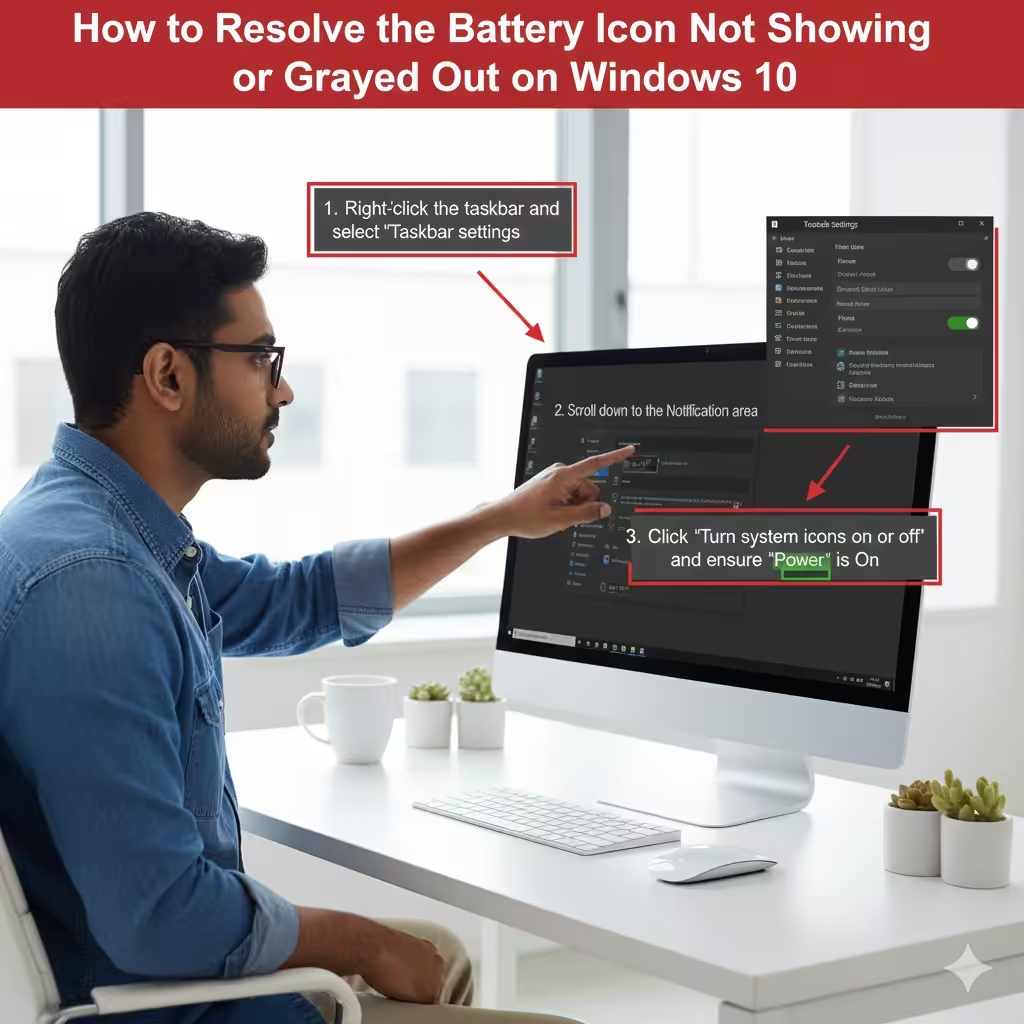
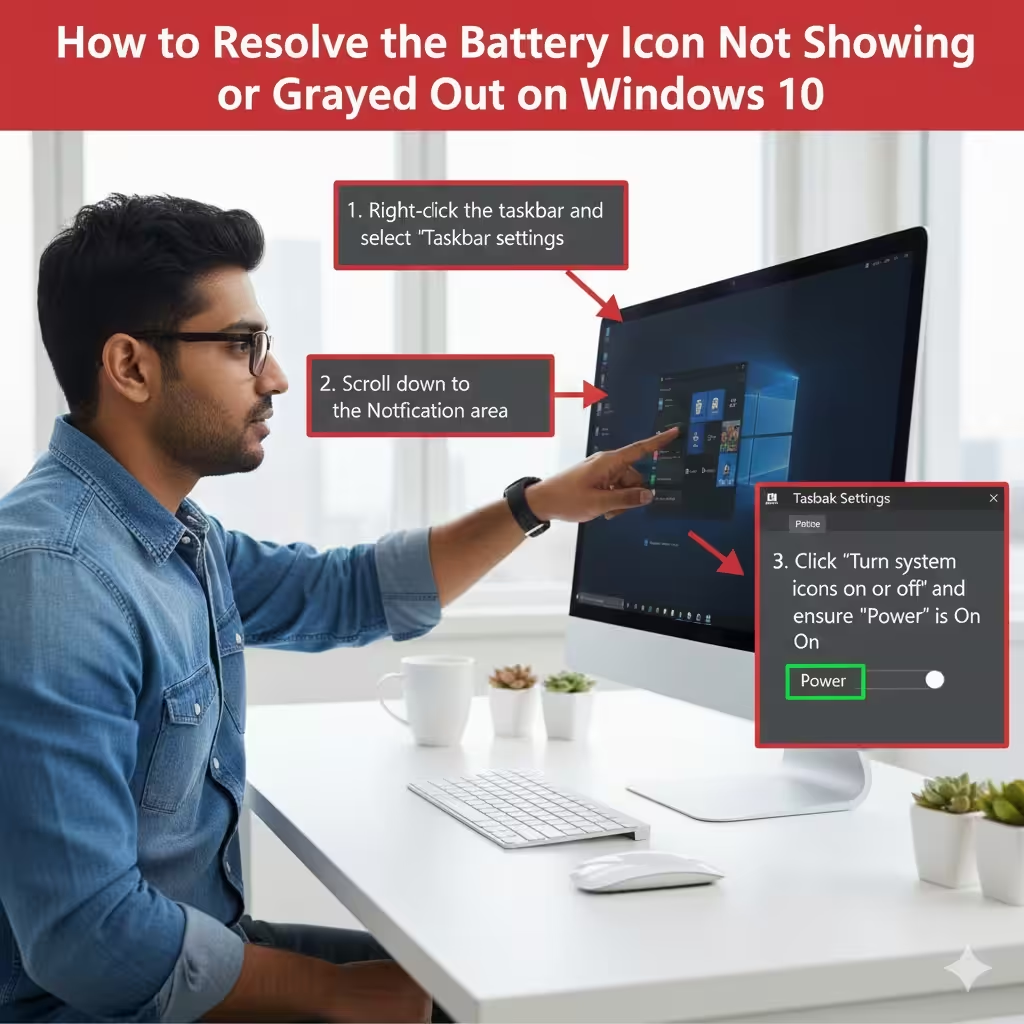
Right-click the taskbar.
-
Select Taskbar settings.
-
Scroll down to Notification area.
-
Click Turn system icons on or off.
-
Ensure Power is toggled On.
If the Power option is grayed out, move to the next fix.
Enable Battery Icon Through “Select Which Icons Appear on the Taskbar”
Windows may be hiding the icon even if it’s enabled.
Steps:
-
Open Taskbar settings again.
-
Click Select which icons appear on the taskbar.
-
Look for Power or Battery.
-
Turn the toggle On.
Now check if the battery icon appears in the notification area.
Restart Windows Explorer
Sometimes the taskbar or icons might freeze, making the battery icon disappear. Restarting Windows Explorer refreshes the taskbar.
To restart it:
-
Press Ctrl + Shift + Esc to open Task Manager.
-
Go to the Processes tab.
-
Find Windows Explorer.
-
Right-click it and choose Restart.
After a few seconds, your taskbar reloads. Check if the icon has returned.
Update or Reinstall Battery Drivers
Outdated or corrupted drivers can cause the power icon to disappear.
How to update your battery drivers:
-
Press Win + X → Device Manager.
-
Expand Batteries.
-
Right-click each option such as:
-
Microsoft AC Adapter
-
Microsoft ACPI-Compliant Control Method Battery
-
-
Select Update driver.
-
Restart your PC.
If updating doesn’t help, reinstall:
-
Right-click the same drivers.
-
Select Uninstall device.
-
Restart your computer.
Windows will automatically reinstall the drivers.
Check Group Policy Settings (For Windows 10 Pro and Enterprise)
Some policy settings may hide system icons, including the battery icon.
Check using Local Group Policy Editor:
-
Press Win + R.
-
Type:
-
Navigate to:
-
Look for Hide the notification area.
-
Set it to Not Configured or Disabled.
Restart your PC and check if the battery icon appears.
Run the Power Troubleshooter
Windows includes built-in troubleshooters that automatically detect and repair battery and power issues.
To run it:
-
Open Settings → Update & Security.
-
Select Troubleshoot.
-
Click Additional troubleshooters.
-
Find and run Power.
-
Follow the instructions.
Once completed, restart your PC to apply the fixes.
Enable Power Icon Using the Registry Editor
If your battery icon remains grayed out, registry settings might be misconfigured.
⚠️ Warning: Editing the registry requires caution.
Steps to fix:
-
Press Win + R → type
regedit. -
Navigate to:
-
Look for keys related to EnableAutoTray or StuckRects3.
-
Delete or reset them if misconfigured.
Restart your PC and check if the icon comes back.
Check if Your Device Supports a Battery Indicator
Some desktop PCs, mini-PCs, or devices without internal batteries may not support a battery icon at all.
To verify:
-
Open Device Manager.
-
Check whether Batteries is listed.
-
If it’s missing, your device likely lacks battery support.
You may skip battery-specific fixes for unsupported systems.
Install Windows Updates
Missing icons are sometimes linked to Windows bugs fixed through updates.
To check for updates:
-
Go to Settings → Update & Security.
-
Select Check for updates.
-
Install available updates.
-
Restart your PC.
After rebooting, check the battery status icon again.
Restore Default Power Plans
Custom or corrupted power plans may prevent battery-related features from working correctly.
To reset power plans:
-
Open Command Prompt as Administrator.
-
Type the following and press Enter:
Restart your system afterwards.
Perform an SFC and DISM Scan for System File Corruption
Corrupted system files can break notification area features, including icons.
Run SFC scan:
Run DISM if needed:
After both scans, restart your PC.
Create a New User Account
In some cases, a corrupted user profile hides system icons.
Create a new user:
-
Go to Settings → Accounts.
-
Select Family & other users.
-
Click Add someone else to this PC.
-
Follow the setup steps.
Log into the new account and check if the battery icon appears.
Restore Taskbar Settings to Default
Misconfigured taskbar settings can hide system icons.
To reset taskbar settings:
-
Go to Settings → Personalization → Taskbar.
-
Restore defaults for:
-
Notification area
-
System icons
-
Start behaviors
-
A reset often restores missing icons.
Conclusion
The battery icon missing or grayed out in Windows 10 is a common but easily fixable issue. Whether the problem is related to system settings, drivers, Windows Explorer, or user profile corruption, the solutions above will help you restore the battery icon and monitor your device’s power usage again.
By enabling system icons, updating drivers, resetting settings, or running troubleshooters, you can bring the battery icon back to your taskbar quickly and effectively. If none of the solutions work, consider creating a new user account or updating Windows to ensure maximum stability.