


How to Reorder Excel Columns Easily
Microsoft Excel is one of the most powerful tools for data management and analysis, but working efficiently often requires knowing how to rearrange data. One common task many users encounter is switching columns in Excel. Whether you want to change the order of columns, swap two columns, or reorganize a large dataset, Excel offers several reliable ways to do this.
In this in-depth guide, you will learn multiple methods to switch columns in Excel, ranging from simple drag-and-drop techniques to advanced formulas and tools. These methods work for beginners and advanced users alike and can be applied to small spreadsheets or large data tables.
Why You Might Need to Switch Columns in Excel
Before diving into the steps, it’s helpful to understand why column switching is so common.
Improving Data Readability
Reordering columns can make your spreadsheet easier to read and understand. For example, placing names before IDs or dates before numerical values often improves clarity.
Preparing Data for Reports
When creating reports, charts, or dashboards, the column order may need to follow a specific structure. Switching columns helps ensure your data matches reporting requirements.
Meeting Import or Export Requirements
Some systems require data to be arranged in a specific column order. Switching columns allows you to meet these formatting rules without re-entering data.
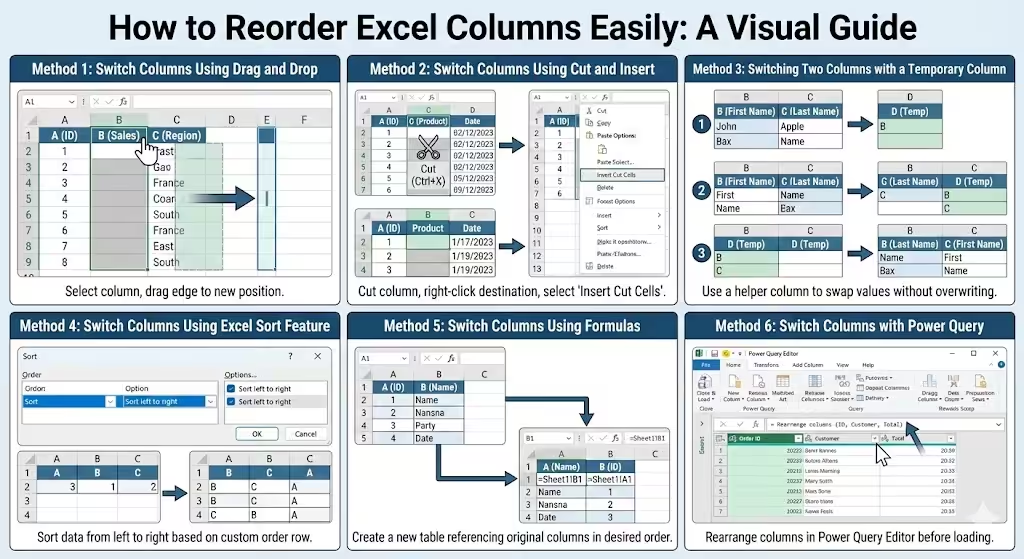
Method 1: Switch Columns Using Drag and Drop
The drag-and-drop method is the simplest way to switch columns.
How Drag and Drop Works
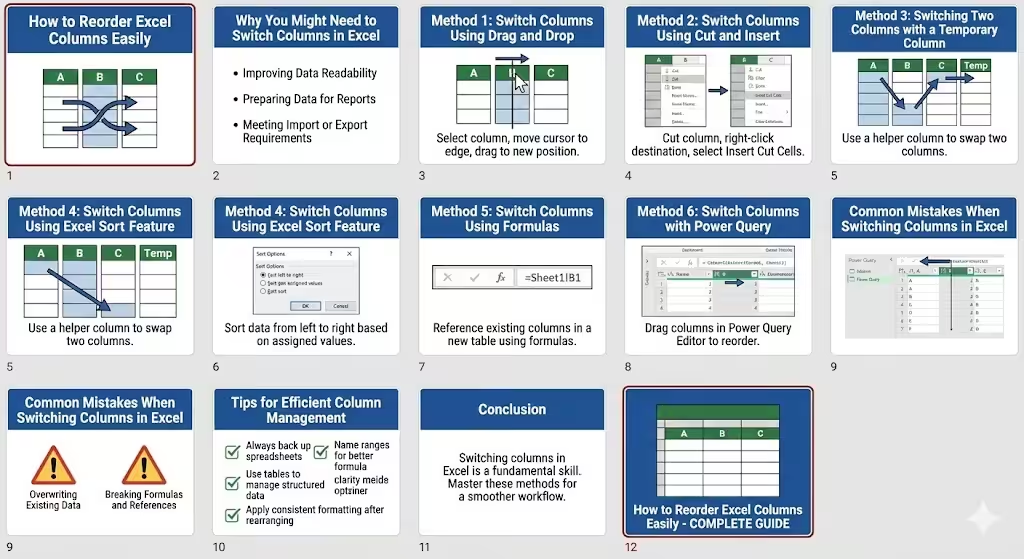
Select the entire column by clicking its letter at the top. Move your cursor to the edge of the selection until it changes to a move icon, then drag the column to its new position.
Best Use Cases
This method works best for small datasets where speed and simplicity matter more than precision.
Method 2: Switch Columns Using Cut and Insert
Cut and insert provides more control than drag and drop.
Step-by-Step Overview
Select the column you want to move, cut it, then right-click the destination column and choose the option to insert cut cells. Excel automatically shifts existing columns to make space.
Why This Method Is Reliable
Cut and insert prevents accidental overwriting and ensures data integrity when working with important datasets.
Method 3: Switching Two Columns with a Temporary Column
When you need to swap two columns, a temporary column can help.
Using a Helper Column
Copy one column into an empty temporary column, move the second column into the first column’s position, then move the temporary column into the second position.
When to Use This Approach
This technique is useful when precision matters and you want full control over column placement.
Method 4: Switch Columns Using Excel Sort Feature
Sorting is a powerful but often overlooked method.
Sorting Columns Instead of Rows
Excel allows you to sort data from left to right. By assigning sort order values, you can rearrange columns in a structured way.
Ideal Scenarios
This method is ideal for structured datasets where column order follows logical rules rather than manual preferences.
Method 5: Switch Columns Using Formulas
Formulas provide a dynamic way to rearrange columns.
Using Simple Cell References
You can create a new table and reference existing columns in the desired order. This allows you to switch columns without altering the original data.
Advantages of Formula-Based Switching
This approach is useful when the source data updates frequently and you want the rearranged columns to update automatically.
Method 6: Switch Columns with Power Query
Power Query is a powerful data transformation tool in Excel.
Reordering Columns in Power Query
Within Power Query, you can drag columns into a new order or use built-in commands to rearrange them before loading data back into Excel.
Why Power Query Is Useful
Power Query is ideal for large datasets and recurring tasks, as it allows you to automate column switching.
Common Mistakes When Switching Columns in Excel
Overwriting Existing Data
Failing to insert columns properly can overwrite important information. Always double-check before pasting or inserting.
Breaking Formulas and References
Some methods may affect formulas that reference specific column positions. Be aware of dependencies before rearranging data.
Tips for Efficient Column Management
- Always back up important spreadsheets
- Use tables to manage structured data
- Name ranges for better formula clarity
- Apply consistent formatting after rearranging columns
These practices help maintain data accuracy and readability.
Conclusion
Switching columns in Excel is a fundamental skill that can significantly improve how you work with data. Whether you prefer simple drag-and-drop actions, precise cut-and-insert techniques, dynamic formulas, or advanced tools like Power Query, Excel provides flexible solutions for every situation.
By understanding and applying the methods in this guide, you can reorganize your spreadsheets confidently, avoid common mistakes, and ensure your data remains accurate and easy to use. Mastering column switching will make your Excel workflow smoother, faster, and more efficient.