


The Best Microsoft Excel Keyboard Shortcuts for Productivity
Microsoft Excel is one of the most powerful spreadsheet applications available today. Whether you’re managing budgets, analyzing data, creating reports, or building financial models, Excel offers countless features that improve productivity. However, relying solely on a mouse to navigate Excel can slow down your workflow. Learning keyboard shortcuts is one of the easiest and most effective ways to work faster and more efficiently.
In this guide, you’ll discover the most useful Excel keyboard shortcuts for navigation, editing, formatting, formulas, data management, and workbook control. Mastering these shortcuts will help you save time, reduce repetitive tasks, and become a more proficient Excel user.
Why Use Excel Keyboard Shortcuts?
Keyboard shortcuts eliminate unnecessary mouse clicks and streamline common tasks.
Benefits include:
- Faster data entry
- Increased productivity
- Improved workflow efficiency
- Better navigation
- Reduced repetitive movements
- Easier handling of large datasets
Whether you’re a beginner or an advanced Excel user, keyboard shortcuts can significantly improve your daily workflow.
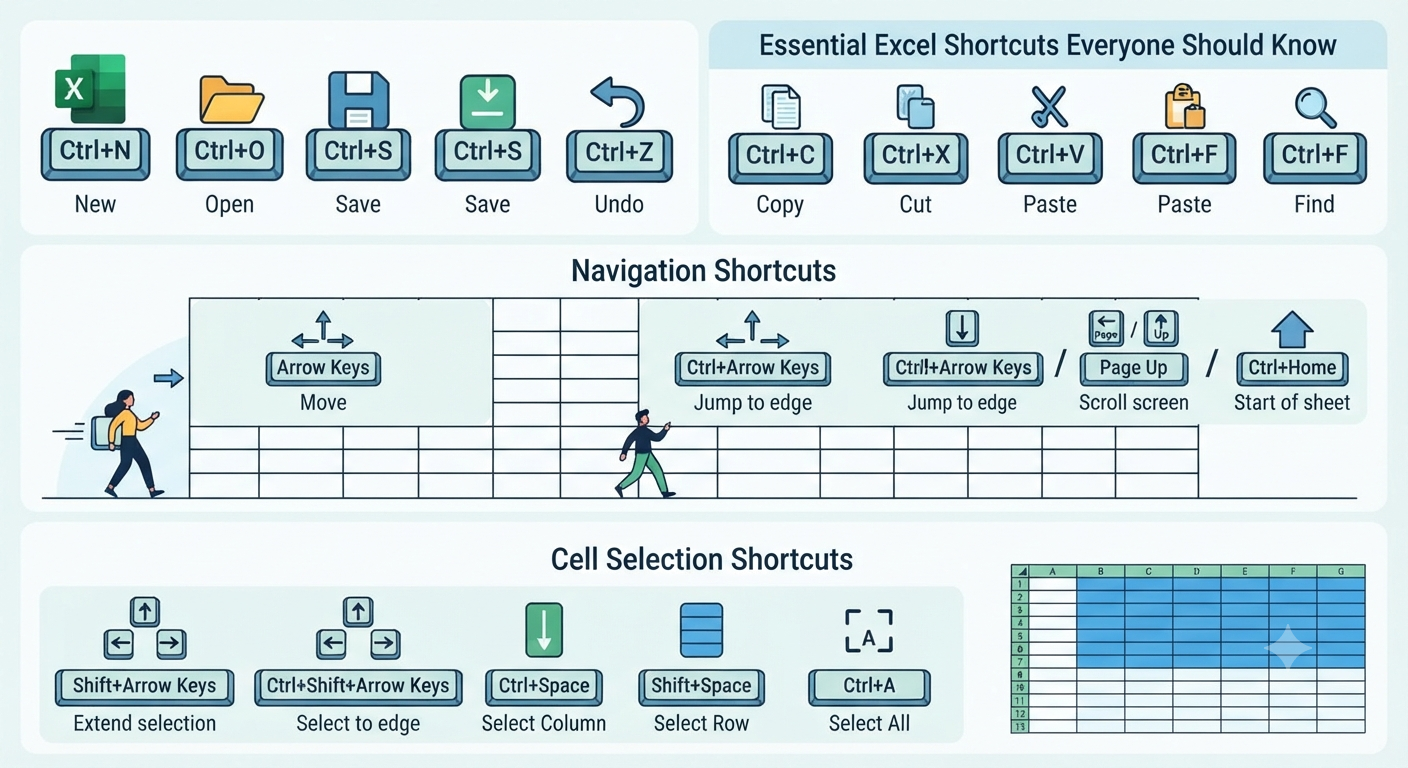
Essential Excel Shortcuts Everyone Should Know
These are the shortcuts you’ll likely use every day.
| Shortcut | Function |
|---|---|
| Ctrl + N | Create a new workbook |
| Ctrl + O | Open an existing workbook |
| Ctrl + S | Save the current workbook |
| Ctrl + P | |
| Ctrl + W | Close workbook |
| Ctrl + Z | Undo |
| Ctrl + Y | Redo |
| Ctrl + C | Copy |
| Ctrl + X | Cut |
| Ctrl + V | Paste |
| Ctrl + A | Select all |
| Ctrl + F | Find |
| Ctrl + H | Find and Replace |
Learning these shortcuts provides a strong foundation for working efficiently in Excel.
Navigation Shortcuts
Navigating large spreadsheets with the keyboard is much faster than scrolling manually.
Useful navigation shortcuts include:
| Shortcut | Action |
|---|---|
| Arrow Keys | Move one cell |
| Ctrl + Arrow Key | Jump to the edge of data |
| Home | Move to the beginning of the row |
| Ctrl + Home | Go to cell A1 |
| Ctrl + End | Go to the last used cell |
| Page Up | Move one screen up |
| Page Down | Move one screen down |
| Alt + Page Up | Move one screen left |
| Alt + Page Down | Move one screen right |
These shortcuts make it easier to navigate large worksheets quickly.
Cell Selection Shortcuts
Selecting data efficiently is essential for formatting and analysis.
Common selection shortcuts:
| Shortcut | Action |
|---|---|
| Shift + Arrow Keys | Extend selection |
| Ctrl + Shift + Arrow Key | Select to edge of data |
| Ctrl + Space | Select entire column |
| Shift + Space | Select entire row |
| Ctrl + Shift + Space | Select the entire worksheet |
These commands simplify working with large tables and datasets.
Editing Shortcuts
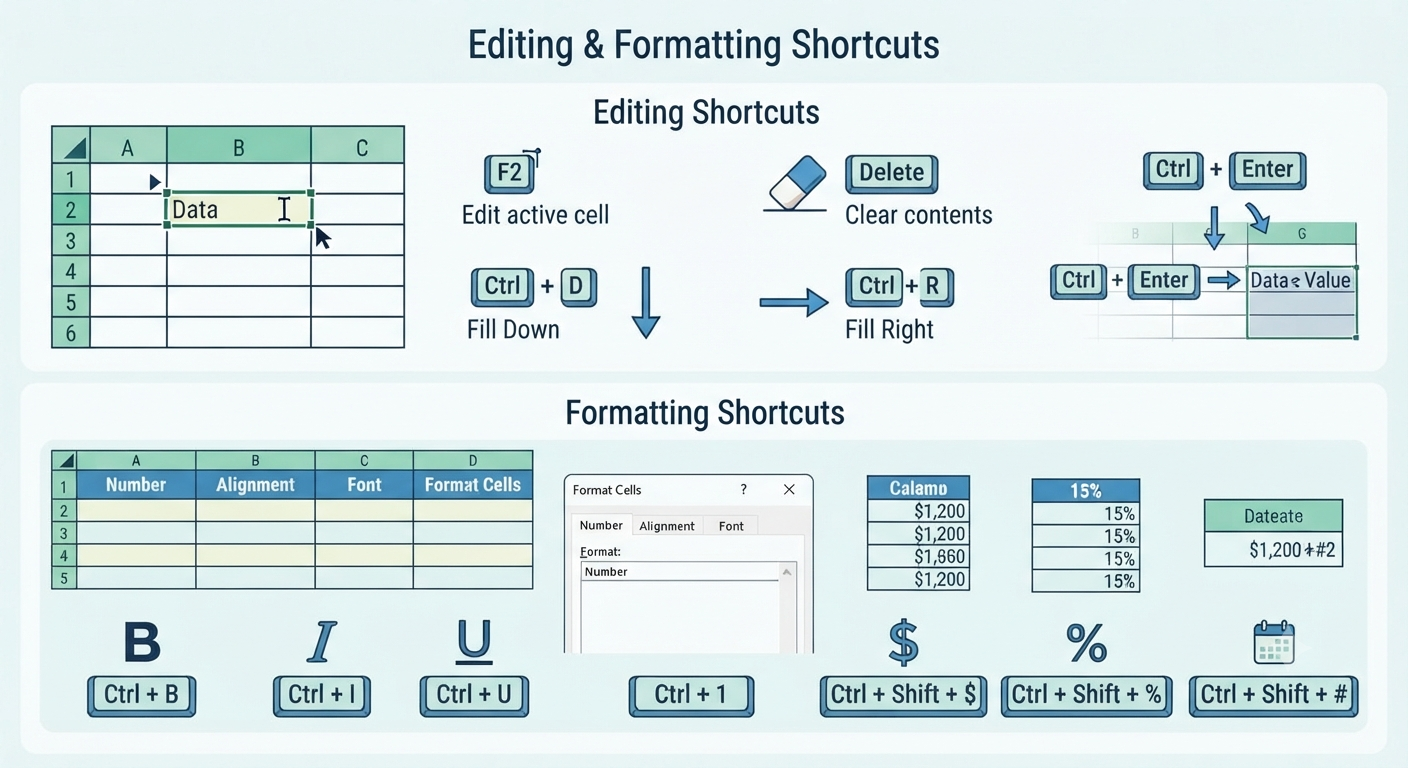
Editing data becomes much faster with keyboard commands.
Frequently used shortcuts include:
| Shortcut | Function |
|---|---|
| F2 | Edit active cell |
| Delete | Clear selected cells |
| Ctrl + D | Fill down |
| Ctrl + R | Fill right |
| Ctrl + Enter | Fill selected cells with the same value |
| Alt + Enter | Insert a new line within a cell |
These shortcuts reduce repetitive editing tasks.
Formatting Shortcuts
Professional spreadsheets rely on consistent formatting.
Useful formatting shortcuts:
| Shortcut | Function |
|---|---|
| Ctrl + B | Bold |
| Ctrl + I | Italic |
| Ctrl + U | Underline |
| Ctrl + 1 | Open Format Cells dialog |
| Ctrl + Shift + $ | Apply currency format |
| Ctrl + Shift + % | Apply percentage format |
| Ctrl + Shift + # | Apply date format |
| Ctrl + Shift + @ | Apply time format |
Proper formatting improves readability and presentation.
Formula Shortcuts
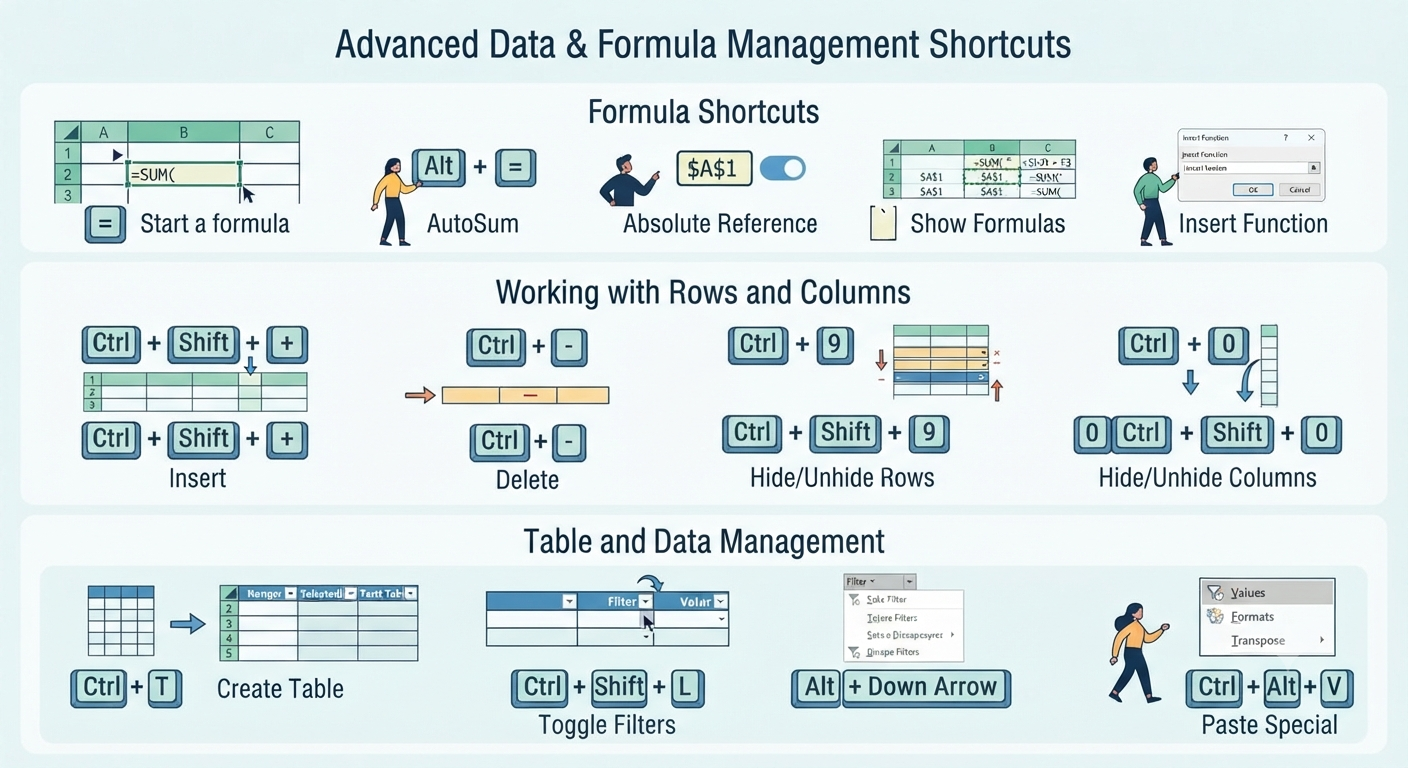
Excel formulas become easier to manage using keyboard shortcuts.
Important shortcuts include:
| Shortcut | Action |
|---|---|
| = | Start a formula |
| Alt + = | AutoSum |
| F4 | Repeat last action or toggle absolute references in formulas |
| Ctrl + ` | Show or hide formulas |
| Shift + F3 | Insert Function dialog |
These shortcuts are especially useful for financial modeling and data analysis.
Working with Rows and Columns
Managing worksheet structure becomes easier with these shortcuts.
| Shortcut | Action |
|---|---|
| Ctrl + Shift + + | Insert cells, rows, or columns |
| Ctrl + – | Delete selected cells, rows, or columns |
| Ctrl + 9 | Hide selected rows |
| Ctrl + Shift + 9 | Unhide rows |
| Ctrl + 0 | Hide columns |
| Ctrl + Shift + 0 | Unhide columns (availability may depend on Windows keyboard settings) |
These commands simplify worksheet organization.
Worksheet Management Shortcuts
Managing multiple worksheets is common in larger workbooks.
Useful shortcuts:
| Shortcut | Function |
|---|---|
| Shift + F11 | Insert new worksheet |
| Ctrl + Page Up | Previous worksheet |
| Ctrl + Page Down | Next worksheet |
These shortcuts help navigate workbooks with multiple tabs.
Data Entry Shortcuts
Speed up repetitive data entry using keyboard commands.
Examples include:
| Shortcut | Action |
|---|---|
| Ctrl + ; | Insert current date |
| Ctrl + Shift + ; | Insert current time |
| Ctrl + K | Insert hyperlink |
| Ctrl + ‘ | Copy formula from the cell above |
| Ctrl + “ | Copy value from the cell above |
These are particularly useful for daily business tasks.
Table and Data Management Shortcuts
Excel tables make organizing data easier.
Helpful shortcuts include:
| Shortcut | Action |
|---|---|
| Ctrl + T | Create a table |
| Ctrl + Shift + L | Toggle filters |
| Alt + Down Arrow | Open filter menu |
| Ctrl + Alt + V | Open Paste Special |
These features simplify filtering and organizing data.
PivotTable Shortcuts
PivotTables are essential for summarizing large datasets.
While many PivotTable actions use the Ribbon, these shortcuts remain useful:
- Alt + N, V to start creating a PivotTable using Ribbon key tips.
- Ctrl + A to select PivotTable data.
- Ctrl + C to copy PivotTable results.
- F5 to jump to referenced cells when appropriate.
Learning Ribbon key tips can make advanced tasks more efficient.
Workbook Control Shortcuts
Managing workbooks efficiently is another important skill.
Useful commands include:
| Shortcut | Function |
|---|---|
| Ctrl + Tab | Switch workbooks |
| Alt + F4 | Close Excel |
| Ctrl + F4 | Close workbook |
| F12 | Save As |
| Ctrl + Shift + S | Save As (depending on Excel version) |
These shortcuts improve overall workflow.
Useful Function Keys
Excel makes extensive use of function keys.
Some of the most valuable include:
| Key | Function |
|---|---|
| F1 | Help |
| F2 | Edit active cell |
| F4 | Repeat action or adjust cell references |
| F5 | Go To |
| F7 | Spell Check |
| F9 | Recalculate workbook |
| F11 | Create chart |
| Shift + F11 | Insert worksheet |
Function keys can dramatically increase productivity.
Tips for Memorizing Excel Shortcuts
Learning dozens of shortcuts may seem overwhelming.
Instead:
- Start with five shortcuts.
- Practice daily.
- Use shortcuts repeatedly.
- Learn shortcuts related to your workflow.
- Gradually replace mouse actions.
With regular use, keyboard shortcuts quickly become second nature.
Common Mistakes to Avoid
When learning Excel shortcuts, avoid these common errors:
- Trying to memorize every shortcut at once
- Ignoring frequently used commands
- Forgetting version differences
- Overlooking function keys
- Not practicing regularly
Consistent practice is more effective than trying to learn everything immediately.
Frequently Asked Questions
What are the most important Excel keyboard shortcuts?
Some of the most commonly used shortcuts include Ctrl + C, Ctrl + V, Ctrl + Z, Ctrl + S, Ctrl + Arrow Keys, F2, Alt + =, Ctrl + T, and Ctrl + Shift + L. These commands cover many everyday tasks and can greatly improve productivity.
Do Excel shortcuts work on every version of Excel?
Most core keyboard shortcuts are supported across modern versions of Microsoft Excel. However, certain shortcuts and features may vary depending on your Excel version, operating system, and keyboard layout.
What is the fastest way to navigate a large worksheet?
Using Ctrl + Arrow Keys allows you to jump to the edge of a continuous range of data, while Ctrl + Home and Ctrl + End quickly move to the beginning or end of the used worksheet area.
Can keyboard shortcuts improve productivity?
Yes. By reducing reliance on the mouse and minimizing repetitive actions, keyboard shortcuts can significantly speed up data entry, editing, formatting, and navigation, especially when working with large spreadsheets.
How long does it take to learn Excel shortcuts?
The learning process varies by individual, but most users can become comfortable with the most frequently used shortcuts after a few weeks of regular practice. Starting with a small group of essential shortcuts and gradually adding more is often the most effective approach.
Conclusion
Excel keyboard shortcuts are among the simplest yet most effective ways to increase productivity. From navigating worksheets and editing cells to formatting data and managing formulas, shortcuts eliminate repetitive tasks and allow you to focus on analyzing information rather than clicking through menus.