


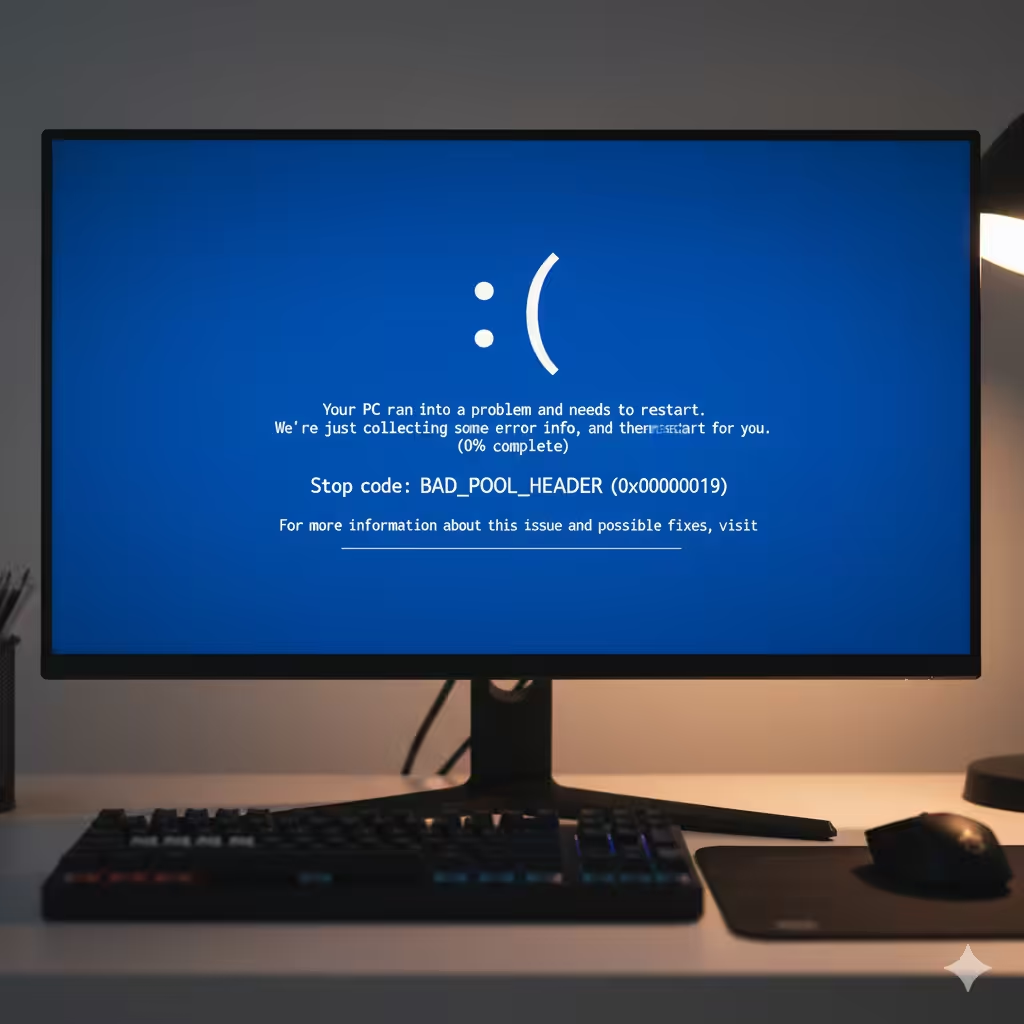
How to Resolve the 0x00000019 Bad Pool Header Error in Windows
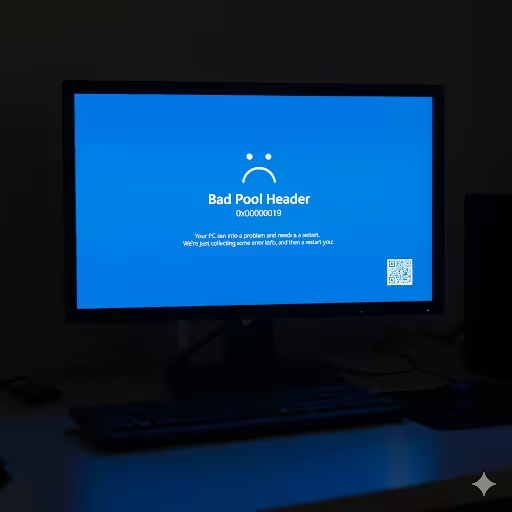
The Bad Pool Header error in Windows, identified by the stop code 0x00000019, is a common Blue Screen of Death (BSOD) issue. This error usually indicates problems with memory allocation, hardware drivers, or system corruption. When it happens, your system crashes suddenly, leading to data loss and disruption.
While this error can feel alarming, it is fixable. In this guide, we will explain the causes, prevention, and step-by-step methods to fix the Bad Pool Header error in Windows 10 and Windows 11.
What Causes the Bad Pool Header Error?
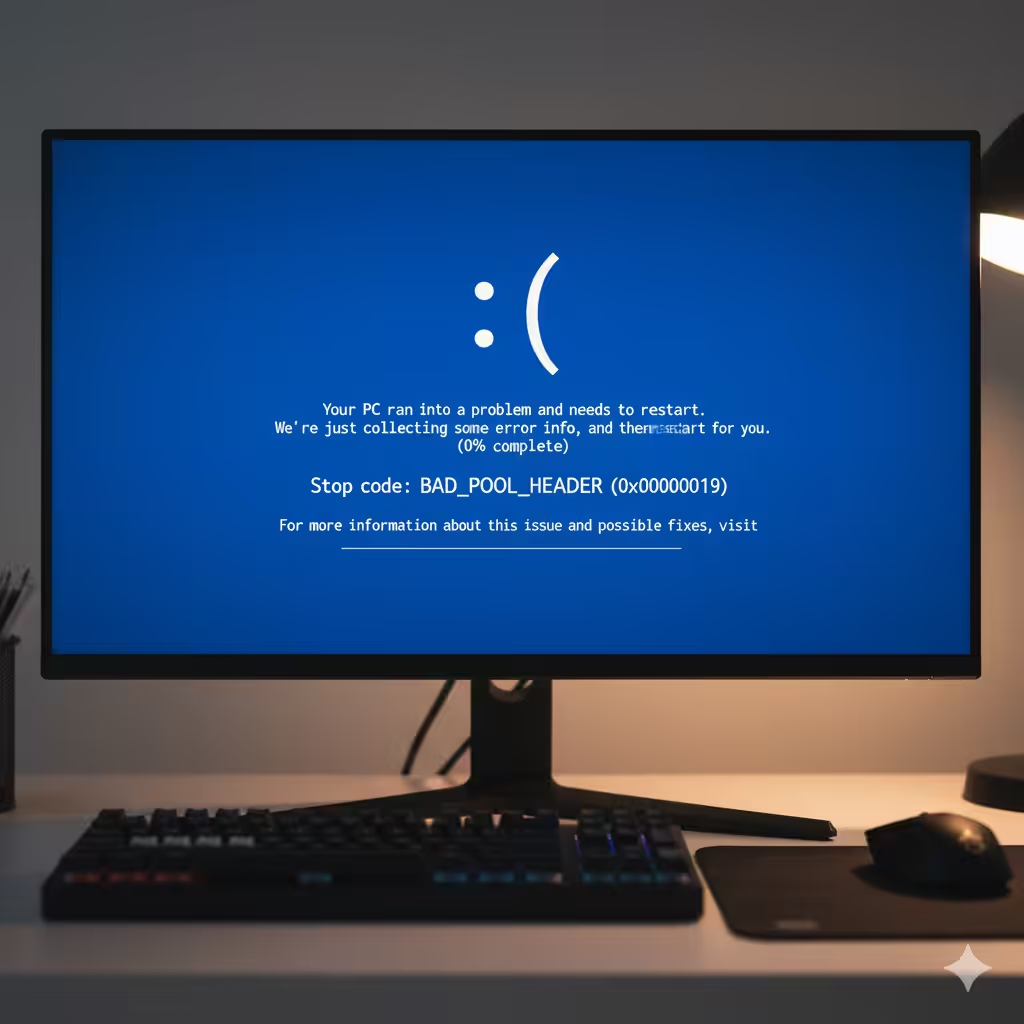
The Bad Pool Header error occurs when Windows fails to manage memory allocation properly. Some common reasons include:
-
Corrupted or outdated device drivers.
-
Faulty or incompatible software.
-
Damaged RAM or memory issues.
-
Hard disk errors or corrupted system files.
-
Antivirus or third-party software conflicts.
-
Outdated Windows updates or failed installations.
Understanding the causes helps in applying the right troubleshooting solution.
Method 1: Restart Your Computer
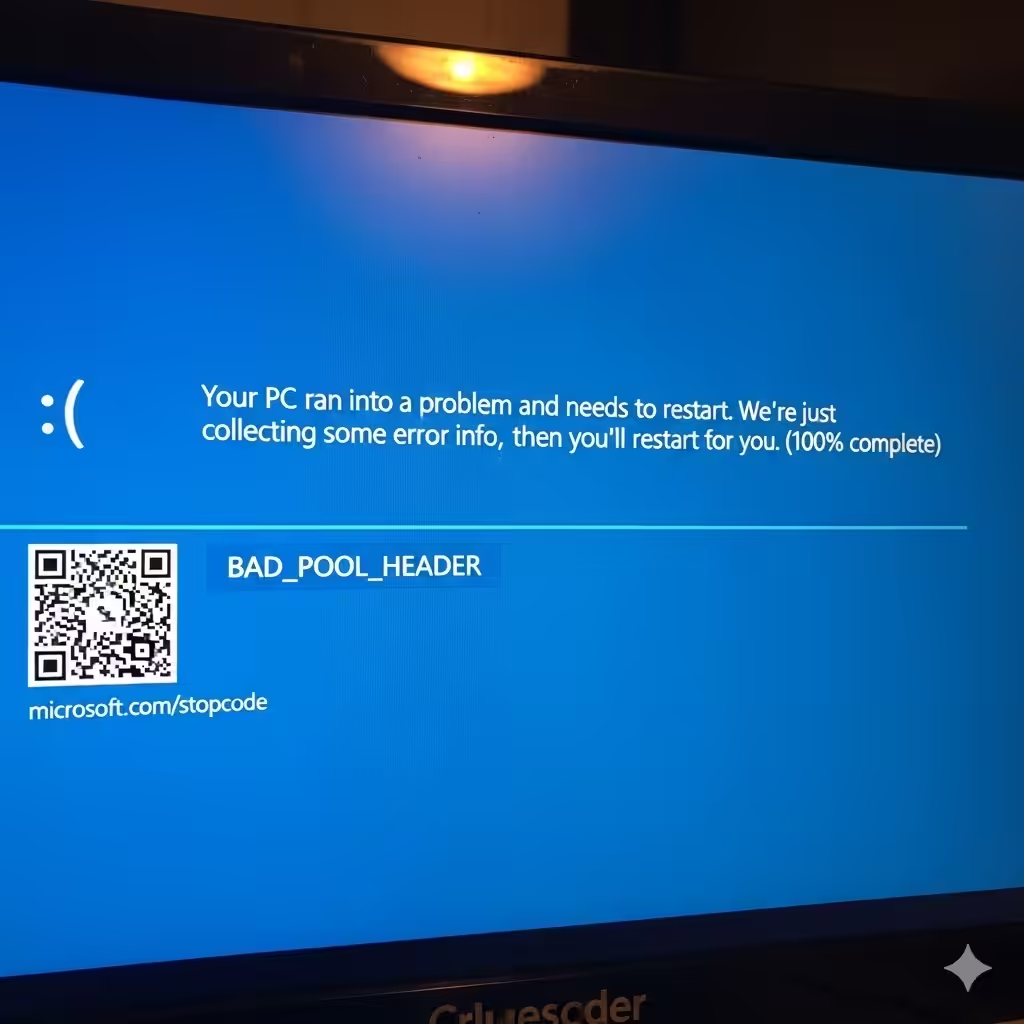
Sometimes, a simple reboot can clear temporary memory allocation issues that triggered the error. Restart your computer to see if the problem was a one-time glitch. If the error persists, move to more advanced solutions.
Method 2: Boot into Safe Mode
Safe Mode loads Windows with minimal drivers and services, which helps diagnose whether the problem lies in third-party software or drivers.
Steps:
-
Restart your PC and interrupt the boot process three times to enter Automatic Repair mode.
-
Navigate to Troubleshoot > Advanced Options > Startup Settings > Restart.
-
Select 4 (Enable Safe Mode).
If Windows works properly in Safe Mode, the error is likely caused by incompatible drivers or software.
Method 3: Update or Roll Back Drivers
Driver issues are one of the main reasons for the Bad Pool Header error. Outdated or newly installed drivers may cause conflicts.
To Update Drivers:
-
Press Windows + X and open Device Manager.
-
Expand categories like Display adapters or Network adapters.
-
Right-click the driver and select Update driver.
-
Choose Search automatically for drivers.
To Roll Back Drivers:
-
In Device Manager, right-click the recently updated driver.
-
Select Properties > Driver > Roll Back Driver.
-
Restart your PC and check if the error is resolved.
Method 4: Uninstall Problematic Software
Recently installed software or third-party tools, including antivirus programs, can trigger the Bad Pool Header error.
Steps:
-
Boot into Safe Mode.
-
Open Control Panel > Programs and Features.
-
Select the recently installed program and click Uninstall.
-
Restart your computer.
If uninstalling fixes the issue, replace the program with a compatible version.
Method 5: Run Windows Memory Diagnostic Tool
Since memory issues are a common cause of this error, checking your RAM is important.
Steps:
-
Press Windows + R, type
mdsched.exe, and press Enter. -
Choose Restart now and check for problems.
-
Windows will restart and scan your memory for errors.
If the tool detects issues, you may need to replace your RAM.
Method 6: Check and Repair Hard Disk Errors
Disk corruption or bad sectors can also cause the Bad Pool Header error.
Steps:
-
Open Command Prompt as Administrator.
-
Type the following command:
-
Press Enter and restart your PC to allow Windows to check and fix disk errors.
Method 7: Run System File Checker (SFC) and DISM
Corrupt system files can lead to BSOD errors. Running SFC and DISM can repair them.
Steps:
-
Open Command Prompt as Administrator.
-
Type the following command and press Enter:
-
Once complete, type the following DISM command:
-
Restart your PC after the scan.
Method 8: Disable Fast Startup
Fast Startup can sometimes conflict with drivers and memory, leading to the Bad Pool Header error.
Steps:
-
Open Control Panel > Power Options.
-
Select Choose what the power buttons do.
-
Click Change settings that are currently unavailable.
-
Uncheck Turn on fast startup (recommended).
-
Save changes and restart your PC.
Method 9: Uninstall Recent Windows Updates
If the error started after a Windows update, uninstalling the update might solve the issue.
Steps:
-
Open Settings > Update & Security > View update history.
-
Click Uninstall updates.
-
Select the most recent update and uninstall it.
Method 10: Restore or Reset Windows
If all else fails, use System Restore or reset Windows to return your PC to a stable state.
Using System Restore:
-
Boot into Advanced Startup Options.
-
Go to Troubleshoot > Advanced Options > System Restore.
-
Select a restore point before the error began.
Reset Windows:
-
Navigate to Settings > Update & Security > Recovery.
-
Choose Reset this PC.
-
Select either Keep my files or Remove everything.
Method 11: Check for Hardware Issues
If none of the software fixes work, faulty hardware may be the culprit. Common causes include defective RAM or failing hard drives. Run hardware diagnostics or try replacing components to test.
Preventing the Bad Pool Header Error
To reduce the chances of encountering this error in the future, follow these best practices:
-
Keep your Windows operating system up to date.
-
Regularly update drivers.
-
Avoid installing unverified third-party software.
-
Run antivirus scans to prevent malware interference.
-
Check hardware health periodically.
Conclusion
The Bad Pool Header (0x00000019) error can be caused by memory problems, driver conflicts, or system corruption. While it can be frustrating, it is usually fixable with the right troubleshooting methods. Start with basic steps like restarting and Safe Mode, then move to more advanced fixes like updating drivers, running memory diagnostics, repairing disk errors, or resetting Windows.
By following this guide, you can identify the root cause and restore your system’s stability, preventing future BSOD crashes.