


How to Access Saved Passwords on iPhone
Have you ever forgotten a password but remembered that you saved it on your iPhone? Whether it’s a login for a website, an app, or a Wi-Fi network, your iPhone makes it easy to access saved passwords through its built-in features. Apple provides a secure and efficient way to manage your credentials with iCloud Keychain and Face ID or Touch ID protection.
This guide walks you through the step-by-step process of finding saved passwords on your iPhone, how to use them effectively, and additional tips for keeping your login information secure.
Where Your iPhone Stores Passwords
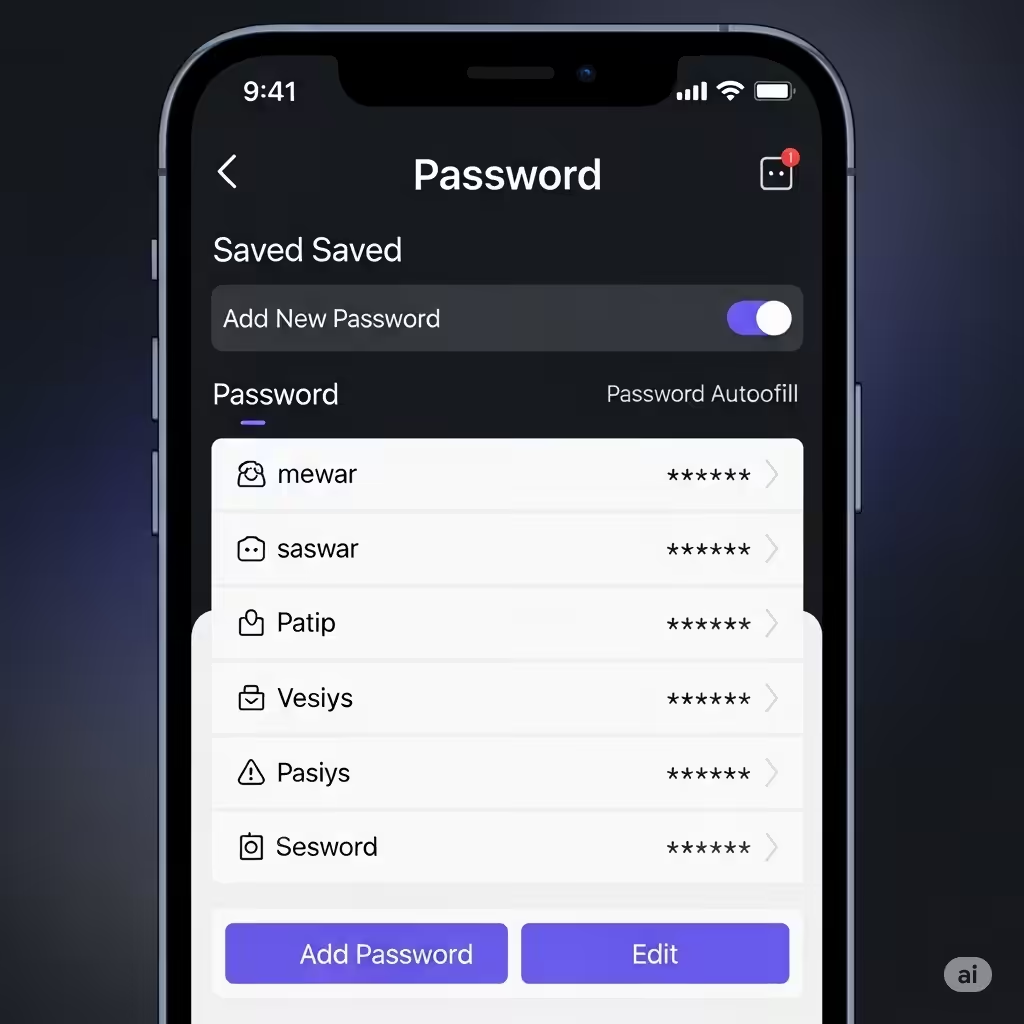
Your iPhone uses iCloud Keychain, Apple’s password manager, to store and sync passwords securely across your devices. When you use Safari or certain apps to sign into an account, your device may offer to save the username and password. These credentials are encrypted and stored in your Keychain, and you can view or copy them later.
Accessing Saved Passwords on iPhone
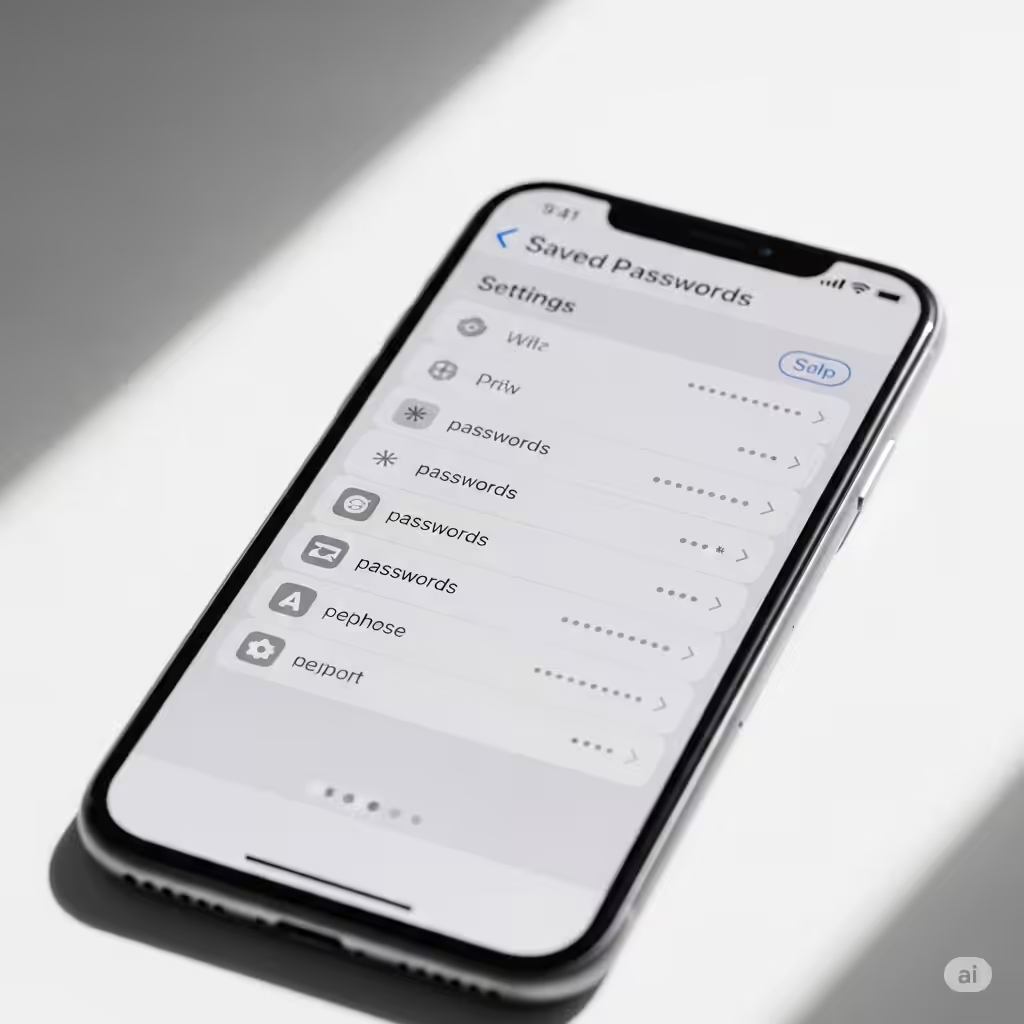
Here’s how to locate saved passwords quickly on any iPhone running iOS 14 or later:
-
Open the Settings app.
-
Scroll down and tap Passwords.
-
Use Face ID, Touch ID, or your device passcode to authenticate.
-
You’ll see a list of saved accounts and websites. Tap any entry to view the username and password.
You can also search by typing the name of the website or app into the search bar at the top.
Using Siri to Access Passwords
You can also ask Siri to help you find a specific saved password.
Say something like:
“Hey Siri, show me my Facebook password.”
Siri will prompt you to authenticate with Face ID or Touch ID and then display the saved login if available.
Note: Siri cannot read the password aloud for security reasons, but it can bring you directly to the correct entry.
Copy or Share a Password
Once inside a saved login entry, you can tap and hold the password or username field to copy it to your clipboard.
You can also:
-
Tap Password Options (three dots icon)
-
Tap AirDrop Password to securely send it to another Apple device
-
Use Share Sheet (with apps like Notes or Mail, if permitted)
This is useful when you want to sign in on another device or share a login with a family member.
View Saved Wi-Fi Passwords
In earlier versions of iOS, it wasn’t possible to view Wi-Fi passwords directly on the device. But starting from iOS 16, Apple made it easier:
-
Go to Settings > Wi-Fi.
-
Tap the (i) icon next to the connected network.
-
Tap the Password field.
-
Authenticate with Face ID or Touch ID.
-
The password will now be visible and available to copy.
You can also view passwords for previously connected networks using the Passwords section under Settings.
Edit or Delete Saved Passwords
If you’ve changed your login credentials or no longer use a certain service, you can easily update or remove saved passwords.
-
Go to Settings > Passwords.
-
Tap the entry you want to update.
-
Tap Edit in the top right corner.
-
Make any necessary changes and tap Done.
To delete a saved password:
-
Swipe left on the entry in the password list.
-
Tap Delete.
Add a Password Manually
While most passwords are saved automatically when you log into websites in Safari or supported apps, you can also add passwords manually.
-
Go to Settings > Passwords.
-
Tap the + icon in the top right.
-
Enter the website, username, and password.
-
Tap Done to save it.
This feature is handy when you’re setting up an account on another device or importing credentials.
Use Password Suggestions and Security Recommendations
Your iPhone can also identify weak or reused passwords and provide better alternatives:
-
Go to Settings > Passwords.
-
If any issues are found, they will appear under Security Recommendations.
-
Tap to view details and follow the suggestions to improve your password hygiene.
Sync Across Devices with iCloud Keychain
To ensure that your passwords are always accessible across your Apple devices, make sure iCloud Keychain is enabled:
-
Open Settings.
-
Tap your Apple ID name at the top.
-
Go to iCloud > Keychain.
-
Toggle iCloud Keychain to On.
This syncs passwords securely between your iPhone, iPad, and Mac—so you can access saved logins from any Apple device.
What If You Use a Third-Party Password Manager?
While iCloud Keychain is tightly integrated with iOS, some users prefer apps like 1Password, LastPass, or Bitwarden. These apps also support Face ID and autofill, and you can set them as your default password manager:
-
Go to Settings > Passwords > AutoFill Passwords.
-
Choose your preferred app under “Allow Filling From.”
-
Authenticate when needed and use it just like Keychain.
Security and Privacy of Stored Passwords
Apple uses end-to-end encryption to protect saved passwords. This means:
-
Only you can access the information.
-
Not even Apple can view your credentials.
-
Face ID or Touch ID adds an extra layer of protection.
Never share your Apple ID or passcode with anyone you don’t fully trust.
Conclusion
Finding saved passwords on your iPhone is simple and secure thanks to Apple’s integration of iCloud Keychain and biometric authentication. Whether you need to retrieve a password for a website, app, or Wi-Fi network, everything is accessible in just a few taps.
Make the most of your iPhone’s built-in password manager by regularly reviewing saved logins, enabling iCloud Keychain, and ensuring that your passwords are strong and unique. With these practices, you’ll spend less time dealing with login errors and more time focusing on what matters.
If you’re using third-party managers, don’t forget to explore their advanced features as well—they can coexist with iCloud Keychain and give you more control across platforms.