


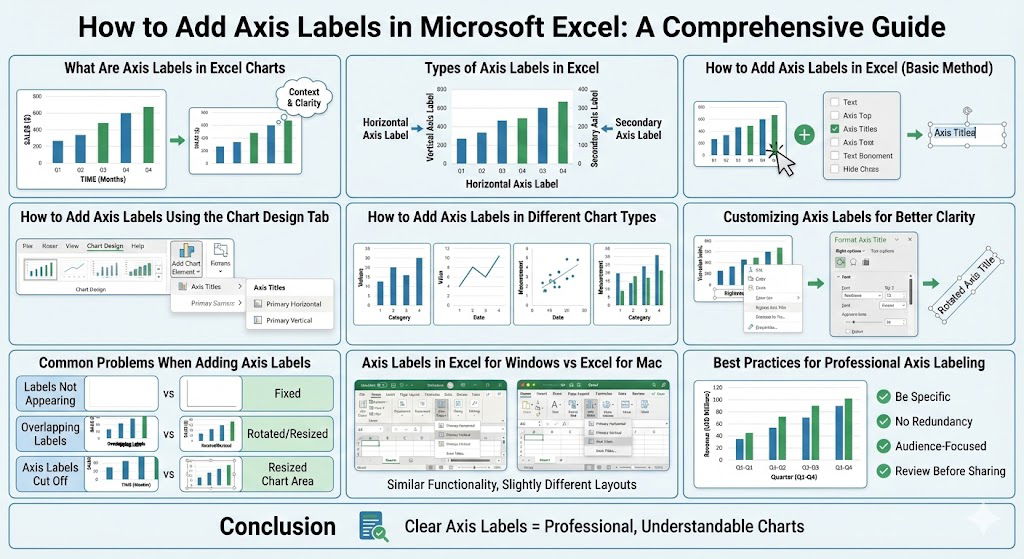
How to Add Axis Labels in Microsoft Excel
Axis labels play a crucial role in making Excel charts clear, professional, and easy to understand. Without proper axis labels, even the most accurate data visualization can confuse readers or leave them guessing about what the chart represents. Axis labels explain what the X axis and Y axis stand for, including units, categories, or measurement types.
This step-by-step guide explains how to add axis labels in Microsoft Excel, customize them for clarity, and fix common issues. Whether you are creating charts for reports, presentations, or data analysis, mastering axis labels will significantly improve your charts.
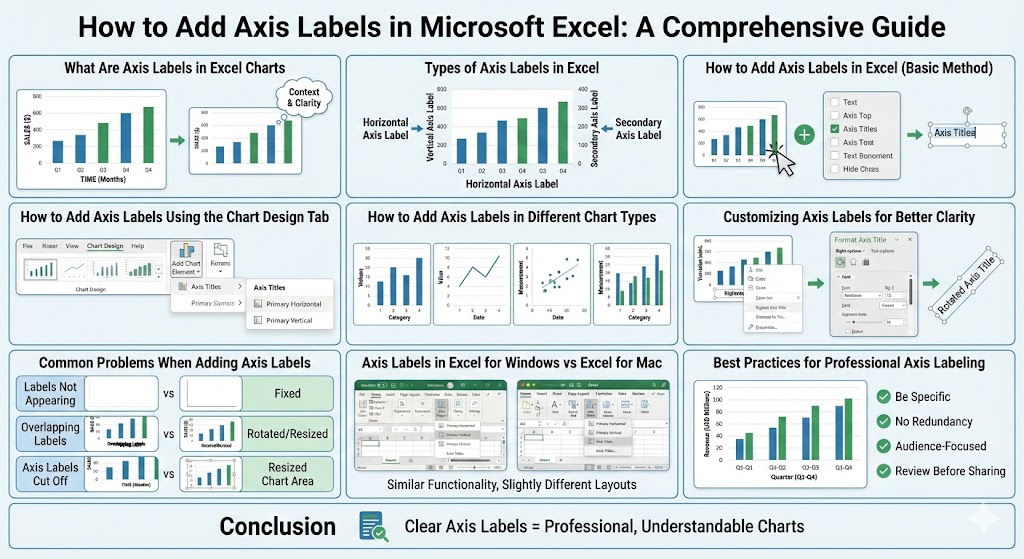
What Are Axis Labels in Excel Charts
Definition of Axis Labels
Axis labels are descriptive text elements that explain what each axis in a chart represents. The horizontal axis usually describes categories, dates, or independent variables, while the vertical axis typically represents numeric values or measurements.
Why Axis Labels Are Important
Axis labels help viewers:
-
Understand the meaning of chart data instantly
-
Interpret values correctly
-
Avoid confusion when multiple charts are compared
-
Read charts without needing additional explanations
Charts without axis labels often look incomplete and unprofessional.
Types of Axis Labels in Excel
Horizontal Axis Labels
These labels describe the data along the bottom of the chart, such as time periods, product names, or categories.
Vertical Axis Labels
These labels describe numeric values, percentages, quantities, or measurements displayed on the left or right side of the chart.
Secondary Axis Labels
Some charts include a secondary axis to represent different data scales. Each axis should have its own clear label.
How to Add Axis Labels in Excel (Basic Method)
Step-by-Step Instructions
-
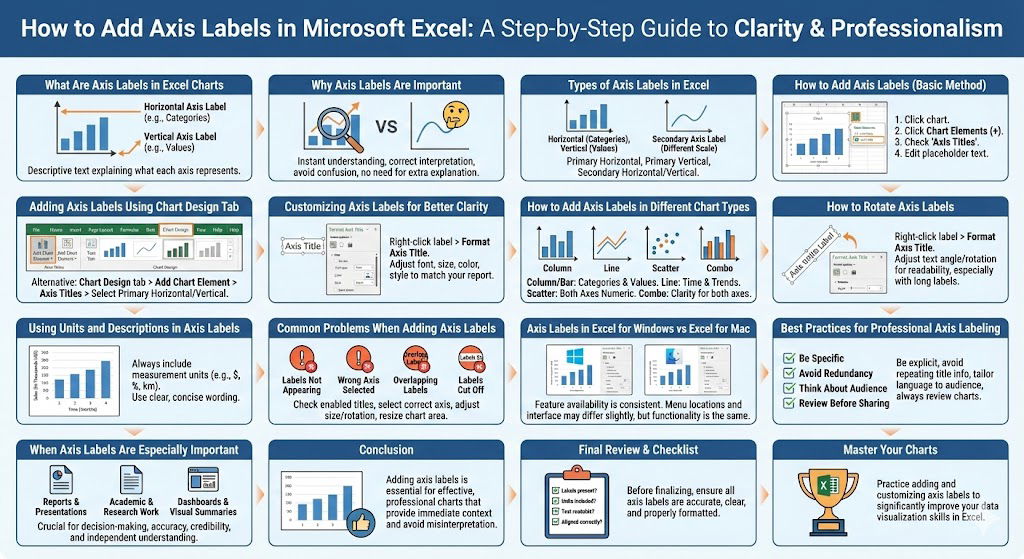
Click anywhere on the chart to activate it
-
Click the Chart Elements button (the plus icon next to the chart)
-
Check the Axis Titles option
-
Excel will automatically add placeholders for horizontal and vertical axis labels
Editing the Axis Label Text
Click directly on the axis title text box and type a clear, descriptive label. Press Enter to apply the change.
Adding Axis Labels Using the Chart Design Tab
Alternative Method
-
Select the chart
-
Go to the Chart Design tab on the ribbon
-
Click Add Chart Element
-
Select Axis Titles
-
Choose Primary Horizontal or Primary Vertical
Why Use This Method
This approach gives you precise control over which axis labels appear, especially in complex charts.
How to Add Axis Labels in Different Chart Types
Column and Bar Charts
Axis labels work well for categories on one axis and values on the other. Clear labeling is essential when categories are long or numerous.
Line Charts
Axis labels help clarify time-based data and trends. Using units such as months, years, or percentages improves readability.
Scatter Charts
Scatter charts require axis labels more than most chart types because both axes represent numeric values. Without labels, data interpretation becomes difficult.
Combo Charts
When using a secondary axis, ensure both axes have labels that clearly explain their respective data series.
Customizing Axis Labels for Better Clarity
Changing Font Style and Size
You can format axis labels to match your report or presentation style:
-
Right-click the axis label
-
Select Format Axis Title
-
Adjust font size, style, and color
Best Practices for Font Size
Axis labels should be readable but not overpower the chart. Slightly larger fonts work well for presentations, while standard sizes are suitable for reports.
Aligning and Positioning Axis Labels
You can reposition axis labels to avoid overlap with chart elements. Adjust alignment and text direction as needed.
How to Rotate Axis Labels
When Rotation Is Useful
Rotating labels is helpful when:
-
Labels are long
-
There are many categories
-
Text overlaps and becomes unreadable
Steps to Rotate Axis Labels
-
Right-click the axis label
-
Choose Format Axis Title
-
Adjust the text angle or rotation setting
Rotated labels improve readability without reducing font size.
Using Units and Descriptions in Axis Labels
Including Measurement Units
Always include units such as dollars, percentages, kilometers, or hours when applicable. This prevents misinterpretation.
Clear and Concise Wording
Use short but descriptive phrases. Avoid unnecessary words that clutter the chart.
Consistency Across Charts
When presenting multiple charts, keep axis label styles and wording consistent for a professional appearance.
Common Problems When Adding Axis Labels
Axis Labels Not Appearing
This usually happens when axis titles are not enabled. Recheck the Chart Elements or Chart Design menu.
Wrong Axis Selected
Make sure you are editing the correct axis, especially in charts with secondary axes.
Overlapping Labels
Reduce font size, rotate labels, or increase chart size to resolve overlap issues.
Axis Labels Cut Off
Resize the chart area or adjust margins so labels remain fully visible.
Axis Labels in Excel for Windows vs Excel for Mac
Feature Availability
Both versions support axis labels, though menu locations may differ slightly.
Interface Differences
Mac users may find formatting options grouped differently, but all essential customization tools are available.
Compatibility Considerations
Charts with axis labels remain compatible when shared between Windows and Mac users.
Best Practices for Professional Axis Labeling
Be Specific
Avoid vague labels like “Values” or “Data.” Be explicit about what the numbers represent.
Avoid Redundancy
Do not repeat information already obvious from chart titles or legends.
Think About the Audience
Technical audiences may prefer precise terminology, while general audiences benefit from simpler language.
Review Before Sharing
Always review charts to ensure axis labels are accurate, readable, and aligned correctly.
When Axis Labels Are Especially Important
Reports and Presentations
Axis labels help decision-makers understand data quickly.
Academic and Research Work
Clear labeling is essential for accuracy and credibility.
Dashboards and Visual Summaries
Axis labels ensure charts remain understandable even when viewed independently.
Conclusion
Adding axis labels in Microsoft Excel is a simple but essential step in creating effective charts. Axis labels provide context, improve clarity, and help viewers interpret data accurately. Whether you are working with basic column charts or advanced scatter plots, properly labeled axes make your charts more informative and professional.