


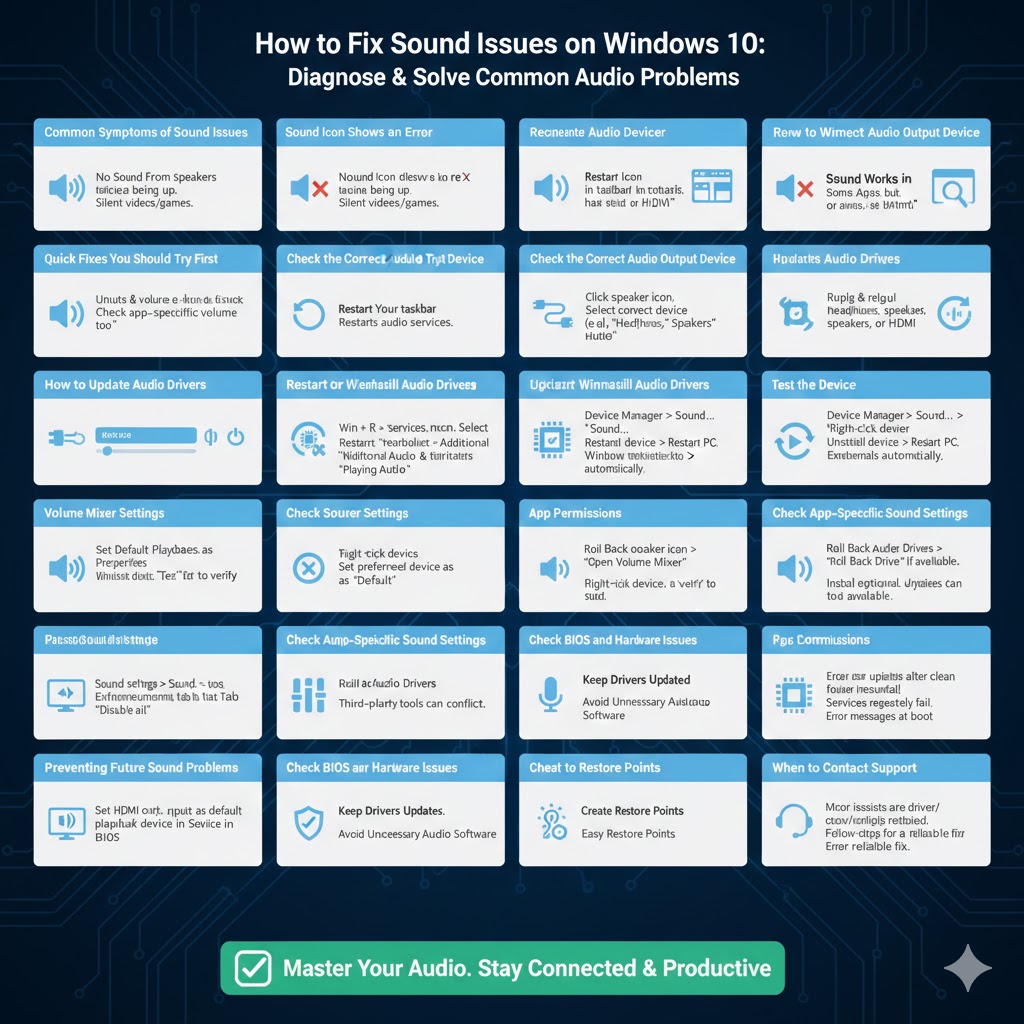
How to Fix Sound Issues on Windows 10
Sound problems on Windows 10 can be incredibly frustrating, especially when everything appears to be set up correctly. You might notice there is no audio from your speakers or headphones, system sounds are missing, videos play silently, or the volume icon shows errors. The good news is that most Windows 10 sound issues are caused by simple configuration problems, driver issues, or minor system glitches that can be fixed quickly.
This complete guide walks you through practical, step-by-step solutions to fix sound not working on Windows 10, starting with quick checks and moving toward more advanced troubleshooting methods.
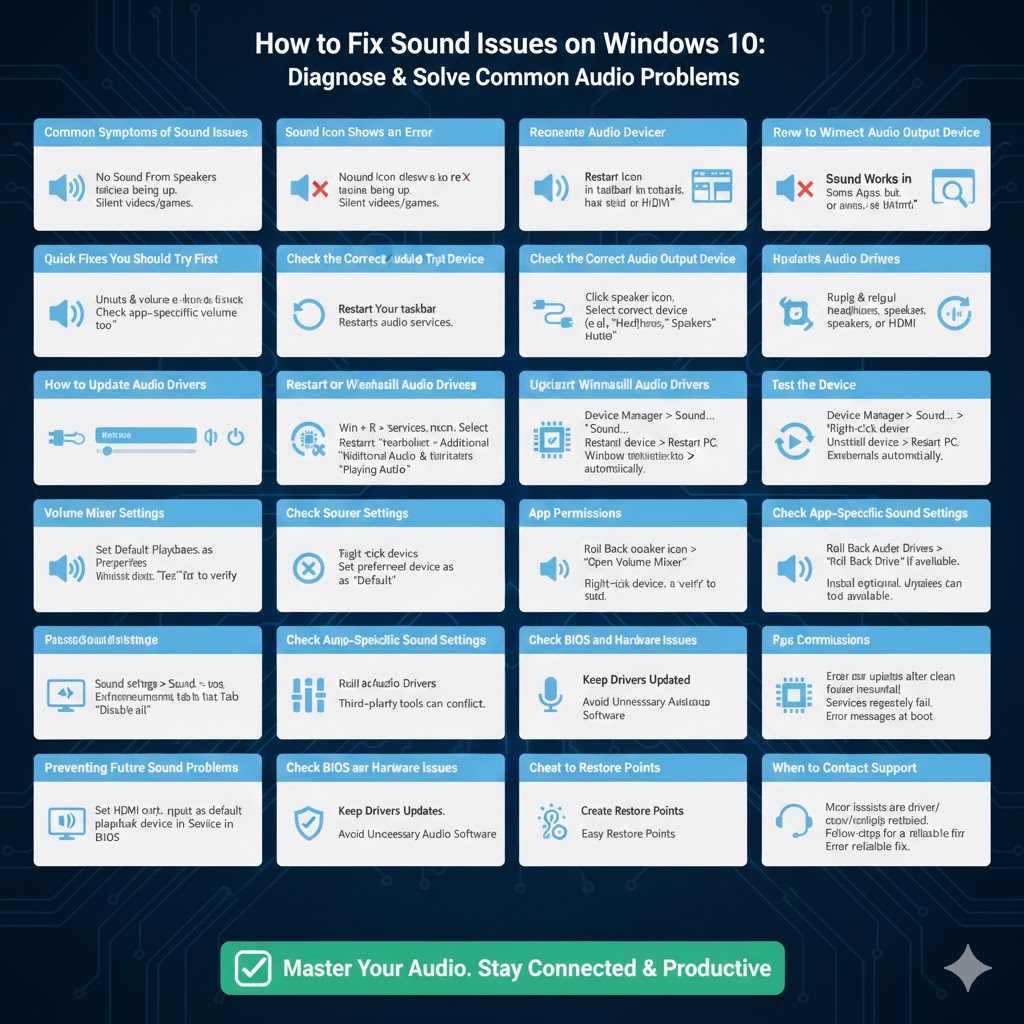
Common Symptoms of Sound Issues in Windows 10
No Sound From Speakers or Headphones
You may hear nothing at all, even when the volume is turned up and media is playing.
Sound Icon Shows an Error
The speaker icon may display a red X or warning symbol.
Sound Works in Some Apps but Not Others
System sounds might work, but videos or games remain silent.
Audio Device Not Detected
Windows may not recognize your speakers, headset, or HDMI audio output.
Understanding the symptom helps identify the most effective fix.
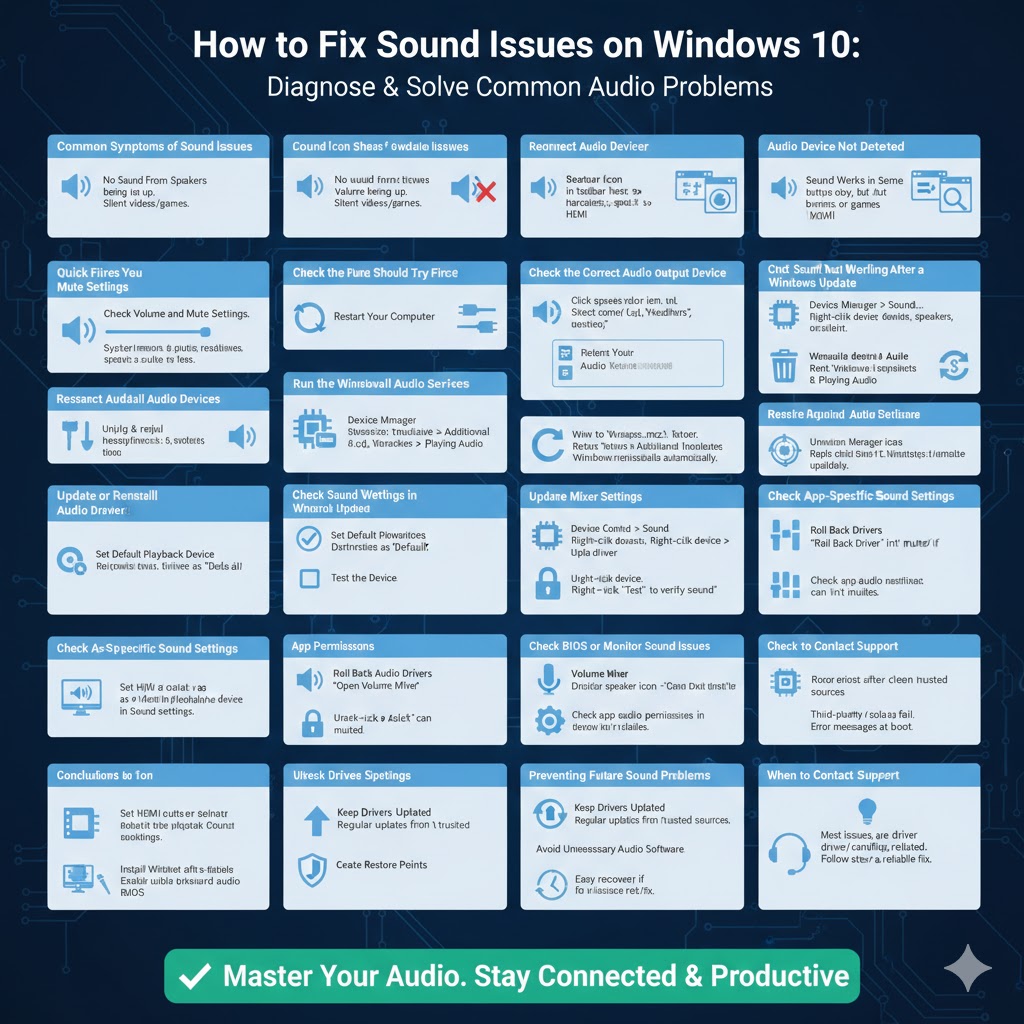
Quick Fixes You Should Try First
Check Volume and Mute Settings
It sounds obvious, but this step solves many cases.
-
Click the speaker icon in the taskbar
-
Ensure the volume is not muted
-
Increase volume to a reasonable level
Also check volume controls inside the app you are using.
Restart Your Computer
A simple restart can clear temporary system glitches that affect audio services.
Reconnect Audio Devices
Unplug and reconnect headphones, speakers, or HDMI cables to ensure a proper connection.
Check the Correct Audio Output Device
Why This Matters
Windows 10 may send sound to the wrong device, especially if you recently connected Bluetooth headphones, a monitor, or a USB audio device.
How to Select the Right Device
-
Click the speaker icon on the taskbar
-
Click the arrow next to the volume slider
-
Select the correct output device
Test the sound after switching devices.
Run the Windows Audio Troubleshooter
Using the Built-In Tool
Windows 10 includes an audio troubleshooter that automatically detects common problems.
Steps to Run It
-
Open Settings
-
Go to Update & Security
-
Select Troubleshoot
-
Click Additional troubleshooters
-
Choose Playing Audio and run the tool
Follow on-screen instructions and apply any suggested fixes.
Restart Windows Audio Services
Why Audio Services Matter
If audio services stop or fail to start properly, sound will not work.
How to Restart Audio Services
-
Press Windows + R, type
services.msc, and press Enter -
Find Windows Audio
-
Right-click and choose Restart
-
Repeat the same steps for Windows Audio Endpoint Builder
Restarting these services often restores sound immediately.
Update or Reinstall Audio Drivers
Outdated or Corrupt Drivers
Audio drivers are a common cause of sound problems after Windows updates.
How to Update Audio Drivers
-
Right-click the Start menu and open Device Manager
-
Expand Sound, video and game controllers
-
Right-click your audio device and choose Update driver
-
Select Search automatically for drivers
Reinstalling the Audio Driver
If updating does not help:
-
Uninstall the audio device from Device Manager
-
Restart your computer
-
Windows will automatically reinstall the driver
Check Sound Settings in Control Panel
Set Default Playback Device
-
Open Control Panel
-
Go to Sound
-
Under the Playback tab, right-click your preferred device
-
Choose Set as Default
Test the Device
Click Test to verify that sound is working correctly.
Disable Audio Enhancements
Why Enhancements Can Cause Issues
Audio enhancements sometimes conflict with drivers or hardware.
How to Turn Them Off
-
Open Sound settings
-
Select your playback device
-
Click Properties
-
Go to the Enhancements tab
-
Check Disable all enhancements
Apply changes and test audio again.
Fix Sound Not Working After a Windows Update
Roll Back Audio Drivers
If sound stopped working after an update:
-
Open Device Manager
-
Right-click your audio device
-
Choose Properties
-
Go to the Driver tab
-
Select Roll Back Driver if available
Check Windows Update Settings
Install optional driver updates if available, as they often contain audio fixes.
Check App-Specific Sound Settings
Volume Mixer Settings
Windows allows per-app volume control.
-
Right-click the speaker icon
-
Select Open Volume Mixer
-
Ensure the app is not muted or set too low
App Permissions
Some apps require microphone or audio permissions enabled in Settings.
Fix HDMI or Monitor Sound Issues
Why HDMI Audio Fails
Windows may default to internal speakers instead of HDMI audio.
Solution
Set the HDMI output device as the default playback device in Sound settings.
Check BIOS and Hardware Issues
When Software Fixes Don’t Work
If none of the above solutions help:
-
Test with another set of speakers or headphones
-
Check audio ports for damage
-
Ensure onboard audio is enabled in BIOS
Hardware failure is rare but possible, especially on older systems.
When to Consider System Restore
Using System Restore
If sound worked previously:
-
Use System Restore to return Windows to a point when audio was functioning
-
This does not affect personal files
Preventing Future Sound Problems
Keep Drivers Updated
Regularly update audio drivers from trusted sources.
Avoid Unnecessary Audio Software
Third-party audio tools can interfere with system sound.
Create Restore Points
This allows easy recovery if sound issues return.
Conclusion
When sound is not working on Windows 10, the issue is usually easier to fix than it seems. From selecting the correct playback device and restarting audio services to updating drivers and adjusting sound settings, most solutions take only a few minutes to apply.